
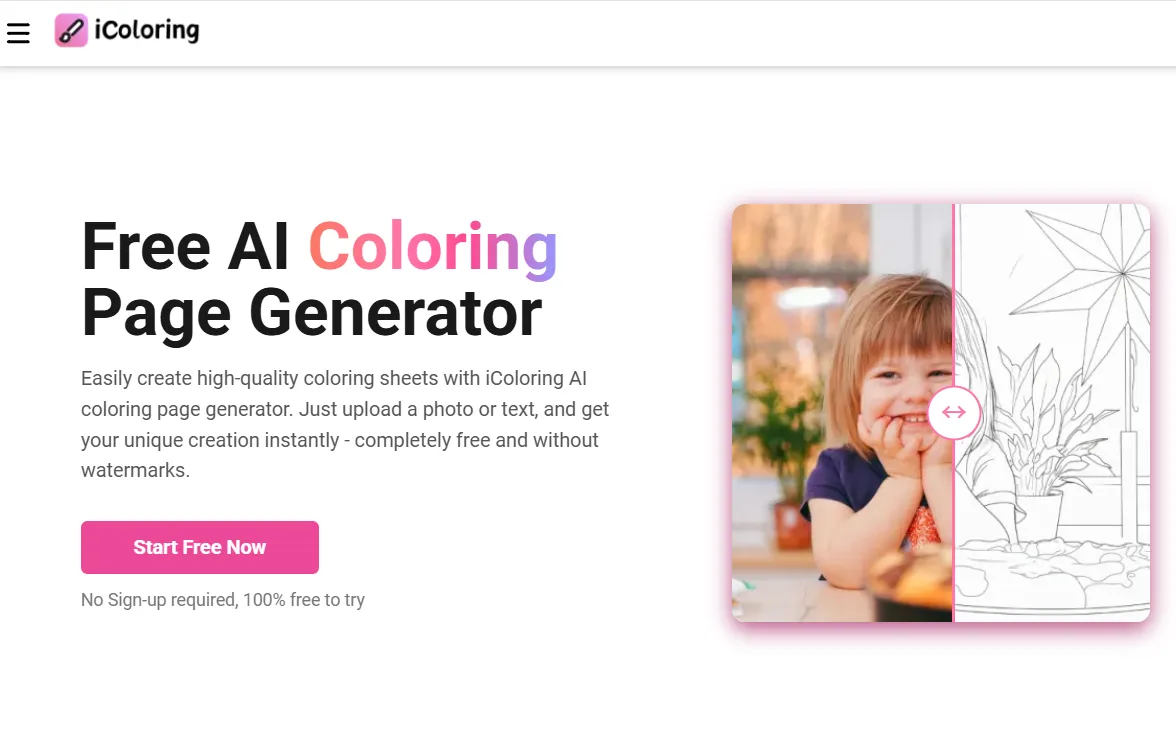
Why Line Drawing Conversion is the Ultimate Creative Shortcut
In the world of digital design, “less” is frequently “more.” While high-definition, 4K photography is impressive, there is a specific elegance found in the simplicity of a line. Line art strips away the distractions of texture and hue, focusing entirely on composition and form. For years, this style was the exclusive domain of professional illustrators. However, with the emergence of the iColoring platform, the ability to generate these designs has moved into the hands of the everyday creator. By mastering the Image to Line Drawing process, you can unlock a new dimension of utility for your photos, turning ordinary snapshots into versatile digital assets.
AI vs. Manual Tracing: Why Switch?
Before the advent of AI, if you wanted to turn a photo into a drawing, you had two choices: trace it by hand on a light box or use the “Pen Tool” in software like Adobe Illustrator. Both methods share a common problem: they are incredibly time-consuming. A complex architectural photo could take five to ten hours to trace manually.
An AI-powered Image to Line Drawing tool changes the game in three specific ways:
- Speed: Conversion happens in seconds, allowing you to experiment with dozens of photos in a single sitting.
- Consistency: The AI maintains a consistent “line weight” throughout the image, something that is very difficult for humans to do perfectly by hand.
- Accuracy: AI can pick up on subtle geometric patterns and perspectives that the human eye might accidentally distort during manual tracing.
By using iColoring, you are essentially hiring a lightning-fast assistant to handle the technical drafting so you can focus on the creative direction.
Optimizing Your Images for Line Extraction
To get the most “pro” look from your conversion, you need to understand how the AI perceives your image. It’s not just about clicking a button; it’s about giving the AI the best possible “map” to follow.
High Contrast is Your Best Friend
The AI looks for the boundary between light and dark. If you have a white dog sitting on a white rug, the AI will struggle. However, a dark dog on a light rug provides a perfect “edge.” If your favorite photo has low contrast, use a basic photo editor to “bump up” the contrast and shadows before you run it through the Image to Line Drawing tool.
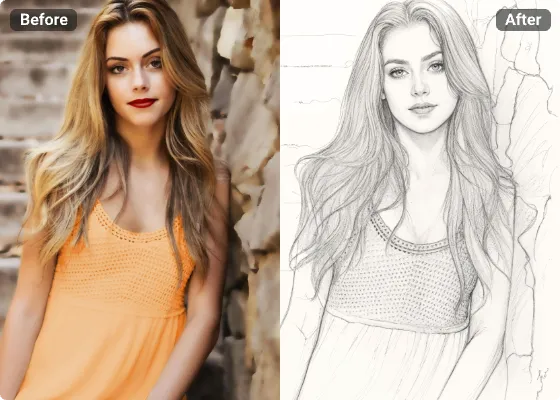
Mind the “Noise”
In photography, “noise” refers to the graininess you see in low-light photos. To an AI, that grain can look like thousands of tiny dots that it might try to turn into lines. For a clean look, use “de-noise” tools or simply ensure you are using photos taken in bright, natural light.
Practical Use Cases for Every User
While many people use these tools for fun, there are significant practical and professional applications for line-converted imagery:
- Technical Manuals and Guides: If you are creating a “How-to” guide, a line drawing is often much clearer than a photo. It removes distracting backgrounds and focuses the reader’s eye on the specific action or part.
- Architectural Visualization: Homeowners and real estate agents can convert photos of houses into line drawings to create “sketches” of potential renovations or to use in marketing materials that feel more “artistic” and less like a standard listing.
- Crafting and DIY: For those who use Cricut or Silhouette cutting machines, line art is the essential file format. Converting a photo into a clean line drawing is the first step in creating custom vinyl decals, t-shirt designs, or wooden engravings.
Customizing the Output
When using iColoring, don’t just settle for the first result. High-end tools allow for “parameter adjustment.”
- Line Density: Do you want every single wrinkle in a shirt to show, or just the outline of the person? Adjusting the density allows you to control the “vibe” of the drawing—from hyper-realistic to abstract.
- Thresholding: This determines what the AI considers “black” versus “white.” Adjusting this can help you “clean up” a drawing that has too many stray marks in the background.
The Future of Personal Expression
As we move further into the age of AI, the definition of an “artist” is changing. Being an artist no longer just means having the steady hand required to draw a straight line; it means having the vision to see the potential in a scene and the knowledge of how to use tools like iColoring to bring that vision to life.
The Image to Line Drawing feature is a bridge between the physical world and the world of graphic design. It allows us to take the complexity of our lives—our families, our homes, our travels—and simplify them into something iconic and beautiful.
Conclusion
Before you finalize your project, always do a “print test.” Sometimes a line drawing looks great on a glowing screen but looks too thin or too thick when printed on paper. If the lines look too faint, go back to the editor and increase the “line weight.” If the details are blurring together, try a “simpler” setting.


Leave a Reply