
How to Pick a Free AI Photo Editor
Finding the right tool to edit your photos can feel overwhelming. You want something powerful enough to make your images look great, but simple enough to use without a steep learning curve. This is where AI-powered editors come in. They offer incredible features that automate complex tasks. Using an AI photo editor online for free can save you time and effort, transforming your pictures with just a few clicks.
But with so many options available, how do you choose the best one for your needs? This guide will walk you through a clear, step-by-step process. You’ll learn how to evaluate different tools, identify key features, and avoid common pitfalls. By the end, you’ll be able to confidently select a free AI photo editor that helps you achieve professional results quickly and easily.
Step-by-Step Guide to Choosing Your Editor
Follow these steps to narrow down your options and find the perfect tool that matches your editing style and goals.
Step 1: Define Your Editing Needs
Before you start looking at tools, you need to know what you want to accomplish. Different AI editors specialize in different tasks. Take a moment to think about the kind of edits you perform most often. This simple first step ensures you don’t waste time with a tool that doesn’t fit your workflow.
Ask yourself a few key questions:
* What is my primary goal? Are you trying to remove unwanted objects, change backgrounds, improve portrait lighting, or just make colors pop?
* What types of photos do I edit? Are they portraits, landscapes, product photos, or social media posts?
* How often will I use it? Do you need a tool for occasional quick fixes or for daily editing tasks?
Creating a simple list of your top three to five editing needs will give you a clear roadmap. For example, your list might look like this: remove background from product photos, erase distracting people from travel pictures, and automatically enhance colors for Instagram.
Step 2: Research Key AI Features
Once you know what you need, you can start exploring the features offered by different online editors. AI has made many previously complex edits incredibly simple. Look for tools that have the specific functions on your list. Understanding what’s possible helps you spot a truly useful editor.
Here are some common AI features to look for:
| Feature | Description | What It’s Good For |
| Object Removal | Erases unwanted people, text, or blemishes from an image seamlessly. | Cleaning up vacation photos, removing photobombers, restoring old pictures. |
| Background Remover | Automatically detects the subject and removes the background, leaving a transparent layer. | Creating professional product images, making profile pictures, and designing graphics. |
| One-Click Enhancer | Instantly adjusts brightness, contrast, color balance, and sharpness with a single click. | Quick fixes for dull photos, improving overall image quality without manual work. |
Not every free tool will have all these features. Prioritize the ones that align with the needs you identified in the first step.
Step 3: Evaluate the User Interface
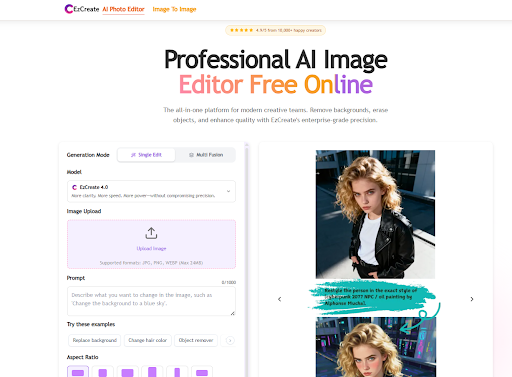
The most powerful tool is useless if you can’t figure out how to use it. A clean, intuitive user interface (UI) is essential for a fast and frustration-free editing experience. The best online editors make their tools easy to find and apply. You shouldn’t have to hunt through confusing menus to perform a simple task.
When testing a tool, pay attention to the layout. Are the main features clearly labeled? Is the workspace uncluttered? Can you easily upload a photo, apply an effect, and see a preview of the changes? A good UI will guide you through the process naturally. Many free tools are supported by ads, so consider how intrusive they are. A few banner ads might be fine, but constant pop-ups can disrupt your workflow.
Step 4: Check Supported File Formats and Export Quality
Compatibility is crucial. Before you get too invested in an editor, make sure it supports the file types you use. Most online tools handle common formats like JPG and PNG without any issues. However, if you work with HEIC files from an iPhone or RAW files from a DSLR, you’ll need to confirm the editor can process them.
Equally important are the export options. Free online tools often have limitations on the resolution or quality of the final image. Check if the tool compresses your photo or adds a watermark upon download. For social media posts, a slightly lower resolution might be acceptable. For printing or professional use, you’ll need to ensure the exported image is high quality.
Step 5: Test the Editor with a Sample Image
The only way to truly know if an editor is right for you is to try it. Don’t just rely on example images from the website. Upload one of your own photos, preferably one that represents the type of editing you typically do. Choose a picture with a clear challenge, like a complex background you want to remove or a poorly lit subject you want to enhance.
Run the image through the tool’s key features. How well does it perform?
* If you use an object remover, is the result clean, or does it leave blurry artifacts?
* If you enhance a photo, do the colors look natural or overly saturated?
* How fast is the processing time?
This hands-on test gives you a real-world feel for the AI’s capabilities and limitations. It’s the most important step in making a final decision.
Tips for Getting the Best Results
Once you’ve chosen an editor, use these best practices to make your photos look their best.
* Start with a High-Quality Photo: An AI can only do so much. The better your starting image, the better the final result will be. A clear, well-lit photo will always yield more impressive edits than a blurry, low-resolution one.
* Use AI as a Starting Point: Let the AI do the heavy lifting, like removing a background or making initial color corrections. Afterward, look for any small imperfections you can fix manually if the tool provides adjustment sliders.
* Don’t Be Afraid to Undo: Sometimes an automatic enhancement can look too strong. Good editors have an undo button for a reason. Don’t hesitate to go back a step and try a different approach if you’re not happy with the result.
* Combine Multiple AI Tools: Create a workflow. You might start with the one-click enhancer to fix the lighting, then use the object remover to clean up distractions, and finish by cropping the image for better composition.
Common Mistakes to Avoid
Steer clear of these common errors to ensure your editing process is smooth and effective.
Mistake 1: Over-Editing Your Photos
It’s easy to get carried away with sliders and filters. Pushing saturation, contrast, or sharpness to the maximum can make a photo look artificial and harsh. The goal of good editing is to enhance the image, not overpower it. Aim for natural-looking results that highlight the best parts of your original photo.
Mistake 2: Ignoring the Watermark Policy
Many free tools add a watermark to your downloaded images. This might be a small logo in the corner or a more prominent overlay. Always check the export preview before you spend a lot of time editing. If a watermark is a dealbreaker, you’ll need to find a tool that offers watermark-free downloads.
Mistake 3: Forgetting to Check the Privacy Policy
When you upload a photo to an online service, you are giving them your data. Take a minute to review the tool’s privacy policy. Find out how your images are stored, who can access them, and if they are used for training AI models. Choose a service with a transparent policy that you are comfortable with.
Mistake 4: Relying Only on Automatic Adjustments
One-click enhancers are fantastic time-savers, but they don’t always get it perfect. The AI doesn’t understand the mood or context of your photo. After applying an automatic fix, review the image critically. You may need to make small manual tweaks to the brightness or color balance to achieve your desired look.
Conclusion
Choosing the right free AI photo editor comes down to understanding your own needs and carefully evaluating your options. By defining your goals, exploring key features, and testing the user interface, you can find a tool that makes photo editing fast, easy, and even enjoyable. Remember to check the technical details like file formats and export quality to ensure the editor fits your workflow.
The perfect tool is out there. It’s the one that helps you bring your creative vision to life without requiring a huge budget or hours of training. Follow this guide, and you’ll be well on your way to creating stunning images with the power of AI.


Leave a Reply