
Veo Watermark Remover: How to Remove Watermarks from Veo Videos Easily
Videos generated by Google Veo look incredibly realistic, but many users have noticed that generated videos now include visible VEO watermarks. Even paid Ultra subscribers and users generating content through Google Flow have reported seeing these watermarks appear in exported videos.
As a result, more creators are searching for a reliable Veo Watermark Remover that can remove watermarks without damaging video quality.
What Is a Veo Watermark?
A Veo watermark is a visible logo added to AI-generated videos created with Google Veo. It usually appears in the corner of the video to indicate that the content was generated using AI.
For casual viewing, this may not matter much. But for creators, marketers, and editors, the watermark can become distracting in situations like:
- video editing
- social media uploads
- advertising content
- business presentations
- reposting and content repurposing
Many users have also noticed that Veo watermarks are appearing more frequently than before. Previously, some users with premium subscriptions or Flow workflows could occasionally export videos without obvious branding. Now, the “VEO” logo appears much more consistently across generated videos.
For creators who want clean-looking footage, this has created a growing demand for watermark removal tools.
Veo Videos Also Contain Hidden SynthID Watermarks
Besides the visible VEO logo, Veo videos may also include a hidden watermarking technology called SynthID.
Unlike a traditional overlay logo, SynthID is embedded directly into the pixel structure of the video itself, making it much harder to fully remove.
Traditional editing methods may hide the visible watermark, but they usually cannot completely erase hidden SynthID markers.
Common Methods for Removing Visible Veo Watermarks
- Cropping the Video
The simplest method is cropping out the area containing the watermark.
To avoid cutting off the subject, some users first expand the background or add borders before cropping.
However, this method changes the original framing and composition of the video.
- Using Masks and Overlays
Another common approach is manually covering the watermark inside editing software.
Typical methods include:
- copying nearby areas to cover the logo
- adding soft-edge rectangle masks
- using offset or seamless fill effects
This can work for simple scenes, but it becomes time-consuming for moving footage.
- Adding Noise, Denoising, and AI Upscaling
Some users experiment with more advanced workflows such as:
- adding heavy noise
- applying denoise filters
- using AI upscaling afterward
In some cases, this may interfere with watermark detection systems, but the results are inconsistent and video quality can suffer.
- Covering the Watermark with Your Own Logo
Some creators simply place their own logo or text over the watermark area.
This method is:
- easy to apply
- non-destructive
- suitable for fast publishing
However, it still cannot remove hidden SynthID watermarks.
Why AI Veo Watermark Removers Work Better
Traditional manual editing methods often leave blurry patches or visible repair marks behind.
AI-powered watermark removal tools can analyze nearby pixels and surrounding frames to reconstruct the hidden area more naturally.
Compared to simply blurring the logo, AI reconstruction usually produces cleaner and more realistic results.
This is especially useful for:
- moving backgrounds
- faces
- complex textures
- cinematic footage
The Easiest Way to Remove Veo Watermarks
One of the most convenient solutions today is using an online AI Veo Watermark Remover.
Tools like AIAI Veo Watermark Remover can automatically detect and remove visible Veo watermarks without requiring professional editing experience.
Why Choose an AI Veo Watermark Remover?
Not all watermark removal tools work well with AI-generated videos.
Some tools simply blur the logo area, which can make the final result look messy or unnatural. The AIAI Veo Watermark Remover uses AI reconstruction technology to restore the covered area more naturally while preserving video quality as much as possible.
Some of its features include:
- AI-Powered Watermark Removal — Automatically detects Veo watermarks and some SynthID artifacts while maintaining video clarity
- Fast Online Processing — No complicated software installation required
- Privacy Protection — Uploaded videos are automatically deleted after processing
How to Use AIAI to Remove Veo Watermarks
Using AIAI only takes a few simple steps.
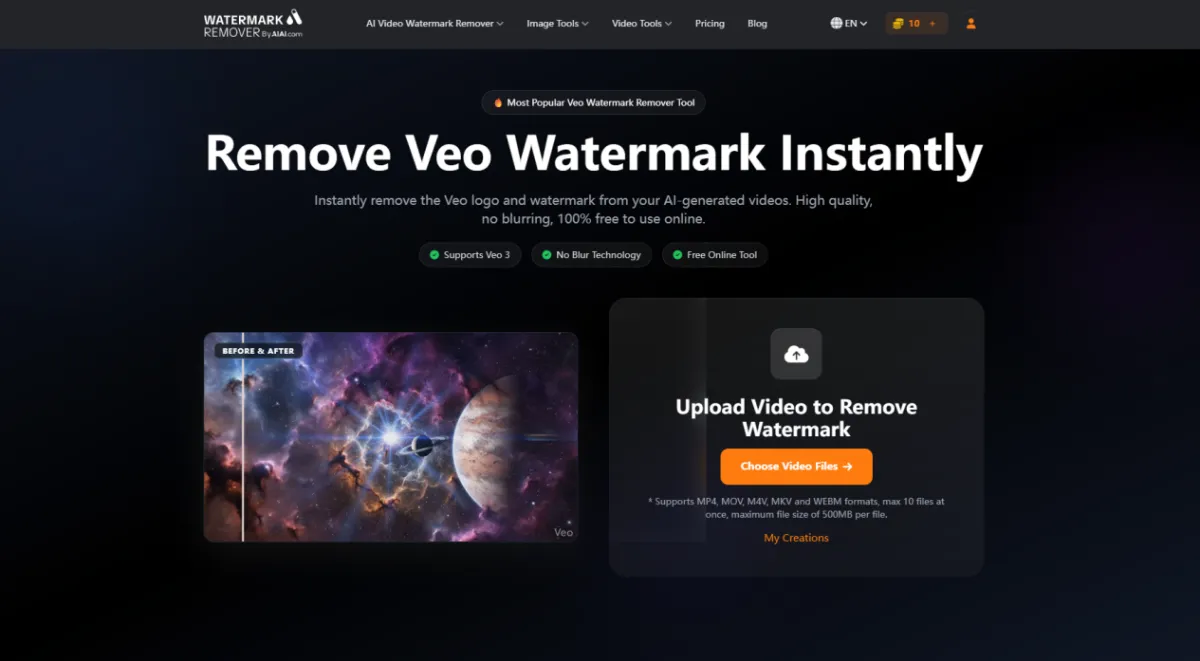
Step 1: Upload Your Video
Upload the Veo-generated video containing the watermark.
Step 2: AI Automatically Detects and Removes the Watermark
The AI analyzes the watermark area and reconstructs nearby visual details naturally.
Step 3: Download the Final Video
Preview the processed result and download the watermark-free version.
Benefits of Using a Veo Watermark Remover
Using a professional Veo Watermark Remover can help you:
- save editing time
- preserve video quality
- avoid frame-by-frame manual editing
- create cleaner social media content
- improve the professional appearance of videos
For creators who regularly work with AI-generated videos, this can significantly improve workflow efficiency.
Frequently Asked Questions
Can You Remove Veo Watermarks Online?
Yes. Many online tools allow users to upload videos directly in the browser without installing editing software.
Does Removing Watermarks Affect Video Quality?
It depends on the method used. Cropping and manual masking can affect framing or quality, while AI tools are designed to preserve the original appearance as much as possible.
Final Thoughts
As visible Veo watermarks become increasingly common, more creators are looking for efficient AI video watermark removal solutions.
While traditional methods like cropping and masking can still work in some situations, AI tools provide a much faster and more convenient workflow.
If you want a quicker way to clean up AI-generated videos, AIAI Veo Watermark Remover is a simple and effective option that helps remove visible Veo watermarks while preserving video quality naturally.


Leave a Reply