
How to Format SD Card on Windows, Mac, and Cameras Without Losing Data
SD cards are commonly found in digital camera, smart phones, and drones, and on portable video games. Eventually, however, an SD card can grow slow, corrupts or become unreadable because of file system problems, wrong removal or incompatibility. At that point, formatting is frequently the easiest and most efficient remedy.
Here is a guide on how to format SD card safely, the right way to do it on Windows, Mac, Android phones and on digital cameras. But, it doesn’t just cover that – it also includes the steps you take to safeguard your files before you format, so you don’t lose precious photos, videos or documents.
Understanding SD Card Formatting and Its Purpose
Formatting an SD card will erase all data and make it ready for new data to be stored. Formatting takes place by destroying the file system structure and thus enables the storage device to work more efficiently than if it were used to store individual files.
There are two types of formatting that occur:
- Quick Format: Clears the file index, but does not erase the data until it is overwritten.
- Full Format: Scans for bad sectors and performs a full rebuild of the file system, which will take longer, but will give a more thorough clean up.
Formatting is usually performed for the purpose of improvement, removal of hidden file system errors and compatibility with cameras, Android phones, Windows PCs, Mac and other devices.
Why Users Need to Format an SD Card
When users face some annoying storage issues, they look up how to format SD card. Fortunately, most of these problems are not hardware damage, but are related to the file system.
Some of the most common situations include:
- SD card is damaged or corrupted.
- When you attempt to open the card, the camera will show “Card Error” or “Unsupported Format.
- Android device can’t detect SD card.
- Files disappear unexpectedly.
- The card could alternate between several devices and experiences compatibility problems.
- SD card is put into RAW or unusable mode.
In a lot of instances, formatting will bring back standard performance.
Protect Your Data Before Formatting
It is important to back up important files prior to formatting any SD card. After formatting, data recovery of files that have been overwritten is significantly more challenging.
Before you format, it is best to try and recover the data if they’re already lost or your SD card is inaccessible. A safe and sure method is 4DDiG Data Recovery that recovers lost or inaccessible data on damaged or formatted SD card.
Learn more at the following: 4DDiG Data Recovery.
It has a good number of particular functions which include:
- Recover data from SD Card, Memory Stick, xD card, USB memory stick and more.
- Saves more than 2,000 different file types such as photos, videos, documents, audio files and archives.
- Recoveres the data stored on formatted SD cards, corrupted SD cards, inaccessible SD cards and RAW SD cards.
- Fits cameras from Canon, Nikon, Sony, Panasonic, GoPro and Fujifilm.
- Look at files that are going to be recovered before restoring them.
- Directly save recovered files to Google Drive or OneDrive.
Recover Files Before Formatting in Three Simple Steps
Step 1: Insert the SD card into computer and open 4DDiG Data Recovery. Tap on SD card and start scanning.
Step 2: After the scan is complete, view the photos, videos and documents that are recoverable.
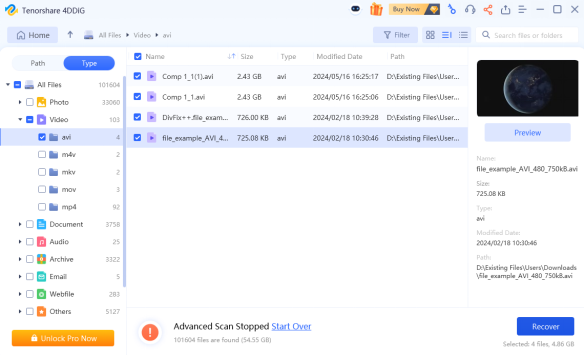
Step 3: Recover the selected files and save them to another storage place, which is not the same SD card.
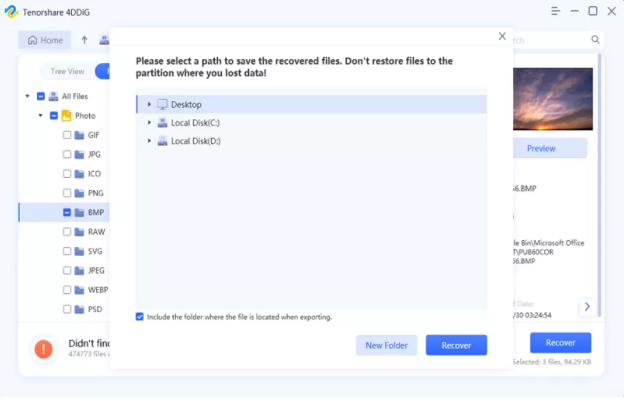
This measure is to avoid losing data for good during formatting.
How to Format SD Card Safely
After important files have been backed up or recovered, the SD card can be safely formatted by one of the following methods:
If you are using Windows, you can format by using the File Explorer.
Fix 1: Format using File Explorer (Windows)
Most people will find this to be the quickest method.
- Put SD card into the computer.
- Open File Explorer.
- Right-click on SD card.
- Select Format.
- Choose the appropriate file system:
- For older devices and smaller cards, use FAT32.
- The exFAT is used on SDXC cards and large storage capacities.
- Click Start.
- Wait until formatting is finished.
- It is the simplest SD card formatting method for Windows 10 and is used day-to-day without any issue.
Use the Windows Disk Management utility to format.
Fix 2: Format Using Windows Disk Management
If File Explorer is unable to format the card, then Disk Management provides additional control.
- Click on Windows + X and select Disk Management.
- Find SD card.
- If necessary, delete the existing partition.
- Make a new Simple Volume.
- Choose the desired file system.
- Complete the formatting wizard.
It is a great way to use this method in case of corrupted or improperly partitioned SD Card.
Fix 3: Format on a Digital Camera or Android Device
Lots of manufacturers suggest formatting the SD card straight from the tool that will be used.
For cameras:
- Insert the SD card.
- Tap the camera’s Settings menu.
- Go to Format Card.
- Confirm the operation.
For Android devices:
- Insert the SD card.
- Open Settings.
- Go to Storage.
- Select the SD card.
- Tap Format SD Card.
- Confirm the process.
The recommended method to reformat SD card for camera and android devices, which should be followed to ensure the best compatibility.
Best Free and Safe SD Card Formatting Tools
While there are built-in formatting tools in Windows and macOS, there are several users who prefer powerful formatting software to perform advanced formatting processes.
Here are some of the most popular SD card formatting software that are free and safe:
- Windows File Explorer
- Windows Disk Management
- macOS Disk Utility
- SD Memory Card Formatter by SD Association.
These tools can regenerate the file system safely while keeping the compatibility issues to a minimum among various devices.
Best Practices After Formatting
There are several simple rules that can help prolong the life of your SD card.
- Ensure to remove the SD card safely at all times.
- Don’t constantly move the card from device to device.
- Always use the right file system for your camera or smartphone.
- Regularly back up important files.
- Where possible, format the card inside the device that it will be used with most often.
- Change old SD cards that tend to become corrupt.
With proper maintenance, future errors can be avoided and the reliability can be enhanced.
Final Words
Proper formatting of SD card can solve many common storage problems such as corruption, incompatibility and unreadable files. Proper formatting process, regardless of whether you’re on Windows, Mac, Android or a digital camera, helps get the card back to optimum working order.
But data protection always should be the top priority. In the event that the important files become inaccessible before formatting, then the appropriate solution will be to restore the files with the help of a trusted and reliable solution like 4DDiG Data Recovery to avoid the permanent loss of data. A recovery-first mindset and safe formatting procedures can help maintain the reliability, efficiency, and utility of your SD card for everyday use.


Leave a Reply