

Remote Team Communication Workflow for Desktop and Mobile Collaboration
A remote team communication workflow usually spans email, instant messaging, project management software, cloud storage, video meetings, and mobile notifications. Each channel may be useful, but without clear rules the overall system becomes difficult to search, secure, and maintain.
The same update may be repeated across several channels. Important files remain buried inside old conversations, team members receive duplicate desktop and mobile alerts, and critical decisions become difficult to find later. Accounts may also stay active on personal computers, shared devices, or phones that are no longer in use.
A reliable remote team communication workflow is not just a matter of choosing a messaging application. Teams need to define how each channel is used, where files are stored, who can manage groups, how decisions become trackable tasks, and how account access is reviewed.
The most effective workflow combines appropriate tools, clear policies, and continuous management of files, notifications, permissions, and active sessions. These controls are particularly valuable for cross-border teams working between Hong Kong, Taiwan, and other locations.
Assign a Clear Purpose to Every Communication Channel
Remote teams should decide what each communication channel is responsible for before discussing individual software features.
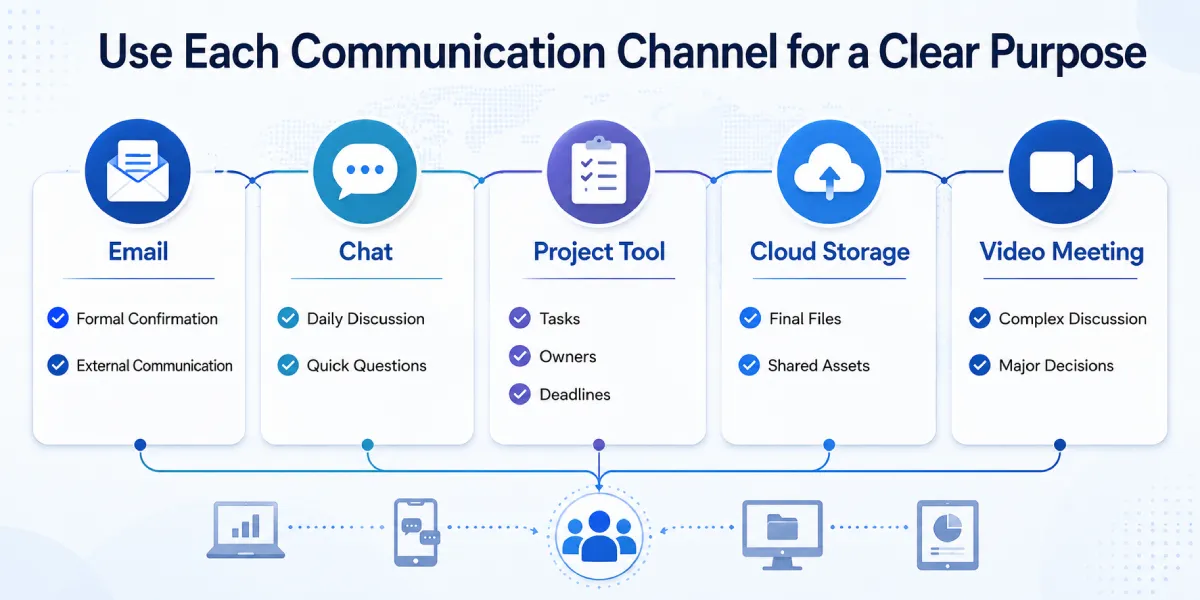
A practical structure may look like this:
| Channel | Primary purpose |
| Formal confirmations and external communication | |
| Messaging app | Daily discussion and quick questions |
| Project tool | Tasks, owners, deadlines, and status tracking |
| Cloud storage | Final files and shared project assets |
| Video meeting | Complex discussions and major decisions |
This separation reduces duplication and makes information easier to retrieve.
Email is useful when a formal record is required, particularly for contracts, approvals, invoices, and communication with external partners. Messaging apps are more suitable for short questions, daily coordination, and quick updates that do not require a long formal response.
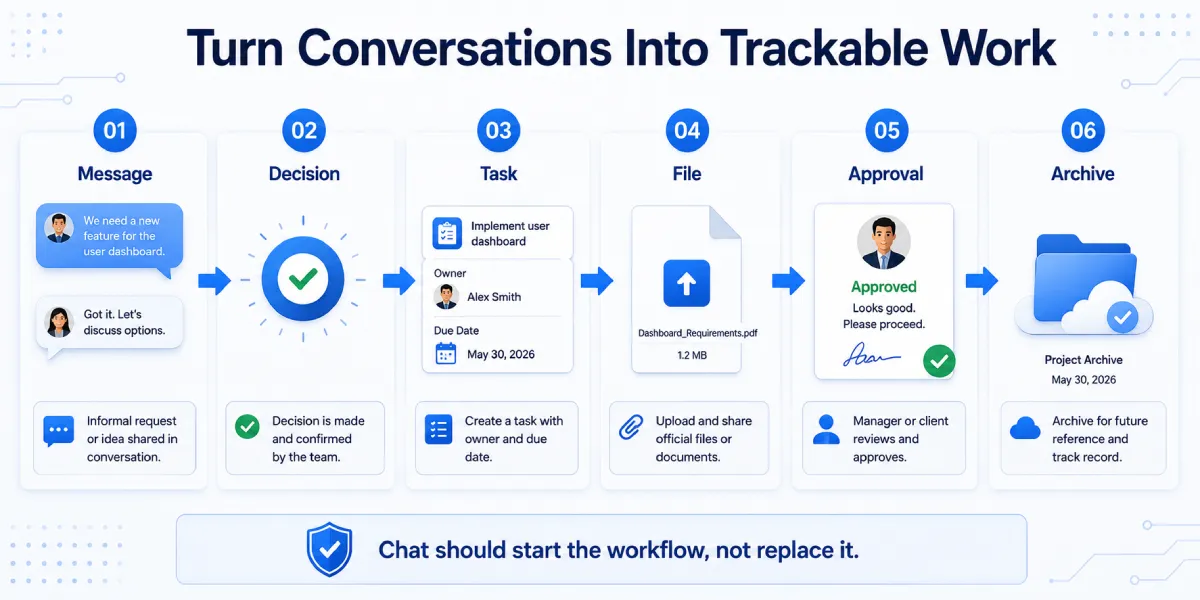
Project management tools should contain tasks that require an owner, deadline, or status. A message such as “Please update the homepage” may be discussed in chat, but the final task should be recorded in the project system.
Cloud storage should contain approved files and long-term records. Chat attachments may be convenient for immediate review, but they should not become the permanent file archive.
Video meetings are useful when a topic is too complex for several short messages. However, decisions made during a call should still be documented afterward.
The main goal is to avoid using one large chat group for every conversation, file, decision, and task.
Choose and Verify the Desktop Messaging Application
Desktop messaging can improve remote work because it allows users to type more quickly, manage multiple conversations, open files, and compare project information across several windows.
Before installing any desktop communication app, users should check:
- The download source
- Supported operating systems
- Current version
- Update date
- Installer format
- Required permissions
- Desktop and mobile synchronization
- Account security controls
Before completing a potato下载, users should review the source, supported operating system, version information, installation requirements, and account security options.
Teams should also decide whether employees may install communication software on personal devices. Personal computers can improve flexibility, but they may create risks when company files, login sessions, and customer information remain stored outside managed systems.
The desktop version should support the team’s existing workflow rather than creating a separate information environment. Messages, group membership, and account settings should remain consistent enough that users can move between desktop and mobile devices without losing context.
Update management is another important consideration. Older desktop clients may contain unresolved compatibility or security issues. Teams should establish a process for checking application versions and installing updates without disrupting active work.
Organize Team Groups by Purpose and Access Level
A communication platform becomes difficult to manage when every employee is placed into one large group.
Groups should be created around specific purposes, such as:
- Company Announcements
- Project Team
- Client Communication
- File Review
- Social Discussion
- Emergency Contact
A company announcement group should normally contain official updates and limited discussion. Project groups should focus on active work, responsibilities, and decisions related to a defined project.
Client communication groups require tighter permission controls. Team members should know who may add external participants, share files, or discuss sensitive information.
A file review group may be useful when documents, images, or designs need quick comments. However, approved files should later be transferred to the official project storage location.
Social groups can support team culture, but they should remain separate from urgent operational communication.
Teams should avoid three common mistakes:
- Using one group for every topic
- Giving every member administrator permissions
- Keeping project groups active permanently after the work ends
Each group should have an owner who is responsible for membership, naming, permissions, and eventual archiving.
Support Cross-Border Teams in Hong Kong and Taiwan
Teams working across Hong Kong, Taiwan, and other markets should document language, working-hour, and escalation expectations. A message that is clear in one office may be ambiguous when translated informally or sent outside the recipient local schedule.
Group names and pinned guidance can identify the working language, project market, response window, and owner. Where both English and Traditional Chinese are used, important decisions should be summarized in the formal task or document system instead of being split across parallel chat threads.
Cross-border teams should also define how phone numbers, dates, deadlines, and public holidays are written. Using explicit dates, time zones, and responsible owners reduces avoidable delays when clients, contractors, and internal staff work from different locations.
Control Desktop and Mobile Notifications
Notifications help remote teams respond quickly, but excessive alerts reduce concentration and may cause important messages to be ignored.
A good notification management system should separate urgent communication from routine updates.
Separate Urgent and Non-Urgent Messages
Teams can use:
- Keyword alerts
- Mentions
- Muted groups
- Working-hour schedules
- Priority contacts
- Emergency channels
A mention should be used when a specific person needs to act, not simply to increase visibility. Repeatedly mentioning everyone can make the feature ineffective.
Routine groups can be muted while still allowing alerts for direct mentions. Announcement groups may remain active because they contain important company information.
Teams should also define what counts as urgent. Without a shared definition, employees may treat every request as an emergency.
A genuine urgent message may involve:
- A production website outage
- A security incident
- A payment or access problem
- A client issue requiring an immediate response
- A deadline that cannot be moved
Normal feedback, noncritical edits, and general discussion should not use emergency channels.
Prevent Duplicate Desktop and Mobile Alerts
Cross-device messaging often creates duplicate notifications. A user may receive the same message on a laptop, phone, tablet, and browser.
Teams can reduce duplication by:
- Disabling selected mobile alerts while the desktop app is active
- Muting routine groups outside working hours
- Using different notification settings for separate projects
- Limiting sound alerts to direct messages or mentions
- Reviewing notification preferences regularly
The objective is not to eliminate alerts. It is to make each alert meaningful.
Manage Chat Downloads and Project Files
Desktop conversations often contain:
- Images
- PDF documents
- Word files
- Spreadsheets
- Installation files
- Compressed archives
- Videos
- Client assets
These files can quickly accumulate in a default downloads folder. Over time, users may have several copies of the same document without knowing which one is current.
Teams should establish a fixed local download directory and organize files by project or client. Temporary files can remain in the messaging download folder during active review, but important documents should be moved into the official storage system.
Teams evaluating a potato 电脑版下载 should also decide how desktop notifications, downloaded files, active sessions, and local storage will be managed on work devices.
The chat download directory should not be treated as long-term storage. Messages may be deleted, accounts may be closed, and local devices may fail.
A practical file workflow is:
- Receive the file in chat.
- Review it for relevance and safety.
- Rename it using the agreed file convention.
- Move it to the project folder.
- Upload the approved version to cloud storage.
- Delete unnecessary duplicates.
- Clear old cache files periodically.
Installation files and compressed archives require additional caution. Employees should verify the sender and file type before opening them, especially when the file was not expected.
Protect Accounts, Devices, and Active Sessions
Remote communication systems often contain project details, customer information, internal documents, and access links. Account security should therefore be part of the communication workflow.
Important controls include:
- Screen locks
- Strong device passwords
- Two-step verification
- Active session review
- Shared-device restrictions
- Lost-device procedures
- Employee offboarding
- Administrator permission management
Employees should not leave desktop messaging applications open on public or shared computers. Where temporary access is unavoidable, users should sign out fully and remove downloaded files afterward.
Active sessions should be reviewed regularly. An old laptop, previous phone, browser session, or temporary device may remain connected long after it is needed.
When an employee leaves the company, administrators should:
- Remove the person from internal groups
- Revoke administrative permissions
- Transfer group ownership where necessary
- Review shared files
- Close or disconnect work sessions
- Change shared credentials
- Document the completion of access removal
Lost devices require a clear response process. The employee should report the loss immediately, terminate the active session, and change relevant credentials.
Administrator rights should be limited to the smallest practical group. Not every member needs permission to add users, delete messages, change group information, or manage invitations.
Document a Remote Team Communication Policy
A written team chat policy makes expectations clear and reduces inconsistent behavior.
The policy should explain:
- Expected response times
- The definition of urgent communication
- Working hours
- Files that must not be sent through chat
- Who may create groups
- Who may invite external participants
- Group naming rules
- Archiving and deletion procedures
- Account security responsibilities
- How formal decisions are recorded
Response expectations should reflect the channel. A direct message may require a faster response than a general project group, while email may be used for matters that do not need immediate attention.
The policy should also identify restricted information. Passwords, financial records, identity documents, private customer data, and confidential contracts may require approved secure systems rather than ordinary chat attachments.
Group names should make their purpose clear. A consistent structure might include the client, project, and function:
Client_Project_Content
Client_Project_Development
Company_Announcements
A documented policy is particularly valuable for new employees and external contractors because it explains the workflow without requiring informal instruction from several team members.
Review and Archive the Workflow Every Quarter
Communication systems gradually become disorganized unless they are reviewed.
Every quarter, teams should check:
- Whether duplicate groups exist
- Whether former employees remain members
- Whether inactive administrators still have access
- Whether users are running outdated clients
- Whether files are scattered across chat and local devices
- Whether notification rules are still useful
- Whether old active sessions remain connected
- Whether completed projects should be archived
The review does not need to be complicated. A short checklist can identify most common problems.
Project managers can confirm which groups are still active. Administrators can review memberships and permissions. Individual employees can clean local downloads and disconnect devices they no longer use.
The team should also review whether important decisions are being transferred from chat into the project management or documentation system. If the same questions continue to appear, the communication policy or help documentation may need improvement.
Frequently Asked Questions About Remote Team Communication Workflows
What should remain in chat and what should move to a project tool?
Use chat for quick coordination and short questions. Move any decision, task, owner, deadline, approval, or final file reference into the project management or documentation system so it can be tracked later.
How can teams reduce duplicate desktop and mobile notifications?
Mute routine groups, reserve sound alerts for direct messages or mentions, define working hours, and review device-specific notification settings. The goal is to make urgent alerts distinct rather than eliminate notifications.
What should Hong Kong and Taiwan teams document for cross-border work?
Record the working language, time zone, response expectations, date format, escalation path, file-storage location, and owner for each group or project. Summarize important bilingual decisions in one formal record.
Conclusion: Turn Conversations Into Trackable Work
A reliable remote team communication workflow depends on three elements: suitable tools, clear operating rules, and continuous account, notification, and file management.
Messaging applications support fast collaboration, but they should not replace project tracking, cloud storage, formal approvals, or security procedures. Teams need to define each channel, organize groups by function, control cross-device notifications, and move important files into managed storage.
Account access, administrator permissions, active sessions, personal devices, and employee offboarding also require regular attention.
When communication tools are supported by a documented policy and quarterly reviews, remote teams can reduce repeated messages, missing files, notification overload, and unnecessary security risks. The result is a communication environment that remains useful as projects, devices, languages, and team membership change.


Leave a Reply