
How to Turn Product FAQs Into Short Videos for WooCommerce Pages
A shopper opens a product page and finds the question, “How would this pendant light look above a small dining table?” A written answer describes the style, but the buyer still has to imagine it. The challenge is making a visual example useful without inventing dimensions, installation details, or features the store cannot verify.
Stores already have customer questions, approved photos, and room-setting images. The missing step is converting one question into a visual explanation. A reference-led video workspace such as Seedance 2.5 can support that creative stage with text and image inputs. The store team still needs to choose the right question, check the depicted product, and present the video alongside an accurate written answer.
Choose a Question That Motion Can Answer
Review customer support enquiries, product reviews, and site searches. Sort them by what a video could reasonably show. Questions about a finish under light or a decorative item in a room suit visual concepts. Questions about weight limits, safety, electrical installation, or exact physical operation demand verified specifications or real demonstrations.
Pick one question per clip. Unrelated concerns make the video harder to understand and assess. Write the intended answer as a single sentence before producing anything. For the pendant-light example: “Here is one possible visual arrangement above a compact dining table.” That wording offers context without implying an accurate scale model or installation guide.
Turn the Answer Into Three Visual Beats
Begin with a simple storyboard instead of a long descriptive prompt. Establish the setting, reveal one relevant detail, and finish on a readable composition. A 30-second planning window provides room for these beats, although the final product-page edit may be much shorter. Specify the subject, camera direction, and purpose of each beat before considering visual effects.
Establish the Setting
In the first beat, show the light above an uncluttered dining table with enough space to understand the room. Keep the fixture’s color and silhouette close to approved reference images. Do not imply that camera perspective verifies safe installation height or exact dimensions.
Reveal the Relevant Detail
The middle beat might move from a wider view to the shade’s surface and reflected light. This addresses a visual styling question. Avoid fictional switches, assembly steps, or changes to the lamp’s material. For installation or functional questions, use a filmed demonstration verified by a qualified person.
Finish With a Useful Comparison
For the final beat, return to a stable room view showing the overall look. If the store has approved photographs of two available finishes, create separate, clearly identified examples instead of implying an imaginary finish is sold. The clip should clarify a choice, not create a new variant.
Prepare References Before Generating Video
Gather a clean product image, authorized alternate angles, and a room photograph if the store has usage rights. Label which image defines the product and which defines the environment. A room reference cannot prove the fixture’s dimensions. Resolve contradictions between catalog images and the listing before generation.
Record the source, approval date, and permitted use for every reference. A customer photograph submitted with a review may not be cleared for advertising, and a lifestyle image may restrict adaptations. Use owned or licensed materials, obtain permission for recognizable people, and keep original files available for reviewers. This small record prevents a creative experiment from introducing an avoidable rights problem.
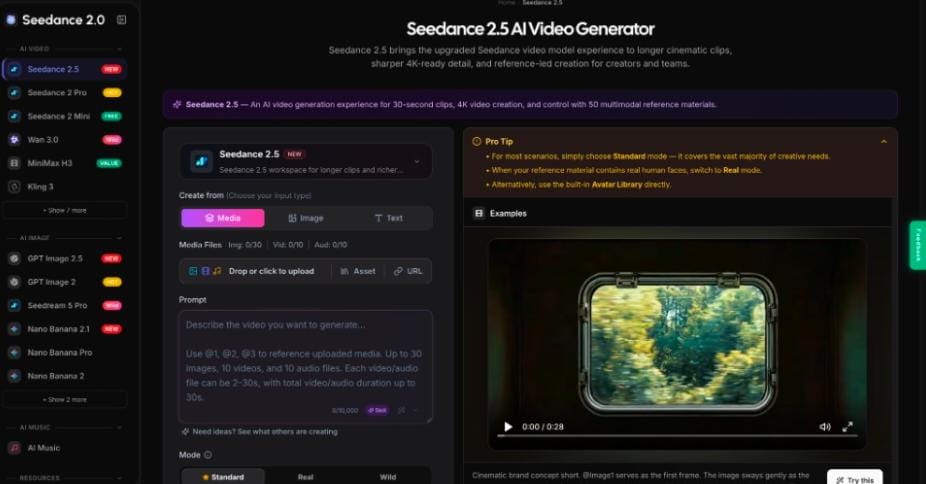
During the generation step, a creator can open Seedance, choose the image or media input, add the approved references, and write a prompt describing the three beats. Its page lists support for up to 30-second clips and multiple image, video, and audio references. For this task, use only the assets needed to control appearance and movement. Review the output against the catalog photographs before it reaches the website.
One prompt could request a gentle push-in toward a pendant fixture, followed by slow side movement and a steady closing composition. Require the fixture’s shape to remain unchanged without new controls or labels. Generate a limited test, note what drifted, and revise that reference or shot. Extra adjectives will not reliably correct inaccurate details.
Place the Clip Beside the Written Answer
In WooCommerce, the video should support the FAQ rather than replace it. Keep the question and factual answer as page text visible when video is unavailable. Position the clip near that explanation using theme blocks or a suitable media component. Product options, measurements, price, and purchase controls must remain easy to find without watching.
Test on narrow screens. A tall crop might cut off the pendant shade or hide the table providing context. If cropping loses the scene’s point, prepare another composition or a poster image. Put important wording in accessible HTML near the player, with captions when speech conveys information.
Export a web-appropriate version from an editor and test playback in the actual template. A high-resolution source helps editing, but the largest file rarely suits a storefront. Provide playback controls, respect reduced-motion preferences, and ensure a static fallback communicates the answer.
Check Whether the Video Actually Helps
Before publishing, compare the clip with the product record. Verify shape, finish, available variants, and visible claims. Ask someone unfamiliar with production what question the video answers. If they infer a feature the store does not offer, revise the visual or explanation before launch.
After release, review support enquiries and page interactions alongside store metrics. More plays alone do not show better understanding. Look for fewer repeated questions, clearer product-option selections, or shopper feedback. Compare these signals with a baseline while accounting for traffic and promotions.
Make Each Video Earn Its Place
A useful FAQ video begins with one question and ends with a more informed shopper. Choose questions suited to visual explanation, build a small reference set, storyboard a clear sequence, and keep factual product details anchored in verified material. Place the finished clip beside—not instead of—the written answer, then test how it works on real devices.
The method also helps decide when video is unnecessary. If a size chart, installation document, or clear photograph answers the question more accurately, use that resource. Reserve generated scenes for visual context they can honestly provide. That restraint makes a WooCommerce product page easier to understand without asking motion to prove more than it can.


Leave a Reply