
How to Create a Website Welcome Video with Live Face Swap
Your website has a fictional host, and you want visitors to meet that character in a short welcome video. You already know the greeting and how it should feel: a reassuring smile, a pause, perhaps a small nod. The challenge is giving the character your performance while producing a clip that fits the page.
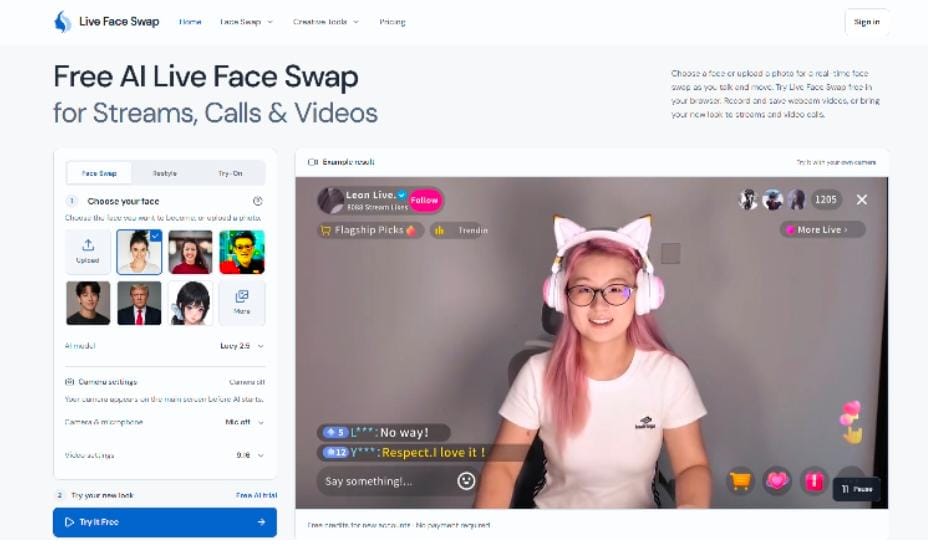
You can record a website welcome video with Live Face Swap by choosing a reference face and acting the greeting into your webcam. The reference guides the character’s appearance, while your camera provides expressions and movement. Watch the transformed preview as you speak, adjust the delivery, and record the version you want to keep.
The same workspace holds your takes, trim controls, audio timing adjustments, and frame capture. You can choose the delivery, remove the opening pause, and save a matching still before handing the files to your website designer. Basic finishing stays alongside the recording, with no file transfer needed just to make that first cut.
Check that your character’s movements fit the page
A portrait that works beside a headline may need a different composition when it starts moving. A nod, a turn, or a hand gesture can change how much space the character occupies. Live Face Swap lets you watch the transformed camera view while performing, so you can judge those movements before recording.
Choose landscape 16:9 or portrait 9:16 before starting AI. A wide introduction section may suit landscape, while a narrow character panel may call for portrait. The selected frame becomes part of the recording. Check the crop with the actual gesture you intend to use, rather than judging only a motionless face.
This gives the page layout a role in the creative process. If your design needs both orientations, plan a separate take for each. You can adjust your position for the available space instead of expecting one exported clip to fit every placement automatically.
Choose and finish your welcome in one workspace
A website welcome needs to match the tone of the page. A playful greeting might suit a creative community; a calmer delivery may fit a portfolio introduction. Live Face Swap keeps recorded attempts as separate clips, allowing you to review alternatives after ending the AI session and choose the one that suits the surrounding copy.
Once you have chosen, the clip editor lets you shorten the recording at the beginning and end. Remove the pause before you speak or the moment you reach for the recording control. You can preview the selection and retain the full take while deciding where the introduction should start.
For a spoken welcome, enable microphone recording during setup. The audio timing control can shift the recorded voice earlier or later when it consistently leads or follows the picture. Your voice remains your own. The adjustment changes sound timing; it cannot correct an unsuitable facial expression or generated mouth movement.
Get a video and a matching image from one take
After editing, prepare and download an MP4 where the browser and device support export. If you want the entire transformed take, the original download preserves its existing MP4 or WebM format. Keeping that original also gives you a file to take into another editor if the project later needs more extensive changes.
The studio can save a frame from a recording as a PNG. Choose an expression that represents the welcome and pass that image along with the video to whoever assembles the page. The still can serve as the visual before playback or as a separate character image, depending on how the website is built.
Both files come from the same performance, so the portrait, framing, and appearance match that recorded moment. This is a useful handoff for a designer: a finished clip plus an image that belongs with it. Uploading, hosting, playback controls, and any poster-image setup are handled separately in the website.
Example: a fictional guide for a writing community
Imagine a writing community with an original librarian character welcoming new visitors. The page already explains the community and presents its first writing prompt. The video only needs a short invitation: “Welcome to the reading room. Your first story begins with today’s prompt.”
Choose the librarian’s portrait as the face reference and perform the greeting into your webcam twice, once with a quiet smile and once with more energy. Stop AI, compare the clips, and trim the preferred take. Save a frame in which the librarian faces the viewer. The website designer now has the introduction and its companion image, while the page text carries the details visitors need to get started.
Make your first website introduction
- Set your character reference. In Face Swap, upload an authorized portrait or select one of the gallery faces. Use a clear image and prepare a brief greeting with a specific purpose.
- Set up the shot. Sign in, allow camera access, choose the orientation, and check your lighting and crop. Turn on Record microphone if speech is part of the introduction, then start Face Swap.
- Capture alternatives. Use Record a video to capture a delivery, then Stop recording & review to finish that take. Record another version if the tone or movement needs changing.
- Select and download. End the live session with Stop AI. Pick a recording, trim it if needed, check any audio adjustment, and save the video and a suitable PNG frame.
Stopping a take leaves AI active and using credits. End AI before spending time reviewing; local editing and downloads do not add AI credit charges. The recordings stay temporarily in the studio tab, so save them before refreshing or leaving.
This workflow uses a live webcam as its moving input. It does not transform an uploaded video or create a new voice. A compatible browser and stable internet are needed, and the studio tab should remain visible during AI use. Reference photos and camera video go to AI providers for processing; results depend on the reference, lighting, movement, and connection.
Start with the place the video will occupy on your website, one authorized reference portrait, and one welcoming line. Open Live Face Swap, check the character in motion, and record your first version. A selected clip and its matching still give you concrete assets to bring back to the page design.


Leave a Reply