

How to Uninstall a Game from Steam: A Quick & Easy Guide (2025)
Introduction
Do you have a messy Steam library filled with games you don’t currently play? Are you cleaning out storage space or simply cleaning up your library? Whatever your reasons, learning to remove a game from Steam can save you time and keep your system organized.
Here in this guide, we’re taking you through the speedy, no-hassle way to delete any game from your Steam account—without losing your saved information. Let’s get started and make room for what truly matters!
How To Uninstall a Game from Steam?
Here’s how to uninstall a game from Steam via two methods:
Method 1: Uninstall using Master Uninstaller (Recommended)
If you want more than a standard removal, Master Uninstaller software provides a complete solution for gamers and everyday users. Master Uninstaller, in contrast to clearing out via Steam’s built-in process, which tends to leave residual information, cleans deeper—erasing game files, directories hidden from view, and registry mess all at once. It’s the ultimate tool to rid a game from your computer and regain precious hard drive space.
Aside from its uninstallation capabilities, Master Uninstaller can also improve your PC’s overall performance. It includes built-in optimization tools such as turning off useless Windows services, determining rarely used programs, and clearing gigabytes of space with its intelligent cleanup mechanism. If you have a single game you’d like to delete or want to tidy up your system, it’s quick, secure, and painless to use. And as a limited-time offer, it’s now available with a free Pro version.
Key features of Master Uninstaller:
- One-click uninstallation for quick and easy removal of Steam games and other software
- Deep residual cleaning that removes leftover files, folders, and registry entries
- Batch uninstall support to remove multiple programs simultaneously
- Built-in system optimizer to disable unnecessary Windows services and improve PC performance
- Smart space management tools to detect and delete large or rarely used files
- User-friendly interface with a modern, clutter-free design
How to uninstall a Steam game using Master Uninstaller?
Step 1: Download and install Master Uninstaller
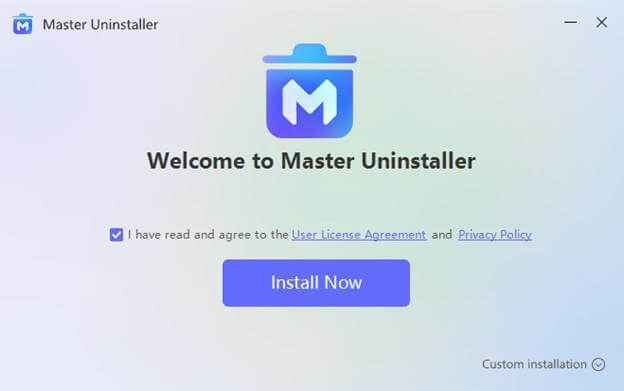
Visit the official Master Uninstaller website and download the latest version of the software. Once the download is complete, run the setup file and follow the on-screen instructions to install it on your Windows 10 or Windows 11 PC.
Step 2: Launch the tool and find your game
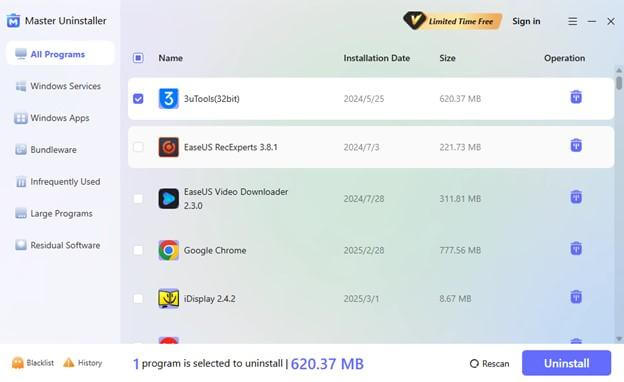
Open Master Uninstaller and navigate the All Programs section from the left-hand menu. You’ll see a full list of applications installed on your computer. Locate the Steam game you want to uninstall, select it, and click the Uninstall button.
Step 3: Let Master Uninstaller do the cleanup
The tool will now begin the uninstallation process. It will not only remove the game itself but also scan and delete any leftover files, folders, or registry entries associated with it, leaving your system clean and optimized.
Method 2: Uninstall directly through the Steam app
If you’d like to use built-in features of Steam, there’s a convenient way to remove any game from your library. Although it’s an easy process, it doesn’t always eliminate residual files or registry entries. It’s still a fine option if you want a simple, built-in removal process.
This is how to do it
Step 1: Start the Steam client
Launch the Steam app on your computer and sign in to your account. Ensure you are connected to the internet to allow your library to sync successfully.
Step 2: Go to your game library
Click on the Library tab towards the top of the interface. This should show a list of all games in your library that are connected to your Steam account. Use the search bar to find the game you want to remove from your library if necessary.
Step 3: Right-click on the game
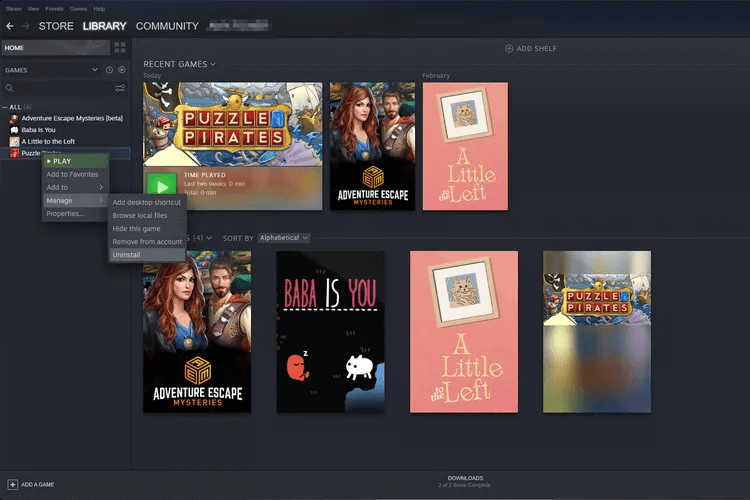
Once you find the game, right-click over its title in the list. It will have a dropdown menu—move your mouse to Manage, then click Uninstall.
Step 4: Verify the removal
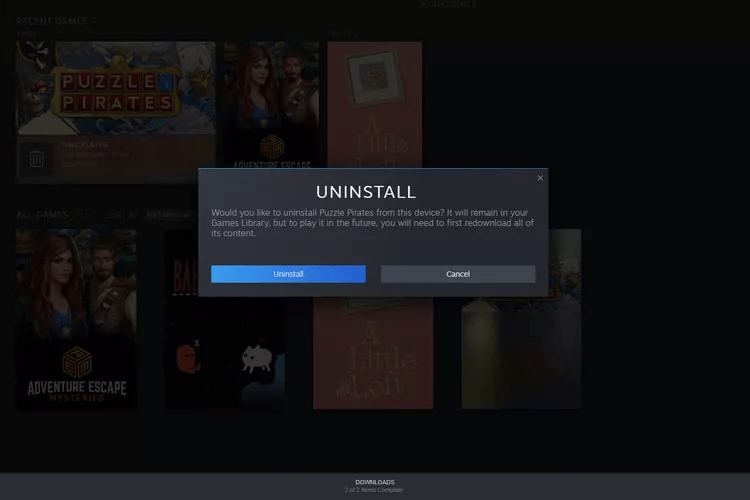
You will see a pop-up dialog box asking for approval of the action. Click Uninstall to continue. Steam will then delete the core game files from your computer.
Note: The game itself will no longer be installed, but residual files or user-generated content (saved games or mods, for example) can still linger on your hard drive. If you want a more thorough cleanup, feel free to use a tool such as Master Uninstaller after performing this step, or you can accomplish it yourself as well.
Manually removing leftover game files (optional but recommended)
Even after removing a game through Steam or a third-party removal tool, remnants can still exist in your system as leftover files or saved information. These leftover files not only occupy unnecessary hard drive space but can even hamper new installs or updates down the road. If you want to make sure all aspects of a game are fully deleted, refer to the manual cleanup process outlined below:
Step 1: Open the Steam installation folder
Open File Explorer and go to your Steam directory. If you haven’t changed where you installed it, it’s located by default at C:\Program Files (x86)\Steam.
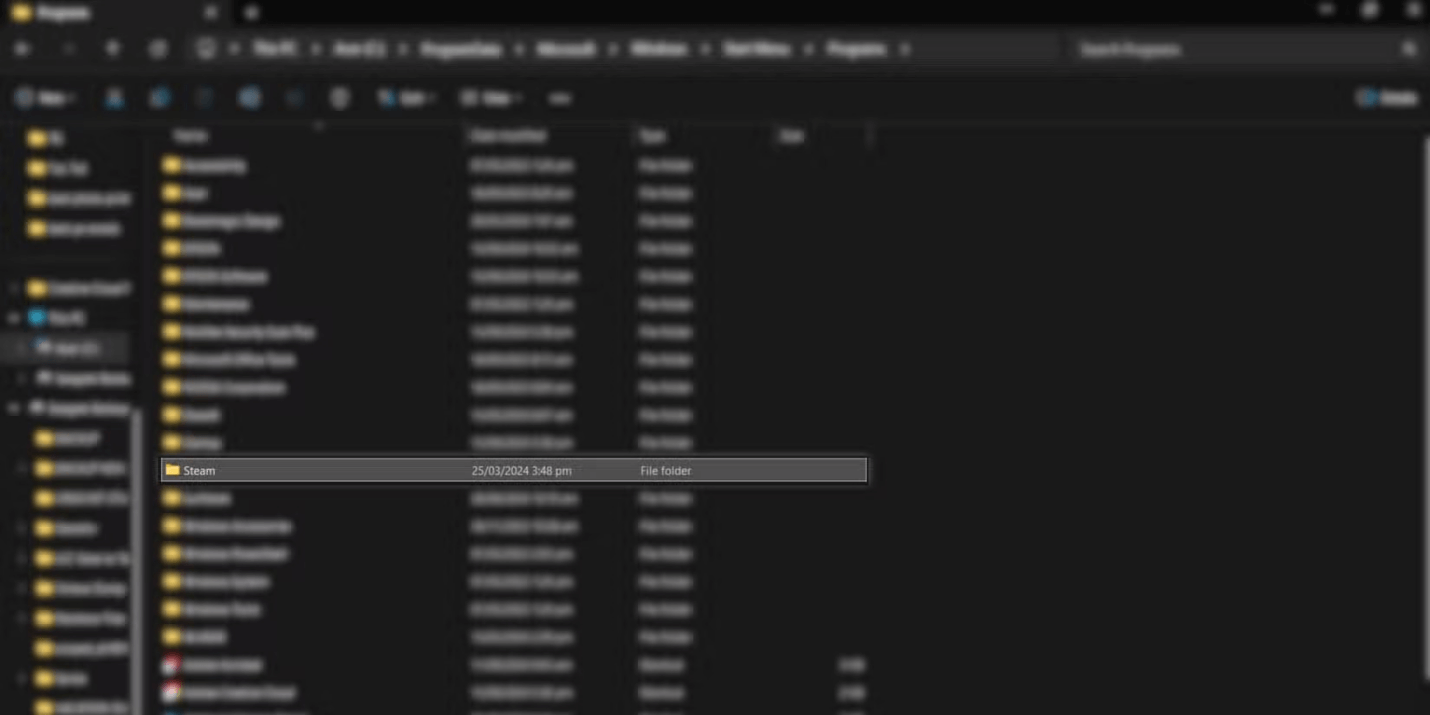
Step 2: Navigate to the Steamapps folder
Within the principal Steam folder, find and access the Steamapps folder. Next, go to the Common folder containing all the installed game information.
Step 3: Manually delete the game folder
You can find a list of installed games in the Common folder. Delete the folder you want. This permanently removes any remaining files that relate to the game.
Conclusion
You can quickly remove a game from Steam by using either the built-in Steam client or an additional tool like Master Uninstaller. When you use the removal feature inbuilt in Steam, it immediately removes the game, but if you use Master Uninstaller, you can have a more complete removal of residual files as well as better PC performance. For a complete removal, removal of residual files from directories in the Steam folder as well as in system directories can make more space available.


Leave a Reply