
Ultimate Way to Play PC Games on Your Mobile Phone with DeskIn Remote Desktop Software
When it comes to remote desktop software, the brands you’re probably most familiar with are TeamViewer and AnyDesk. For most remote tools, the primary use cases have remained confined to remote work and technical support. But what if you want to use your phone to play games remotely from your home PC? Here’s the game-changer: DeskIn boasts a powerful Gaming Mode, engineered for low-latency play and packed with features like a customizable virtual keyboard and full controller support.
This review puts DeskIn Gaming Edition through its paces. We’re testing whether remote PC gaming on a phone is actually viable—how smooth it feels, if it lags, and what the latency is really like. If you crave gaming freedom anywhere, read on.
Why Would You Even Need Remote Gaming?
Before we get into the specs, let’s talk about the “why.” Remote gaming unlocks some fantastic scenarios:
- Seamless Play in Your Downtime
Got a lunch break or a gap between meetings? Quickly connect your mobile phone to your home gaming rig and jump right back into your adventure. It’s the perfect way to reclaim those fragmented moments for fun and progress.
- Co-op & Guidance
Invite a friend to remotely connect to your gaming PC for shared controller gameplay. Or, mirror your screen to them for live spectating, real-time tactical coaching, or collaborative puzzle-solving. It unlocks a whole new dimension of “long-distance couch co-op.”
- Upgrade to a Big-Screen Experience
Instantly project your mobile or tablet game onto a computer monitor with one click. Enjoy a broader field of view and a more immersive experience, while also enhancing the visual quality of your live streams.
- Travel Light, Play Anywhere
Whether on a business trip or vacation, just pack your lightweight laptop, tablet, or phone. Remotely access your powerful home gaming PC to dive into your favorite worlds or go live from anywhere, completely freeing yourself from location and hardware limits.
- One Device, Dual Screens, Total Control
Turn a nearby tablet into your PC’s second screen with DeskIn. Keep your game full-screen on your main monitor while using the tablet to monitor Discord chats or stream controls. Effortlessly manage your gameplay and community interaction through multi-screen multitasking.
- Cross-Platform Play, No Emulator Needed
Directly play PC-exclusive titles on your Mac, or control computer games remotely from your phone. It seamlessly bridges platform gaps without the hassle, security risks, or performance hits of emulators. A great tool for developers to quickly test cross-device compatibility, too.
What once required expensive cloud gaming services can now be achieved effortlessly with DeskIn.
DeskIn Remote Gaming Edition Tested: Image Quality & Smoothness
DeskIn’s dedicated Gaming features are specially optimized to strike the perfect balance between latency, visual fidelity, and smoothness.
How’s the Latency?
DeskIn’s Gaming Mode aims to keep latency under 40ms. On a local network (same Wi-Fi), we’re talking an impressively low 5-15ms. You can monitor this in real-time: a green signal icon in the top-left corner of your mobile screen indicates optimal latency—tap it to see the exact figure.
Image Quality & Frame Rate
DeskIn supports up to 4K at 60 FPS or 2K at 240 FPS, though your actual mileage will depend on your hardware. You can fine-tune the streaming quality and refresh rate in the settings based on your network and device. In our local Wi-Fi test, the stream was notably smooth with no perceptible delay, and the image remained sharp.
More than High Performance, Other Intelligent Features
Multi-Screen Utilization, Unlock New Ways to Enjoy Games
- Screen Extension: Turn tablets, phones, or other devices into a second monitor—ideal for streamers managing gameplay and chat, or developers extending their workspace.
- Screen Mirroring: Mirror your display one-to-one or one-to-many, perfect for spectating or team presentations.
- Mobile Projection: Cast mobile games to a larger computer screen for an enhanced viewing and live streaming experience.
New Feature Alert: DeskIn AI Assistant
DeskIn recently released an AI Assistant feature (requires the latest version). During a remote session, you can activate it for:
- Smart Q&A: Get instant answers to software-related questions.
- Quick Commands: Execute common PC operations via simple text prompts.
This “conversation-as-operation” approach is a significant step forward for intuitive remote troubleshooting and management.
Transforming Your Phone: Virtual Keyboard & Gaming Controller Support
The biggest hurdle in mobile remote gaming is controls. DeskIn tackles this with two robust solutions.
The Virtual Keyboard
This isn’t your standard on-screen keyboard. Deskins’s mobile keyboard and mouse is fully customizable—you can place, resize, and adjust the transparency of every button. It offers two modes:
- Touch Mode: Direct tap-to-click.
- Pointer Mode: Allows mouse dragging with virtual buttons (required for customizing the keyboard layout). A standout feature is combo-key support, letting you map complex in-game actions to a single button.
How to Set up Customizable Combo-key? 4 Steps to Start!
Step 1: Download and install DeskIn on both of your mobile phone and Gaming PC. For mobile phone, DeskIn supports both iOS and Android systems. After sign into same account, you can build remote session now.
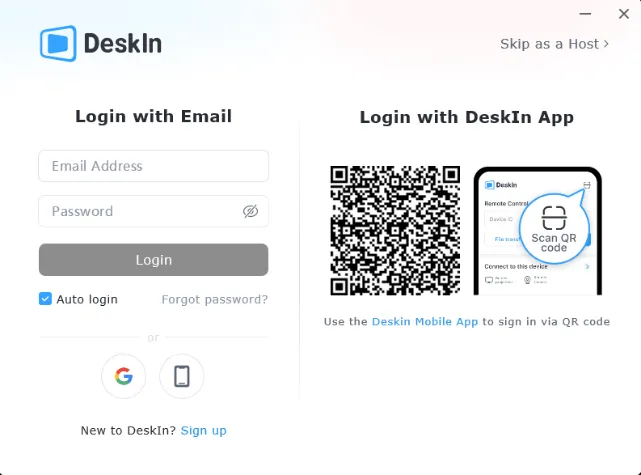
Step 2: After connecting your phone and PC, tap the menu (<), switch to Pointer Mode.
Step 3: Select “Game Keyboard” > “Add” to Add new gaming keys (mouse, keyboard, joysticks), or combo-keys, then drag to position, change transparency, double-tap to resize.

Step 4: Click “Save” to save your layout. Then you can play your PC gaming on your mobile phone now!

Game Controller Support
Have a Bluetooth controller (Xbox, PlayStation, or other)? DeskIn supports it plug-and-play or wirelessly connect your phone through Bluetooth.
How to Set up Game Controller Mode?
Step 1: After connecting your phone and PC, tap the menu (<), switch to Pointer Mode.
Step 2: Click “Game-pad Redirect”, then connect your gaming controller with your mobile phone via Bluetooth.
Step 3: Select your controller. Then you can start to play gaming with controller!
It’s that simple.
The Real Test: Does It Actually Work for Steam Games?
We went beyond specs and tested with a real game.
- Test Setup: Android phone (client) -> Windows PC (host) on the same local Wi-Fi.
- Game: Vampire Survivors (chosen for its increasing on-screen chaos).
- Results:
- Latency: A consistent 5-15ms. Truly imperceptible for this game genre.
- Controls: Using a customized virtual keyboard is surprisingly effective. Moving with a virtual joystick felt natural, and skill buttons are responsive (pro tip: make them larger to avoid mis-taps).
- Visuals: The stream stayed clear and fluid even with dozens of enemies and effects on screen, closely mimicking the native PC experience.
Verdict: For games like Vampire Survivors that don’t demand millisecond-precise reflexes, DeskIn delivers an excellent experience. It’s ideally suited for:
- Turn-based & strategy games
- Casual/indie titles
- Single-player RPGs
Final Verdict & Recommendation
DeskIn’s Gaming Edition is more than just a remote desktop that can run games—it’s a thoughtfully optimized platform for mobile gameplay. If you value flexibility and want to access your PC games away from your desk, DeskIn is a top-tier, cost-effective solution. While hardcore competitive esports might still be a stretch, for the vast majority of single-player and casual multiplayer experiences, it performs remarkably well. The ability to carry your entire gaming library in your pocket, controlled with a familiar Bluetooth controller or a smartly laid-out virtual keyboard, is genuinely empowering.
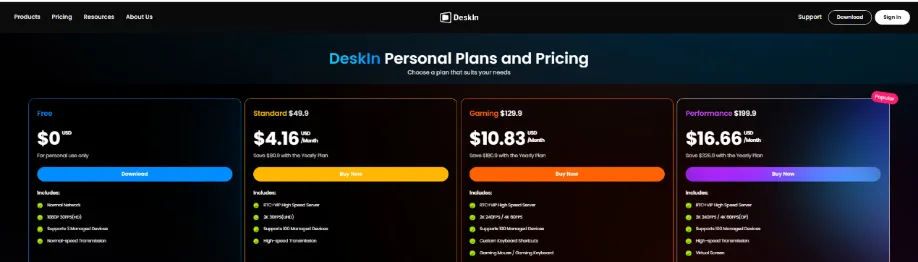
Ready to try? Head to check all features of DeskIn Gaming Edition. Don’t forget to use code [game] to enjoy 50% off on DeskIn one month plan and 20% off on annual plan.


Leave a Reply