
AES‑256 for Normal People: Why Strong Encryption Isn’t Just for Coders
Encryption used to be the domain of governments and programmers. Today it’s baked into your phone, your laptop and even the apps you use every day. AES‑256 encryption (short for Advanced Encryption Standard with a 256‑bit key) is the gold standard for keeping data safe. You don’t need a computer science degree to benefit from it. In fact, most of the devices and services you already use rely on AES‑256 under the hood. This article demystifies the technology, explains why it matters in New York or anywhere in the world and shows you how to use strong encryption tools no coding required.
What Makes AES‑256 Special?
AES is a symmetric block cipher. That means the same key is used to scramble (encrypt) and unscramble (decrypt) your data. It was selected by the U.S. National Institute of Standards and Technology (NIST) in 2001 to replace the older DES standard. AES comes in three key lengths 128, 192 and 256 bits. Key length roughly doubles the difficulty of brute‑force attacks; each extra bit doubles the number of possible keys.
The numbers are mind‑boggling. A 128‑bit key yields about 3.4×10^38 possible combinations. A 256‑bit key yields 1.1×10^77 possible combinations. To put that in perspective, if a supercomputer tried one trillion keys per second, it would still take longer than the age of the universe to exhaust the 256‑bit key space. Because of this enormous key space, 256‑bit encryption is considered virtually unbreakable with current computing technology.
Key lengths and rounds
AES scrambles data in rounds sequences of substitution, permutation and mixing operations. The number of rounds increases with key length: 10 rounds for 128‑bit keys, 12 rounds for 192‑bit and 14 rounds for 256‑bit. Each round adds complexity and diffuses the data further from its original form.
As a result, AES‑256 is slightly slower than AES‑128, but the trade‑off is higher security. For most everyday tasks, the performance difference is negligible; modern processors include hardware instructions that accelerate AES operations, making encryption almost transparent to users.
Modes of operation
AES is a block cipher, so it encrypts fixed‑size blocks of data (16 bytes at a time). To encrypt larger files or streams, it uses modes of operation. Common modes include:
- ECB (Electronic Codebook) encrypts each block independently. It’s simple but not recommended because identical plaintext blocks produce identical ciphertext and leak patterns.
- CBC (Cipher Block Chaining) XORs each plaintext block with the previous ciphertext block, preventing pattern leakage. It requires a unique initialization vector (IV) but suffers if IVs are reused.
- CTR (Counter) turns AES into a stream cipher using a counter and nonce. It allows parallel processing and random access to encrypted data.
- GCM (Galois/Counter Mode) combines counter mode with a cryptographic hash to provide both confidentiality and integrity. It’s commonly used in VPNs, TLS and secure messaging.
Understanding modes isn’t necessary to use AES‑256, but it explains why many applications specify “AES‑256‑GCM” or “AES‑256‑CBC.” GCM is often preferred because it checks whether data has been tampered with.
Why Strong Encryption Matters to Everyone
The last few years have seen record‑breaking data breaches, ransomware attacks and identity theft. Your personal photos, tax returns, medical records and business documents have value on the dark web. Protecting them isn’t paranoia it’s basic hygiene. Here are a few reasons AES‑256 matters to non‑coders:
- Privacy – AES‑256 prevents your data from being read without your key. If your laptop is stolen, full‑disk encryption (BitLocker or FileVault) can prevent thieves from reading its contents.
- Compliance – Regulations such as HIPAA, GDPR and New York’s SHIELD Act require businesses to protect customer data. Strong encryption helps avoid fines.
- Trust – Encrypted communication builds trust with clients, colleagues and family. Nobody wants their personal messages or work documents leaked.
- Peace of mind – Knowing your files are protected reduces stress and allows you to focus on work or play without worrying about exposure.
AES in your everyday apps
You’re probably already using AES‑256. VPN services like NordLayer use AES‑256 to secure network traffic. Password managers encrypt vaults with 256‑bit keys. Secure messaging apps (Signal, WhatsApp) rely on AES‑GCM. Even your smartphone uses AES for hardware‑level storage encryption. Let’s explore these use cases and show you how to enable strong encryption yourself.
Full‑Disk Encryption for Computers
Windows: BitLocker with 256‑bit keys
BitLocker is Microsoft’s built‑in disk encryption. On Windows 10 and 11 it defaults to 128‑bit XTS‑AES encryption, which is secure but not the strongest. You can switch to XTS‑AES 256 via Group Policy. The process is straightforward:
- Open the Start menu and type gpedit.msc to launch the Group Policy Editor.
- Navigate to Computer Configuration → Administrative Templates → Windows Components → BitLocker Drive Encryption.
- Double‑click Choose drive encryption method and cipher strength.
- Set the policy to Enabled, and choose XTS‑AES 256‑bit for operating system drives and fixed data drives.
- Click OK. BitLocker still uses the existing key for already‑encrypted drives, so you must decrypt and then re‑encrypt the drive to apply the stronger algorithm. To do this, open Manage BitLocker, turn off BitLocker to decrypt, and then turn it back on.
Microsoft recommends using the 256‑bit option because a longer key makes brute‑force attacks exponentially harder. Remember that a forgotten BitLocker recovery key will lock you out permanently, so store the recovery key offline or in a password manager.
macOS: FileVault 2
Mac computers come with FileVault 2, which encrypts the entire startup disk. It uses an XTS‑AES‑128 cipher with a 256‑bit key essentially AES‑256 in a disk‑specific mode. When FileVault is enabled, your Mac’s volume is unusable until a user logs in. Here’s how to enable it:
- Go to System Settings → Privacy & Security.
- Turn on FileVault. If multiple users have accounts on the Mac, each must be authorized to unlock the disk.
- Choose to allow your iCloud account to unlock the disk (convenient) or create a recovery key (more private). Write down the recovery key and store it securely.
- Restart your Mac and let encryption complete in the background. You can continue using the Mac during encryption.
FileVault encrypts the entire drive, not just your user folder. It meets U.S. government NIST guidelines for confidentiality. Enabling it is a one‑time step, but you must keep your password and recovery key safe.
Linux and Beyond: VeraCrypt and LUKS
Linux distributions typically offer LUKS (Linux Unified Key Setup) during installation for full‑disk encryption. It supports AES‑XTS with 256‑bit keys. For cross‑platform disk encryption, VeraCrypt is a free, open‑source successor to TrueCrypt. It supports multiple algorithms (AES, Twofish, Serpent) and combinations. For beginners, stick with AES‑256:
- Download and install VeraCrypt.
- Launch the app and click Create Volume.
- Select Create an encrypted file container (for a virtual disk) or Encrypt a non‑system partition (for full‑disk encryption).
- Choose AES and set the key length to 256 bits. Choose a strong password and optional keyfile.
- Format the volume. You’ll mount the encrypted container and use it like a normal drive.
VeraCrypt is slower than BitLocker because it lacks kernel integration, but it’s highly customizable and free. You must remember your password; there’s no recovery mechanism.
File‑Level Encryption Tools
Sometimes you don’t want to encrypt your whole disk you just need to secure a few documents or send an encrypted attachment. File‑level encryption lets you encrypt individual files or folders.
7‑Zip: easy file encryption on Windows
The free file archiver 7‑Zip offers AES‑256 encryption for archives. Here’s how to encrypt a file:
- Install 7‑Zip and open its File Manager.
- Navigate to the file or folder you want to protect.
- Right‑click the file and choose 7‑Zip → Add to archive…
- Enter a strong password in the Enter password and Reenter password boxes. Stick to password best practices (length, mix of characters).
- Under Encryption method, choose AES‑256.
- Click OK. 7‑Zip creates an encrypted archive alongside the original file. To decrypt, double‑click the archive and enter the password.
7‑Zip is simple and cross‑platform. Make sure to select AES‑256 (not ZipCrypto) because the default ZipCrypto is weaker.
Password managers and secret vaults
Password managers like 1Password, Bitwarden, LastPass and Folder Lock store credentials in encrypted vaults. These vaults are protected with AES‑256. When you log in, the manager derives a 256‑bit key from your master password using a key‑stretching algorithm, then decrypts your data locally. Use a strong master password, enable two‑factor authentication, and export vault backups regularly.
PGP/ GPG for email and files
Pretty Good Privacy (PGP) and its open‑source implementation GPG combine AES with public‑key cryptography. You create a public key to share with others and keep a private key secret. When someone encrypts a file or email for you, your private key decrypts it. Tools like Proton Mail integrate PGP automatically, but you can also use standalone software (GPG Suite on macOS or Gpg4win on Windows). PGP is powerful but requires key management and trust validation, so it’s overkill for casual sharing; however, it’s indispensable for journalists and activists.
For a more approachable option, Atomic Mail’s encryption brings end-to-end protection to everyday email without manual key handling, using a zero-access design where content is encrypted client-side (AES-256) so even the provider can’t read messages; it also supports secure sharing with non-users and alias management, making strong encryption practical for routine communications.
Mobile Device Encryption
iPhone and iPad
Apple’s Data Protection system uses a hierarchy of keys backed by the device’s Secure Enclave. When you create files on an iPhone, the operating system generates a new 256‑bit AES key for each file and uses a hardware AES engine to encrypt and decrypt it. Data remains encrypted until you unlock the device with Face ID, Touch ID or a passcode.
Encryption is automatic if you set a passcode. To check:
- Open Settings → Face ID & Passcode (or Touch ID & Passcode).
- Set a six‑digit or alphanumeric passcode.
- Scroll to the bottom; you should see “Data protection is enabled”.
Enterprise administrators can enforce passcodes via mobile device management (MDM) and remotely wipe a lost device. Apple recently introduced Advanced Data Protection for iCloud, which encrypts device backups end‑to‑end; enable this in Settings → [Your Name] → iCloud → Advanced Data Protection.
Android devices
All Google‑certified Android devices since Android 10 use File‑Based Encryption (FBE). Each file is encrypted independently using an AES‑256‑based algorithm. Android distinguishes between Device Encrypted (DE) storage (available immediately after boot) and Credential Encrypted (CE) storage (available only after the user unlocks the phone). This allows apps like alarm clocks to run before unlock while keeping sensitive files secure.
Under the hood, FBE typically uses AES‑256‑XTS to encrypt file contents and AES‑256‑CTS or other variants for file names. Devices can specify fileencryption=aes-256-xts to ensure AES‑256 is used. You don’t need to configure anything enabling a screen lock automatically activates encryption on modern Android phones. For corporate fleets, MDM tools can enforce encryption policies.
Secure Cloud Storage and Sharing
Encrypting files before uploading them to the cloud ensures the storage provider can’t read your data. Services like NordLocker and pCloud Crypto offer client‑side AES‑256 encryption with zero‑knowledge privacy. You encrypt files locally, then sync them to the cloud.
A more approachable option is Folder Lock, which combines AES‑256 encryption with user‑friendly features.
Folder Lock: a simple, powerful encryption suite
Folder Lock is a Windows and mobile app from NewSoftwares LLC that packages several privacy tools into one program. According to the developer, it uses AES‑256 encryption and 4096‑bit RSA for user profiles. Here’s what makes it stand out:
- Virtual lockers – Folder Lock creates encrypted virtual drives that expand dynamically. You decide whether to sync them with Dropbox, Google Drive or OneDrive for secure cloud backups.
- Folder hiding – If you don’t want to encrypt, you can simply lock folders with kernel‑level driver protection, making them invisible even in Windows Safe Mode.
- Portable lockers – You can export encrypted lockers to USB drives, enabling you to carry sensitive files and open them on other machines with a password.
- Secrets manager – Store credit card details, bank accounts and passwords in wallets protected by AES‑256. It functions like a password manager, with cross‑platform sync.
- Secure notes and diaries – Write notes or personal journals that only you can read.
- File shredder – Permanently delete files beyond recovery and wipe free space to remove remnants.
- History cleaner – Remove browsing and run history to minimize data traces.
Folder Lock is available for Windows, Android and iOS. A one‑time license currently costs around $40. The built‑in secure backup syncs your lockers with major cloud providers and allows file sharing with others; recipients unlock shared files with their own password. Because it combines encryption, password management and file shredding, it’s a convenient all‑in‑one solution. For non‑technical users, the polished interface and step‑by‑step wizards make AES‑256 easy to use.
Other software options
If you prefer free tools or open source, consider:
- VeraCrypt full‑disk and container encryption; open source; supports multiple algorithms.
- Cryptomator encrypts individual files and folders for cloud storage; cross‑platform; uses AES‑256 and Scrypt.
- AxCrypt simple file encryption; integrates with Windows; uses AES‑128 (free) or AES‑256 (paid).
- NordLocker from the makers of NordVPN; offers zero‑knowledge AES‑256 encryption and built‑in cloud storage; subscription‑based.
Best Practices for Strong Encryption
Using AES‑256 is only part of the story. To truly protect your data, follow these guidelines:
- Use strong, unique passwords – An encryption key derived from a weak password can be guessed, rendering AES useless. Use long passphrases or a password manager to generate and store random strings.
- Store recovery keys safely – Services like BitLocker and FileVault generate recovery keys. Keep copies offline (printed or on a USB drive stored securely) and avoid saving them in your email inbox.
- Enable two‑factor authentication (2FA) – For password managers or cloud services, 2FA prevents attackers from accessing your vault even if they know your password.
- Back up encrypted data – Encryption protects data from theft, but doesn’t prevent loss due to hardware failure. Maintain backups of your encrypted files and keep copies of your encryption keys.
- Keep software updated – Encryption software occasionally has vulnerabilities. Install updates promptly to fix security issues.
- Beware of phishing and social engineering – AES can’t protect you if you give an attacker your password. Be cautious of unsolicited requests for login credentials.
- Consider performance vs. security – AES‑256 is slower than AES‑128. For older hardware or tasks like streaming video, AES‑128 might be adequate, but for sensitive documents choose AES‑256.
- Understand export and legal restrictions – Some countries restrict encryption export. Verify local laws when traveling or sharing encrypted data across borders.
Troubleshooting Encryption Problems
Strong encryption sometimes introduces friction. Here’s how to resolve common issues:
I forgot my encryption password or key
Unfortunately, AES‑256’s strength means there are no back doors. Without your password or recovery key, the data is effectively lost. Always keep redundant copies of keys and passwords in secure locations. Consider using a trusted password manager or printing your recovery key and storing it in a safe.
My computer slows down during encryption
Full‑disk encryption can affect performance during the initial encryption or when copying large files. On modern systems with hardware AES support, the impact is minimal. If performance suffers, verify that your CPU supports AES‑NI instructions and that your encryption software is using them. For older devices, consider using AES‑128 or encrypting only sensitive folders.
I enabled BitLocker but don’t see the 256‑bit option
Windows defaults to 128‑bit encryption. You need to change the Group Policy as described above and then decrypt and re‑encrypt your drives. Run manage‑bde –status in Command Prompt to verify the encryption method.
Encrypted files are inaccessible on another operating system
Different systems may use incompatible encryption formats. For example, a BitLocker‑encrypted drive won’t open on macOS without third‑party drivers, while a VeraCrypt volume requires VeraCrypt on any computer. To share files across platforms, use software that supports cross‑platform encryption (Folder Lock’s portable lockers or 7‑Zip archives) or choose open standards like PGP.
I deleted an encrypted file but it’s still recoverable
When you delete an encrypted file, the encrypted data remains on disk. Use a secure delete tool like Folder Lock’s Shred Files feature or a tool such as sdelete on Windows to overwrite deleted data.
I can’t access encrypted data after reinstalling my OS
Full‑disk encryption keys may be tied to your user account or hardware. Before reinstalling, decrypt the drive or ensure you have the recovery key. For FileVault, ensure each user account is authorized to unlock the disk, otherwise you may lose access.
My Android phone asks for a passcode after reboot
That’s normal. File‑Based Encryption splits storage into device‑encrypted (available immediately) and credential‑encrypted areas that unlock only after you enter your password. Without the passcode, sensitive files remain inaccessible.
Does encryption drain my phone battery?
Encryption operations consume CPU power, but hardware AES accelerators in modern smartphones perform encryption efficiently. The impact on battery life is negligible for normal use. Heavy encryption tasks like syncing large encrypted backups may draw more power, so perform those while plugged in.
Comparing Encryption Solutions
Below is a quick comparison of popular encryption options and where they shine.
| Solution | Platform | Key Features | Best For |
| BitLocker | Windows | Full‑disk encryption, TPM integration, XTS‑AES‑128/256 | Protecting laptops and desktops against theft |
| FileVault 2 | macOS | Full‑disk encryption using XTS‑AES‑128 with 256‑bit key | Mac users needing simple, built‑in encryption |
| VeraCrypt | Windows/Linux/macOS | Creates encrypted containers or full‑disk; supports multiple algorithms | Cross‑platform encrypted volumes |
| 7‑Zip | Windows/Mac | Encrypts individual files with AES‑256 | Sending secure attachments; protecting small archives |
| Folder Lock | Windows/Android/iOS | AES‑256 lockers, hidden folders, portable lockers, password and note manager, file shredder | All‑in‑one solution for non‑technical users |
| NordLocker | Windows/macOS | Zero‑knowledge AES‑256 encryption with cloud sync | Secure cloud storage with strong encryption |
| Cryptomator | Cross‑platform | Transparent encryption for cloud storage, open source | Protecting files on Dropbox/Google Drive |
Why Folder Lock Is a Standout Choice
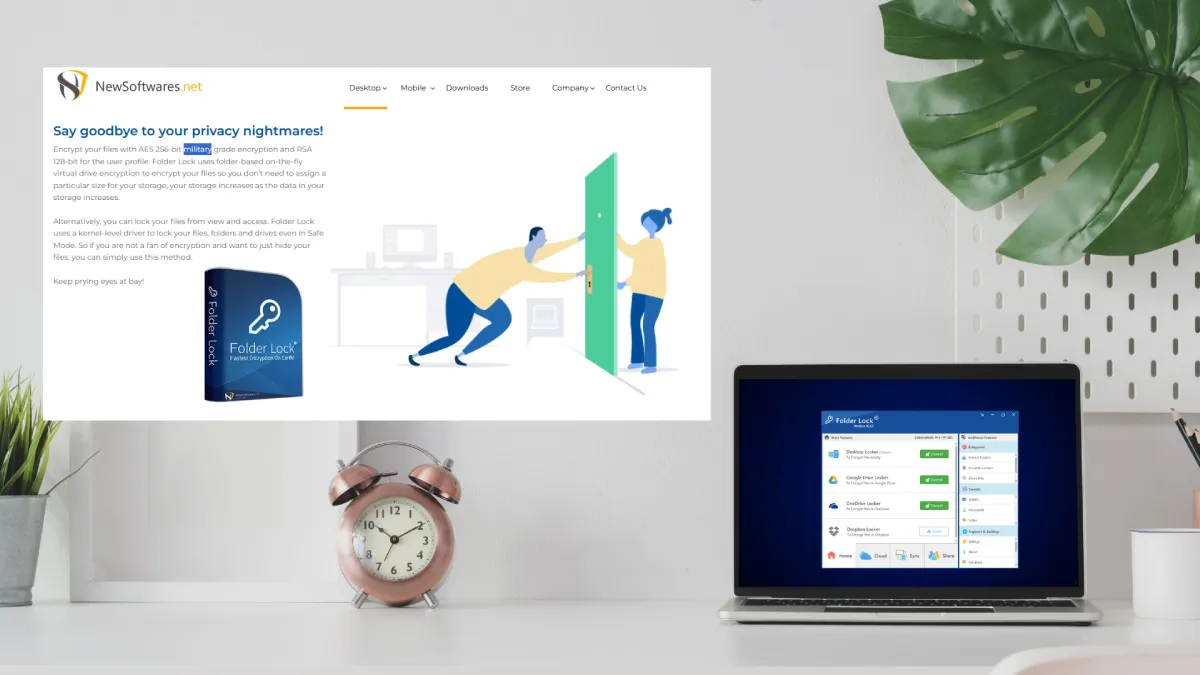
Many people struggle with encryption because tools are either too basic or too complex. Folder Lock hits a sweet spot. It wraps advanced encryption into a friendly interface. Here’s why it’s worth considering:
- Military‑grade security – It uses AES‑256 encryption for file contents and 4096‑bit RSA for user profiles. This dual approach protects both your data and the keys controlling access.
- Dynamic virtual lockers – You don’t have to decide on a fixed volume size. Lockers grow as you add data. It’s convenient for users unfamiliar with allocating encrypted volumes.
- Cloud backup integration – Lockers can sync with Dropbox, Google Drive or OneDrive. Your encrypted files are always available, and you can restore them if a device is lost.
- Portable encryption – You can create self‑executing encrypted lockers on a USB drive and open them anywhere with just a password. No additional software is needed.
- Additional privacy tools – A secrets manager, secure notes, file shredder and history cleaner come built in. Instead of juggling multiple apps, you get a unified experience.
- Cross‑platform – Folder Lock is available for Windows, iOS and Android, so you can lock folders on your PC and access them on your phone.
While other tools match certain features, Folder Lock’s comprehensive suite and ease of use make it ideal for busy professionals, students or parents who need privacy but don’t want to learn complex encryption setups.
Frequently Asked Questions
Is AES‑256 always better than AES‑128?
In terms of raw security, a 256‑bit key provides a vastly larger key space than a 128‑bit key, making brute‑force attacks far more difficult. However, AES‑128 is still considered secure for most purposes and is slightly faster. Choose AES‑256 for highly sensitive data or long‑term archival.
Can encryption stop malware or ransomware?
No. Encryption protects data confidentiality but doesn’t prevent malware infections. In fact, ransomware uses encryption against you. Use antivirus software, keep your system updated and practise safe browsing. Encryption is one layer of a broader security strategy.
What happens if I forget my BitLocker or FileVault recovery key?
You will be unable to access the encrypted data. There’s no master backdoor. Store recovery keys in a secure location (print them, use a password manager or a secure note). Some enterprise deployments store keys in Active Directory or MDM systems for recovery.
Does AES‑256 protect against quantum computers?
Experts believe that large quantum computers could significantly reduce the effort required to break symmetric keys. However, current estimates suggest a 256‑bit key is enough to withstand quantum attacks for many years. For now, AES‑256 is considered quantum‑resistant; researchers are exploring post‑quantum algorithms for future standards.
Is encryption legal everywhere?
Most countries allow personal use of encryption, but some have restrictions on export or require key disclosure during investigations. Travellers should research local laws before crossing borders with encrypted devices. In New York and across the U.S., encryption is legal, and laws like the Fifth Amendment may protect you from having to divulge passwords.
Will encryption slow down my computer or phone?
Full‑disk encryption adds overhead, but modern processors include AES acceleration, so the performance impact is minimal for daily tasks. During the initial encryption phase or heavy file transfers you may notice slight delays, but it’s worth the security benefit.
Can I share AES‑encrypted files with others?
Yes. Use file‑level encryption tools like 7‑Zip or Folder Lock’s portable lockers. Create a strong password, share it securely (e.g., via a phone call or secure message) and your recipient can decrypt the file using the same tool and password.
What’s the difference between encryption and password protection?
Password protection (like setting a password on a Word document) often just hides content and is easily bypassed. Encryption uses mathematical algorithms to scramble data. Without the key, the data is unreadable. Always prefer tools that explicitly mention encryption (and ideally AES‑256).
Why do I need to decrypt and re‑encrypt my BitLocker drive to change key strength?
BitLocker determines the encryption method when the drive is first encrypted. Changing from 128‑bit to 256‑bit after the fact requires decrypting and re‑encrypting so the data is re‑written using the stronger algorithm. It’s a pain, but it ensures the whole disk benefits from the upgraded security.
How do Android’s Device and Credential Encrypted storage differ?
Device Encrypted (DE) storage is accessible immediately after boot and contains data needed by the system before you unlock the phone. Credential Encrypted (CE) storage contains sensitive user data and is accessible only after the user enters their passcode. This separation protects personal data even if someone powers on your phone.
Can I mix encryption modes (CBC, GCM) within one system?
Yes. Disk encryption may use XTS‑AES for sector encryption, while secure messaging uses AES‑GCM. Modes are chosen based on use case. Use the defaults recommended by your software, as they balance performance and security. Don’t attempt to design your own modes.
Is AES‑256 overkill for home users?
Not at all. Strong encryption is becoming standard. Many consumer tools default to AES‑256 because performance costs are negligible on modern hardware and the benefits last well into the future. There’s no downside to stronger encryption unless you’re working with extremely resource‑constrained devices.
What is key stretching and why does my password manager mention it?
Key stretching algorithms like PBKDF2, Argon2 or Scrypt take your master password and derive a cryptographically strong key. They intentionally slow down the key derivation process to resist brute‑force attacks. This is crucial because AES‑256 is only as strong as the key used to encrypt your vault.
Will encrypting my files protect them from physical damage?
No. Encryption protects confidentiality. It doesn’t prevent hard‑drive failure, accidental deletion or fire damage. Always maintain backups ideally, encrypted ones stored in a separate location or cloud service.
Conclusion
Strong encryption isn’t just a tool for spies or hackers. AES‑256 is woven into the fabric of modern life. It protects the conversations you have with your family, the health records your doctor stores and the spreadsheets you prepare for clients. Thanks to user‑friendly software like Folder Lock, BitLocker, FileVault and 7‑Zip, everyone can take advantage of military‑grade security without writing a single line of code.
Remember, encryption is only one layer of defense. Use strong passwords, update your software, and remain vigilant against social engineering. The combination of common‑sense security practices and AES‑256 encryption gives you the best chance of keeping personal and professional information safe in today’s fast‑moving digital world.


Leave a Reply