
Best Image to Video AI Generator Free Tools (Tested for Watermark Limits)
Video is now the internet’s default dialect. Nine out of ten businesses weave moving pictures into marketing, and seven in ten marketers already lean on AI for speed, according to a Filmora analysis.
Search for a “free” image-to-video tool and reality snaps: credits vanish, watermarks sprawl, and HD hides behind surprise paywalls.
We opened fresh accounts, ran the same still through every generator, and logged exactly what came out.
This guide spotlights seven platforms that still hand you clean, watchable footage at zero cost—despite a market now dominated by premium cinematic models like Seedance 2.0 and Veo 3—plus the quirks you need to navigate.
By the end you’ll know which free tier suits your workflow and how to chain tools for results that punch above a zero-dollar budget.
The 2025–26 free-tier shake-up
Twelve months ago you could open most AI video tools, type a prompt, and crank out dozens of clips before breakfast. That carefree era is over.
The first alarm rang last November when OpenAI trimmed Sora’s daily free allowance from thirty videos to six. Google followed the same week, turning Veo’s open beta into a capped, wait-list experience. Overnight, the market’s most generous playgrounds flashed “closed for maintenance” signs, according to Outright Systems.
Those moves set a new tone. Providers still want your attention, but they refuse to bankroll unlimited compute. Free tiers now fall into two camps.
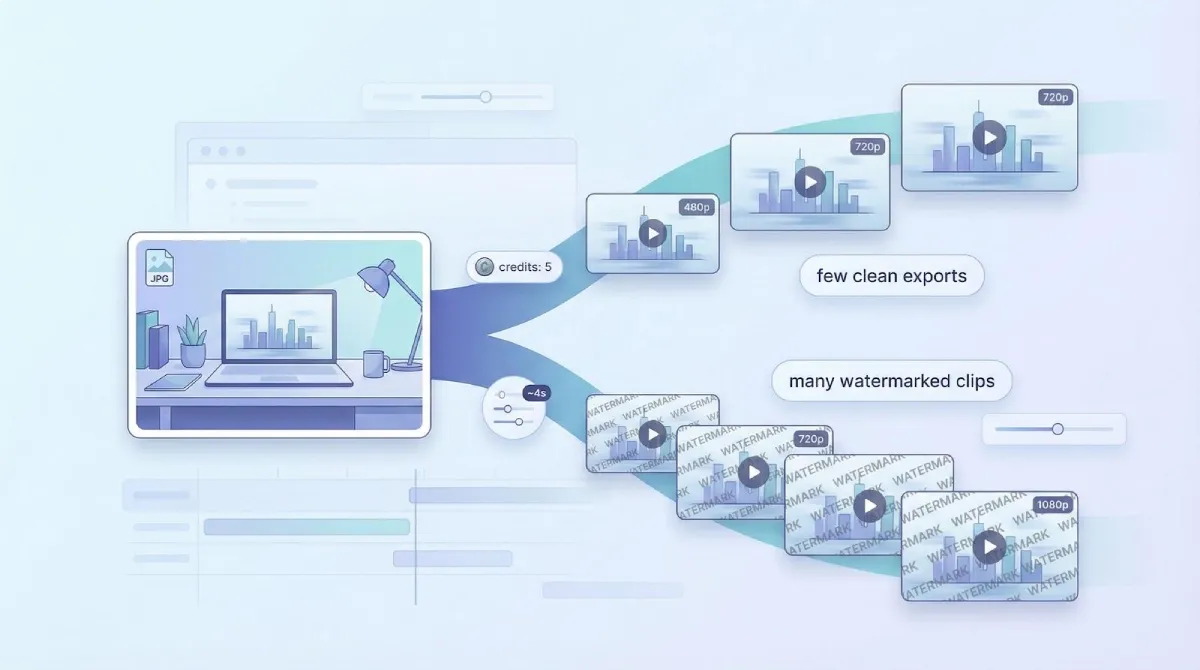
In the preview-clean model, you receive a handful of watermark-free exports—just enough to taste the power before a credit wall stops you. Runway and Leonardo sit in this group.
In the freemium-watermarked model, the clip counter rarely hits zero, yet every frame carries the platform’s logo. Kapwing and Pika keep the lights on with this approach, trading volume for visual purity.
The split forces a choice. Do you need a pristine four-second test shot, or endless drafts you’ll crop and polish later? Your answer shapes the rest of this guide.
Next, we’ll show how we measured each platform against those new rules so you always know the catch before you click “Generate.”
How we tested and scored each tool
We treated every platform like a brand-new user.
New email. Fresh browser. No credit card on file. We wanted to see exactly what you would face on day one.
From that blank slate we pushed a single JPG through each generator and logged five factors:
Watermark policy. If any logo appeared, the tool forfeited a quarter of its points.
Output quality. Resolution, frame smoothness, and how well the motion matched our prompt made up another fifth.
Free-usage limits. We counted how many clips we could create before credits ran out, then weighed that against clip length and resolution caps.
Features and workflow. Extra perks (text-to-video, audio support, an in-app editor) added value because they save you tool-hopping later.
Rights and sustainability. We scanned the terms for commercial-use language and checked each roadmap to confirm the free tier is built to last.
Each category carried its own weight, adding up to a perfect 100. Only seven tools passed with a practical free experience. They headline the next section.
1. Leonardo AI: best overall creative suite
Leonardo feels less like a single feature and more like a playground for makers. Built-in text-to-video, image-to-video, and AI animation tools sit side by side, and Start/End Frame controls keep every clip on-style.
Dive into Leonardo’s creative suite to generate motion, animate stills, and stitch short sequences together without leaving the browser.
Upload or generate a still image, click “Motion,” and watch the scene glide to life in four crisp seconds. No watermark stares back at you, which is rare on a free plan.
Daily credits refresh each morning, so prototyping never stalls. The trade-off is resolution: free clips render at 480p, though a built-in upscaler bumps them to 720p with one click. That is plenty for TikTok, Reels, or an internal storyboard.
Control is the standout. Camera-style presets (pan, zoom, orbit) sit beside a prompt box, letting you steer the shot without opening After Effects. Add image upscaling, light editing tools, and experimental audio generation, and you get an all-in-one lab that rewards exploration.
Need a quick cinematic logo sting, an animated concept frame for a deck, or a short social teaser? Leonardo’s free tier delivers: zero branding, steady credit flow, and enough polish to impress without extra post-production work.
2. Runway: best for cinematic realism
Runway feels like a pocket film studio. Type a scene such as “slow-motion drone shot over misty redwoods at dawn,” and within a minute you can download a four-second clip that looks lifted from a nature doc.
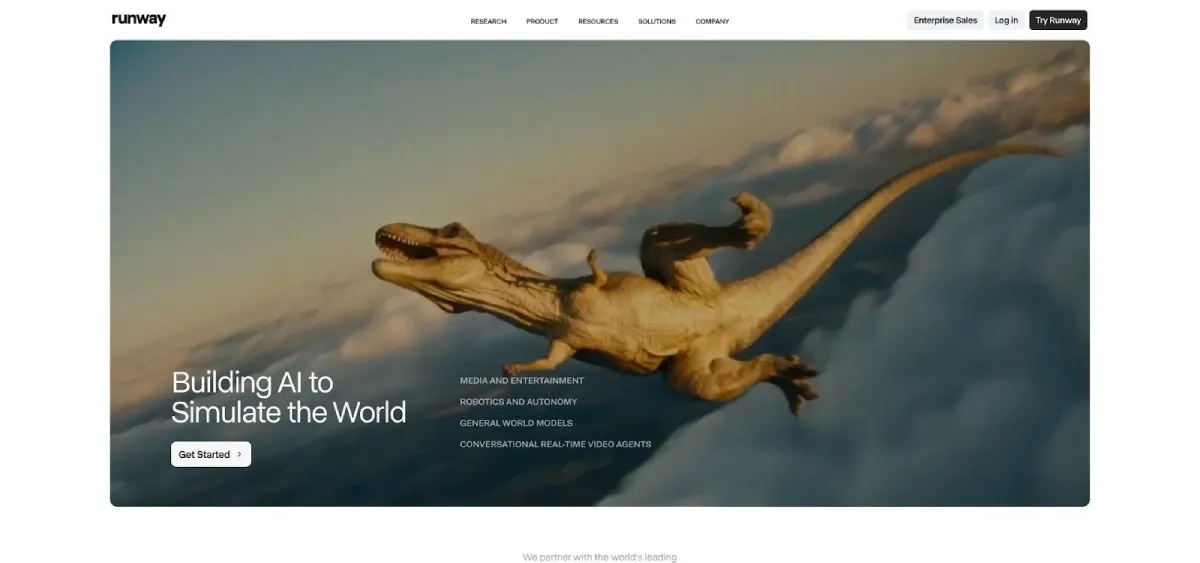
On the free plan the export lands at 720p and, more important, carries no watermark. The frame is yours to brand, crop, or drop straight onto a timeline without a logo to hide.
Credits refresh monthly, so you cannot marathon-generate an entire short film. You can storyboard key moments, grab atmospheric B-roll, or test bold camera moves before renting real gear. The built-in editor lets you trim, caption, and layer effects in the same tab, which means more time refining ideas and less time juggling apps.
Expect occasional quirks like ghostly hands or melting props, yet for landscapes, establishing shots, and moody transitions Runway’s Gen-2 model outperforms its zero-dollar cost.
3. EaseMate AI: best productivity one-stop shop
EaseMate packs multiple creative skills behind one login. Draft a script with its GPT-powered writer, spin an illustration, then open the video tab where Google’s Veo 3 engine animates your image into a five-second clip. You achieve all of this before opening another browser tab.
On the free tier you receive a fresh handful of video credits each day. Every export we tested arrived watermark-free at 720p, making EaseMate a quiet win for marketers juggling tight deadlines and tighter budgets.
Because the suite shares one credit pool, plan your tasks. Burn through the daily allotment on long-form blog posts and you may delay video tests until tomorrow’s refill. Schedule wisely and the limit fades into the background.
EaseMate shines in cohesion. Need captions, a quick voice-over, or a translated subtitle file? All sit under the same roof. That streamlined flow turns a rough idea into a polished social clip in a single sitting, perfect for entrepreneurs who act as their own creative team.
4. MindVideo: best multi-model playground
MindVideo feels like a tasting flight for AI video. Behind one dashboard you can sample more than twenty separate models—Runway, Luma, Kling, and several community experiments—without creating new accounts or adding payment details.
Choose wisely and you can use up to one hundred free credits each month. Some community models cost zero credits, so you can produce short 480p or 720p clips all afternoon with no watermark. Want to test the latest tech? Switch to Veo 3 or Gen-4, spend ten credits, and collect a cleaner, higher-res sample.
Quality varies as widely as the model list. One engine nails photoreal landscapes; the next delivers surreal claymation. That unpredictability is the price of freedom, but it also sparks discoveries you would miss in a single-model app.
If you thrive on experimentation or need to benchmark a prompt across several engines before committing budget, MindVideo is the sandbox. Keep an eye on your credit counter and note which model produced each gem so you can repeat success later.
5. Kapwing: best social editor with AI assist
Kapwing acts less like a generator and more like an all-purpose editor with an AI side gig. Paste a script or prompt and the platform stitches stock visuals, subtitles, and light motion into a share-ready clip while you sip your latte.
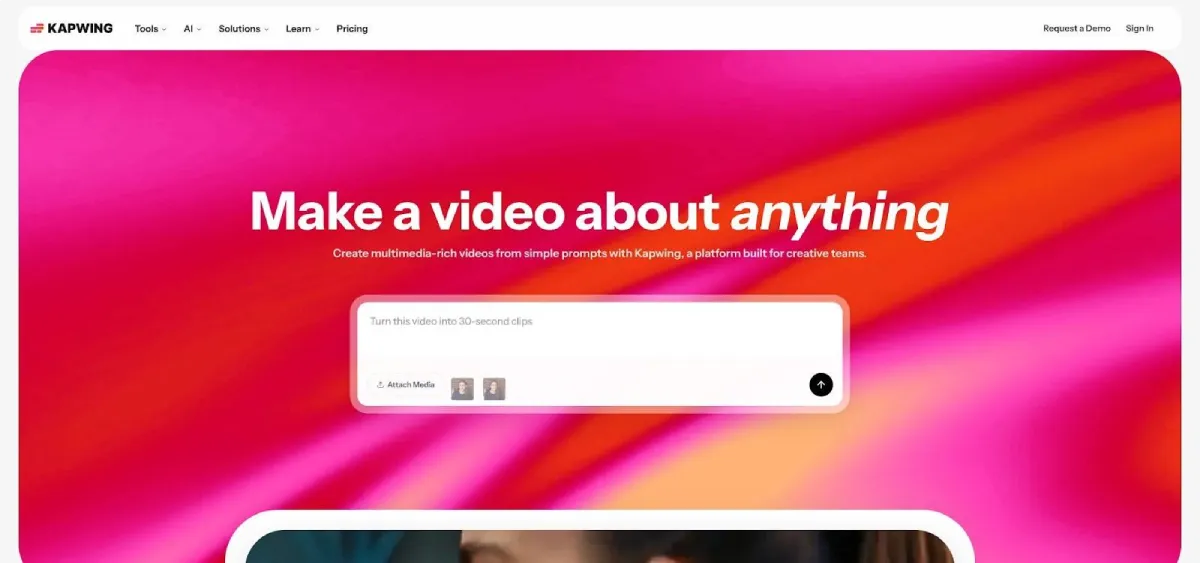
The draw for budget-minded creators is volume. The free plan lets you export unlimited videos up to seven minutes long. A small Kapwing logo rests in one corner, but many users hide it with their own brand mark or crop a thin edge of frame.
Because Kapwing is a full editor, you can pull in clips from Leonardo or Runway, stack text layers, switch aspect ratios, and add music in one airy interface. That reduces the shuffle between generators and a heavy desktop editor.
If you post five TikToks a week, subtitle interviews, or remix podcasts into bite-size social cuts, Kapwing deserves a bookmark. Accept the watermark or cover it with a quick overlay and you have a no-cost assembly line for snackable video.
6. Pika Labs: best for stylised loops
Open Pika, type a dreamy prompt such as “neon koi swimming through midnight clouds,” and watch a three-second art film bloom before your eyes. The model leans into painterly textures and fluid morphs, turning simple ideas into loops made for music visuals.
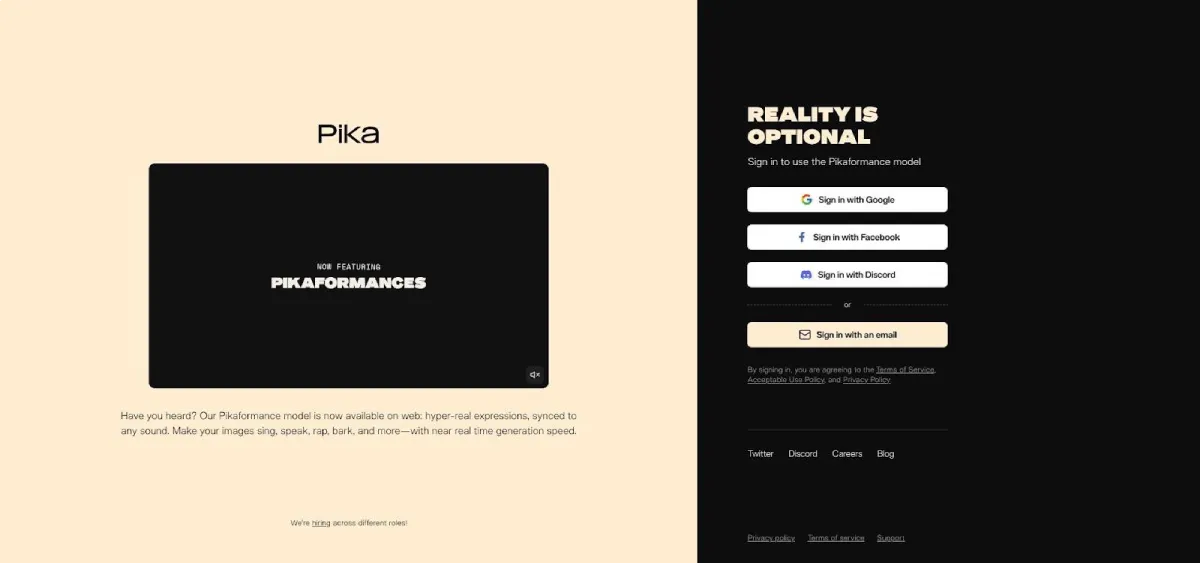
You start with about ten free generations each month. Every clip reaches 720p and carries a modest Pika logo in one corner. Some creators treat the badge as part of the vibe, while others crop or overlay graphics to hide it. The watermark is the trade-off for unlimited remixing.
Standout moments come from the Remix and Additions buttons. Tap Remix to reroll lighting or camera angles without rewriting your prompt. Use Additions to drop a new element halfway through the shot—sparks, petals, or a flock of low-poly birds—and the model weaves it in like a motion-graphics artist racing the clock.
Faces and fine detail still wobble, so think abstract. Album-art teasers, book-cover trailers, or background loops for a Twitch scene are where Pika shines. If you prize style over realism and can live with a corner logo, this free playground can spark your next visual hook.
7. Adobe Firefly (beta): big-brand wild card
Firefly carries the Adobe pedigree, so expectations run high. The current web beta generates five-second clips that feel more like living illustrations than traditional video, yet the stylistic control still feels Adobe.
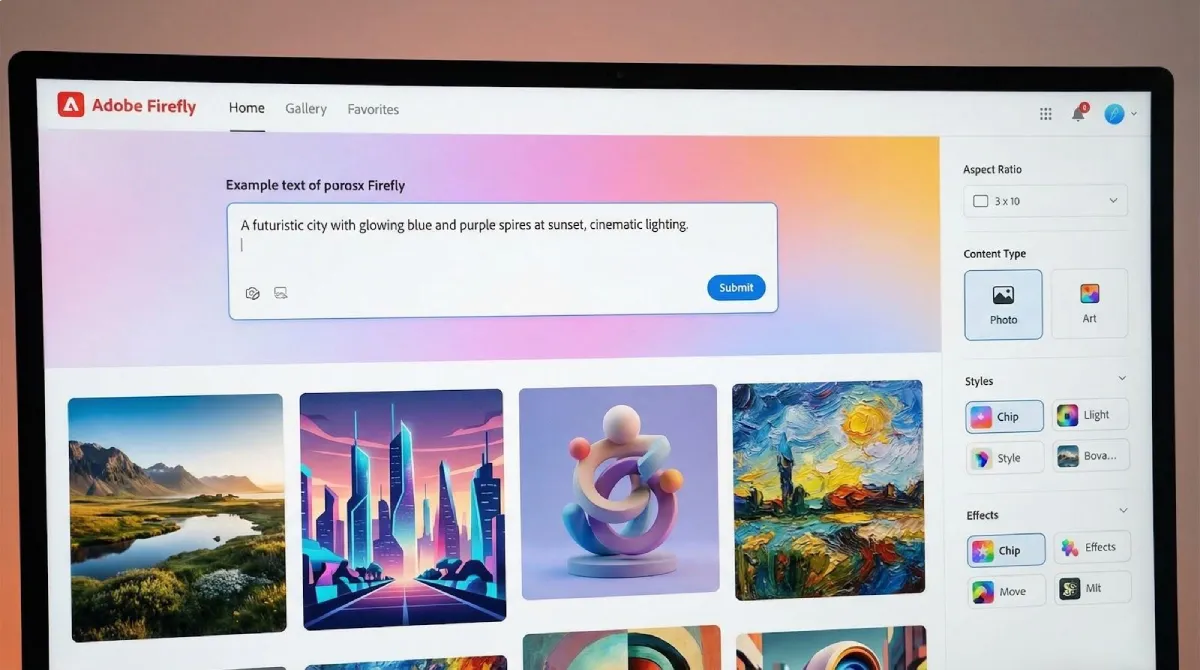
Prompt “watercolor waves crashing” and you receive a looping brush-stroke animation at 1080p with no watermark or fee, only a tight credit cap that refreshes monthly. Motion stays mild and abstract, but color fidelity and texture land on point, making the output ideal for animated backgrounds, title cards, or subtle overlays inside Premiere.
Adobe keeps content and licensing conservative. Prompts that include violence or brand names are blocked, but in exchange you gain peace of mind that each frame is cleared for commercial use. For agencies concerned about dataset issues, that trade is worth the clip limit.
Firefly remains a side note, not the main course. Use it when you need an artsy accent that slips into the Creative Cloud pipeline, then rely on the other six tools for heavier lifting.
8. Renderforest: best for brand consistency
Renderforest Image to Video Generator works well for creators, marketers, and small businesses that want to turn static visuals into short, polished videos without building motion effects from scratch.
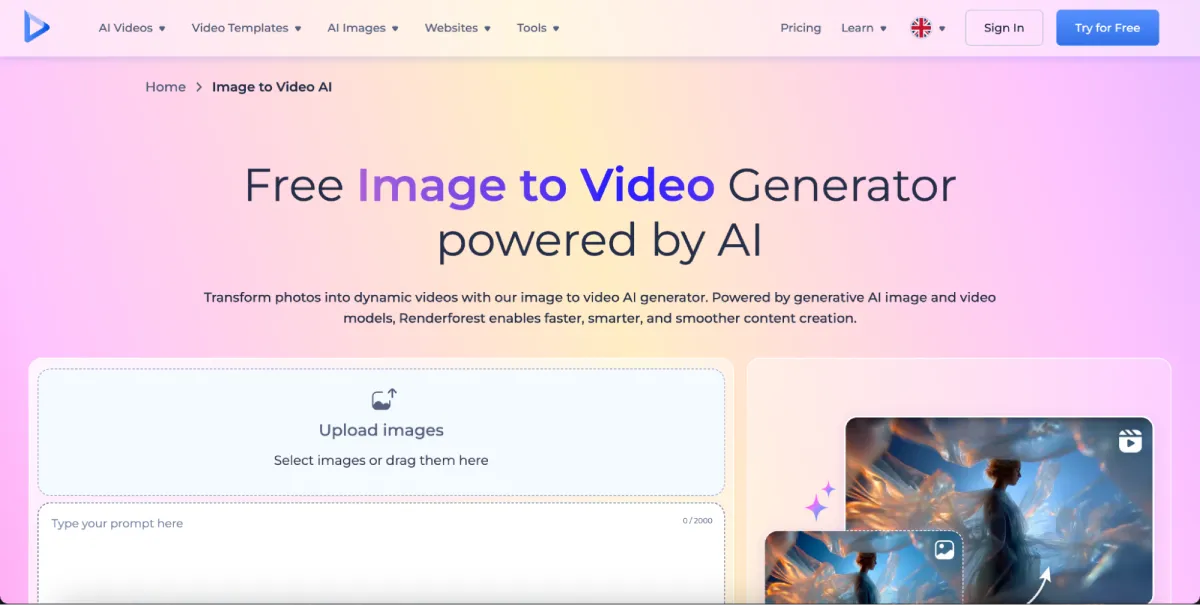
Users can upload an image, add a prompt or creative direction, and generate a video for social media posts, product teasers, ads, presentations, or branded content. This makes it useful for teams that already have product photos, campaign visuals, or branded graphics and want to repurpose them into video content.
The main advantage is the broader creative workflow around it. After generating the video, users can continue editing with templates, text, music, branding elements, and other video tools inside Renderforest.
For marketers, small businesses, and content teams, it is a practical option when the goal is not just testing AI motion, but creating a finished video asset in one place.
Free plans at a glance
| Tool | Monthly free clips* | Max resolution | Max clip length | Watermark |
| Leonardo | Daily credit refill (≈5–10 clips) | 480p (720p upscale) | ~4 s | No |
| Runway | 125 monthly credits (≈5 clips) | 720p | ~4 s | No |
| EaseMate | ~5 clips per day | 720p | ~5 s | No |
| MindVideo | ~100 credits; some models 0 credit | Up to 1080p | 5–10 s | No |
| Kapwing | Unlimited | 720p | 7 min | Yes |
| Pika Labs | ~10 clips | 720p | ~4 s | Yes |
| Adobe Firefly | ~5 beta credits | 1080p | ~5 s | No |
*Clips calculated with default settings; figures may change as platforms update.
The chart surfaces the trade-offs:
Leonardo, Runway, MindVideo, and EaseMate ship watermark-free frames. Kapwing and Pika offer more iterations at the cost of a corner logo. Firefly pushes the highest resolution, though its tight beta cap keeps it in seasoning-not-staple territory.
Match your top constraint—watermark, length, or resolution—to the column that matters most and your best starting point jumps out.
Conclusion
Free plans always charge in some way, either pixels or patience. Here is how we keep quality high while the price stays at zero.
First, hide the watermark. If a logo sits in the far corner, crop or cover it with your own brand mark. Vertical crops to 9:16 often remove desktop-size watermarks without extra effort.
Next, manage your credits. Shoot in short bursts, one idea per four-second clip, then stitch micro-scenes in Kapwing or Resolve. You use fewer tokens, isolate missteps, and stay under each platform’s length cap.
Stuck with 480p? Pass the finished sequence through a free AI upscaler before export. Waiting a few minutes beats paying a monthly fee when you only need occasional HD.
Watch your uploads as well. Most free tiers keep prompts and images for training. Save sensitive photos for a paid tier that offers privacy, especially on client projects.
Finally, play to each engine’s strengths. Let Runway create sweeping drone shots, Pika add surreal flair, and Kapwing handle captions. Combining tools turns individual limits into a shared advantage and shows that creativity, not cash, drives production.


Leave a Reply