
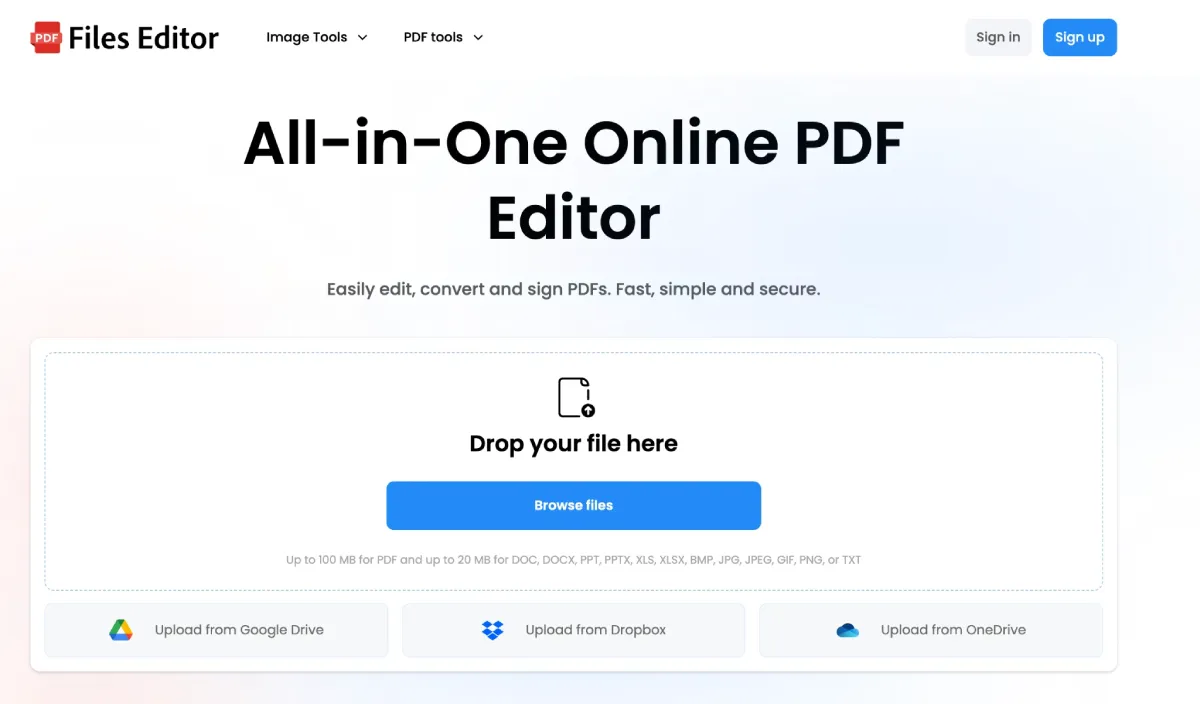
Files Editor: A Breakdown Review
Quick Verdict
If you need a straightforward tool for editing, converting, and organizing documents without a steep learning curve, Files Editor is worth a look. You also can check Files Editor reviews on Reviews.io.
Ease of Use – 4.9/5
The interface is clean and gets out of your way. Opening a PDF or Word file, making an edit, and saving it takes seconds. There’s no need to dig through nested menus to find basic tools like rotating a page or inserting text. New users should feel comfortable within their first session.
Feature Set – 4.7/5
Covers the core needs well:
- Editing text, images, and annotations directly on a document
- Merging and splitting files
- Converting between common formats (PDF, Word, image files)
- Basic organization tools – folders, renaming, tagging, search
It’s not built for heavyweight use cases like legal redlining with detailed version histories or complex desktop-publishing layouts. For everyday document work, though, it covers the essentials without extra bloat.
Performance & Reliability – 5/5
Editing and converting files was consistently fast in my experience, with no crashes on the file types I tested (PDF, DOCX, common image formats). Sharing and exporting also worked smoothly without formatting issues.
Pros
- Fast, intuitive editing for common file types
- Minimal learning curve
- Solid conversion and sharing tools
- Doesn’t overwhelm you with unnecessary features
Cons
- Not suited for highly specialized or professional-grade document workflows
Overall Score: 4.7/5
Files Editor delivers on the basics – it’s fast, easy to use, and gets everyday document tasks done without friction.
Managing PDF Files (and the Tools That Make It Easier)
PDFs have become the default format for almost everything official: contracts, tax forms, invoices, resumes, scanned IDs, academic papers, and every kind of paperwork in between. Part of the reason PDFs took over is that they preserve formatting no matter what device or operating system opens them. A PDF looks the same on a Mac, a Windows laptop, or a phone, which is exactly what you want when sending something like a signed lease or a finished report. But that same rigidity is also what makes PDFs a pain to manage. Unlike a Word document or a spreadsheet, PDFs weren’t originally built to be edited, reorganized, or manipulated easily — they were built to be a fixed, final snapshot of a document. Managing them well means understanding both their strengths and their limitations, and knowing which tools actually solve the problems you run into.
Why PDF Management Gets Messy
Most people don’t think about PDF management until it becomes a problem. A folder full of scanned receipts. A contract that needs one small correction. A stack of forms that all need the same information filled in. A file that’s too large to email. Each of these situations requires a slightly different tool or approach, and using the wrong one often creates more work than it saves.
The core challenges tend to fall into a few categories:
- Editing – fixing a typo, updating a date, adding a signature, or inserting an image into an otherwise finished document.
- Organizing – merging multiple PDFs into one, splitting a large file into smaller pieces, or reordering pages.
- Converting – turning a PDF into an editable Word document, or turning another file type into a PDF for sharing.
- Reducing size – compressing scanned documents or image-heavy PDFs so they can be emailed or uploaded without hitting size limits.
- Filling out forms – completing applications, tax documents, or intake paperwork without printing and rescanning.
- Securing documents — password-protecting sensitive files or redacting private information before sharing.
Each of these tasks has its own best practices, and picking the right approach up front saves a lot of frustration later.
Editing Without Breaking the Formatting
The biggest risk when editing a PDF is disturbing the layout. Because PDFs store text and images as fixed positions rather than flowing, editable content the way a word processor does, even small changes can shift spacing or cause fonts to look inconsistent if the tool doing the editing isn’t handling it carefully. When editing directly inside a PDF, it’s worth double-checking the surrounding text and layout after making a change, rather than assuming it saved cleanly.
For minor corrections – fixing a name, adjusting a date, adding a signature – most modern PDF editors handle this well. For anything more substantial, like restructuring a document’s content entirely, it’s often easier to convert the file to an editable format first, make the changes there, and convert it back to PDF when finished.
Merging, Splitting, and Reordering
This is one of the more genuinely time-saving categories of PDF management. If you regularly deal with scanned documents that need to be combined into a single file, or a long PDF that needs specific pages pulled out and sent separately, doing this manually — printing, cutting, rescanning – is a waste of time compared to modern tools that let you merge, split, and reorder pages in a few clicks.
A good habit here is to always keep an unedited original file before merging or splitting, especially for anything official. Mistakes in page order or accidental omissions are easy to make and hard to notice until someone else opens the file and finds a missing page.
Converting Between Formats
Conversion is where things get trickiest, particularly converting a PDF back into an editable Word document. Simple, text-heavy PDFs usually convert cleanly. Anything with tables, multiple columns, or complex layouts is more likely to need manual cleanup afterward — this is a near-universal limitation across PDF tools, not something unique to any one product. If a document’s formatting matters a lot (a resume, a formatted report), it’s worth reviewing the converted file carefully rather than assuming it transferred perfectly.
Going the other direction – turning a Word document, spreadsheet, or image into a PDF — tends to be far more reliable, since PDFs are designed to lock in formatting rather than reconstruct it.
Reducing File Size
Scanned documents are usually the biggest offenders when it comes to bloated file sizes, since each page is essentially stored as an image rather than lightweight text. Compression tools reduce the resolution or optimize the image data to shrink file size while keeping the document legible. This is especially useful for anything being emailed, since many email providers cap attachment sizes. It’s worth testing readability after compressing anything with fine print or small text, since aggressive compression can occasionally blur small details.
Filling Out Forms Efficiently
Fillable PDF forms – the kind with defined text fields – are the easiest to complete digitally, since most tools recognize the fields automatically and let you tab through them. Older or scanned forms without built-in fields are trickier, usually requiring you to manually place text boxes over blank lines. It’s not elegant, but it beats printing, filling out by hand, and rescanning.
Security and Redaction
Before sharing sensitive documents, password protection and encryption are worth using, particularly for anything containing financial or personal information. Redaction deserves special caution: some tools only visually cover up sensitive text without actually removing the underlying data, meaning the original information could still be recoverable. Always verify that a redaction tool actually deletes the data rather than just hiding it visually, especially before sending anything containing sensitive personal or financial details.
Choosing the Right Tool for the Job
Not every PDF task requires the same tool. Quick edits and merges can usually be handled by lightweight, general-purpose PDF editors. Heavy-duty conversions or highly specialized workflows – legal redlining, complex digital forms, detailed version tracking — often call for more specialized software built for that specific use case. Matching the tool to the actual task, rather than relying on one app to do everything perfectly, tends to produce better results with fewer headaches.
At the end of the day, good PDF management isn’t about finding one perfect tool – it’s about understanding what each task actually requires and picking the right approach for it, whether that means a quick edit, a careful conversion, or simply keeping an original copy safe before making any changes at all.


Leave a Reply