

How to Make Web & Portfolio Video Look Sharp on Modern Displays in 2026
You spent weeks perfecting a portfolio site. The type is crisp, the spacing is right, and the layout holds together on every breakpoint. Then a visitor opens it on a 27-inch 5K display, and the hero video looks soft and muddy while everything around it stays razor-sharp. That contrast is jarring, and it quietly undercuts the polish of the whole page. The uncomfortable truth in 2026 is that video is now the weakest visual link on most well-built websites. Screens have raced ahead. A phone renders at three or four times the pixel density of a decade ago, and desktop panels routinely push past 1,000 nits of peak brightness. A clip that looked fine in 2019 can look dated today. This guide walks through why that happens and how to fix it without a studio budget.
Why web video quality suddenly matters more
Displays changed faster than the video most of us ship. A 1080p hero clip used to fill a laptop screen pixel-for-pixel. Now the same clip is stretched across a Retina or 4K panel, and the browser interpolates every missing pixel. Interpolation invents detail it does not have, so edges soften and fine texture smears. Visitors do not think in terms of pixel density. They just sense that something looks cheap. On a portfolio, that impression lands on your work, not on the hardware.
Brightness moved too. Modern laptops and monitors reproduce a far wider luminance range than the standard-dynamic-range footage most sites embed. A clip mastered for older screens looks flat and washed out beside interface elements that already exploit the panel’s full range. The gap between your video and everything around it keeps widening as hardware improves.
The concept: resolution, bitrate, and dynamic range explained
Three separate ideas get tangled together, and untangling them makes every later decision easier. Resolution is how many pixels the frame contains, such as 1920 by 1080. Bitrate is how much data describes each second of footage. Dynamic range is the spread between the darkest and brightest parts of the image the format can express.
You can have a 4K resolution file that still looks soft because its bitrate is too low to feed all those pixels with real detail. As one plain-English rule from screen-recording guides puts it: resolution decides how many pixels exist, and bitrate decides how much data each pixel gets. Starve the pixels and the eye reads the result as blur, even at a high resolution. Dynamic range is a different axis entirely. A frame can be sharp and well-fed with data yet still look lifeless because it was mastered for a narrow brightness window. Understanding these as three dials, not one, is the whole game. You tune each for the screens people actually use.
Where UniFab fits into a web-video workflow
Measured against those criteria, a purpose-built enhancer removes most of the friction. The UniFab AI Video Enhancer runs in the browser, which is the practical detail that matters for agency and freelance work: there is nothing to install, no signup, and no local GPU required. You upload a soft clip, its cloud AI upscales up to 2x, reduces noise, sharpens details, and recovers lost textures, then hands back a cleaner file. The 480p-to-960p and 1080p-to-4K jumps are exactly the range you need when a hero clip has to survive a Retina or 4K panel.
Because it is cloud-powered, it works from Windows, Mac, Chromebook, iPad, and phones, so a designer on a lightweight laptop is not blocked. It accepts MP4, AVI, and MOV, and outputs MP4 by default, which is the format browsers decode most reliably. Batch processing helps when a project has several background loops to clean at once.
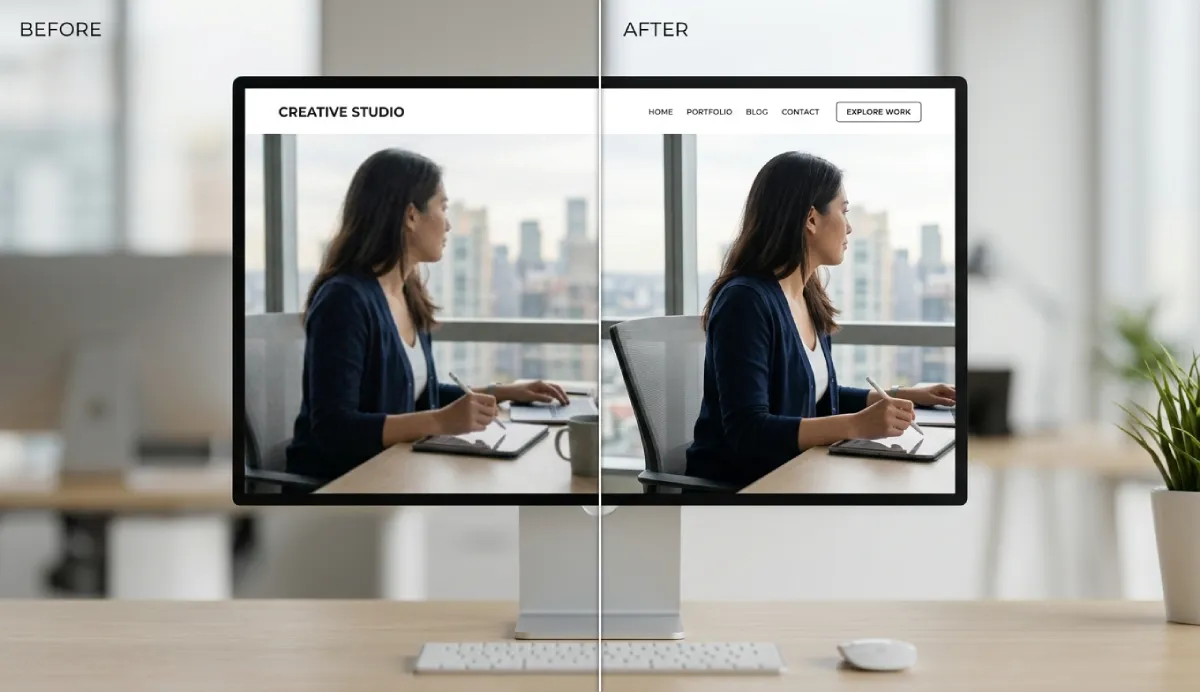
One honest limitation worth stating plainly: a 2x upscale is not magic. If your source is severely degraded, badly compressed, or shot at a tiny resolution, the result will be noticeably better but not indistinguishable from footage that was captured well in the first place. Enhancement narrows the gap; it does not erase it. Treat it as a rescue and improvement step, not a substitute for a decent original where you have the choice.
Making footage look vivid on high-nit modern displays
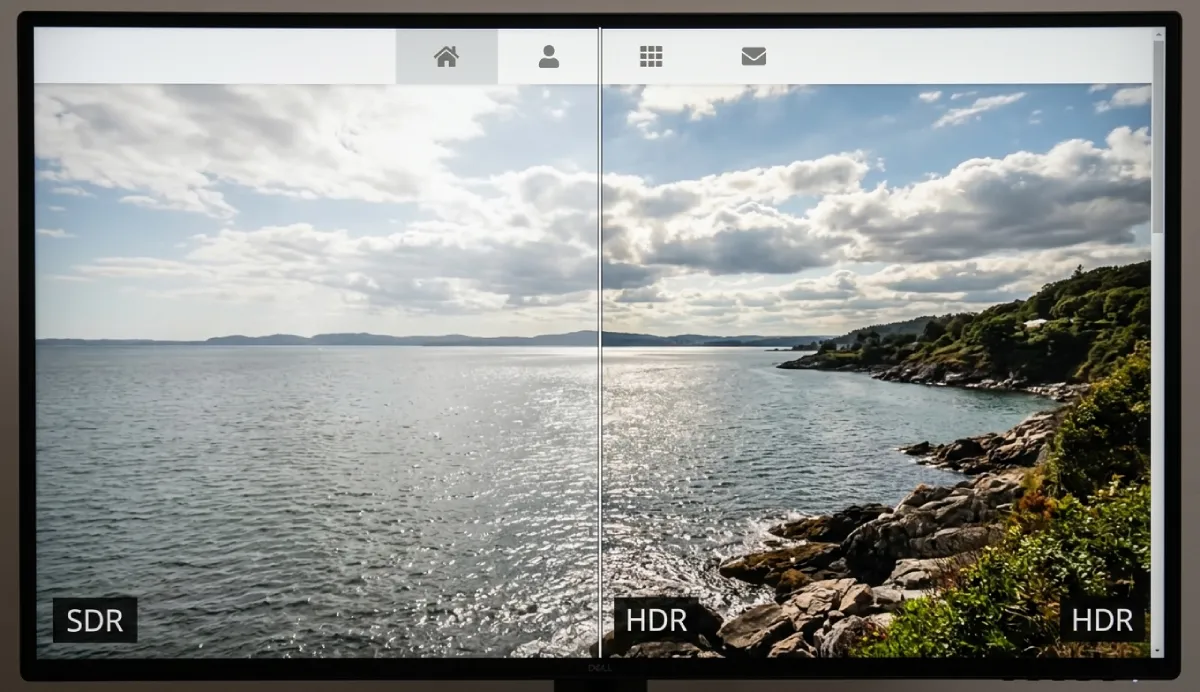
Sharpness is only half the story. The other half is brightness and color, and this is where dynamic range comes in. Standard-dynamic-range video was mastered for a narrow luminance window. Today’s laptops and monitors reproduce far more, and browser support has caught up enough to make it worth acting on. Mozilla’s graphics team confirmed experimental HDR video playback landing in Firefox Nightly 148 on Windows in early 2026, with macOS support already shipped. The CSS dynamic-range-limit property arrived in Chrome 136, Edge 136, and Safari 26. The plumbing exists; the question is whether your footage takes advantage of it.
This is where converting brightness range pays off. Tools that Convert SDR to HDR use AI inverse tone mapping to remap 8-bit standard footage into a 10-bit high-dynamic-range signal, reconstructing luminance rather than just cranking a slider. UniFab’s converter targets HDR10 at up to 1,000 nits and Dolby Vision at up to 4,000 nits, with a wide Rec.2020 gamut, and it can run in the cloud without a dedicated GPU. On a portfolio piece meant to feel premium, that shift from flat to vivid is the difference a bright panel actually rewards. Keep an SDR version in your <video> sources as a fallback so visitors on older hardware still get a clean, correctly-toned experience.
A practical tutorial: prepping video for the web in four steps
Here is a repeatable process that fits into an existing build workflow. It assumes you already have a clip and a page to embed it in.
- Step 1 — Audit the source. Check the real resolution and bitrate of your file, not the label. A clip exported as “1080p” from an old phone may carry so little data that it never looked truly sharp. If the source is genuinely soft or under-fed, no CSS trick will rescue it. This is the moment to decide whether the footage needs enhancement before it goes anywhere near a page.
- Step 2 — Enhance and, if needed, upscale. Raise the detail and effective resolution so the frame survives being stretched across a dense panel. This is where AI enhancement earns its place, because it reconstructs plausible texture rather than simply smearing existing pixels wider.
- Step 3 — Convert for brightness and format. Decide whether the clip should target a wider brightness range for modern screens, and export it in a web-friendly container that browsers decode efficiently. Keep an SDR fallback for older hardware.
- Step 4 — Compress and embed responsibly. Encode at a bitrate high enough to keep the frame clean but low enough to protect load time, lazy-load below the fold, and serve a poster image so the layout never jumps. Four steps, no studio, and every one of them is inside a designer’s control.
What to look for when choosing a tool to prepare web video
Plenty of tools claim to fix video. The ones worth your time share a handful of traits that matter specifically for web work. Judge any option against these criteria rather than against a feature-count contest.
- Detail reconstruction, not just sharpening. A crude sharpen filter exaggerates edges and adds halos that look worse on a dense screen. You want a tool that rebuilds genuine texture, so the frame reads as clean rather than crunchy when a high-DPI panel magnifies every flaw.
- Real resolution gain. Stretching a small frame to fill a 4K hero is exactly the problem you are trying to solve. A capable tool raises effective resolution, giving the browser more pixels to work with instead of forcing it to invent them.
- Dynamic-range support. If you care about how footage looks on bright modern panels, the tool needs to handle the jump from standard to high dynamic range without blowing out highlights or crushing shadows.
- Format flexibility and clean compression. Web delivery lives and dies on file size. The tool should export common web containers and let you balance quality against bytes, because a gorgeous clip that stalls the page helps no one.
A workflow that fits yours. Browser-based options mean nothing to install and no GPU to buy, which suits agencies juggling machines and clients. Desktop options give you more control and heavier throughput. Neither is universally right; pick the one that matches how your team actually works.
Top scenarios where sharper, brighter web video pays off
Not every project needs the full treatment. These are the situations where the effort clearly earns its keep.
- Agency portfolio reels. A studio showcasing client work cannot afford a soft hero loop. The reel is the pitch, and blur on a designer’s own site reads as carelessness.
- Product and SaaS landing pages. A background clip demonstrating a feature has to stay legible when magnified across a wide monitor, or the demo defeats itself.
- Photographer and filmmaker sites. These audiences judge harshly. HDR conversion lets a cinematographer’s background loop feel closer to how it looked in the timeline.
- Real-estate and hospitality walkthroughs. Bright, sharp footage of a space converts better than a dim, soft pan that hides the detail people came to see.
- Restored or archival footage on brand sites. Older clips carry emotional weight but often arrive soft and dull. Enhancing and re-toning them lets heritage content sit comfortably beside modern design.
- Course and webinar intros. Screen-heavy footage is unforgiving; low bitrate turns crisp UI into mush, so enhancement keeps instructional video readable.
In each case the pattern is the same. The screen is capable, the audience is discerning, and the video is the piece most likely to let the page down.
A real-world example: cleaning up a studio’s hero reel
Here is a grounded walkthrough of the kind of fix this workflow handles, using round, believable numbers rather than invented testimonials. A small design studio rebuilds its site on a modern theme. The old hero was a 12-second loop exported years earlier at 1080p but at a thin bitrate, roughly 3 Mbps, so it always looked slightly soft. On the previous site, viewed mostly on 1080p laptops, nobody noticed. On the new build, opened on 4K and Retina panels, the softness became obvious against crisp vector type and sharp UI.
The team ran the clip through browser-based enhancement, taking the effective resolution up toward 4K and letting the AI rebuild edge detail and clean up compression noise. They then converted the graded footage from SDR to HDR10 so the highlights had life on bright screens, and kept the original SDR file as a fallback source. For delivery, they re-encoded to MP4 at a target bitrate around 8 Mbps, lazy-loaded the video below the fold, and set a poster frame to hold the layout.
The measurable outcomes were modest but real. The hero file grew from about 4.5 MB to roughly 9 MB, still well within a reasonable budget for a single lazy-loaded asset, and the poster plus lazy-loading meant Largest Contentful Paint did not regress. On a color-managed 4K display the difference was plainly visible: sharper edges, cleaner motion, and highlights that no longer looked washed out. The whole pass took the team part of an afternoon, most of which was encoding and testing rather than hands-on tuning. No footage was reshot and no studio was booked.
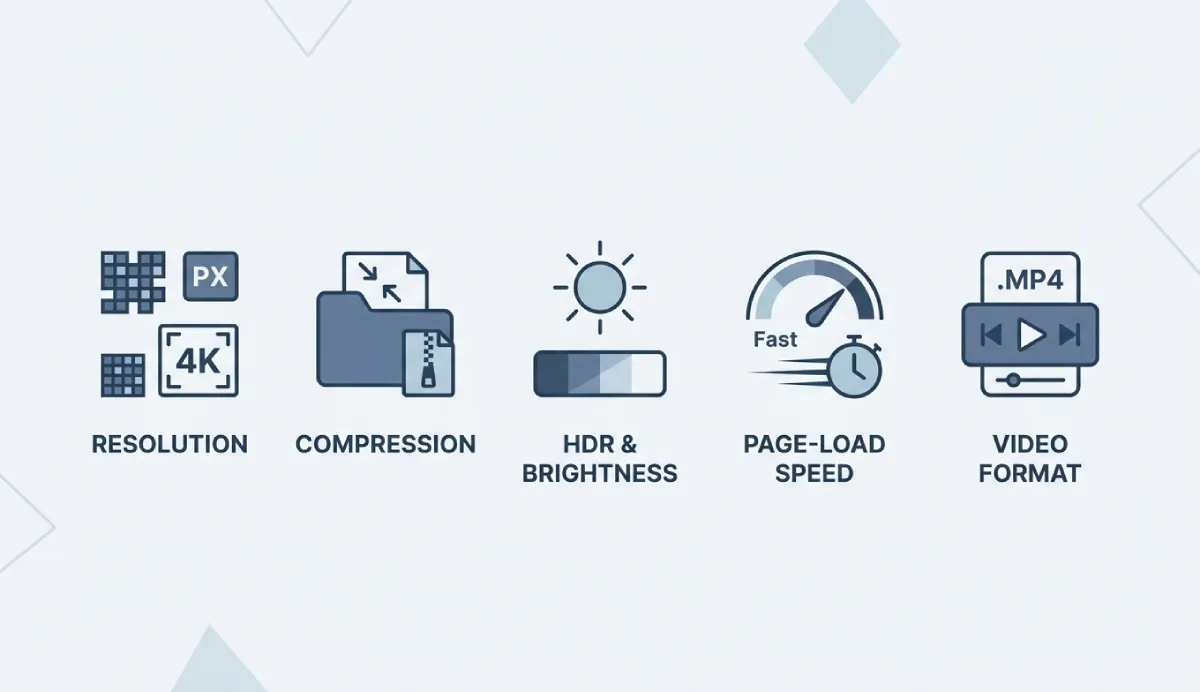
Enhance, convert, and embed workflow infographic for web video
Practical embedding notes that protect performance
Enhancement is wasted if the embed drags the page down. A few habits keep quality and speed in balance. Lazy-load any video that is not in the first viewport so it never blocks the initial paint. Always set a poster image so the layout reserves space and visitors see something immediate. Provide multiple <source> entries so browsers pick the format they decode best, and include your SDR file as a fallback beneath the HDR one. Autoplay only muted, looping background clips, and keep those short so the byte cost stays low. Test on a genuinely high-DPI screen, because a standard monitor hides exactly the softness you are trying to fix. None of this is exotic; it is disciplined delivery layered on top of better source files.
FAQ
Why does my website video look blurry only on high-resolution screens?
Because the browser stretches your frame across more pixels than it contains and interpolates the difference, which softens edges. A 1080p clip that filled an older laptop is magnified on a 4K or Retina panel, exposing every weakness. Raising the effective resolution and detail of the source before you embed it is the reliable fix.
Is low bitrate or low resolution the real cause of soft web video?
Often it is bitrate, not resolution. A file can be labeled 4K yet still look soft because it carries too little data per frame, so the pixels are starved of detail. Check the actual bitrate of your source, and remember that resolution and bitrate are separate dials you tune independently.
Do browsers actually support HDR video in 2026?
Increasingly, yes. HDR video has shipped on macOS and, per Mozilla’s graphics team, reached experimental support in Firefox Nightly 148 on Windows in early 2026. The CSS dynamic-range-limit property is available in recent Chrome, Edge, and Safari. Support is uneven, so always ship an SDR fallback source alongside any HDR version.
How many nits does a display need for HDR to look worthwhile?
Guidance in display circles suggests HDR becomes genuinely useful around 600 to 1,000 nits of real peak brightness, with higher figures giving more headroom. Since you cannot control a visitor’s hardware, master for a sensible target such as HDR10 at 1,000 nits and let capable screens benefit while others fall back to SDR.
Can I improve old or low-quality footage without reshooting?
Yes, within limits. AI enhancement reconstructs plausible detail and can raise effective resolution, and inverse tone mapping can lift standard footage toward HDR. The result is markedly better, but a severely degraded source will never match footage captured well originally. Treat it as rescue, not resurrection.
Will a bigger, higher-quality video hurt my page speed?
It can if you embed it carelessly, but the fix is process, not lower quality. Lazy-load below-the-fold video, set a poster image, keep autoplay clips short and muted, and target a reasonable bitrate. Done this way, a sharper file can grow moderately in size without harming Largest Contentful Paint.
Do I need to install software or buy a GPU to do this?
No. Browser-based enhancers and cloud converters run the heavy processing remotely, so you can work from a lightweight laptop, a Chromebook, or even a tablet. Desktop tools give more control if you have the hardware, but they are not a requirement for good results.
What format should I export web video in?
MP4 remains the safest default because browsers decode it reliably across platforms. Provide it as your primary source, add an SDR fallback beneath any HDR version, and lean on modern containers only when you can also serve MP4 for compatibility.
Verdict
Modern screens raised the bar, and video is where most well-designed sites now fall short. The fix is not mysterious. Understand that resolution, bitrate, and dynamic range are three separate dials. Audit your source honestly. Enhance and upscale it so it survives a dense panel, convert it so it looks alive on a bright one, then embed it with discipline so speed never suffers. Browser-based tools mean you can do all of this without new hardware or a studio, and the payoff is a page whose video finally matches the craftsmanship of everything around it. In 2026, on the screens your visitors already own, that is the detail that separates a site that looks current from one that quietly looks a year behind.


Leave a Reply