

How to Verify an App Website Before Downloading Software: A Safety Checklist
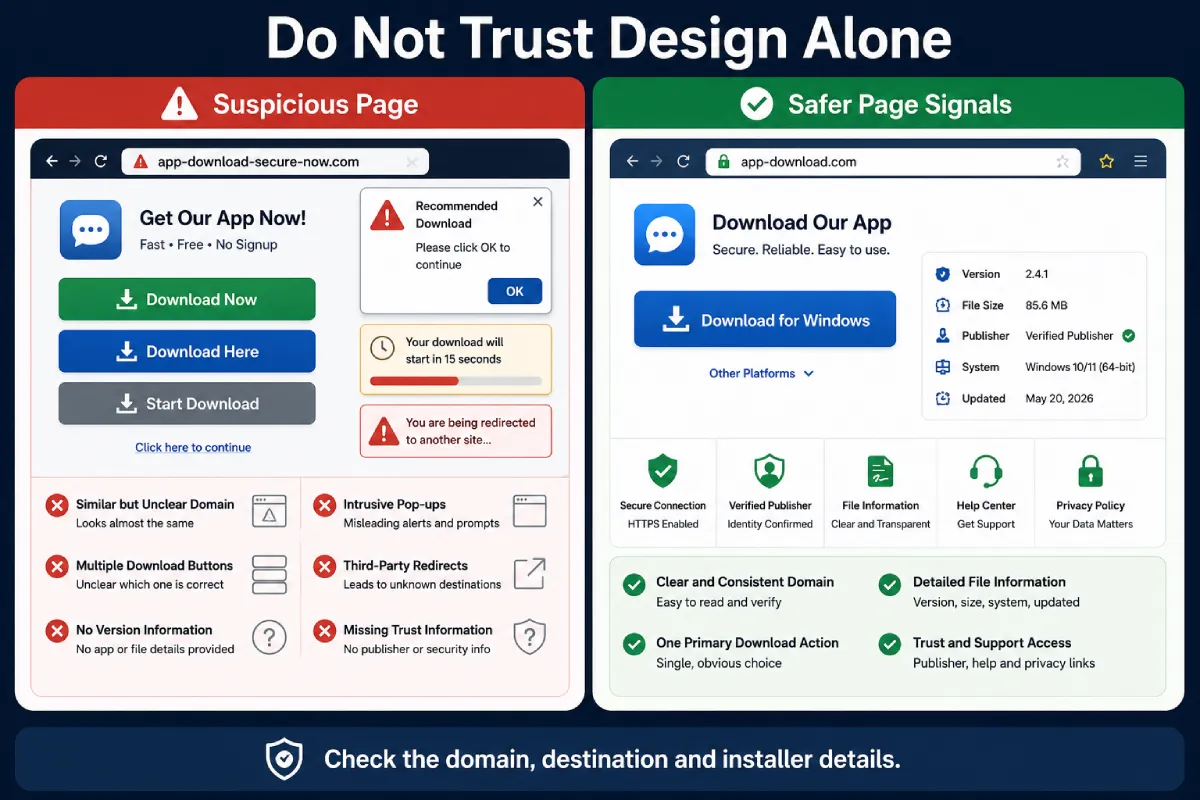
An app website can look polished without being trustworthy. Fake or misleading pages may copy a product logo, brand name, colors, screenshots, download buttons, and support text from a legitimate service. Some are designed specifically to reduce suspicion and encourage users to download a modified installer.
Visual appearance should therefore never be the only factor used to judge whether an application website or download source is trustworthy.
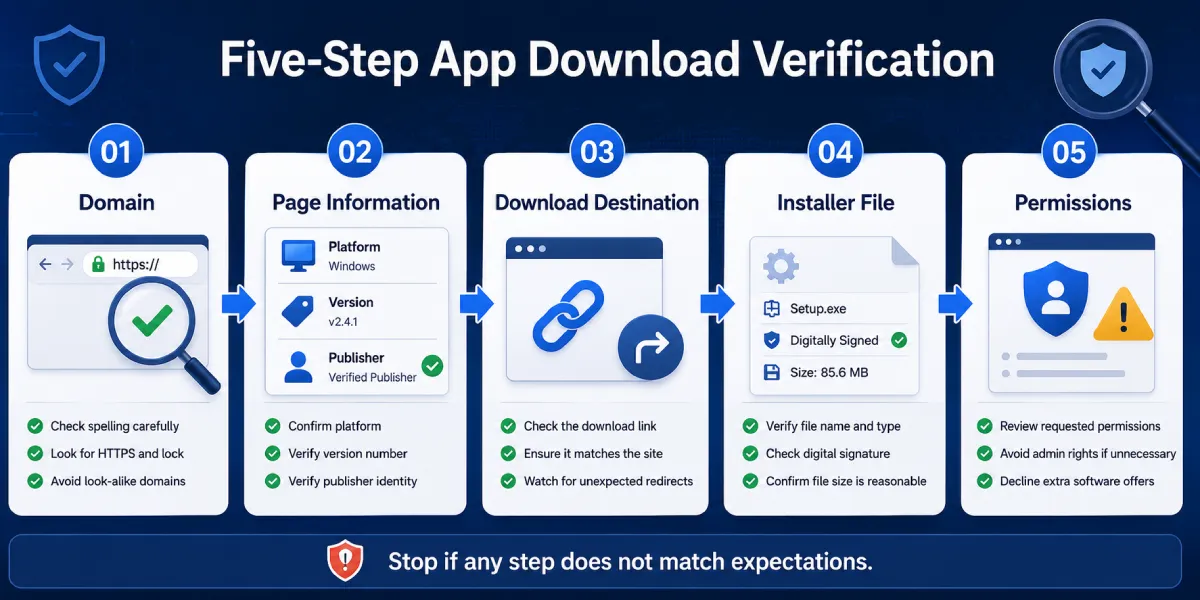
Before downloading software, users should inspect the full domain, search-result label, final download destination, platform and version information, installer file, and requested permissions. Each check provides only one part of the picture, but together they reveal many common warning signs.
A secure software download process should follow a clear order:
Domain → Page information → Download destination → File → Permissions
The following app website verification checklist explains how to review each stage before opening an installer, including situations where Hong Kong and Taiwan users move between English and Traditional Chinese search results.
Check the Full Domain Before Trusting the Page Design
The domain name is one of the most important signals on a software website because page design can be copied much more easily than domain ownership.
Users should inspect the full address in the browser bar before clicking a download button. Important details include:
- Spelling
- Domain extension
- Extra words
- Hyphens
- Lookalike characters
- Subdomains
- HTTPS
- Page-path length
A misleading website may add terms such as “download,” “support,” “update,” “secure,” or “app” to a recognizable product name. Generic examples might include:
brand-download-example.com
brandapp-support-example.net
A long or descriptive domain is not automatically dangerous, but users should ask why the site uses that address and whether it matches the source they expected to visit.
Lookalike domains can also replace letters with similar characters or add small spelling changes that are easy to overlook. Users should read the domain from beginning to end rather than recognizing only one familiar word.
Subdomains deserve attention as well. In an address such as:
brand.example-download.com
the registered domain is `example-download.com`, not `brand.com`. The familiar name at the beginning may simply be a subdomain created by another website owner.
HTTPS is necessary because it encrypts communication between the browser and website, but HTTPS alone does not prove that the publisher or file is legitimate. A misleading site can also use HTTPS.
When users search for the phrase telegram 官网, they should still verify the destination domain independently instead of assuming that the first result, familiar logo, or professional page design proves authenticity.
Be Careful With Bilingual and Traditional Chinese Search Results
Users in Hong Kong and Taiwan often search for apps using a mix of English product names and Chinese terms. This can produce translated landing pages, third-party download guides, mirrors, and advertisements that look relevant even when they are not controlled by the expected publisher.
Words such as official website, official entry, download, or Traditional Chinese version in a page title are not proof of ownership. Compare the final domain with an established support page, verified app-store listing, or documentation linked from a known product channel.
When the English and Traditional Chinese pages show different version numbers, publishers, file destinations, or installer names, stop and investigate. Legitimate localization may change the wording, but core product and download details should remain consistent.
Separate Sponsored Results From Organic Search Listings
Search engines may display advertisements above normal search results. These entries are usually marked with labels such as “Sponsored” or “Ad.”
A sponsored result is not automatically malicious. Legitimate software companies frequently advertise their products. However, advertisement placement also does not prove that a page is the correct or authorized source.
Before clicking, users should examine:
- The displayed domain
- The advertiser name
- The page title
- The description
- Any unusual spelling or extra words
After clicking, the browser address bar should be checked again. The displayed address in an advertisement may not fully show every redirect or final landing page.
Users should also avoid assuming that the highest organic result is always the correct one. Search position can change, and third-party download sites may rank for popular software terms.
A safer approach is to compare the result with other reliable references, such as the developer’s established support pages, verified app-store listings, or documentation linked from a known product account.
Inspect the Download Button and Final Destination
The appearance of a download button does not reveal where it leads.
Before clicking, desktop users can often place the pointer over the button and review the destination displayed by the browser. Mobile users may be able to press and hold the link to preview the address.
Users should look for several warning signs:
- The button leads to an unrelated domain
- Several redirects occur before the file begins downloading
- The destination is an unknown third-party file host
- Clicking opens multiple pop-ups
- The page requests browser notification permission
- A browser extension must be installed first
- The file downloads automatically without clear confirmation
Third-party hosting is not always unsafe. Large files may be distributed through content-delivery networks or recognized hosting services. The problem is a lack of transparency. The page should explain why the file is hosted elsewhere and identify the expected destination.
A button labeled “Download” should also perform a download-related action. It should not open an unrelated advertisement, redirect to a survey, or require installation of another program.
Pages with several visually identical buttons are especially risky. An advertisement may imitate the real download button and use phrases such as “Fast Download,” “Start Now,” or “Recommended.”
Users should slow down and identify the single button connected to the expected file.
Confirm Platform, Version, and Publisher Information
A reliable software page should explain exactly which version is being offered.
Useful information normally includes:
- Windows availability
- macOS availability
- Android availability
- iOS availability
- Current version number
- Release or update date
- File size
- System requirements
- Processor architecture
- Installer format
A page presented as a telegram 官网入口 should not be trusted based on wording alone; users should verify the domain, platform information, download destination, and installer details before proceeding.
Platform information helps users avoid downloading the wrong package. A Windows installer will not work on macOS, and an Android package should not be presented as an iPhone application.
Version information also provides context. A page offering a very old release without explanation may be abandoned or poorly maintained. However, a version number alone does not prove authenticity. It should match the file information and surrounding documentation.
System requirements should be visible before the download begins. Users should know whether the software supports their operating system, whether administrator access is required, and how much disk space is needed.
A trustworthy page should make these details easy to find rather than hiding them below advertisements or unrelated promotional content.
Verify the Installer File Before Opening It
After downloading a file, users should pause before opening it.
The first check is the file name. It should be reasonably consistent with the software and platform selected on the website. Random characters, unrelated product names, or unexpected terms may indicate that the wrong file was downloaded.
The extension should also match the expected platform. Common examples include:
- `.exe` or `.msi` for Windows installers
- `.dmg` or `.pkg` for macOS
- `.apk` for Android packages
- Compressed files such as `.zip`
An `.exe` file is not automatically dangerous, and an `.apk` file is not automatically safe. File type only indicates how the package is distributed. Source, signature, permissions, and behavior are more important.
Where available, users should check:
- Digital signature
- Publisher name
- File size
- Version information
- Security software results
- Browser download warnings
- File hash
A valid digital signature can help confirm which publisher signed a file and whether it has been altered after signing. However, users should still verify that the signer is the publisher they expected.
Browser warnings should not be ignored automatically. Some legitimate files may trigger warnings because they are uncommon or newly released, but the correct response is to investigate the source rather than immediately bypass the warning.
Security scans can provide an additional check, but no single scan guarantees that a file is safe. Results should be considered together with the domain, publisher, and installer behavior.
Review Installer and App Permissions
The installation process can reveal risks that were not obvious on the download page.
Many desktop applications legitimately require administrator permission to install files, create folders, or add system components. The key question is whether the requested access is appropriate for the software’s stated function.
Warning signs may include:
- Requesting administrator access without explanation
- Telling users to disable antivirus software
- Installing an unrelated browser toolbar
- Changing the default browser
- Changing the search engine or homepage
- Adding unrelated applications
- Requesting passwords or sensitive account information
- Asking for excessive mobile permissions
- Creating unexpected startup processes
A communication application may reasonably request access to notifications, files, a microphone, or a camera when the user enables related features. It should not require unrelated access without a clear explanation.
Bundled offers should be optional and clearly separated from the main installer. Users should be able to decline additional software without canceling the intended installation.
If the installer asks users to disable security protections, the safest response is to stop and verify the source. Security tools may occasionally produce false positives, but a website should not use that possibility as a general reason to ignore warnings.
Respond Quickly After a Suspicious Download
Visiting a suspicious page does not always mean that a device has been compromised. The next steps depend on what the user did.
If the file was downloaded but not opened:
- Do not launch the installer.
- Delete the downloaded file.
- Remove it from the recycle bin or trash.
- Review the browser download history.
- Run a security scan.
- Check whether a browser extension was added.
If the file was opened or installed:
- Disconnect from sensitive accounts if unusual behavior appears.
- Run a full security scan.
- Review recently installed applications.
- Check browser extensions and notification permissions.
- Remove unexpected startup programs.
- Change passwords entered after the installation.
- Enable two-step verification where available.
- Review active account sessions.
- Sign out unknown devices.
- Monitor email and account alerts.
Users who entered login credentials into a suspicious page should change those credentials from a known, clean device. Reused passwords should also be changed on other services.
For messaging applications, active sessions are particularly important. An unauthorized session may remain logged in even after the password is changed, depending on the service. Users should review the device list and terminate anything they do not recognize.
Frequently Asked Questions About App Website Verification
Is HTTPS enough to confirm that an app website is official?
No. HTTPS secures the connection but does not prove who owns the website or whether the installer is legitimate. Check the registered domain, publisher, file signature, and final download destination.
Is the first search result always the official app website?
No. Sponsored results, third-party download sites, and guides may appear above or beside an official source. Read the full domain and compare it with trusted product documentation before downloading.
What should I do if I downloaded a suspicious file but did not open it?
Do not run the file. Delete it, clear it from the recycle bin or trash, review browser downloads and extensions, and run a security scan. If credentials were entered on the site, change them from a known clean device.
Conclusion: Verify the Source, File, and Permissions
Verifying an application website requires more than checking whether the page looks professional or uses familiar branding.
Fake and misleading download pages can copy logos, screenshots, colors, support text, and buttons. Users should instead examine a sequence of independent signals:
Domain → Page information → Download destination → File → Permissions
The domain should match the expected source. The page should identify the product, platform, version, and publisher clearly. The download button should lead to a transparent destination. The installer should match the expected file type and signer. Requested permissions should make sense for the application purpose.
No individual signal can guarantee safety. HTTPS, a polished design, a localized page title, a high search position, or a clean scan result should not be treated as final proof.
A careful download process takes only a few additional minutes, but it can prevent unwanted software, account theft, browser changes, and more serious security problems. The same verification sequence should be used whether the search query is in English, Hong Kong Traditional Chinese, or Taiwan Traditional Chinese.


Leave a Reply