

Perfect Every Frame: 2026 Updated Guide to Remove Object From Video
Unwanted distractions can ruin even the most beautiful and engaging video. This can include strangers accidentally coming into the frame or cluttered backgrounds. In the past, trying to remove objects from video required advanced editing skills and time. Now, we have AI tools that make the process quick and effortless.
Platforms like Filmora are lifesavers for people who lack editing experience but still want clean, polished visuals. Even beginners can remove unwanted objects from video while preserving natural backgrounds and improving video quality.
Part 1. Step-by-Step: Using PC Tools to Remove Objects from Video
In this section, we will discuss various tools one can download to their PC to remove objects from their videos:
1. Filmora
A powerful yet beginner-friendly video editor can make all the difference when cleaning up your footage. Filmora offers creators an easy-to-navigate interface that works smoothly on both Windows and macOS. With its smart AI features, users can easily erase object from video and maintain high-quality visuals.
Furthermore, its background enhancement, motion tracking, and scene refinement options make the results look professional. It is a great choice for anyone who wants distraction-free videos with minimal editing skills.
Guide to Using Filmora as an Object Eraser
Now, follow the next steps to learn how to use Filmora’s AI Object Remover Feature:
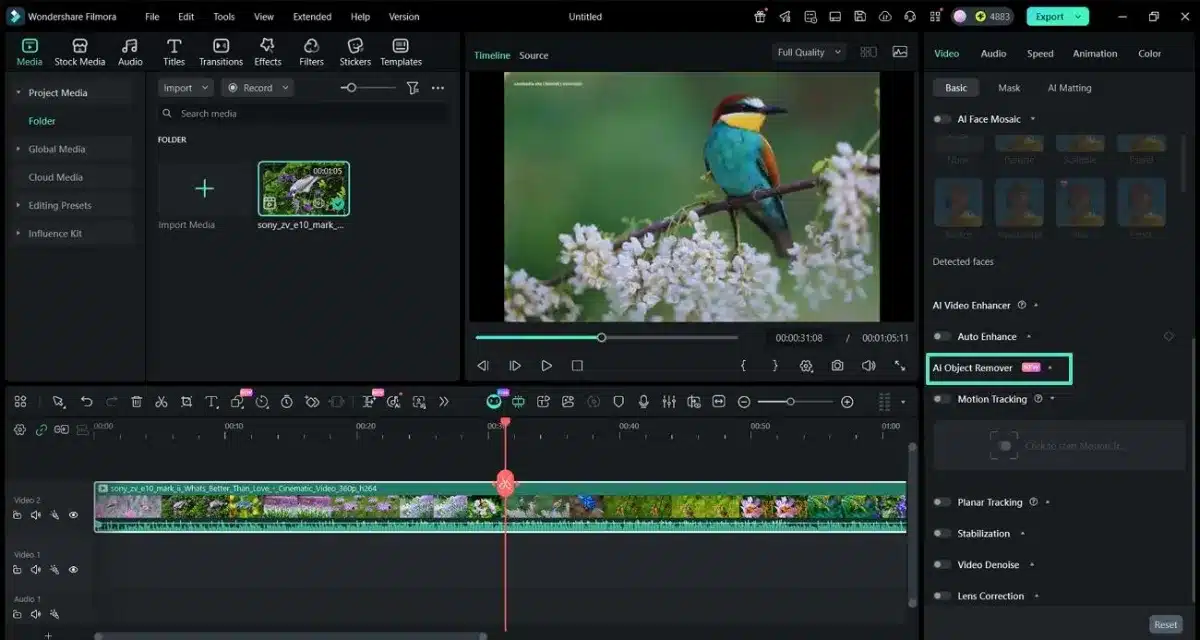
Step 1. Look For AI Object Remover
Initially, open Filmora and click on the “Toolbox” option on the main screen. Once your clip is imported, click on it and select the “AI Object Remover” option.
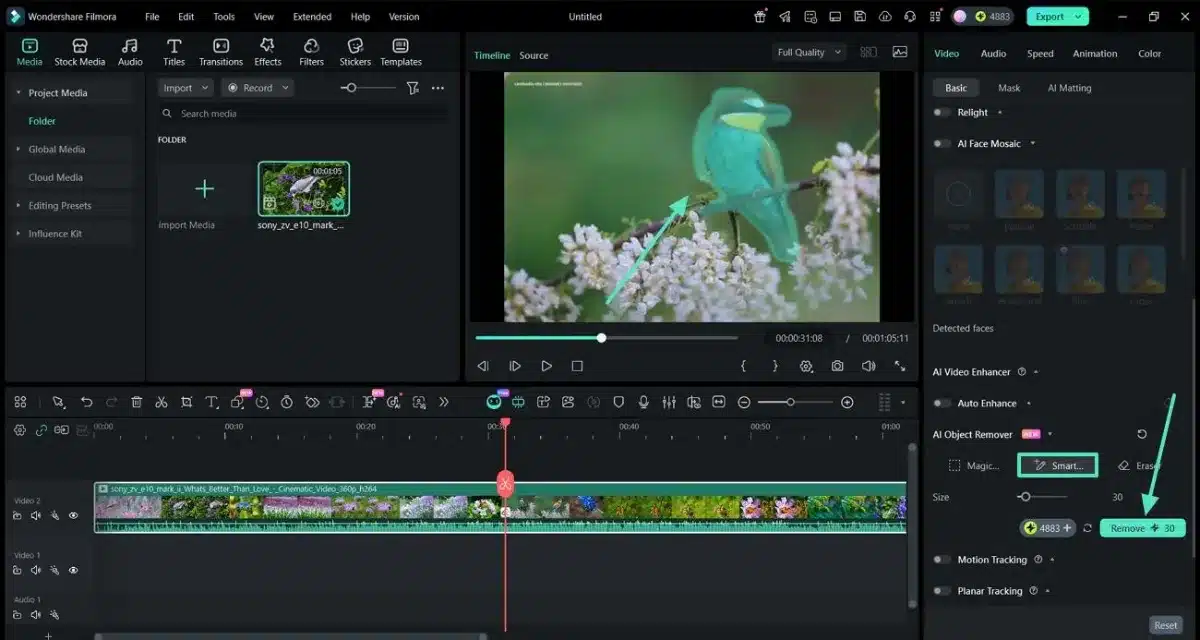
Step 2. Select Smart Brush and Remove Object
Then, select the “Smart Brush” tool and cover the object you want to remove. Once fully covered, click on the “Remove” button to start processing.
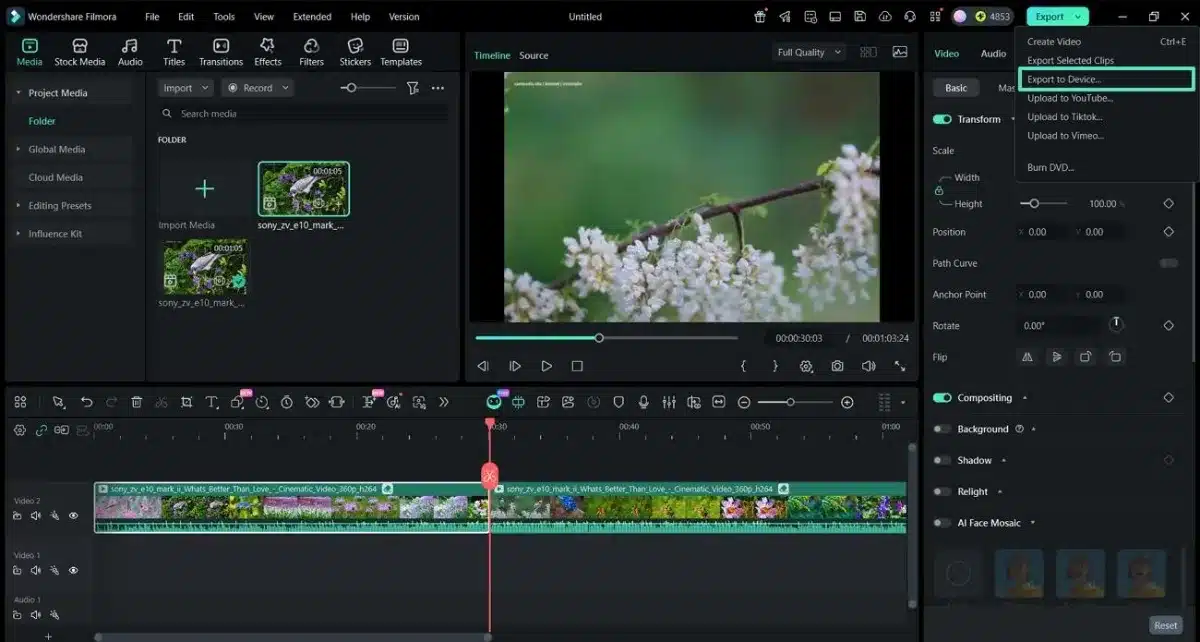
Step 3. Export the Generated Video
To finish, preview the video, click the “Export” option, and choose the “Export to device” option from the top-right corner.
2. Adobe After Effects
A professional video editor tool for Windows and macOS, Adobe After Effects focuses on intricate edits. It suits professional businesses who want clean results and precise control. To learn how to remove things from videos using this tool, look at the guidelines below:
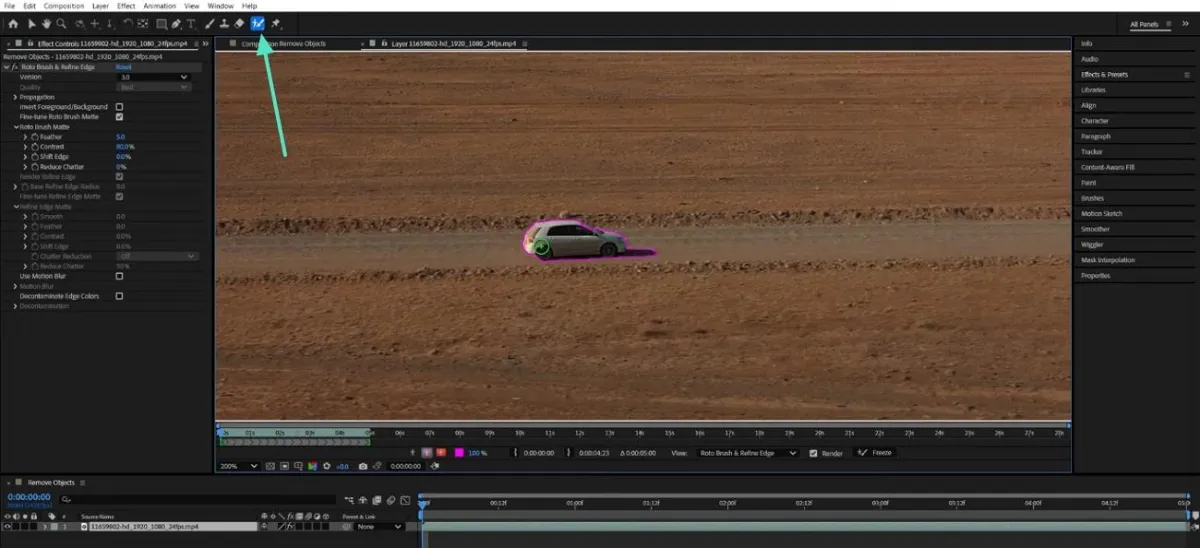
Step 1. To initiate, import your video, and click on it so that it opens in a separate pane.
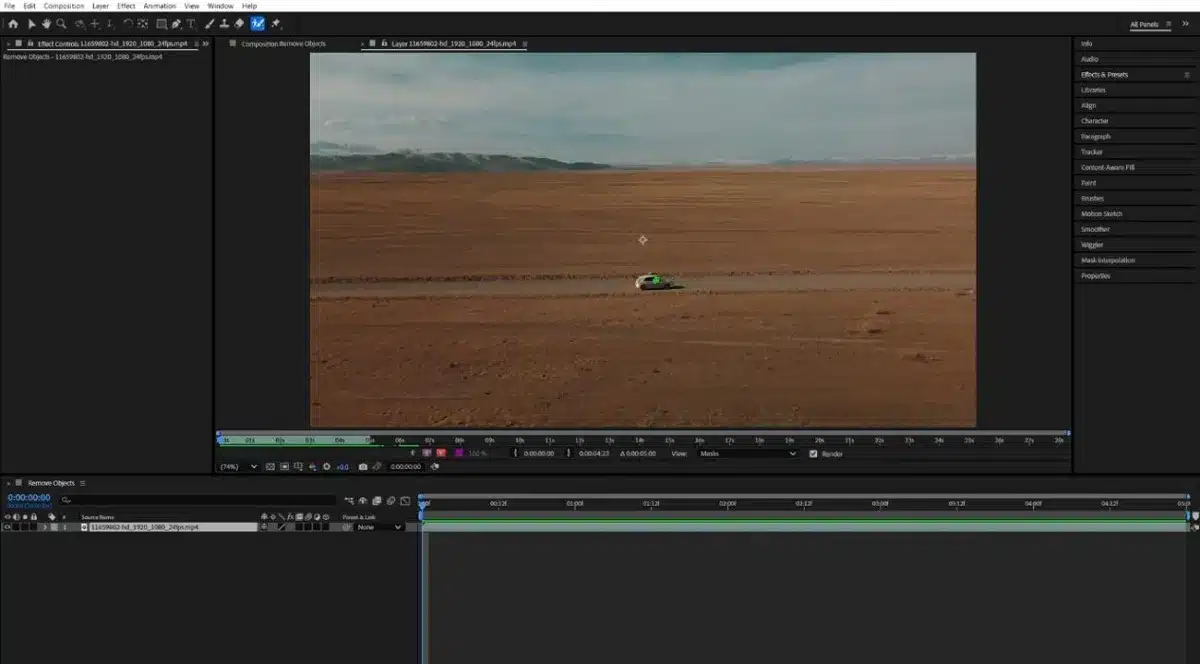
Step 2. Afterwards, use the “Paint brush” tool and drag it over the object you want to remove. Then, click the space bar key to ensure that the object is tracked for the whole clip.
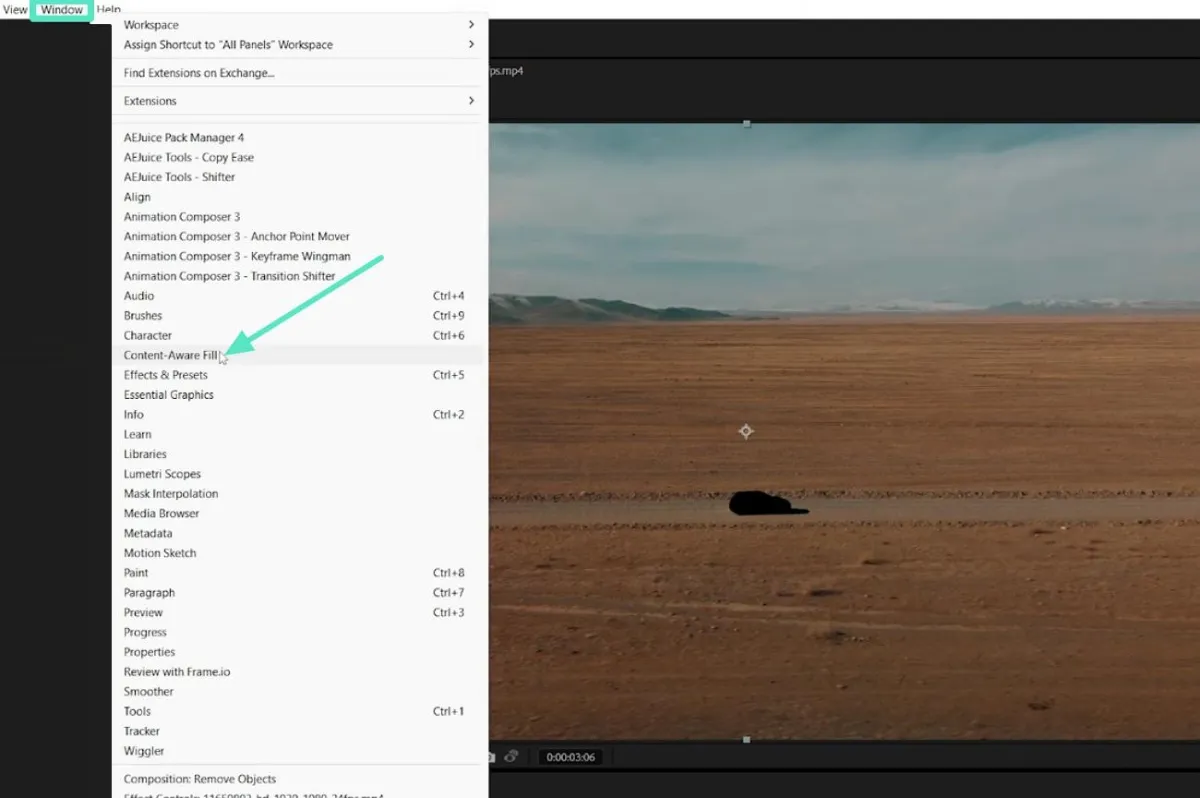
Step 3. Now, navigate to the “Window” option and click on the “Content-Aware Fill” option.
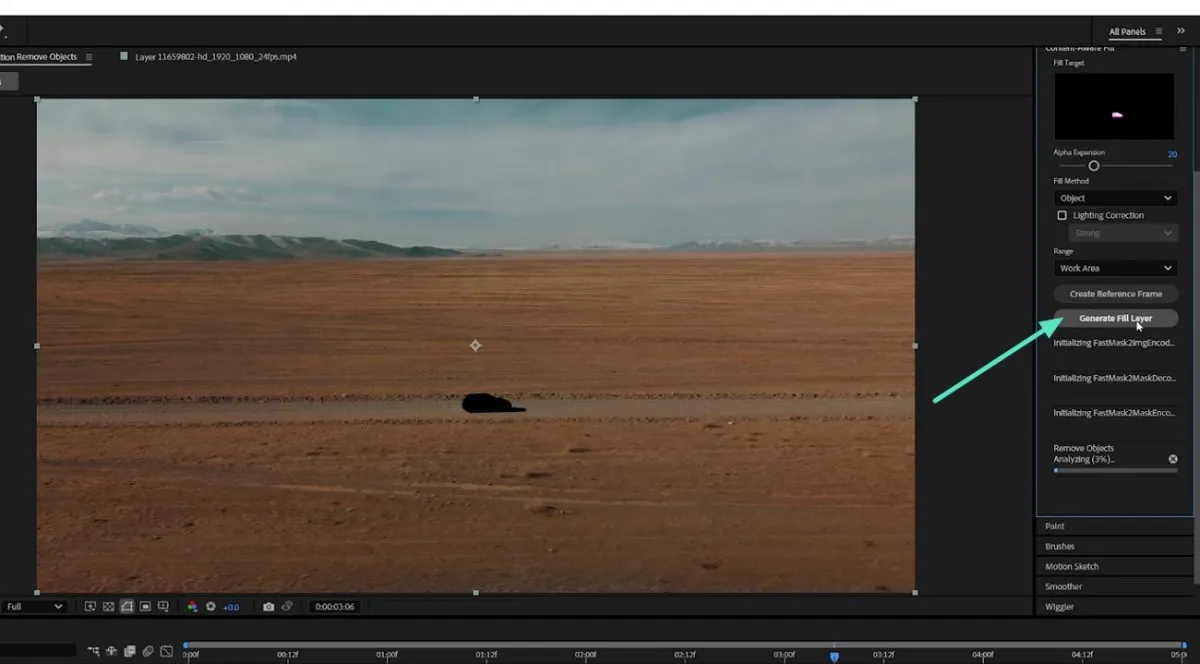
Step 4. Here, you will need to choose the “Generate Fill Layer” option, and it will remove the object. You can preview and then download the clean video later.
3. DaVinci Resolve
Simpler than the previous option, DaVinci Resolve is another video editor tool that can be used to remove objects in videos. The Object Removal effect allows users to track an object and automatically remove it across frames. Use the steps below to use this tool for removing objects:
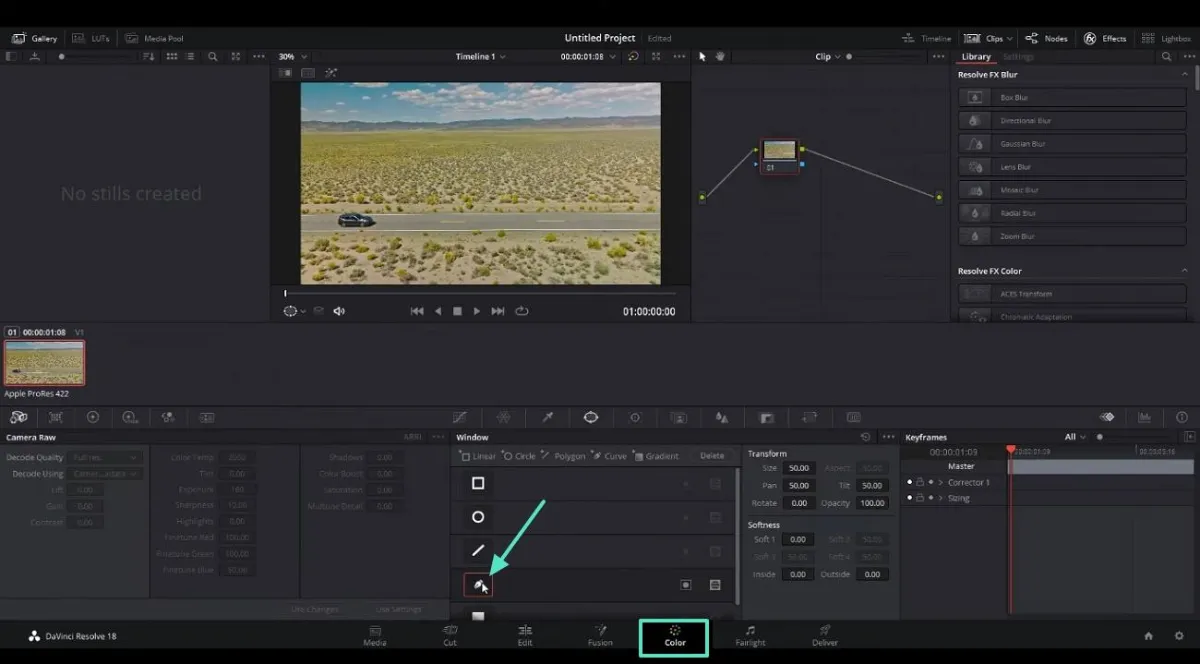
Step 1. To begin, import your footage and drag it onto the timeline. Then, access the “Color” tab and choose the “Pen” tool.
Step 2. Now, draw a mask around the object and access the “Tracker” panel so the software can track the object in the video.
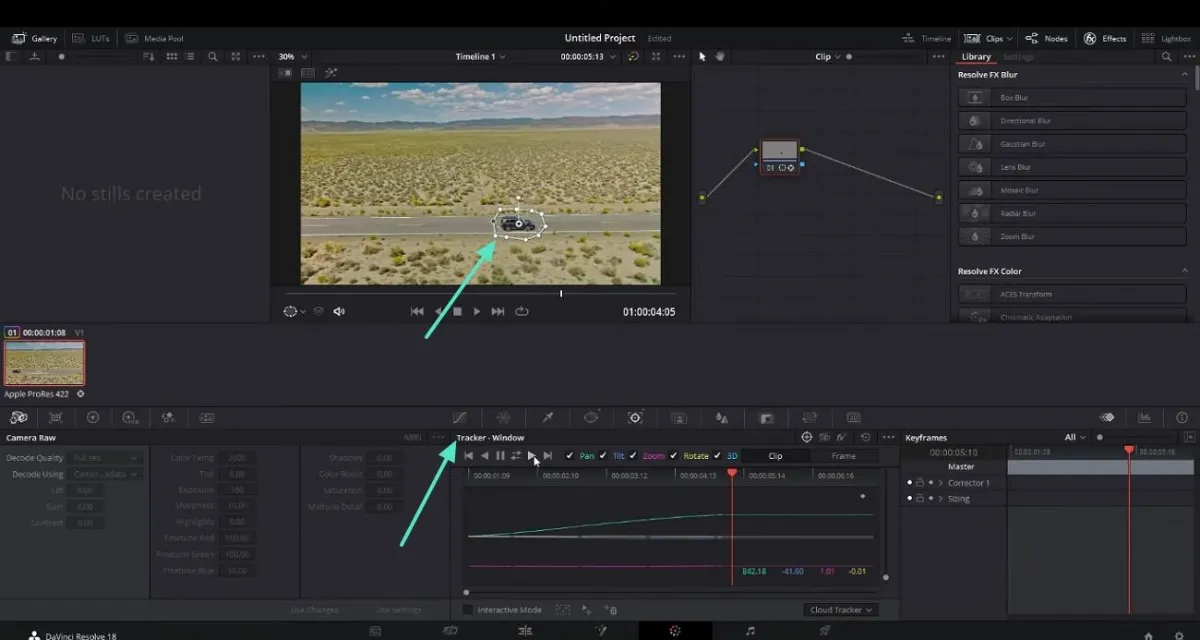
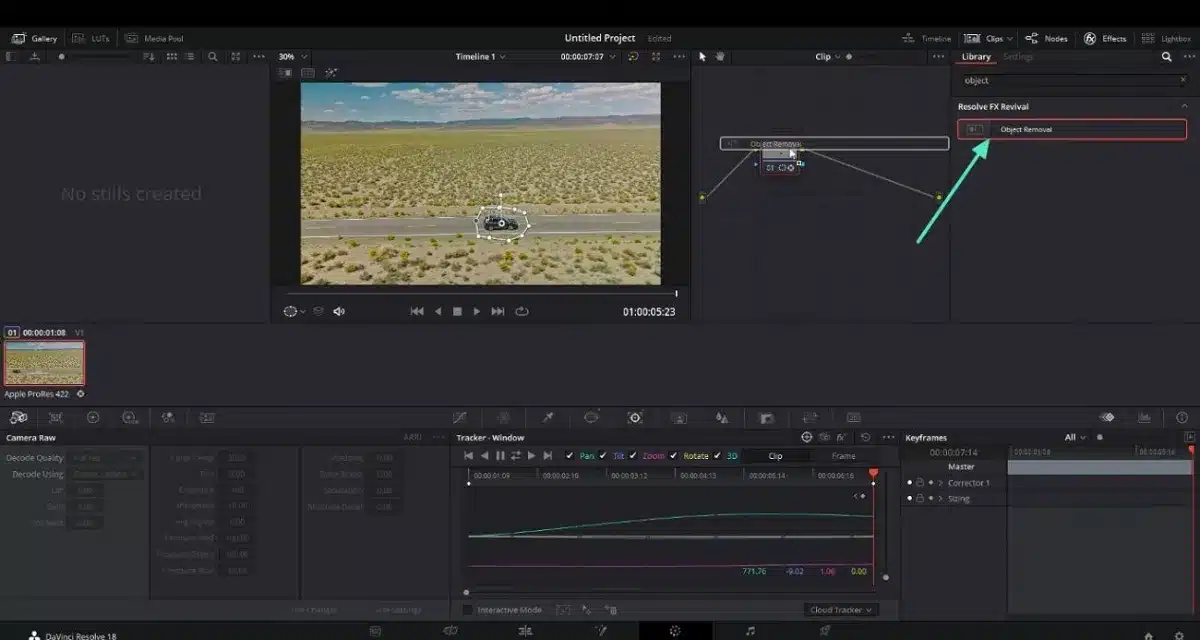
Step 3. Following the previous step, open the OpenFX/Effects panel, search for Object Removal, and drag it onto the node. Now, the object is removed from video and you can save onto your device.
Part 2. How to Remove Objects from Video on Android and iOS.
For mobile users, there are a few apps that can be used to remove object from a video. Let us discuss 3 primary mobile applications here:
1. Filmora (Android/iOS)
While it has fewer advanced controls than the desktop version, it’s great for fast, shareable videos on the go. Both Android and iOS users can download the app and enjoy its creative editing features anywhere.
Guide to Using Filmora App for Removing Objects
Now, follow the next steps carefully to use the application on your phone for removing objects:
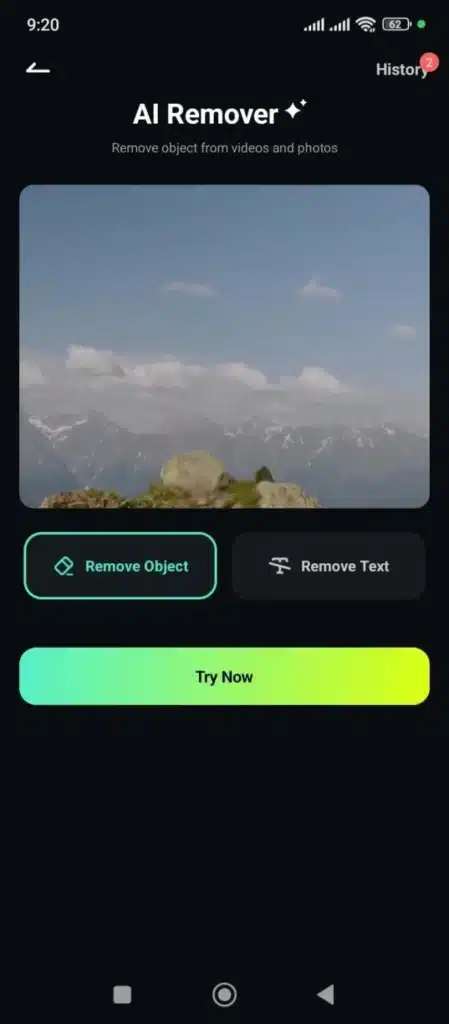
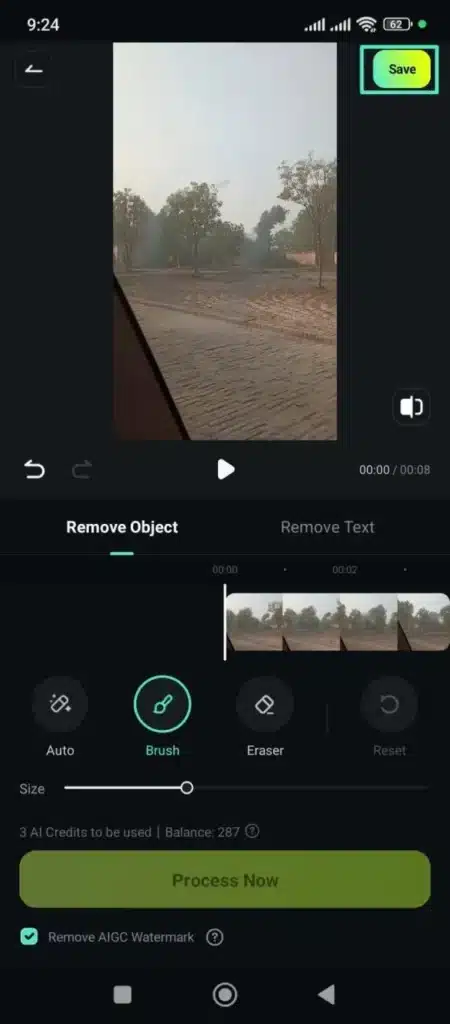
Step 1. Open AI Remover and Import Your Video
Firstly, tap the “AI Remover” option on the home screen, then choose “Remove Object,” and import the clip.
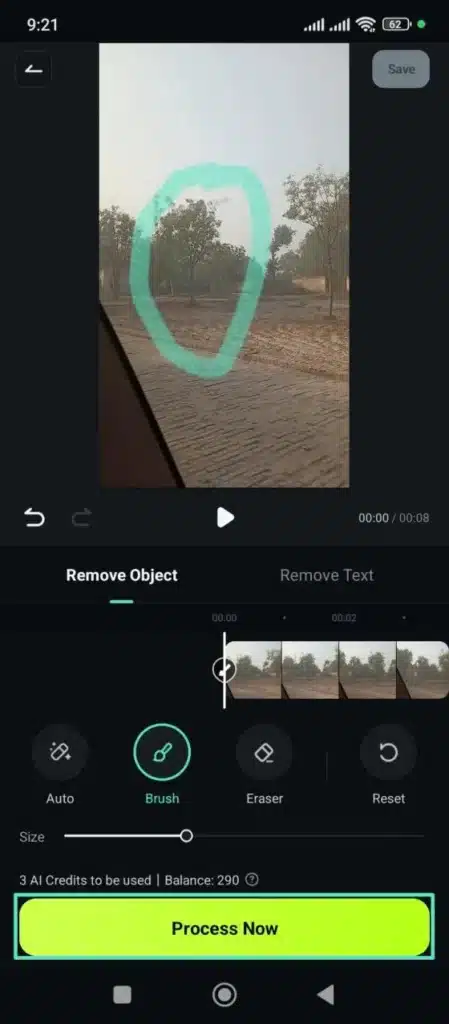
Step 2. Enclose the Object You Want to Remove
Next, use the “Brush” option to cover the unwanted object and then tap “Process Now” to remove it.
Step 3. Save the Cleaned Video to Your Phone
Finally, if satisfied with the results after previewing, tap the “Save” option to download the edited clip.
2. CapCut (iOS/Android)
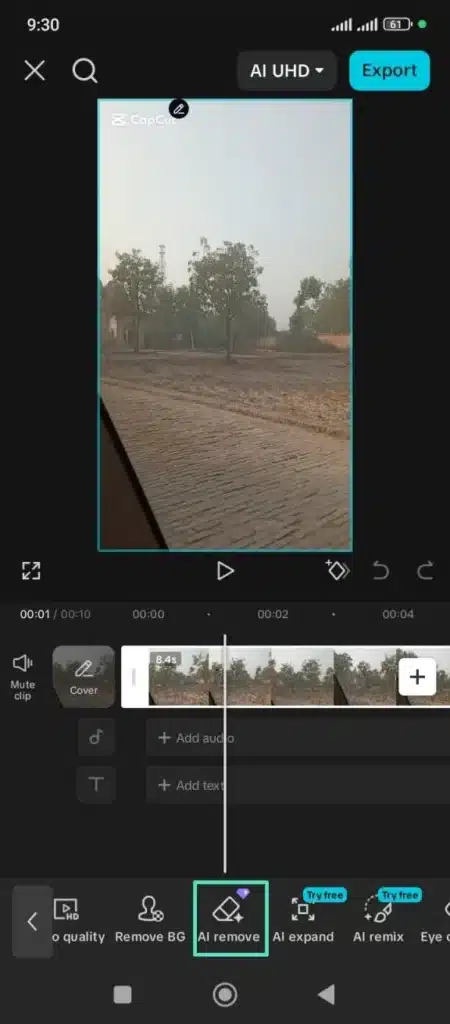
This is a free editor primarily used by content creators, known for its templates and AI tools. It is beginner‑friendly, and its AI Remove feature lets you quickly erase objects with a simple brush selection. Follow the next series of steps to learn how to use CapCut as a video object eraser:
Step 1. To begin, tap the “New video” option and select the file you want to edit. Then, tap the timeline and choose the “AI Remove” option.
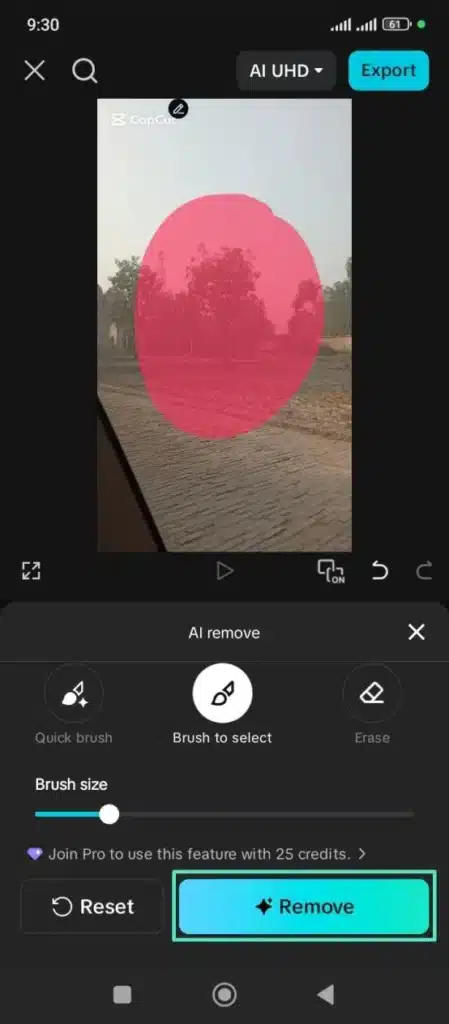
Step 2. Next, use the drawing/brush tool to cover the unwanted object and press the “Remove” option.
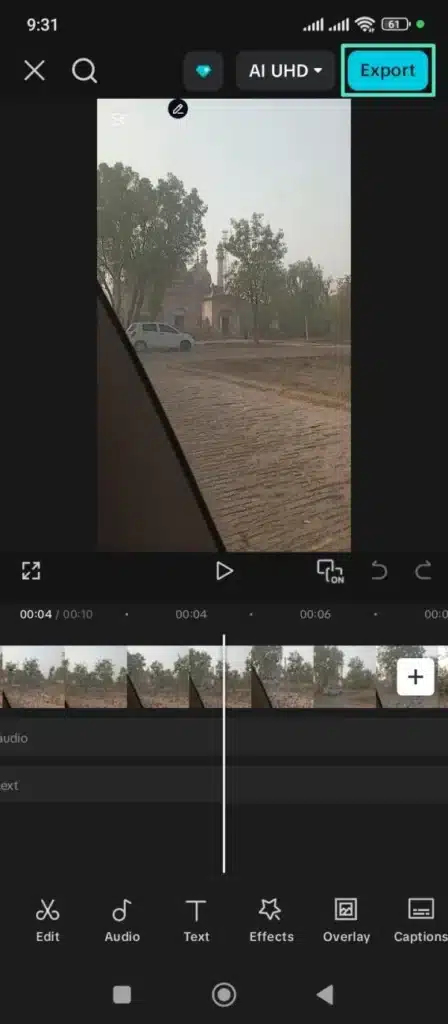
Step 3. Finally, preview the result and save the clean video to your device by tapping the “Export” option.
3. Remove Unwanted Object (iOS/Android)
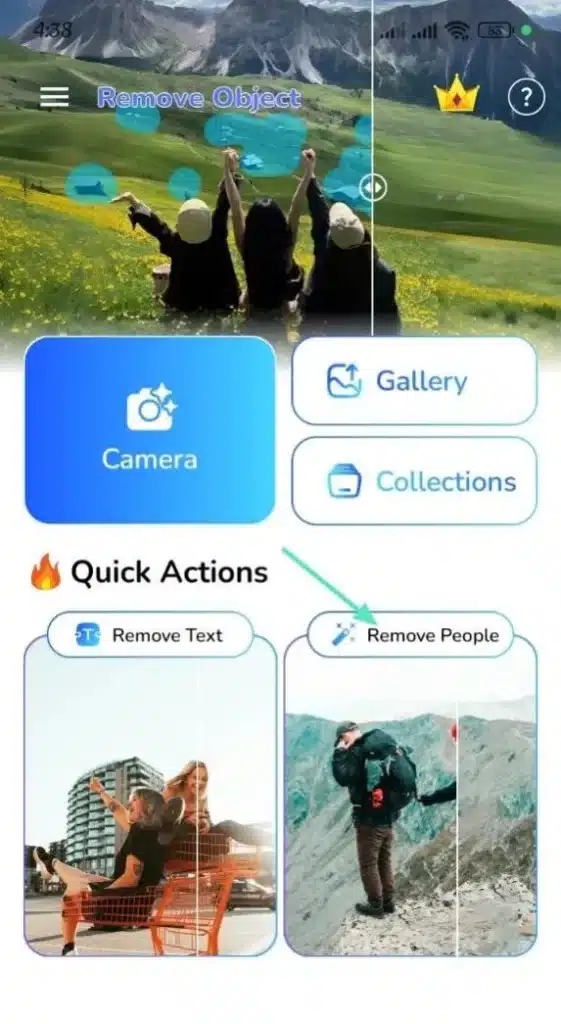
A popular mobile editor used by vloggers, small businesses, and beginners for fast videos. Remove Unwanted Object has a simple interface with strong tools for masking and basic effects. The workflow is similar on both Android and iOS, so those who want to use it can follow the guide below:
Step 1. In the beginning, open the app and tap the “Remove People” option and select the video.
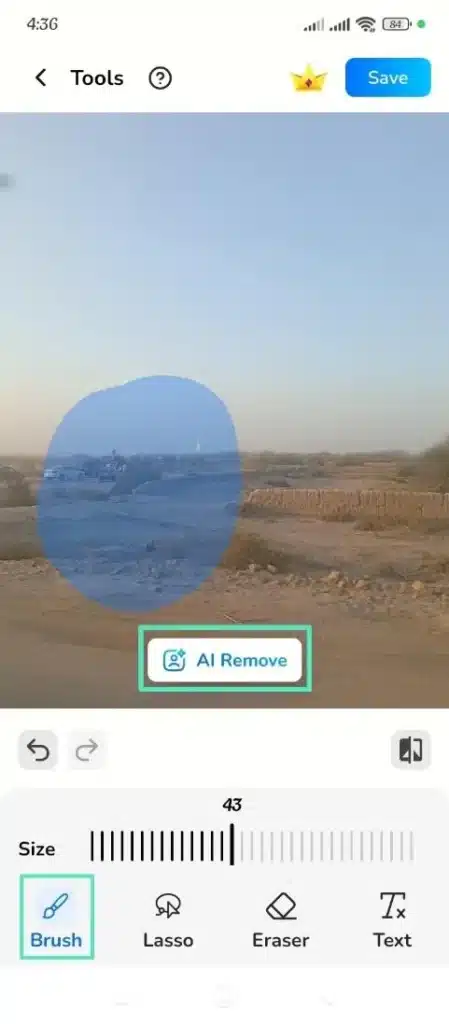
Step 2. Next, use the “Brush” tool to cover the unwanted object and press the “AI Remove” option.
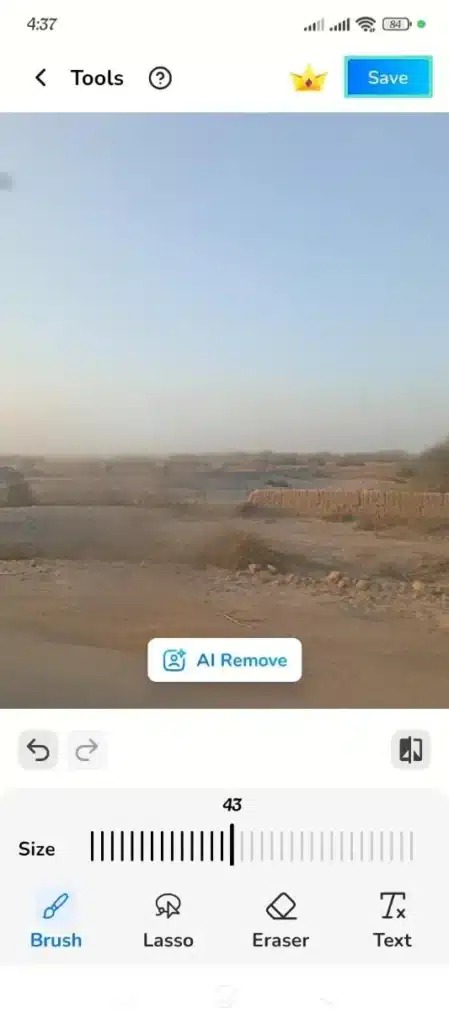
Step 3. To end, it’s satisfied, edit the video on your phone by tapping the “Save” option.
Part 3. How to Remove Objects from Videos Online
For those users who do not want to download software, or an app can use online tools to remove elements from videos. Let us take a look at some options for online video removers:
1. Media.io Online Watermark Remover
A browser-based video editor like Media.io allows you to quickly remove unwanted objects. It uses an AI feature to analyze your footage, bridge gaps, and keep scenes looking natural. Media.io is the perfect tool for fast cleanups with minimal editing knowledge or skills required.
Step-by-Step Guide on Using Media.io for Removing Objects
Follow the next steps carefully to use this tool for removing objects from videos:
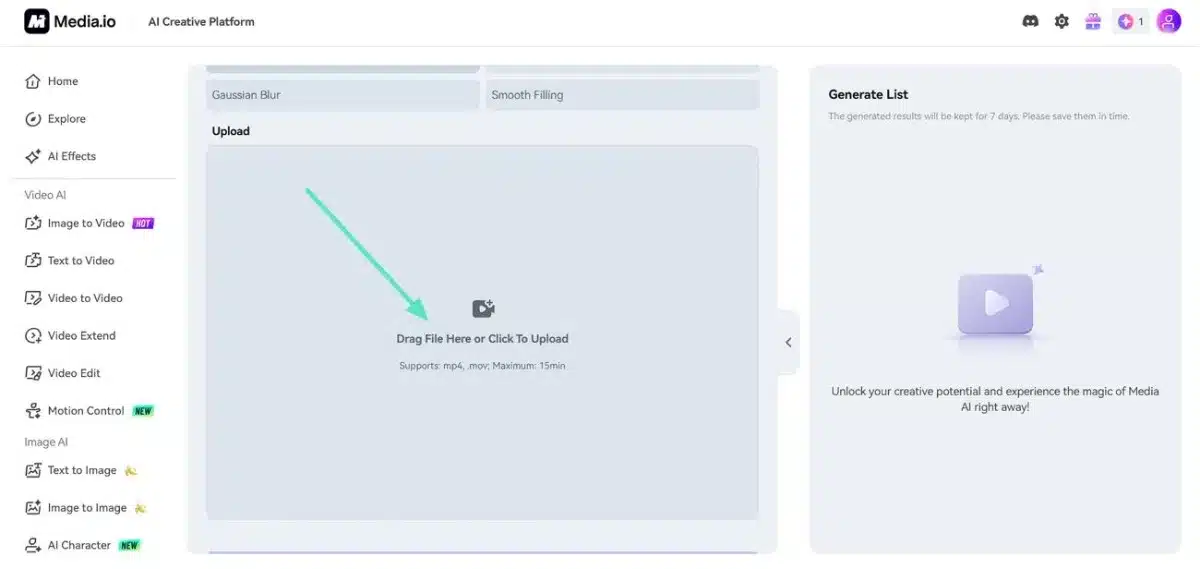
Step 1. Access AI Video Editor and Upload Clip
Initially, click on the “AI video Editor” option after opening the main website and uploading your video clip.
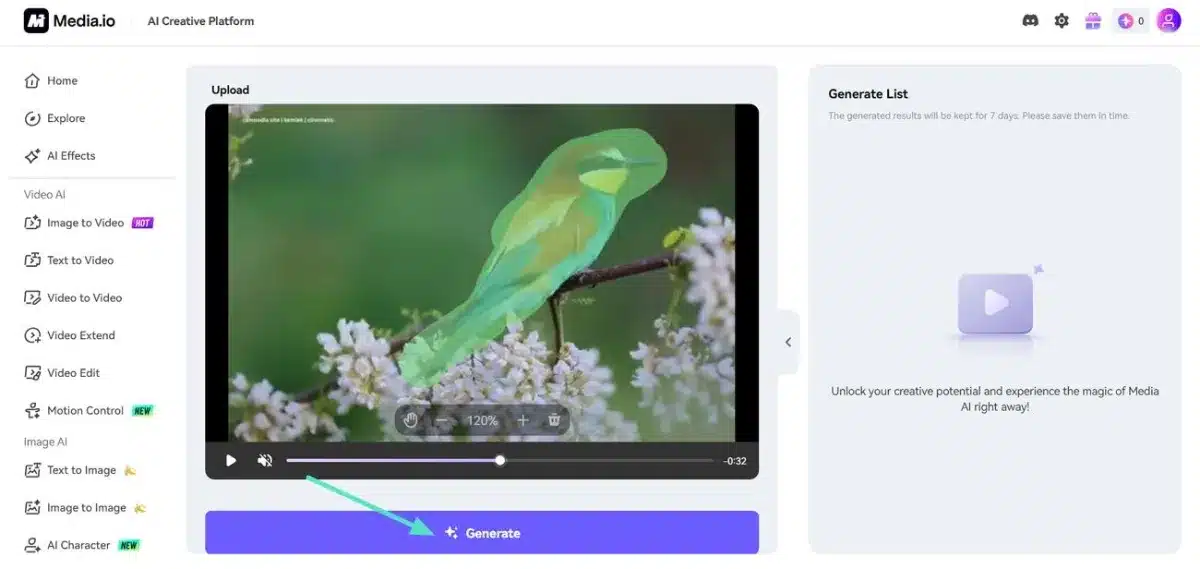
Step 2. Brush Over Object and Drag Timeline
Here, select the “Brush” tool to paint over the object, then drag the timeline so the selection covers the full duration, and select “Generate” option.
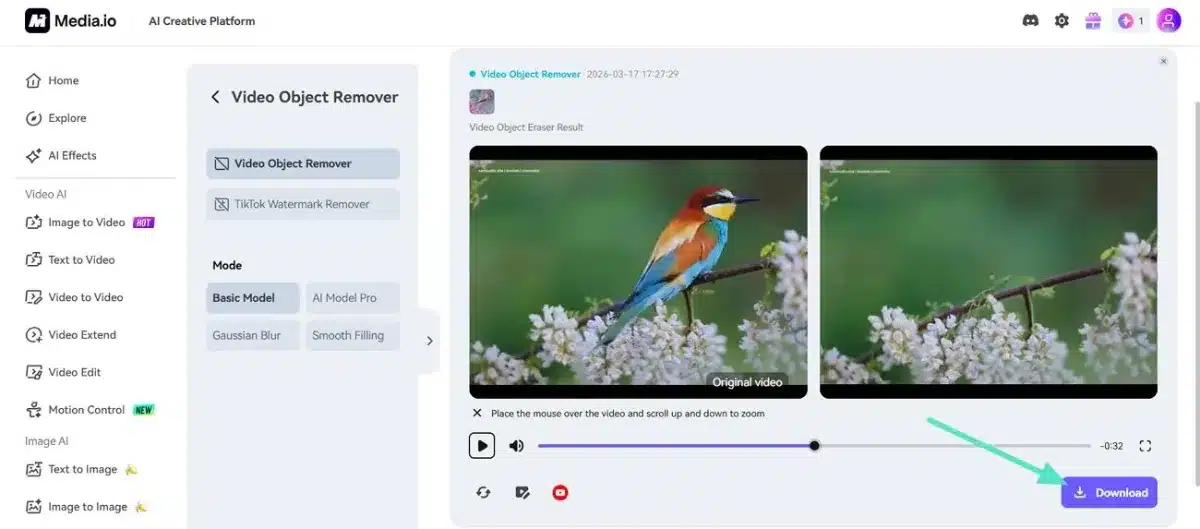
Step 3. Remove and Download the Generated Result
Finally, click the “Download” button to save your cleaned video onto your device.
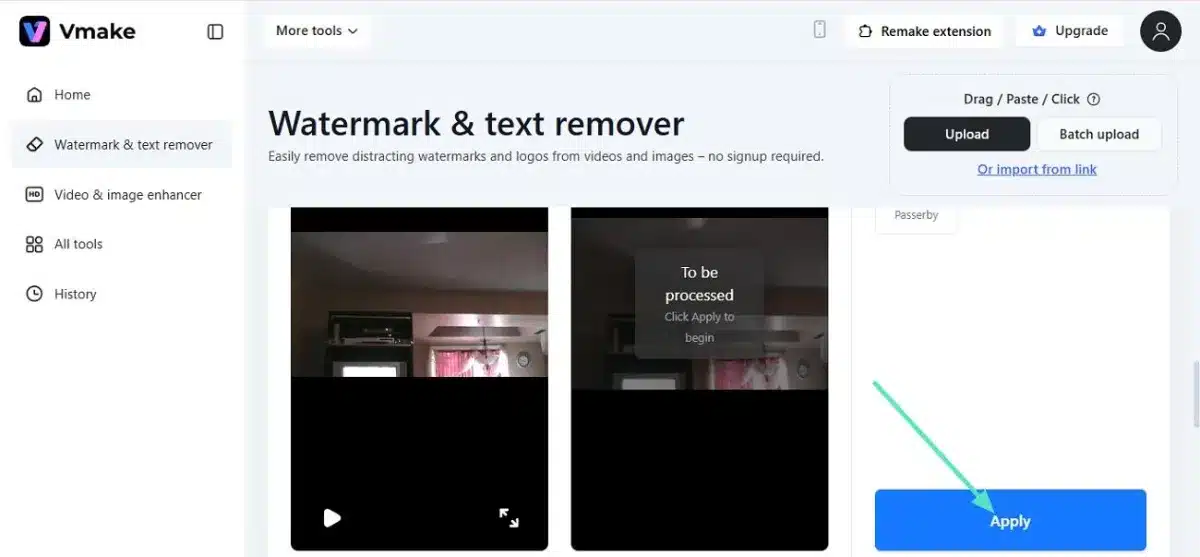
2. Vmake AI Video Object Remover
With just a few clicks, the Vmake AI Video Object Remover creates quick, creative social clips with AI effects and smart object removal. Creators use it to clean distractions, add effects, and export videos for social media sharing. Considering this, please follow the next set of instructions carefully to use Vmake AI tool:
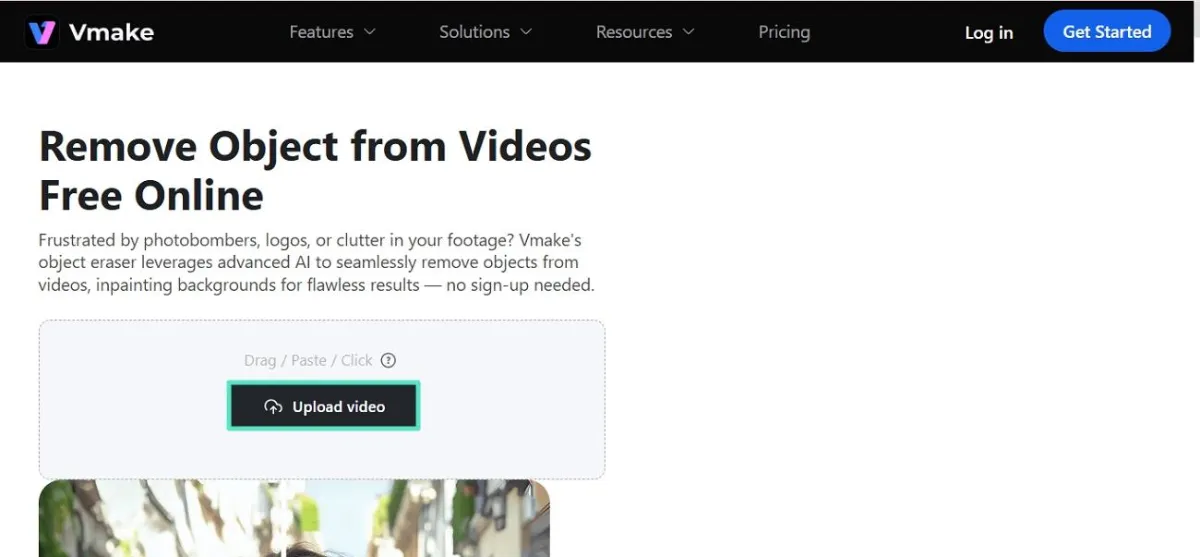
Step 1. Upload the clip after accessing the “Remove objects from video” feature from the main page.
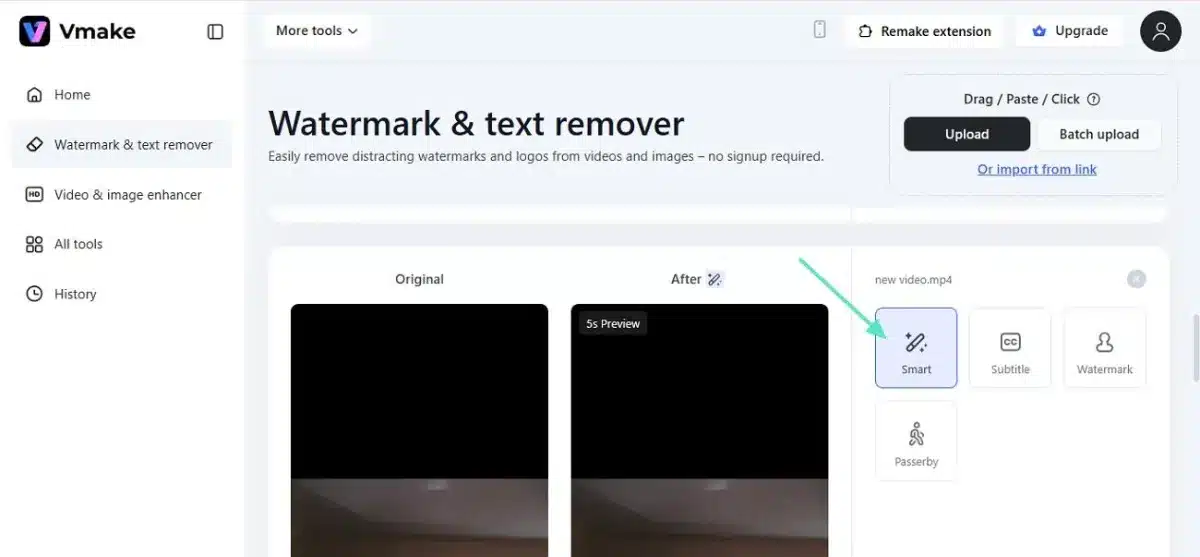
Step 2. Subsequently, select the “Smart” tool, which will cover the unwanted object automatically.
Step 3. In the end, choose the “Apply” option, then export the clean video once the process is complete.
3. Fotor Video Object Remover
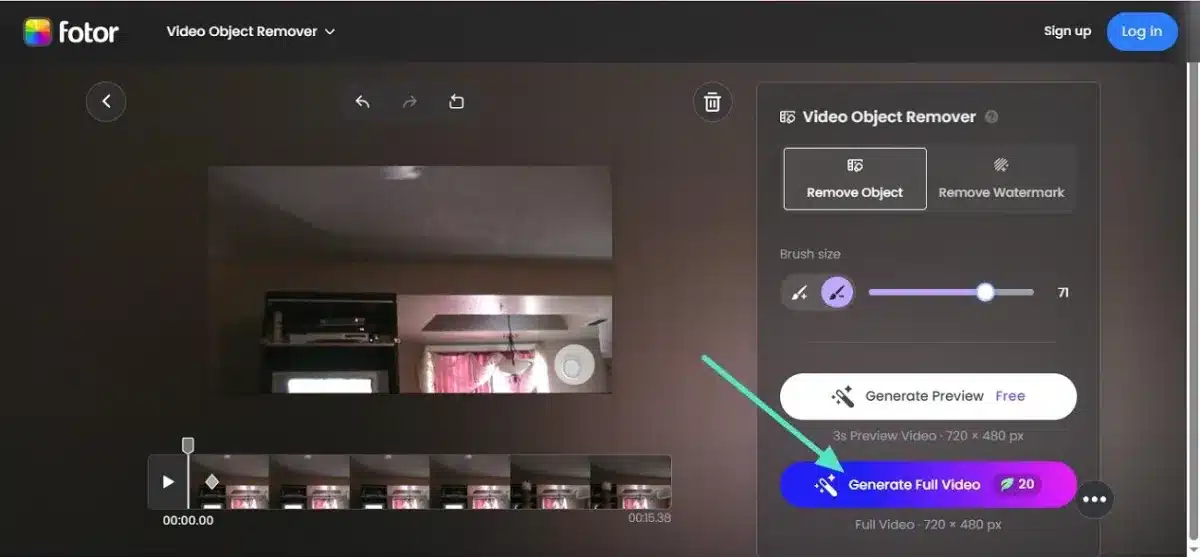
Another browser-based editor popular with marketers and content creators is Fotor Video Object Remover. It removes or hides unwanted text, logos, and objects using cropping, shapes, and overlays. Go through the guide below to use this tool to remove elements from video:
Step 1. First, upload your video and then click the “Remove Object” option.
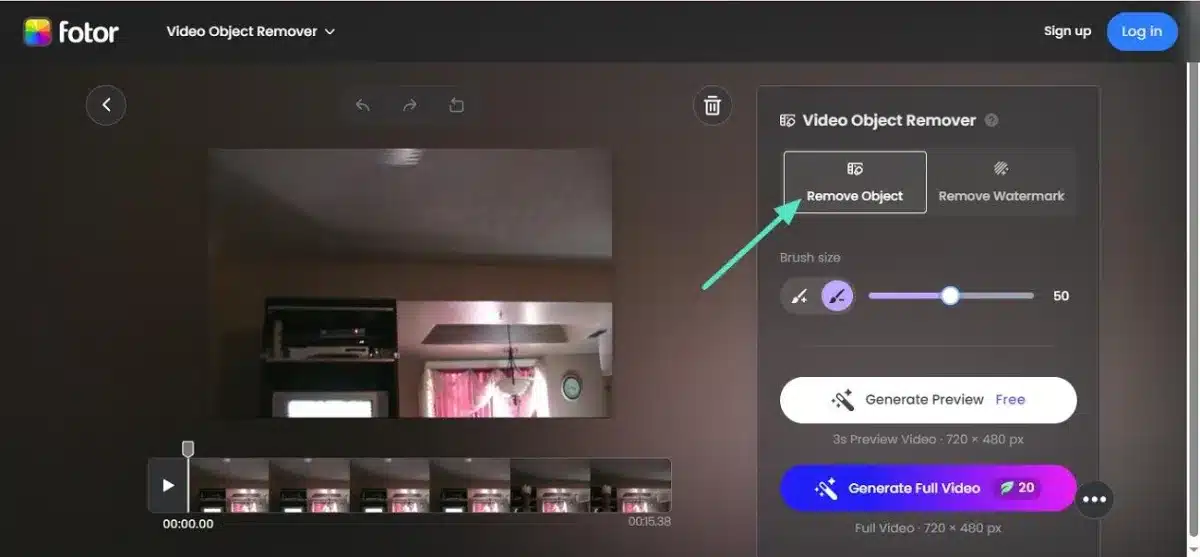
Step 2. Afterwards, use the “Brush” tool to cover the object you do not want.
Step 3. Finally, click on “Generate Full Video” to save your new video on your device.
Quick Comparison for Video Object Removers
A good AI video object remover should be easy to use, time-saving, and quick. To make it easier, kindly go through the table below to compare tools that remove objects:
| Tool | Ideal Users | Interface | Drawback | Video Output Quality |
| Filmora | Beginners and content creators | Easy; import from device | Requires software installation | High-quality with 4K/HD options available |
| Adobe After Effects | Experienced professionals | Complex | Need Knowledge to navigate | High |
| Davinci Resolve | Semi-pros; editors | Complex but easy after a while | Heavy download size | 4k; social media specific as well |
| Filmore App | Beginners | Minimal; easy | Lacks advanced tools | Medium-high |
| CapCut | Mobile users | Drag and drop | Limited precision | Medium |
| Remove Unwanted Objects | Casual users | Easy; simple file upload | Short clips only | Low |
| Media.io | Beginners with no editing skills | Easy, Intuitive | Limited free usage | High after purchase |
| Vmake AI Video Object Remover | Causal users | Clean | Limited file size | Medium |
| Fotor Video Object Remover | Beginners and everyday users | Easy; simple file upload | Background must be simple | Low- medium |
Tips for Removing Objects from Videos
Below are some tips for users who want to use various video eraser tools for removing unwanted objects from their clips:
- Short Test Clips: Always use short test clips first, so you can experiment without risking your main project.
- Various Tools: Instead of relying on a single tool, try out multiple video erasers. if one glitches, another application may give a better result.
- Shoot in High Resolution: Shoot or export at higher resolution so the AI has more background detail to reconstruct behind the object.
Conclusion
To conclude, removing distractions no longer requires advanced editing skills or long video courses. With the right video object remover, users can clean footage while preserving quality. With powerful video editing software and easy-to-use AI features, Filmora is an ideal choice for beginners who want polished results.
Frequently Asked Questions
- Will removing objects from the video reduce the quality of my clip?
If the background is cluttered or the object is large, you may see small artifacts. However, higher‑resolution footage usually yields better, cleaner video clips.
- Can I remove a person from a video without advanced editing skills?
Yes, there are many online and offline tools built for beginners. If you are curious about how to remove a person from a video, AI-based video editors can do this easily.
- Is there a way to remove objects from a video for free?
Some browser tools offer that option, and all users need to do is upload their file, mask the object, and export the clean video. However, uploads have to be within size limits, and there is sometimes a free trial.


Leave a Reply