

Voice Isolation and Removal With Filmora AI Vocal Remover
Creators often need separate vocal, music, and dialogue tracks for editing work. That need appears often in covers, lessons, interviews, and short-form video production. This is where an AI vocal remover becomes useful for daily editing work. Filmora brings voice isolation into a wider editing space.
The tool keeps separation, captions, effects, trimming, and export inside one project. This article explains Filmora’s vocal separation benefits, workflow steps, editing uses, and post-separation controls for creators.
Part 1. AI Voice Remover Benefits: Why Creators Use Filmora Audio Tools
An AI voice remover helps creators separate vocals, music, and dialogue with less manual effort. With Filmora video editing software, that cleanup stays inside the same project. Users can isolate sound, review separated tracks, adjust timing, and continue editing scenes. This makes sound editing feel connected to the final video, not separate. The reasons below explain why creators use Filmora audio tools for cleaner production:
- Cleaner Control: After separation, editors can adjust volume, balance, and clarity inside Filmora easily. Rough stems become easier to shape for covers, lessons, and campaigns online. Quick checks also reduce repeated exports during busy review and approval stages.
- Faster Workflow: Instead of switching tools, users can clean audio and keep editing smoothly. Captions, cuts, transitions, and effects remain within one steady production path. Creators finish reels, tutorials, interviews, and covers with fewer workflow pauses.
- Visual Matching: Separated audio can be reviewed beside visuals, timing, and scene flow. As a result, voices and music sit more naturally within videos. Lessons, explainers, product clips, and social edits gain clearer sound balance.
- Flexible Output: Final files can be prepared for sharing, editing, or platform publishing needs. For example, cleaner stems support covers, demos, lessons, and practice clips. After vocal removal, creators gain more room to refine finished content.
- Longer Projects: Longer files become easier to manage without splitting recordings into sections first. Meanwhile, podcasts, lectures, rehearsals, and interviews stay complete during processing. That helps creators keep context, flow, and pacing more consistent.
AI Vocal Remover Features: What Makes Filmora Useful
Good voice isolation depends on more than separating a singer from music. The following features show why Filmora works well for practical editing projects:
- Stem Separation: Filmora separates vocals and background music into individual, editable tracks. The vocal layer can be kept, removed, or studied separately. Instrumental versions become easier to prepare for covers, lessons, and karaoke.
- Mode Selection: Fast Mode suits simple tracks when quick processing matters most. Detailed Mode gives layered songs more careful separation during complex audio work. Users can choose the mode according to track density and editing needs.
- Media Handling: Imported audio and video files can both be processed for vocal separation. Separate audio extraction is not required before starting the cleanup process. Mixed media projects become easier to handle from the first editing stage.
- Track Isolation: Each separated layer can be checked, muted, or adjusted on its own. Vocals and instrumentals are easier to compare before the final mix. Editors get a clearer view of which stem belongs in the project.
- Sound Refinement: Noise reduction and volume tools can polish rough areas after separation. Uneven audio becomes cleaner before the project reaches final export. These controls support a more finished sound without complex studio software.
Part 2. AI Voice Remover in Filmora: Step-by-Step Workflow
For songs, clips, lessons, or interviews, a voice isolator should stay simple. Filmora keeps the voice isolation workflow direct from import to final export. Use the steps below to apply the AI vocal remover and prepare a clear sound:
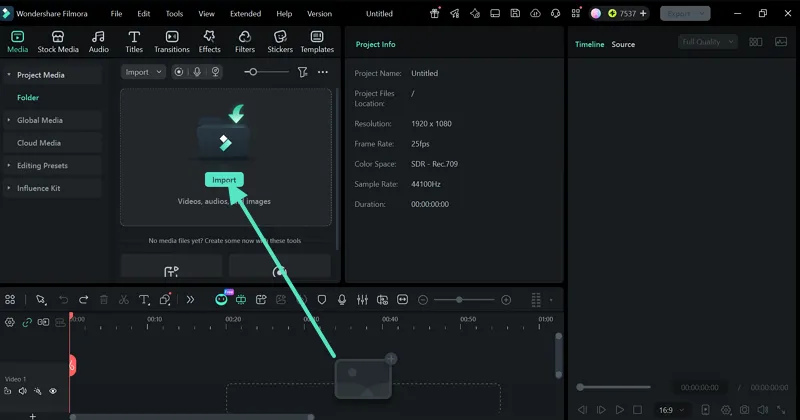
Step 1. Open a Project and Bring in Media
Begin inside Filmora by opening a new editing project. Then press “Import” and choose the audio or video file needed for vocal separation.
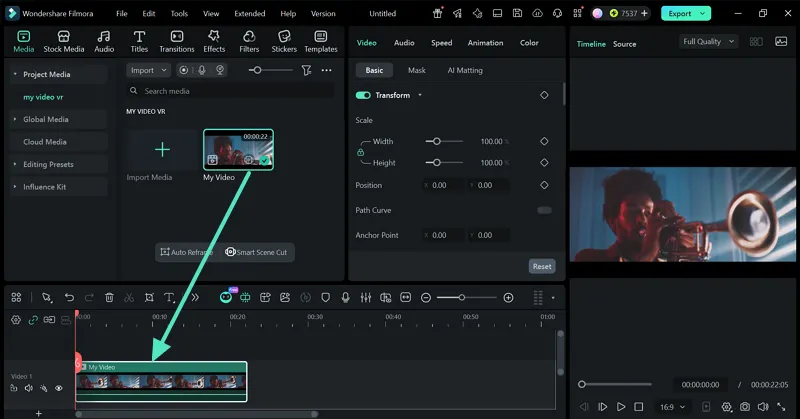
Step 2. Move the Clip Into the Timeline
After import, drag the selected file from Project Media to the “Timeline.” This places the sound in an editable position for Filmora’s vocal separation process.
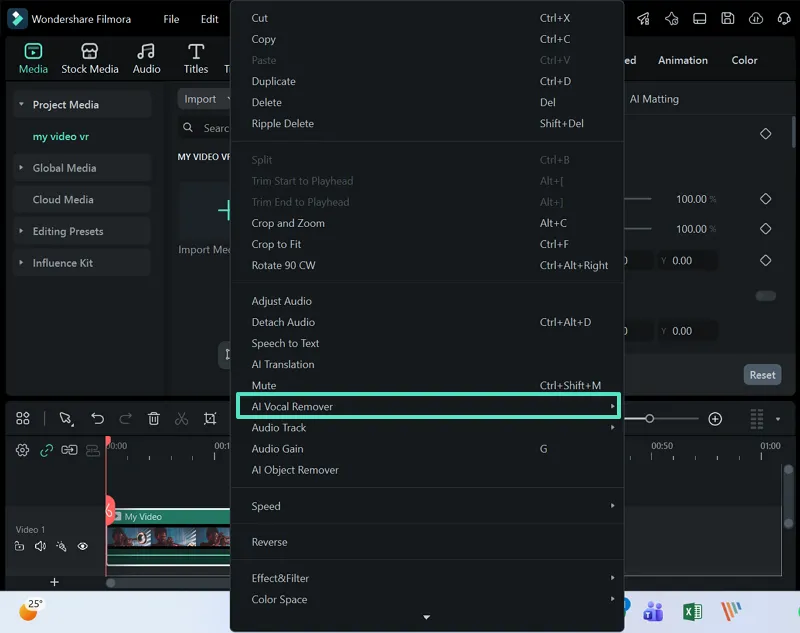
Step 3. Launch AI Vocal Remover
Right-click the timeline clip and choose “AI Vocal Remover” from the menu. Filmora will begin separating the vocal track from the background audio.
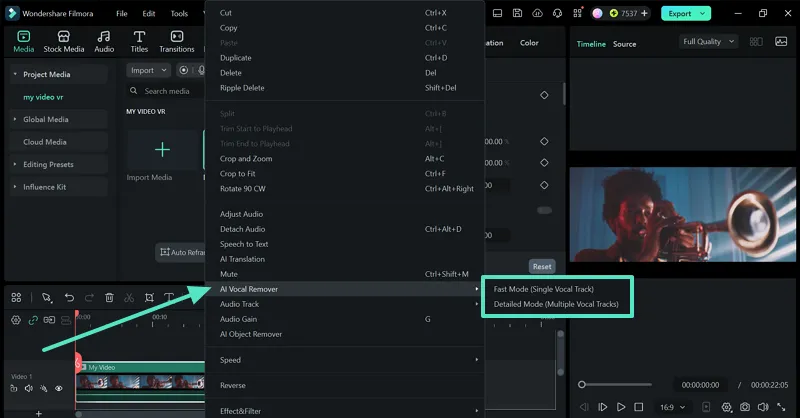
Step 4. Pick a Suitable Processing Mode
Choose “Fast Mode” for lighter tracks that need quicker results. For layered music or detailed separation, select “Detailed Mode” before processing.
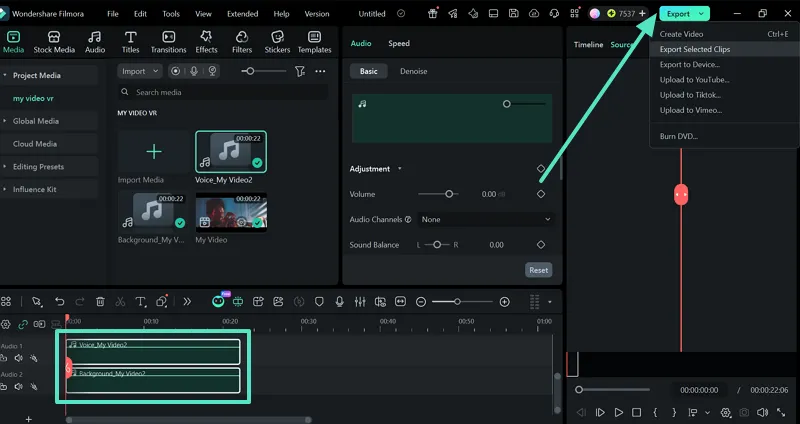
Step 5. Review, Refine, and Export
Lastly, play the separated stems and adjust volume, balance, or denoise settings where needed. Once the result sounds ready, press “Export” to save the final tracks.
Part 3. Extract Voice From Song in Filmora: Editing and Customization
When creators extract voice from song files, the goal is rarely separation alone. Separated audio often needs small edits before final use. Users may trim rough parts, balance volume, add fades, or match sound with visuals. Filmora keeps vocals, instrumentals, captions, effects, and export controls inside one editing space.
Common Editing Needs
Audio layers become more useful when matched with the right purpose. The table below shows how different creators use Filmora after voice isolation:
| User Type | Editing Purpose | Filmora Use |
| Singers | Create backing tracks for practice or covers. | Keep instrumentals and remove the main vocal layer. |
| Educators | Prepare clearer audio examples for lessons. | Isolate voice or music for classroom demonstrations. |
| Video Editors | Clean sound inside reels, explainers, or interviews. | Match separated audio with cuts, captions, and visuals. |
| Marketers | Rework product clips, demos, or short ads. | Adjust music, speech, and pacing for publishable content. |
Customization Options After Separation
Once stems are separated, the next step is shaping them for use. The following options explain how Filmora supports cleaner post-separation editing:
- Mute Vocals: Removing the vocal layer leaves a cleaner instrumental track for reuse. Karaoke edits, cover practice, and background music projects benefit from it.
- Keep Voice: Users can retain the vocal stem and reduce the background track. Speech-led clips, lesson samples, and interview edits become easier to shape.
- Adjust Volume: Loud sections can be softened, while weaker parts receive more presence. A better balance keeps the final video clearer for viewers and listeners.
- Add Fades: Fade controls make audio openings, endings, and scene changes smoother. Songs and clips feel more natural when transitions are not sudden.
- Polish Output: Noise reduction, subtitles, titles, and effects can support final delivery. After refinement, the voice isolator becomes part of publish-ready editing.
Conclusion
Voice isolation now supports covers, lessons, interviews, music practice, and short-form videos. A good AI vocal remover should create usable stems while keeping post-editing simple and controlled. Creators need clear separation, flexible sound tools, and export-ready results. For vocal removal inside a complete production path, Filmora remains a practical choice.
Note: This article offers independent editorial information for general comparison and reader awareness. It does not reflect the publisher’s official position, pricing, or licensing advice.


Leave a Reply