
Why Manual PDF Data Entry Causes Errors and How a PDF to Excel Converter Helps
Anyone who works with invoices, reports, or bank statements has probably done this at some point: opened a PDF, and started retyping numbers into a spreadsheet by hand. It’s slow, it’s repetitive, and it’s one of the easiest ways to introduce small mistakes into your data.
PDFs are great for sharing information because the layout stays fixed no matter who opens it. But that same fixed layout is exactly what makes PDFs frustrating to work with when you actually need to sort, filter, calculate, or analyze the numbers inside them. You can’t just drag a formula down a column or filter a table that’s locked inside a static page.
That’s usually when people start looking for a reliable PDF to Excel converter to convert PDF to Excel without retyping every row. Instead of retyping every row by hand, the goal is to pull the table data out and get it into a format that’s actually editable.
Why Manual PDF Data Entry Often Leads to Errors
Typing data from a PDF into Excel feels simple enough, until you’re a few hundred rows in. Here’s where things usually go wrong.
Common mistakes during manual entry:
- Numbers get mistyped, especially long invoice totals or account numbers
- Dates get entered in the wrong format or the wrong order
- Rows get skipped entirely, especially near page breaks
- Entries get duplicated when someone loses their place
- Data lands in the wrong column, especially in wide tables
- Table structure breaks down when spacing doesn’t copy over cleanly
These issues get worse with certain types of PDFs. Multi-page tables that split a single record across two pages make it easy to lose track of where you are. Scanned documents and image-based PDFs can’t be copied as text at all, so everything has to be typed from scratch. Merged cells and unclear table borders make it hard to tell which number belongs to which row.
How a PDF to Excel Converter Helps
This is where a PDF to Excel converter becomes useful. Instead of retyping data from a static PDF, it extracts PDF tables to Excel and creates an editable Excel (XLSX) file that you can work with more easily.
Based on practical workflows, a PDF to Excel converter can help:
-
- Help reduce manual typing and repetitive copy-and-paste work
- Keep rows and columns easier to review by preserving much of the original table structure
- Make data sortable and filterable in Excel instead of leaving it locked in a PDF
- Allow you to calculate, analyze, and reuse the data with formulas, charts, or other spreadsheet tools
What Is the Process for Converting a PDF File to Excel?
The general process for most tools used to convert PDF to Excel is similar: upload the PDF, let the tool process it, download the XLSX file, and review the results.
To see how this worked in practice, I tested TeraBox’s PDF to Excel Converter using a text-based PDF report of around 12 pages (approximately 2 MB) containing multiple tables, headers, and numeric data. The browser-based workflow was straightforward, and the upload completed without any issues. Here’s what I observed during the test.
Step 1: Upload the PDF
The upload page is clean and easy to use. I uploaded the PDF by dragging it into the browser window, although selecting a file manually works just as well. The upload started immediately and completed smoothly without requiring any additional software or setup.
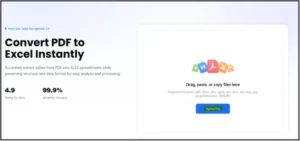
01-Upload a PDF file to convert PDF to Excel
Step 2: Let it convert
Once the upload finished, the conversion started automatically. During testing, the progress was easy to follow, and the 12-page sample document was processed in well under a minute. Larger files or PDFs with more complex layouts may naturally take longer, but the workflow itself remained straightforward from upload through conversion.
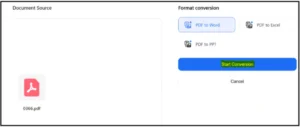
02-Convert PDF to Excel and create an editable XLSX spreadsheet
Step 3: Download the XLSX file
After the conversion completed, the XLSX file was immediately available to download. The download process was straightforward, and the spreadsheet opened successfully in both Microsoft Excel and Google Sheets without requiring any additional format conversion.
03-Download the PDF to XLSX conversion result
In terms of output quality, the converter preserved the overall table structure well on this process. Rows and columns remained aligned, column headers stayed with the correct data, and numeric values were placed in the expected cells. Basic formatting, such as separate columns and table organization, was also retained, making the spreadsheet immediately usable for sorting, filtering, and calculations with only minimal review.
If you’re converting a scanned PDF to Excel, you’ll need a converter with OCR support because image-based PDFs can’t be extracted like text-based documents. OCR accuracy depends largely on the quality of the original scan, so cleaner documents generally produce better results.
One honest note to keep in mind: PDF to Excel converter is a tool, not a substitute for oversight. If your document features handwriting, blurry images, or heavily merged cells, take a minute to double-check key metrics, dates, and totals before using the data in final business reports.
Common Scenarios Where This Matters
PDF to Excel conversion is especially useful for:
- Invoice PDF to Excel workflows for accounting and bookkeeping
- Bank statement to Excel conversion for reconciliation and expense tracking
- Sales reports and inventory lists
- Research tables and data appendices
- General business reports containing structured tables
FAQs
Why does manual PDF data entry cause errors?
Because it relies on retyping or copying numbers by hand, which makes it easy to mistype figures, skip rows, or misplace data, especially in long or multi-page tables.
What does a PDF to Excel converter actually do?
It helps convert PDF to Excel by extracting table data from a PDF into an editable XLSX spreadsheet, allowing you to sort, filter, calculate, and reuse the information instead of retyping it.
Can I convert PDF to Excel online?
Yes. Most PDF to Excel converter tools, including TeraBox, let you upload a PDF and convert it to XLSX directly in your browser, without installing software.
Do I need OCR to convert a scanned PDF to Excel?
Yes. If you need to convert a scanned PDF to Excel, OCR is required to recognize text and rebuild the table structure before it can be exported into an editable spreadsheet.
Will the converted Excel file be 100% accurate?
Not always. Simple, well-structured tables usually convert cleanly, but complex layouts, poor scans, or merged cells may need manual review and adjustment afterward.
Is TeraBox a free PDF to Excel converter?
No. TeraBox’s PDF to Excel Converter isn’t positioned as a free tool. Availability, file size support, and usage limits may depend on your account and the current product page.
Conclusion
Manual PDF data entry is one of those tasks that seems small until it eats up an afternoon and introduces a few costly typos along the way. From my testing, using a PDF to Excel converter significantly reduced the amount of manual typing, but I still found it worthwhile to review the finished spreadsheet before using the data.
If you regularly need to convert PDF to Excel, whether it’s an invoice PDF to Excel, a bank statement to Excel, or a business report, using a PDF to Excel converter can significantly reduce manual work while making your data easier to analyze and reuse.


Leave a Reply