The Porto Contact Form widget allows you to easily display an existing contact form and apply consistent styling that matches your site design.
It provides granular control over form fields, buttons, and message states, enabling you to create polished and accessible contact forms without custom CSS.
This element allows you to add the versatile contact form with Contact Form 7 and WPForms Lite plugin.
How to Use Porto Contact Form
- Add the Porto Contact Form widget to your page.
- Open the Contact Form section in the widget settings.
- Select a Source.
- Choose the form from the Contact Forms dropdown.
- Switch to the Style tab to customize the appearance of fields, buttons, and messages.
- Save and preview the page to verify layout and styling.
Contact Form Settings
Contact Form
This section determines which form is displayed.
| Option | Description |
|---|---|
| Source | Selects the form provider or source |
| Contact Forms | Choose the specific contact form to display |
Form Fields Styling
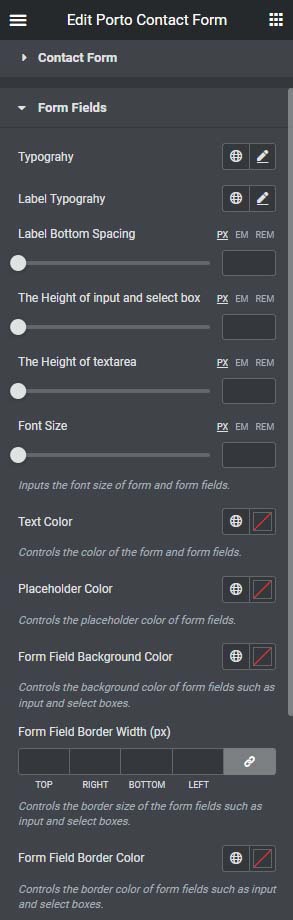
The Form Fields section controls the appearance of all input elements, including text fields, select boxes, and text areas.
| Option | Description |
|---|---|
| Typography | Font family, size, weight, and line height |
| Label Typography | Typography settings for field labels |
| Label Bottom Spacing | Space between labels and input fields |
| Input & Select Height | Height of text input and select fields |
| Textarea Height | Height of textarea fields |
| Font Size | Text size inside form fields |
| Text Color | Color of input text |
| Placeholder Color | Color of placeholder text |
| Form Field Background Color | Background color of fields |
| Form Field Border Width | Border thickness |
| Form Field Border Color | Border color |
Buttons Styling
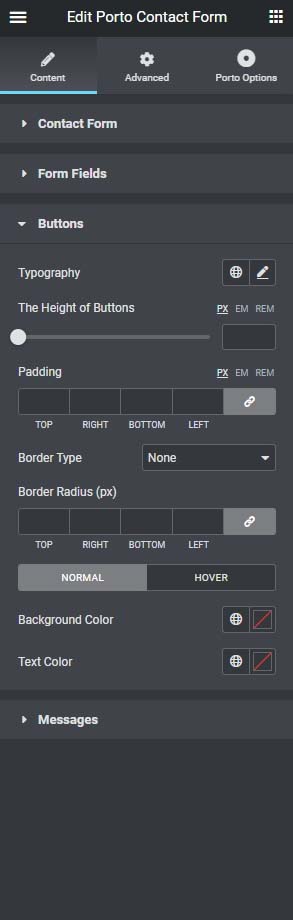
The Buttons section controls the appearance of form buttons (e.g., Submit).
| Option | Description |
|---|---|
| Typography | Button text typography |
| Button Height | Height of the button |
| Padding | Inner spacing of the button |
| Border Type | Button border style |
| Border Radius | Rounded corners of the button |
| Normal Background Color | Background color of Button |
| Normal text Color | Text color of Button |
| Hover Background Color | Background color of Button on hover |
| Hover text Color | Text color of Button on hover |
Messages Styling
The Messages section controls the appearance of feedback messages such as success, error, or general notifications.
| Option | Description |
|---|---|
| Error Message Typography | Font settings for error messages |
| Error Message Color | Text color for error messages |
| General Message Typography | Typography for success or informational messages |
| Text Color | Message text color |
| Background Color | Background color of the message box |
| Border Type | Border style for message container |