
The Woo Link element in the Porto Post Type Builder allows you to insert dynamic product action buttons or links into your custom post-type layouts. This widget is commonly used inside product grids, carousels, archive item layouts, and custom listing cards.
Depending on the selected Link Source, the element automatically adapts to show the proper controls for Add to Cart, Wishlist, Compare, Quick View, or Image/Color Swatch interactions.
The Woo Link widget is essential for building interactive WooCommerce layouts without relying on default theme templates.
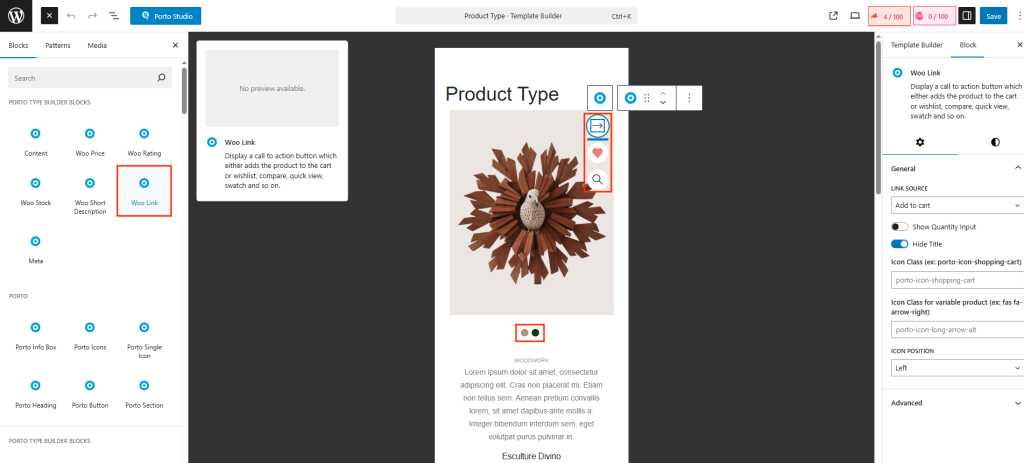
How to Use Woo Link Element
- Open Porto > Template Builder > Post Type and edit your layout.
- Click the “+” Add Block button and insert the Woo Link element.
- In the right sidebar, configure the Link Source based on the action you want.
- Adjust visibility options, icons, and positions.
- Save and assign the Post Type Block to your product grids or archives.
The Woo Link element will automatically display the correct action for each product when used in dynamic listings.
Link Source Options & Settings
-
Add to Cart
This option outputs a dynamic “Add to Cart” button based on WooCommerce rules.
- Show Quantity Input - Displays a quantity selector before the Add to Cart button.
- Hide Title - Removes the button text, showing icon-only design.
- Icon Class - CSS class for the main Add to Cart icon.- (e.g.,
fas fa-cart-plus) - Icon Class for Variable Product - Optional icon class specifically for variable products, such as a “select options” icon.
- Icon Position - Controls where the icon appears Left, Right
-
Add to Wishlist
Used when integrating with a wishlist plugin supported by Porto.
- Hide Title - Removes the text label and shows only the icon if desired.
(Other settings depend on the active wishlist plugin.)
-
Quick View
Adds a link or button that triggers Porto’s built-in Quick View modal.
- Hide Title - Removes label text.
- Icon Class - Class name for the quick view icon - (e.g.,
fas fa-eye) - Icon Position - Controls icon placement relative to text.
-
Compare
Creates a button for adding products to the compare system.
- Hide Title - Removes the text label.
- Icon Class - Icon for default compare state.
- Icon Class for Added Status - Icon displayed when the product is already added to the compare list.
- Icon Position - Controls who the icon is positioned relative to the label.
-
Image / Color Swatch
Displays swatch selectors or product attribute thumbnails.
- Quick Shop - Shows a lightweight quick-shop interaction when selecting a swatch.
- Icon Position - Defines icon placement (left/right) for swatch indicators.
-
Additional Custom CSS Fields
Allows you to assign custom CSS classes to the Woo Link element for styling, spacing, hover effects, or interaction customization.
Why Woo Link Stands Out
- Fully adapts to WooCommerce product types
- Designed specifically for dynamic product grids
- Works seamlessly with Ajax add-to-cart, wishlist, compare, quick view, and swatches
- Provides flexible icon-based designs for modern UI
- Integrates smoothly with Porto’s product systems

