
The Porto Product Share element allows you to display social sharing icons on your single product pages. This element makes it easy for customers to share your products on their favorite platforms, increasing visibility and engagement.
All share icons shown in this element are defined globally under Porto > Theme Options > General > Social Share
The Product Share element displays these icons and provides styling controls such as size, layout, spacing, hover effects, and borders.
This ensures consistent brand styling while allowing you to place the share icons anywhere within your custom Single Product layout.
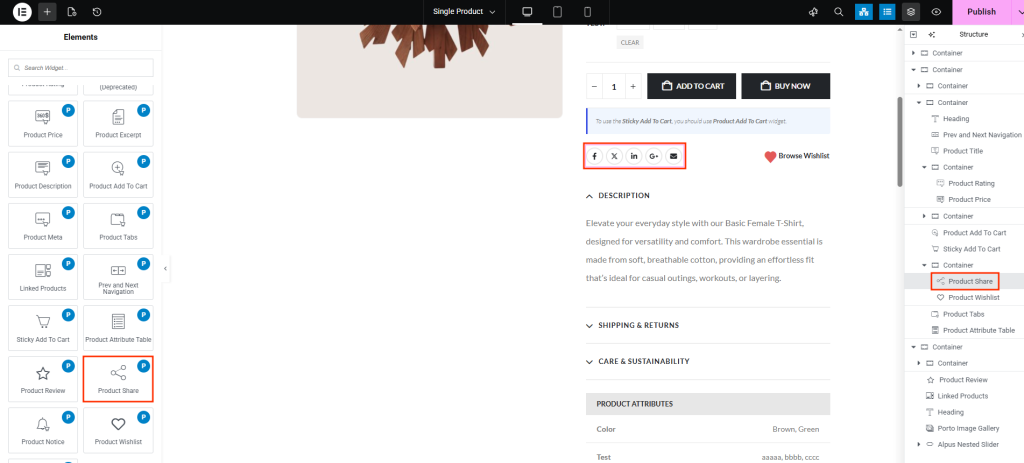
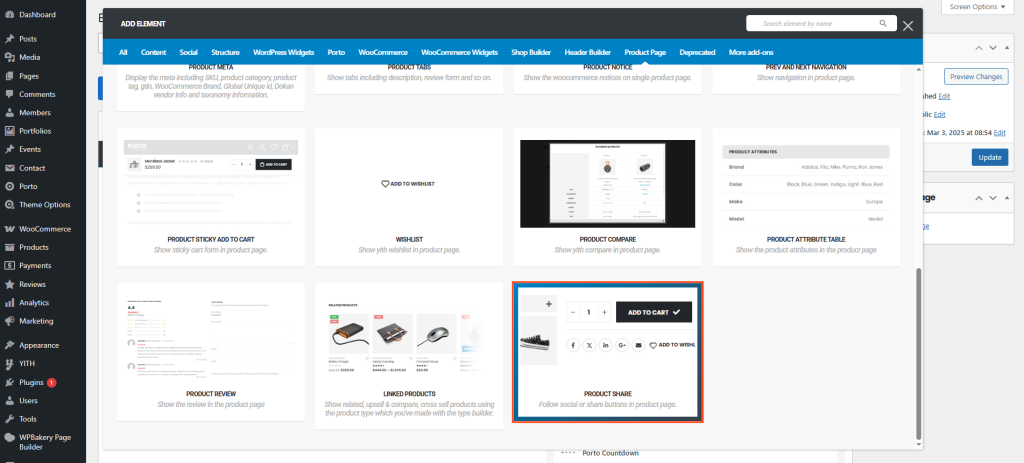
How to Use the Porto Product Share Element
-
Open the Single Product Template
- Go to Porto > Template Builder > Single Product.
- Edit with Elementor or WPBakery Page Builder.
-
Add the Product Share Element
- Drag the Product Share element into your layout.
- Place it above descriptions, below the Add to Cart button, or near product meta—based on your design preference.
-
Configure Global Social Icons (Important)
- Navigate to Porto > Theme Options > General > Social Share
- Select which platforms appear (e.g., Facebook, Twitter/X, Pinterest, WhatsApp, Email).
- The Product Share element automatically uses this global list.
-
Customize Appearance
- Use the element’s styling options (see below) to adjust icon size, colors, backgrounds, borders, spacing, and hover behavior.
-
Preview and Adjust
- Save your template and preview a product page.
- Check spacing and hover effects on desktop and mobile.
Element Content Options
| Option | Description |
|---|---|
| Icon Font Size | Defines the size of the share icon glyph. |
| Icon Width & Height | Sets the overall dimensions of each icon box (useful for creating round or square icons). |
| Normal Color | Color of the icon in its default state. |
| Normal Background Color | Background color behind the icon before hover. |
| Hover Color | Icon color when the user hovers over it. |
| Hover Background Color | Background color when hovering over the icon. |
| Icon Border Style | Choose border type: solid, dashed, dotted, etc. |
| Icon Border Radius | Rounds the corners of the icon box—set to 50% for perfect circles. |
| Spacing Between Icons | Controls the horizontal gap between each icon. |
Additional Tips
- Match Theme Colors: Use your brand's primary and secondary colors for icon backgrounds and hover states for consistency.
- Use Uniform Icon Shapes: For professional design, set equal width and height with a 50% border radius to create circular icons.
- Adjust for Mobile: Ensure icons are not too large on smaller screens—test spacing and size on tablet and mobile views.
- Keep Global Settings Clean: Only enable the social platforms your audience uses; too many icons can clutter the interface.
- Hover Effects Improve CTR: High-contrast hover colors encourage interaction and make the icons feel more responsive.

