
Porto includes a wide collection of shortcodes that let you add styled components, layout structures, and functional elements directly into your content.
When using the TinyMCE (Classic) Editor, you can insert these shortcodes in several ways.
Below are all available methods, organized for clarity and easy reading.
Methods for Adding Porto Shortcodes in TinyMCE
You can insert Porto shortcodes into the TinyMCE editor using three methods, and each one places shortcode output directly into your content.
Method A: Using the Porto Shortcode Generator (Recommended)
- Open any post, page, or custom post type using the Classic Editor.
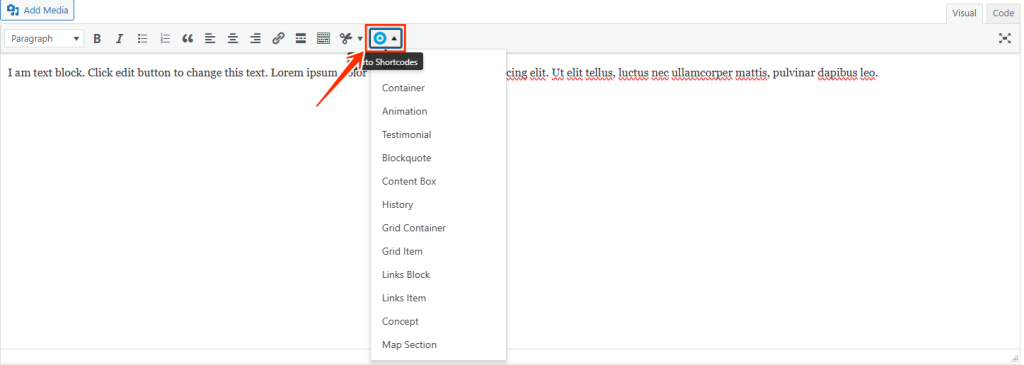
- In the TinyMCE toolbar, click the Porto button (logo or “P”).
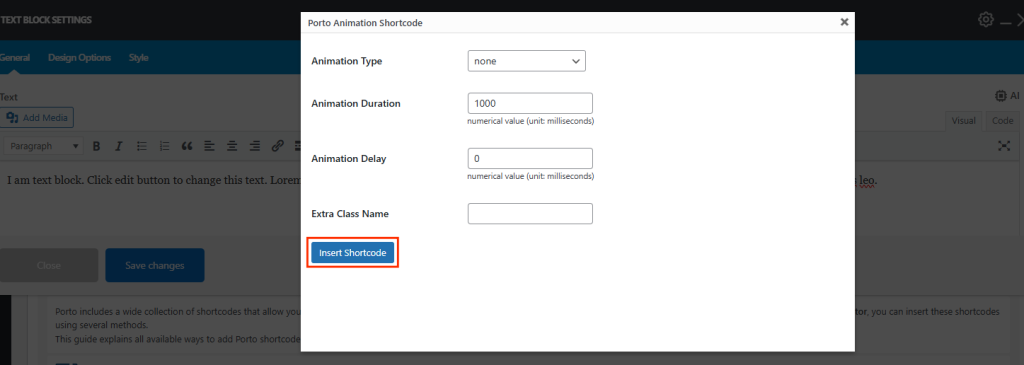
- The Porto Shortcode Generator popup will appear.
- Choose a shortcode category, select the shortcode type, and configure its available settings.
- Click Insert Shortcode to add it directly to the editor.
This method ensures accurate shortcode syntax and proper formatting.
Method B: Manually Typing Shortcodes
You can also write shortcodes directly in the content area.
porto_icon icon="fas fa-star" size="lg"
- Switch to Text mode for easier editing of complex or nested shortcodes.
- If you don’t know all available parameters, generate the shortcode once using Method A and study its structure.
Method C: Pasting Existing Shortcodes
You can paste shortcodes you obtained from Porto Studio, Porto Template Builder, Demo content, Exported elements, Documentation, Steps
- Switch TinyMCE to Text mode.
- Paste the shortcode block into your content.
- Switch back to Visual mode, if needed.

