
The Wishlist feature plays an essential role in enhancing user engagement and improving the shopping experience on your website. The Porto Wishlist Icon Element allows your customers to easily save products they love for later viewing or purchase.
Fully compatible with the YITH WooCommerce Wishlist plugin, this element is both powerful and user-friendly. It allows you to display an attractive, interactive wishlist icon anywhere in your header and customize it to perfectly match your website’s design.
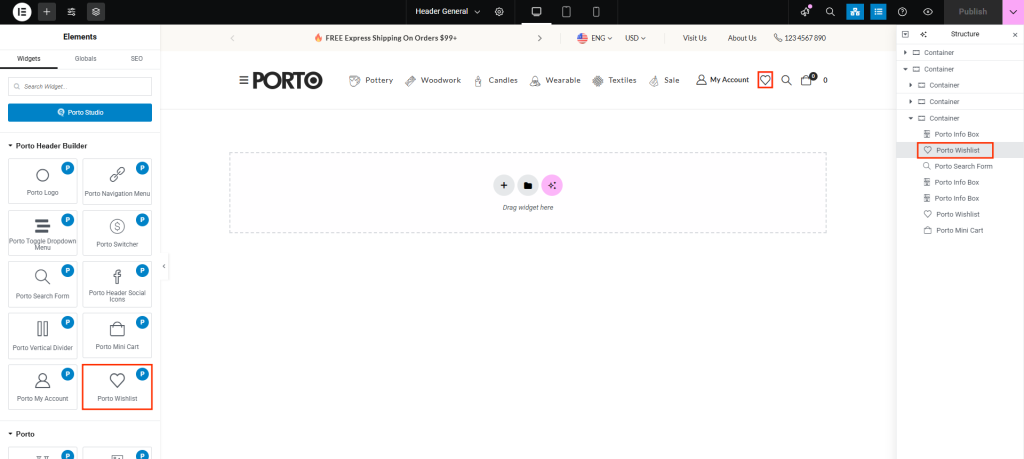
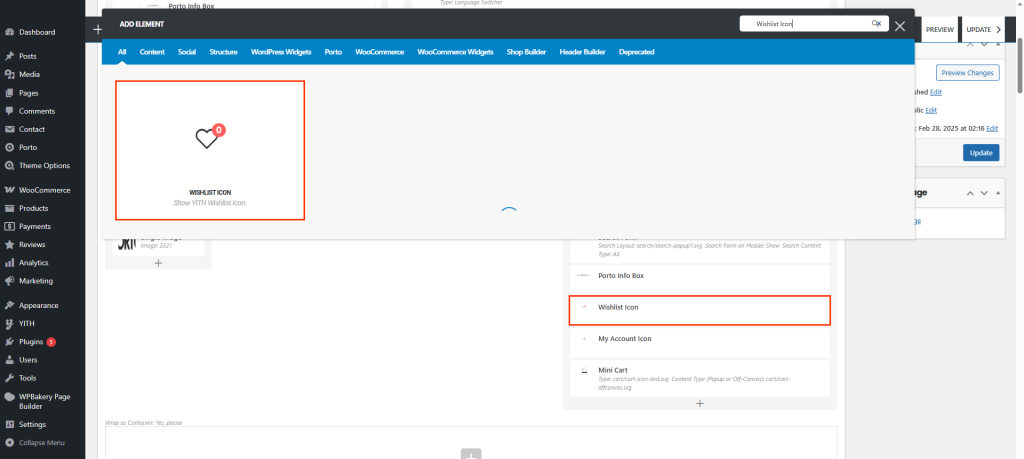
How To Use The Porto Wishlist Element
- Create or select the Column in which you want to add your element, then click on Add New Element.
- Select Porto Wishlist Icon Element from the Element List.
- Configure the element’s display and styling settings, and position it in your header (commonly beside the Mini Cart or Account icons).
- After completing your configuration, click Save Changes to apply your settings.
Element Content Options
| Option | Description |
|---|---|
| Icon | Choose the icon you wish to use for the wishlist widget. |
| Icon Size | Adjust the size of the wishlist icon to fit your header layout. |
| Color | Set the main color for the wishlist icon. |
| Color in Sticky Header | Define a different color for when the header becomes sticky during scrolling. |
| Hover Color | Set the color for the icon when hovered over by the user. |
| Off-Canvas | Enable or disable off-canvas functionality. |
| Badge Color | Choose the text color for the wishlist badge (the number indicating saved products) - Only available when Off-Canvas Type. |
| Badge Background Color | Define the background color for the wishlist badge - Only available when Off-Canvas Type. |
Integration with YITH Wishlist Plugin
To enable Wishlist element, make sure the YITH WooCommerce Wishlist plugin is installed and activated on your site.
Once active:
- The Porto Wishlist Icon Element automatically syncs with the YITH plugin.
- Clicking the Wishlist icon will open or redirect users to their saved Wishlist page.
- The badge number dynamically updates based on the number of saved items.
You can manage YITH Wishlist settings by going to YITH > Wishlist in your WordPress Dashboard.
Note: If clicking the Wishlist icon does not open or redirect users to the Wishlist page and instead leads to a 404 page or displays an error, it means the Wishlist page is not set properly. To fix this, go to YITH > Wishlist > Settings > Wishlist Page and select the correct Wishlist page.
Additional Tips
- Place the Wishlist icon near the Mini Cart and My Account icons for better accessibility.
- Use the same icon size and color scheme to maintain design consistency.
- Test the wishlist feature in both desktop and mobile views to ensure proper display.

