
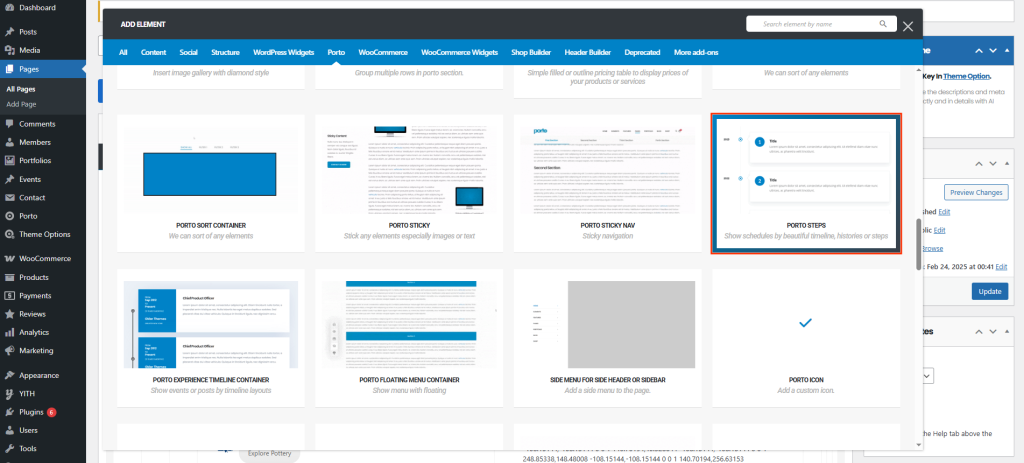
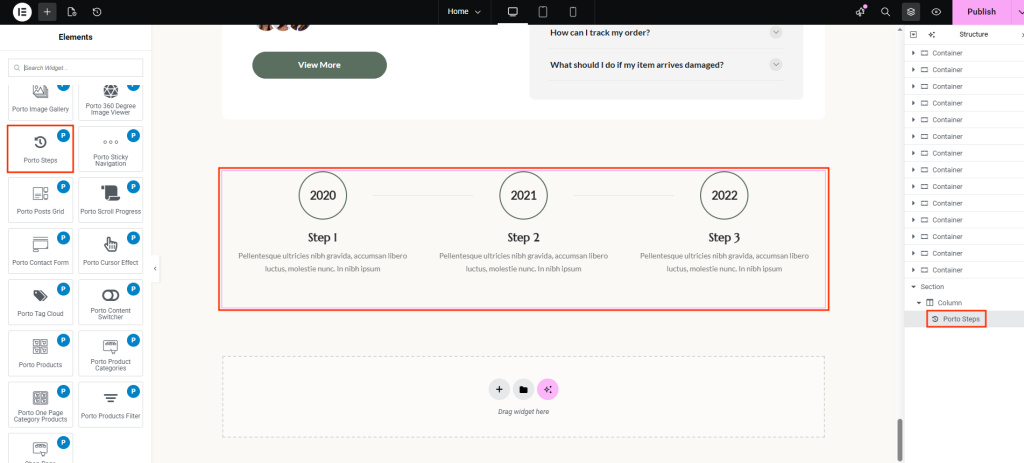
Porto Steps is a flexible visual element designed to display chronological information, processes, or milestones in multiple formats. It supports several step presentation styles, making it suitable for schedules, histories, timelines, and step-by-step workflows.
Content Tab Options
- Type
Choose how the steps are displayed:
- Schedule – Ideal for event schedules or time-based plans
- History – Displays historical events in sequence
- Step – Best for step-by-step instructions or processes
- Timeline – Visualizes events along a timeline
Each type controls which additional options are available.
- Schedule-Type Specific Options
The following options are available only when Type is set to Schedule:
- Title – Main heading displayed above the steps
- Subtitle – Secondary heading shown below the title
- Circle Type – Controls the appearance of step markers between Filled and Simple
- Step-Type Specific Option
When Type is set to Step, the following option appears instead of the Schedule fields:
- Is Horizontal – Displays steps horizontally instead of vertically
- History & Timeline Types
- No additional layout-specific options are shown
- These types focus on clean chronological presentation
- Step Items
This is the core content area for all types. Each step item includes:
- Time Text – Optional time or label for the step
- Icon to Display – Icon shown inside the step marker
- Item Title – Title of the step
- Description – Detailed text content for the step
- Title Typography – Typography settings for the item title
- Title Color – Color of the step title
You can add multiple step items and reorder them as needed.
Style Tab Options
- Steps Section
Controls the connecting line between steps:
- Line Color – Color of the step connector line
- Line Width – Thickness of the line
- Item Section
Controls typography and spacing inside each step item:
- Title Typography
- Title Color
- Time Text Typography
- Time Text Color
- Time Text Background Color
- Description Typography
- Description Color
- Spacing Between Title & Subtitle
Usage Tips
- Use Schedule type when time labels are important
- Use Step type for clear procedural instructions
- Use History or Timeline for storytelling and event progression
- Keep titles concise for better visual balance

