
For a fully personalized header design, you can build one from scratch using the Porto Header Builder. Follow these steps to create a unique and responsive header tailored to your website’s needs.
Step 1: Access the Header Builder
- Navigate to Porto > Template Builder > Header.
- Click Add New
- Enter a descriptive name and select Header Type for your header.
- Select Default Layout to start from scratch.
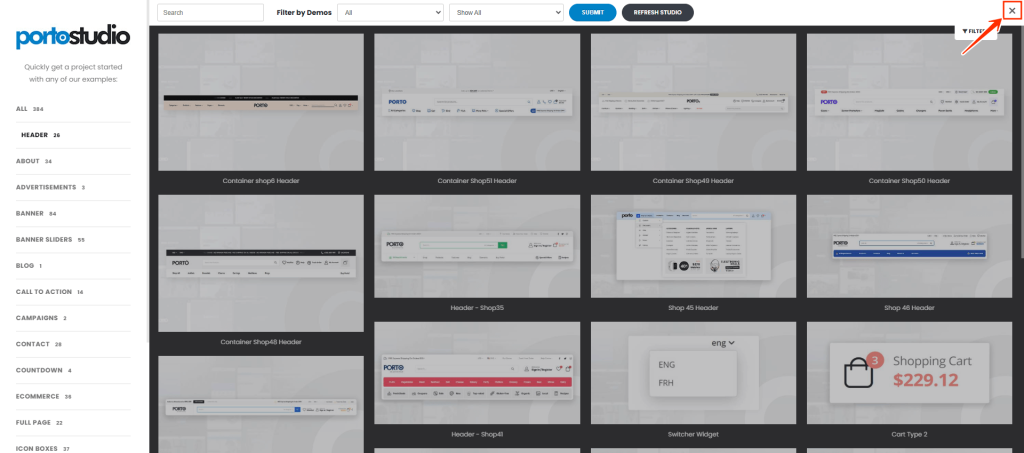
- Close Porto studio block list by clicking "close" button for building your site from scratch.
Step 2: Add Essential Header Elements
Using Elementor or WPBakery Page Builder, add key elements:
- Logo: Insert your site’s logo or upload a custom image.
- Navigation Menu: Use the menu widget or block to add your primary site navigation.
- Switcher: Add HTML dummy switchers for the language and currency switcher.
- Search Form: Enhance user experience with a search bar for quick content discovery.
- Call-to-Action Buttons: Add buttons for key actions such as "Sign Up" or "Shop Now."
- Social Media Icons: Link to your social profiles to improve engagement.
- Contact Information(Porto Info Box): Display essential details like phone number and email for easy access.
Step 3: Customize the Layout & Design
- Spacing & Alignment: Adjust padding, margins, and positioning for a clean layout.
- Typography & Colors: Use Porto’s styling options to maintain brand consistency.
- Responsive Design: Configure device-specific settings to ensure the header adapts to mobile, tablet, and desktop screens.
Step 4: Save & Apply Your Header
- Click Save to store your custom header.
- Assign Header to your site at the bottom of header block edit page.
By following these steps, you can create a fully customized, visually appealing, and functional header using Porto Header Builder.
