
The Porto theme provides flexible and robust options to create and customize your website footer setup. You can set up the footer using two methods: the Footer Builder (highly recommended for flexibility and advanced customization) or the Classic Widget Arrangement (available only in Legacy Mode). Follow this guide to create a footer that matches your design vision.
Method 1: Using the Footer Builder (Recommended)
The Footer Builder is supported in both Legacy Mode and Soft Mode and offers enhanced customization options.
1. Enable the Footer Builder
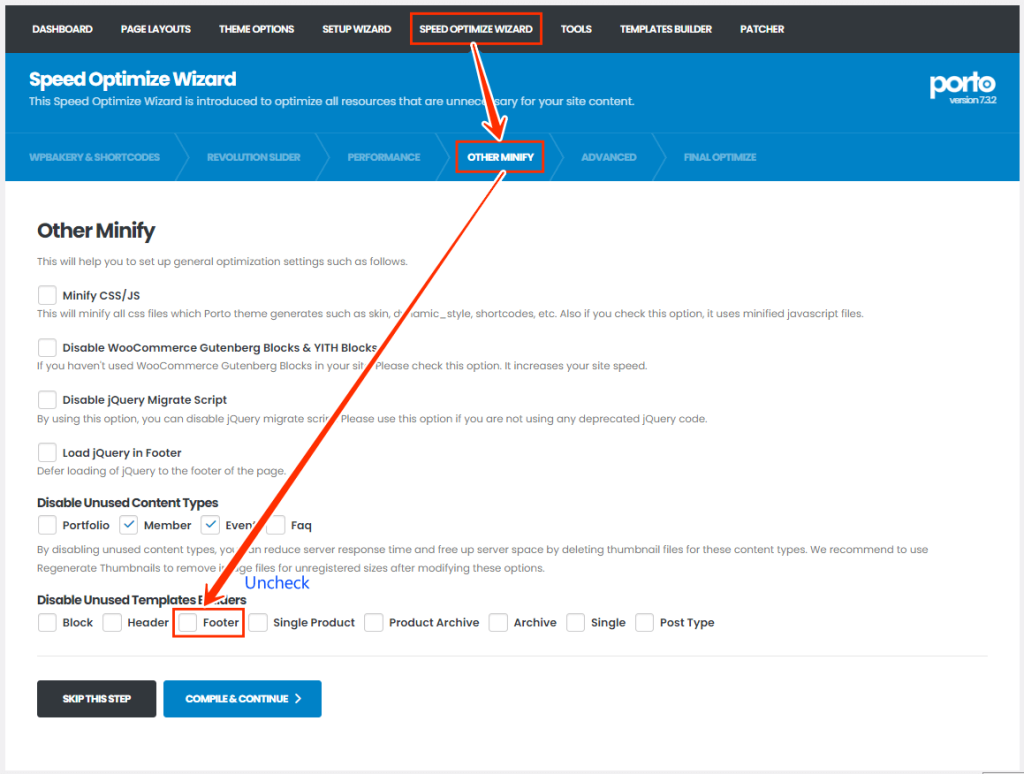
- Navigate to Porto > Speed Optimize Wizard > Other Minify.
- Enable the Footer Builder option to access advanced customization tools.
2. Create and Customize Your Footer
- Go to Porto > Template Builder > Footer > Add New.
- Give your footer block a descriptive name.
- Design your footer using WPBakery or Elementor, leveraging drag-and-drop functionality.
- You can import prebuilt footer blocks from porto studio.

3. Assign Your Footer
- Inside the footer editor, click the Display Condition button.
- Assign the footer to specific pages, templates, or site-wide using the display condition settings.
4. Save and Publish
Once you've finished designing, click Save or Publish to make the footer live on your website.
Method 2: Customizing the Footer Through Theme Options (Deprecated)
If you prefer a simpler setup, you can configure the footer through the Theme Options. Before that, you should disable FSE mode in Porto > Setup Wizard > Full Site Editing page.
1. Access Footer Settings
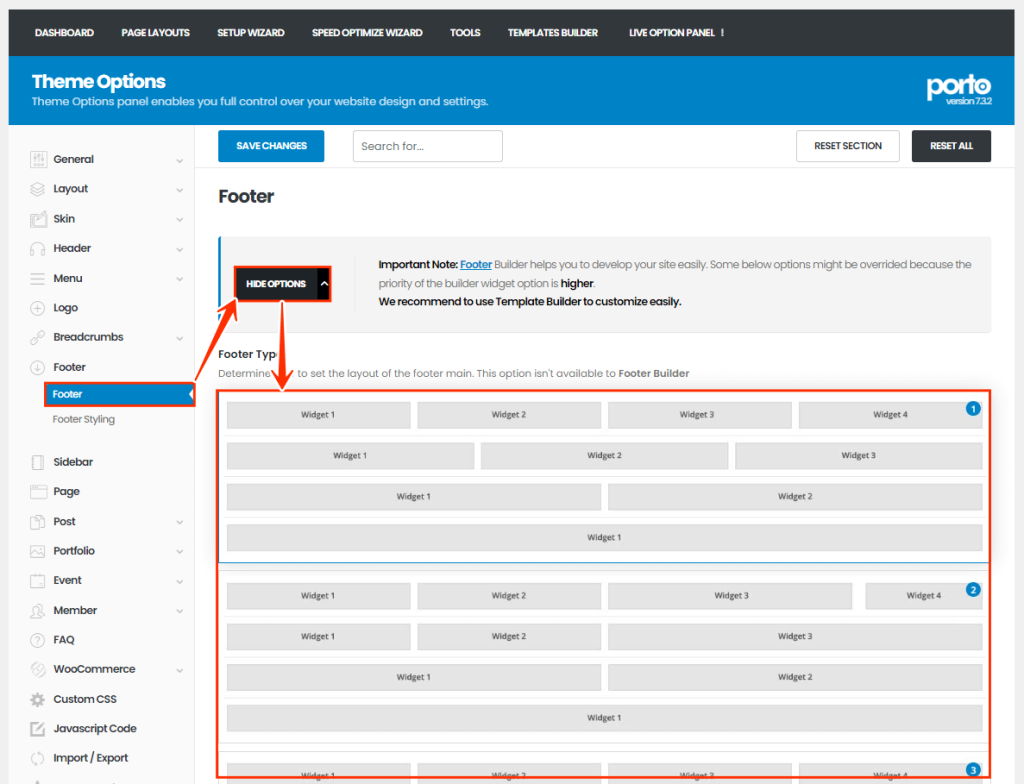
Navigate to Porto > Theme Options > Footer.
2. Choose a Footer Layout
- Select from the pre-designed footer layouts available in the theme.
- Adjust styles to fit your site’s overall design.
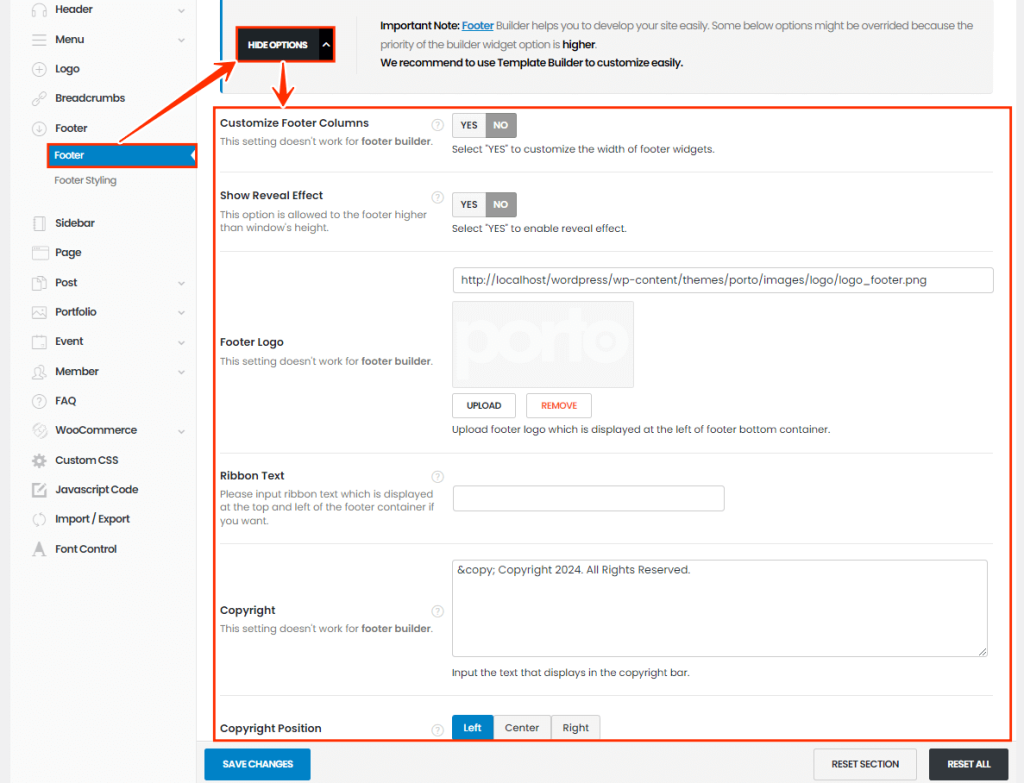
3. Customize Footer Options
4. Add Widgets
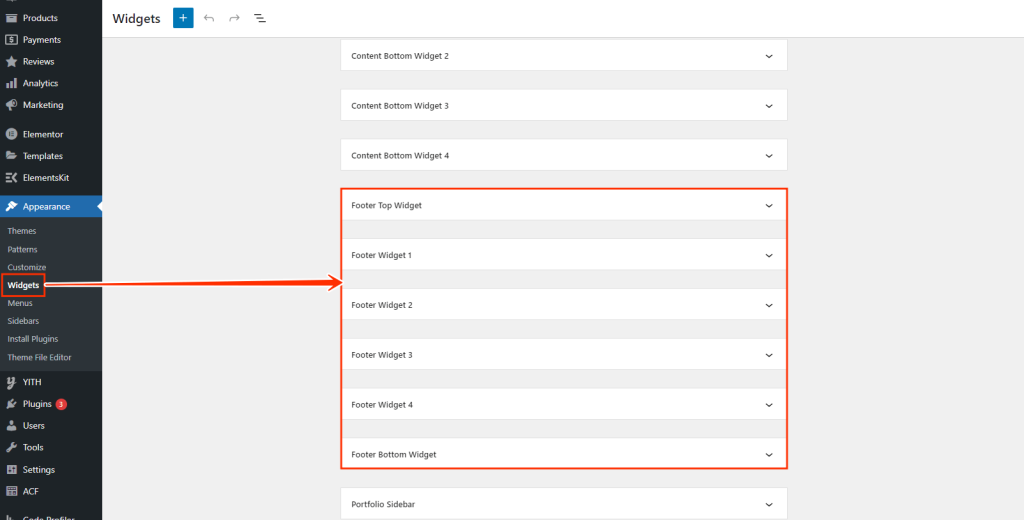
- Go to Appearance > Widgets.
- Drag and drop widgets (e.g., text, navigation menus, or social media links) into the available footer widget areas.
5. Save Changes
Once your footer is customized, click Save Settings to apply the configuration.
Why Choose Porto Footer Builder?
Porto Footer Builder provides a more advanced and integrated solution than Elementor Pro Footer Builder, offering:
- Full compatibility with Porto-specific widgets and features.
- Streamlined control over display conditions.
- Seamless use of Elementor Pro widgets within the Porto Footer Builder environment.
For additional assistance, the Porto support team is available to help resolve any issues or guide you through the process.
