
Porto Floating Effects allow you to add interactive, mouse-based motion effects to elements in your layout. When users move their mouse cursor across the page, selected elements shift subtly to create a dynamic parallax-style movement. This feature enhances visual depth, making sections feel more modern and interactive.
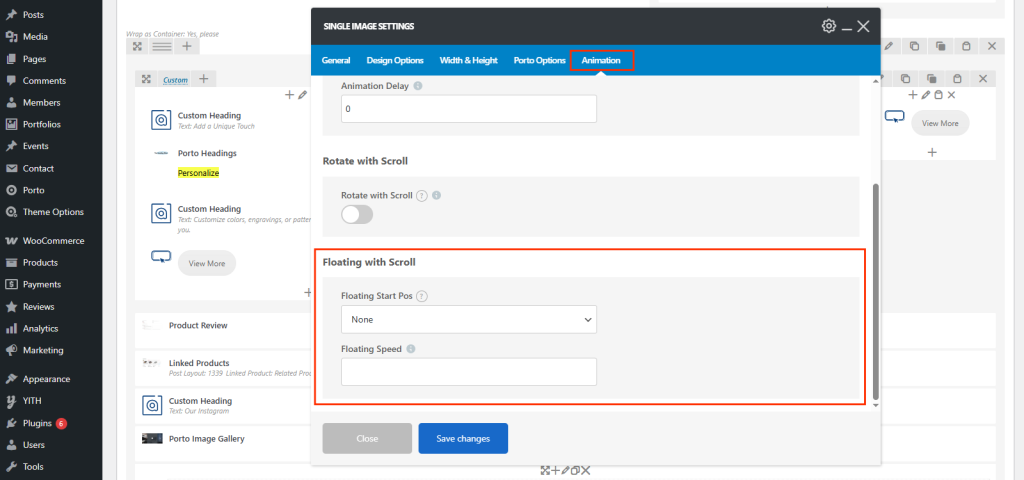
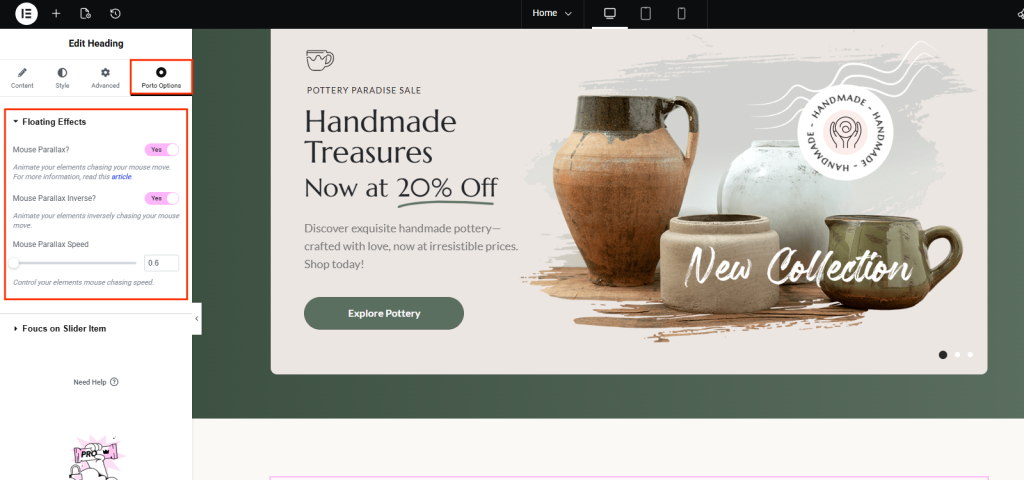
Where to Find Floating Effects
Floating Effects appear in elements that support Porto’s enhanced styling options.
- WPBakery Page Builder
Go to the element settings → Animation → Floating with Scroll
- Elementor
Select a widget → Porto Options → Mouse Parallax
Floating Effect Options
Porto Floating Effects include the following mouse-based interaction controls:
- Mouse Parallax
Enables mouse-based parallax movement for the selected element.
- When this option is enabled, the element will shift position based on the user’s mouse movement.
- Movement is subtle by default to avoid overpowering the layout.
Use this for Decorative shapes, Icons, Feature images, Foreground objects in hero sections
- Mouse Parallax Inverse
Reverses the parallax movement direction.
- Enabled: Element moves in the opposite direction of the mouse.
- Disabled: Element moves in the same direction as the mouse.
This option helps you fine-tune the animation style depending on your layout depth and artistic effect.
- Mouse Parallax Speed
Controls how fast the element reacts to mouse movement. Higher value → faster, more dramatic movement, Lower value → subtle, slower floating motion
Typical usage:
- 0–1: Very subtle movements (recommended for clean corporate designs)
- 1–2: Moderate movement (good for banners and hero images)
- 2+: Strong motion (creative layouts, animated landing pages)
Adjust this value depending on how noticeable you want the floating effect to be.
How Floating Effects Work
Once enabled:
- The element tracks the mouse position relative to the viewport.
- Movement updates smoothly in real time.
- Parallax direction and speed follow the settings you configure.
- Effects run only during mouse interaction, ensuring good performance.
Floating effects work best on:
- Hero images
- Decorative SVGs or shapes
- Icons
- Promotional elements
- Elementor or WPBakery blocks used as foreground elements
Best Practices
- Avoid enabling floating effects on large sections unless intentionally stylized.
- Use slower speeds for subtle, elegant animations.
- For multi-layered designs, mix regular parallax and inverse parallax to create depth.
- Test responsiveness—floating effects do not activate on mobile (for performance reasons).
Example Use Cases
- A hero banner image that shifts slightly as the user moves the mouse
- Product badges or icons with interactive motion
- Floating decorative shapes in feature or services sections
- Foreground illustrations in landing pages
