
Porto offers powerful and user-friendly advanced menus. It's easy to build megamenu using porto provided functionality.
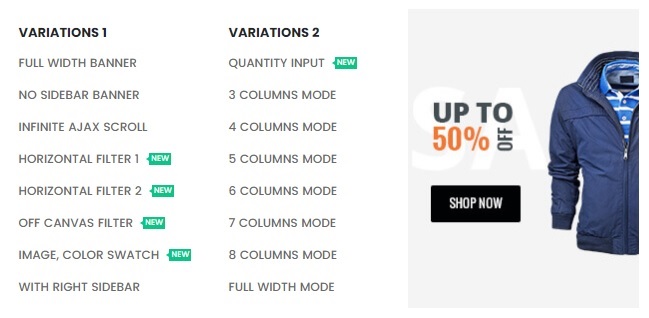
Menu Options Summary
WordPress menu
All the menus applied in the site are created in
Dashboard -> Appearance -> Menu
. This WordPress manual provides detailed instruction on creating/editing/saving menus.
There are several menu locations: the Main menu, the Mobile menu and Side Menu. One and the same menu maybe displayed in both: Main, Mobile and Side. In addition, the Porto theme provides various options to display menus in any place on the site, it is possible to build as many menus (with megamenu) as required, more detailed descriptions of the menus options are provided here: Adding a menu to the site.
Mega menu
Navigation Label
This input field is for the label displayed in menu item.
Icon Class
This field supports icons only from the provided source from porto – the field requires inserting the keyword from FontAwesome, simple-line-icons, porto icon. For example, the ID home icon code looks like this:
<i class="fas fa-home"></i>Popup Settings
1) Menu Type
This option determines the type of the mega menu block: Narrow or Wide:
- Narrow – The drop-down menu has the narrow default width, and no mega block option appears.
- Wide – The menu has a wide width, allowing you to choose a Porto block as a mega menu block and set the width for its child menu items.
2) Popup Position
This option determines the position of the mega menu popup: Left, Right, Justify (Only Wide), Center (Only Wide), Full Width (Only Wide):
- Left - The drop-down menu aligns to the left of the parent menu item.
- Right - The drop-down menu aligns to the right of the parent menu item.
- Justify(Only Wide) - The drop-down menu sits inside the container, providing proper space on the left and right; this option works only when the menu type is "Wide".
- Center(Only Wide) - The drop-down menu centers over the parent menu item; this option works only when the menu type is "Wide".
- Full Width(Only Wide) - The drop-down menu stretches to the container width; this option works only when the menu type is "Wide".
3) Popup Columns
This option applies only when the menu type is "Wide" and sets the number of columns in the megamenu popup: 2 to 6 columns are possible.
4) Popup Max Width
This field specifies the width of the megamenu popup and is available only when the menu type is "Wide".
5) Custom Styles
This field applies custom styles to the megamenu popup inline.
6) Columns
This field appears only in child menu items where the parent menu type is set to "Wide". The values in this field determine the width of the menu item itself. For example, if the value is 2.5 and the parent menu item has 6 columns as Popup Columns, it occupies 2.5/6 = 0.41666 of the full megamenu width.
7) Select Block
This drop-down appears when you choose the menu type "Wide" in the parent menu item and presents all existing Porto Blocks for selection as a mega menu block.
Background Settings
- Background Image - this option determines the background image of megamenu. You can use images from 3rd party sites or your site media library.
- Background Position - set the position of megamenu background image
- Background Repeat - set the repeatness of megamenu background image
- Background Size - set the size of megamenu background image
Title & Label Settings
- Title Attribute - Add title attribute to menu item using that field's value
- Link Relationship (XFN) - Add rel attribute to menu item using that field's value
- Preview Image - Preview Image which appears when hovering on it. Preview images are hidden in the Toggle and Sidebar menus.
- Tip Label - Determine the label will be added to the end of menu item navigation label.
- Tip Text Color - Determine the color of tip label. It is hexa-decimal form.
- Tip BG Color - Determine the background color of tip label. It is hexa-decimal form.
Other Settings
- CSS Classes(optional) - allow to insert a class and assign custom CSS, besides inserting class porto-open-newsletter would assign menu item to the theme Promo Popup.

How to build a megamenu?
To create and customize a menu with Porto, follow these steps:
- First, Navigate to the Menus Page:
- Begin by going to Appearance > Menus in your WordPress admin sidebar.
- Next, Create or Select a Menu:
- Here, you can either click Create a new menu or select an existing menu to edit.
- Then, Add Menu Items:
- Now, add any new items you’d like to include in your menu.
- Afterward, Configure Primary Menu Options (Depth 1):
- Expand the settings for each primary menu item (Depth 1) to access options like Menu Type, Popup Position, and more.
- Menu Type: You can choose between Narrow or Wide.
- Popup Columns: If using the Wide menu type, specify the number of columns here.
- Popup Position: Choose to align the popup to Left, Right, Center (for wide menus only), or Justify (also for wide menus only).
Additionally, you can upload a popup background image and configure the background position settings to enhance the visual appeal of your menu.
- Then, Configure Submenu Options (Depth 2):
- For submenu items (Depth 2), you’ll find more settings like Columns and Background Image.
- To display custom content within a menu item, create a block first via Porto > Template builder > Blocks > Add New in the admin sidebar. Then, select block name in the Block Name field within the menu options.
- Moreover, Review Additional Menu Item Options:
- For each menu item, you’ll also find options like Don’t link, Don’t show link on Mobile Panel, and Tip Label. Be sure to configure these settings to tailor each item’s visibility and function as desired.
- Finally, Save Your Changes:
- Once you’ve finished configuring your menu, don’t forget to click Save Menu to apply your changes.
With these steps, you can design a versatile, user-friendly menu that seamlessly enhances site navigation and user engagement.
