
In Porto, you can adjust the Edit Area Width inside your page builder so that the editor matches your front-end layout more accurately.
This does not affect the live site—it only changes the width of the working canvas in Elementor or WPBakery.
This is especially useful when working with:
- Sidebar blocks (so the block appears in the editor at the real narrow width)
- Popup builder designs (so popups appear at their actual intended size)
- Porto blocks used inside page layouts with constrained container widths
You can access this option in:
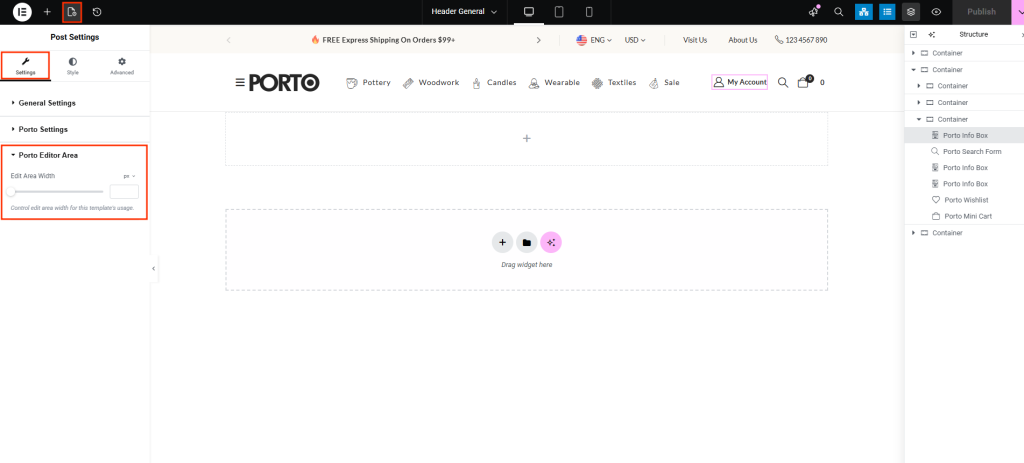
- Elementor → Post Settings → Porto Edit Area
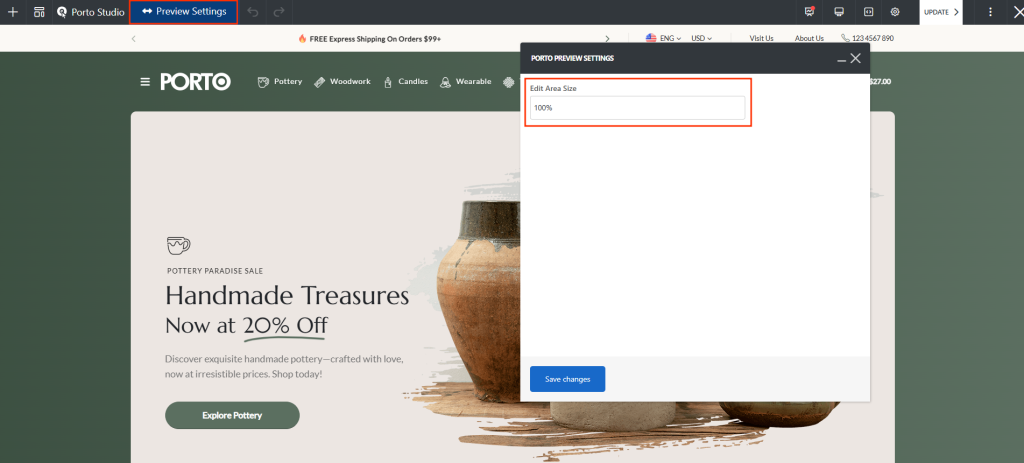
- WPBakery → Preview Settings
Elementor: How to Control Edit Area Width
Steps
- Open the page, popup, or block in Elementor.
- Click the Post Settings icon (book-shaped icon) at the top-left.
- Open the Porto Edit Area accordion.
- Adjust the Edit Area Width value (e.g.,
1140px,800px,400px, or100%). - Click Update.
Why This Matters
- Sidebar Block Editing - If you're building a sidebar widget block, the real front-end width might be around 300–400px. Setting the editor width to a similar value helps you see true spacing, font scaling, and widget stacking as they will actually appear.
- Popup Builder Editing - Popups often have fixed or narrow widths (e.g., 500–700px). Adjusting the edit area width lets you design them as they will actually look on the site, preventing layout surprises.
- General Layout Accuracy - Matching the editor width to your theme’s container width gives a more reliable design environment.
WPBakery: How to Control Edit Area Width
Steps
- Open your page or block in WPBakery Page Builder.
- Click the Preview Settings button at the top of the editor.
- Find the Edit Area Width option.
- Enter the desired width value.
- Save the settings and refresh the preview.
Why This Matters
- WPBakery’s editing canvas is often wider than the real site container.
-
Adjusting the edit area width prevents misaligned columns, unexpected wrapping, and inaccurate spacing—especially for:
- sidebar blocks
- narrow promo banners
- popup or sliding panel layouts
Additional Tips
- Match the width to your final layout - If your actual page container is 1200px, use 1200px for the editor width for the closest design match.
- Use smaller widths for sidebar-type blocks - This prevents excessive whitespace and ensures your widgets stack the same as they do in real sidebars.
- Use pixel units for predictable results - px values give a consistent editing environment; % values scale based on your screen size.
- Does not change front-end design - Only the editor canvas changes. Your real front-end layout remains fully controlled by Porto Theme Options, page layout settings, and custom CSS.
