
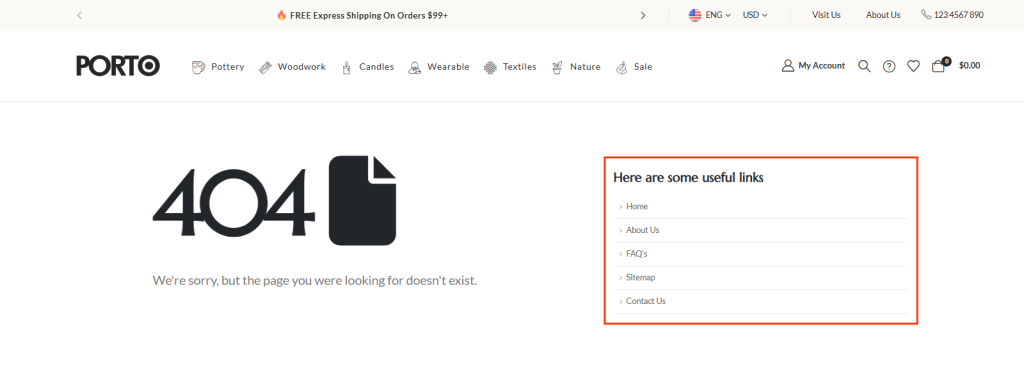
Porto allows you to fully customize the message and content displayed on your site’s 404 – Page Not Found screen. You can design your own layout using the Porto Block Builder and assign it directly in the Theme Options. This gives you control over the helpful links, messages, buttons, or images shown whenever a user lands on a missing or broken URL.
Method 1 — Customize Only the 404 Content Area
This method lets you edit the main content section of the 404 page while keeping Porto’s default page layout structure.
Step 1: Create a 404 Content Block
- Go to -Porto → Template Builder → Block → Add New
- Create a new block using Porto elements and layout tools.
- Add any content you want to show on your 404 page, such as:
- Search box
- Helpful links
- Custom messages
- Icons or illustrations
- Buttons leading back to the homepage
- Save the block.
Step 2: Assign the Block to the 404 Page
- Go to Porto → Theme Options → General → 404 Page
- Find the setting “404 Links Block”.
- Enter the slug of the block you created.
Your custom block will now replace the default content area on 404 page.
Method 2 — Customize the Entire 404 Page (Full Override)
If you want to replace the entire 404 page layout—not just the middle content—you can use a 3rd-party 404 management plugin – Smart Custom 404 Error Page
This allows complete template replacement, letting you build the entire page using the Classic Editor, Gutenberg, or a page builder.
Best Practices
- Keep your 404 design simple and user-friendly.
- Add a search bar to reduce bounce rates.
- Include navigation buttons (e.g., “Go to Homepage”).
- Avoid heavy layouts that may slow down the fallback page.

