
The Porto WordPress theme allows you to design custom single product layouts using either Elementor or WPBakery Page Builder. This feature gives you full flexibility to control how your product pages look and function, ensuring a consistent and professional shopping experience.
Before starting, ensure that the Product Single Builder is enabled and that your preferred page builder is configured to edit Porto Templates.
Step 1: Enable the Product Single Builder
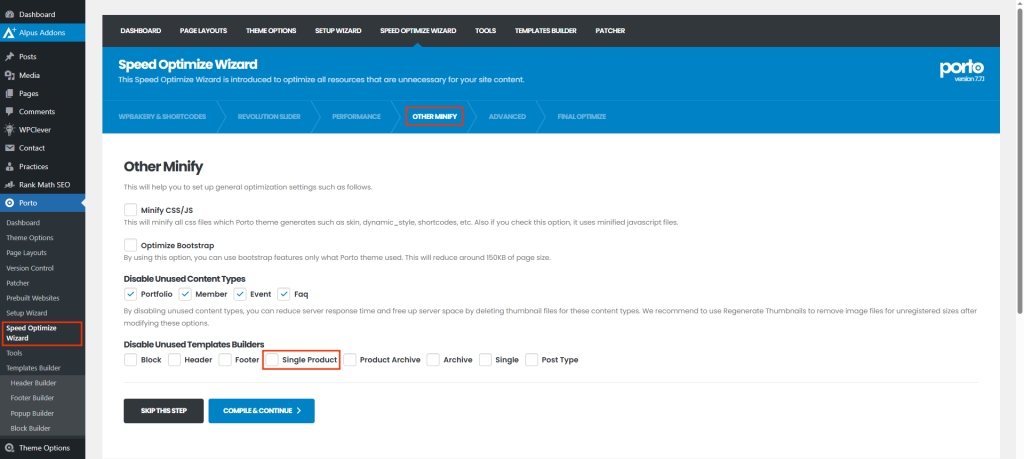
- Navigate to Porto > Speed Optimize Wizard > Other Minify
- Uncheck the option Single Product in Disable Unused Template Builders
This option must be activated to create or edit custom product layouts.
Step 2: Allow Your Page Builder to Edit Porto Templates
For Elementor:
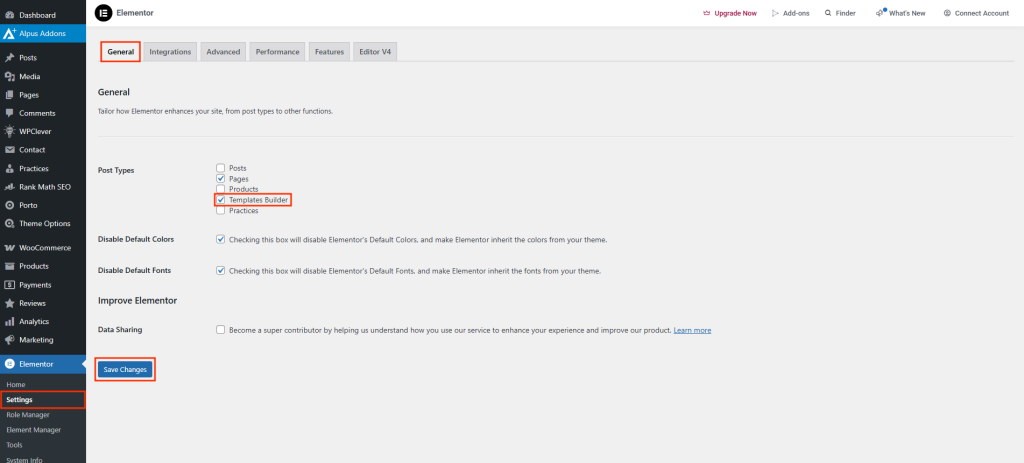
- Go to Elementor > Settings in your WordPress Dashboard.
- Under the Post Types section, make sure “Porto Template” is checked.
This enables Elementor to edit templates built through Porto’s Template Builder.
For WPBakery Page Builder:
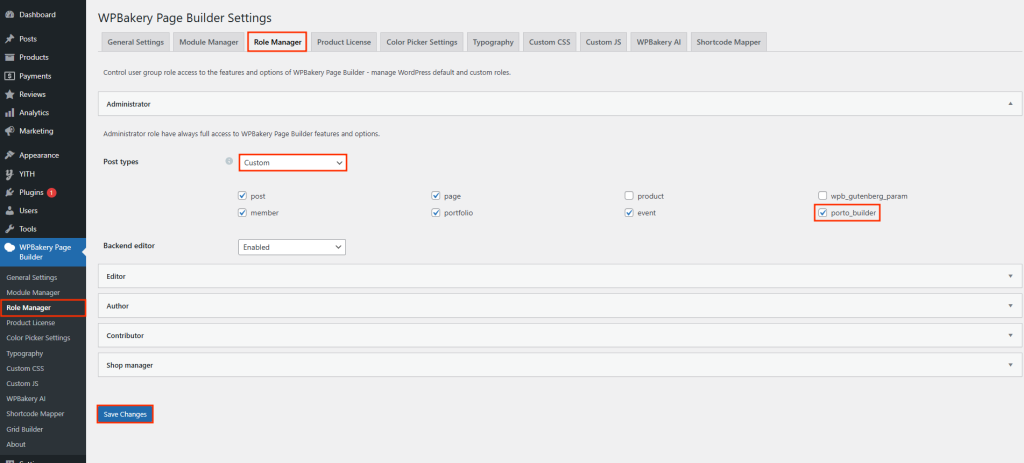
- Navigate to WPBakery Page Builder > Role Manager.
- Under the Post Types dropdown, ensure “Porto Template” is enabled.
This allows WPBakery to edit Porto Template Builder layouts.
Step 3: Create a New Single Product Template
- Go to Porto > Template Builder > Single Product > Add New
- Enter a name for your custom layout and click Create Builder.
- Once created, the template will automatically open with your active page builder (Elementor or WPBakery).
Note: If both Elementor and WPBakery are installed, you may need to manually switch between them.
However, it’s not recommended to keep both page builders active at the same time, as this can negatively affect site performance.
Step 4: Build the Custom Product Layout
Once the editor opens, you’ll see a Porto Studio popup that lets you import a prebuilt block.
- Import a prebuilt single product layout from Porto Studio for a quick start, or
- Close the popup and build your layout from scratch.
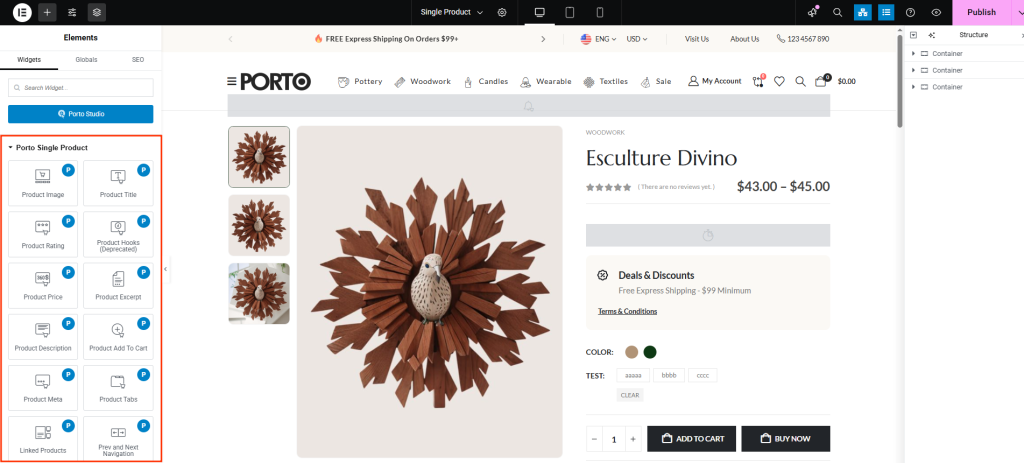
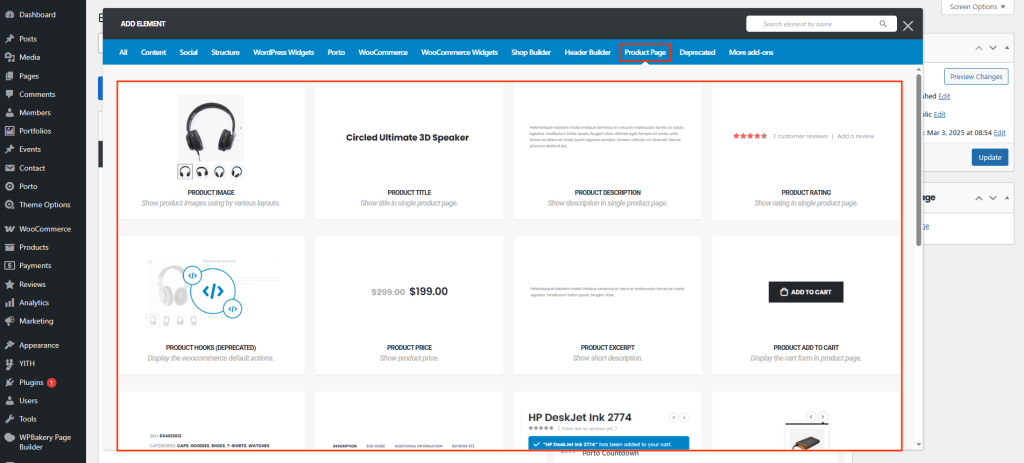
When editing with Elementor or WPBakery, you’ll find a wide 19 of Porto Single Product Elements designed for product pages, such as Product Title, Product Gallery, Short Description, Price, Add to Cart, Tabs (Description, Reviews, etc), Related or Upsell Products
Step 5: Set Display Conditions
After finishing your design:
- Open the Display Conditions panel.
- Choose where this layout should appear — for example:
- All Products
- Specific Categories
- Individual Products
This ensures your layout is automatically applied to the correct product pages.
Step 6: Save and Preview
- Click Save or Publish to apply your custom layout.
- Clear your browser cache and any active caching plugins.
- Visit a product page to preview your new layout in action.
Additional Pro Tips
- Make sure the Product Single Builder option is enabled.
- Clear all caches after publishing. You can refresh display condition in Porto > Tools page.
- Ensure that display conditions are correctly assigned.
- Using both Elementor and WPBakery simultaneously may cause compatibility issues.
- Check PHP version — Porto recommends PHP 7.4 or higher.
