
Blurry product images in WooCommerce usually appear when image size settings do not match the layout where images are rendered. This can happen on shop pages, category archives, related products, and product grids built with Porto widgets.
This guide explains how WooCommerce image sizes work, how Porto widgets interact with them, and how to correctly fix image blurring without harming performance.
Step 1: Configure WooCommerce Product Image Sizes (Base Settings)
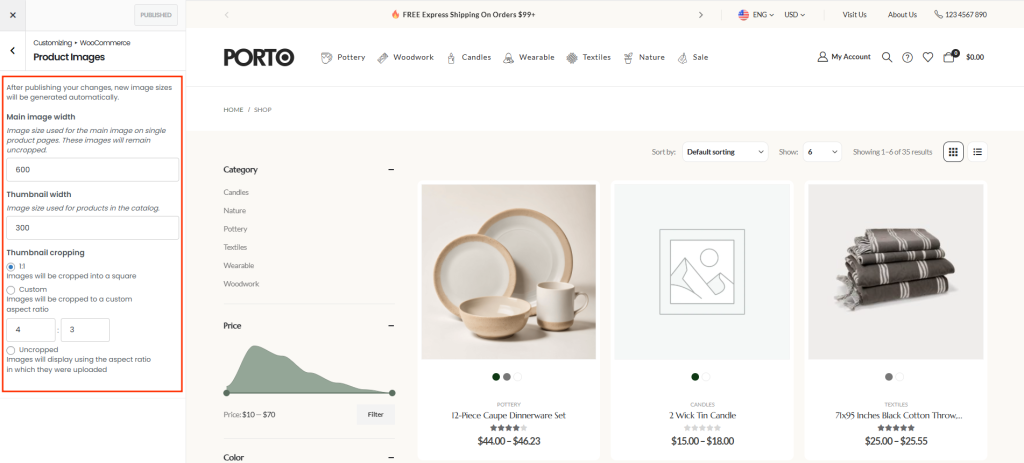
WooCommerce defines the base image sizes used to generate product images. These values directly affect image clarity across all WooCommerce sections.
Navigate to Appearance → Customize → WooCommerce → Product Images
1. Main Image Width
- Defines the width of the main product image on single product pages.
- If this value is smaller than the image container, WooCommerce scales the image up, causing blur.
- Recommended action
- Set the width to match or slightly exceed your actual product image display width.
2. Thumbnail Width
- Controls the size of product thumbnails used in Shop pages, Category archives, Related products, Product grids.
- Recommended action
- Increase this value if thumbnails look soft or pixelated in grids or sliders.
3. Thumbnail Cropping
- Determines how thumbnails are cropped.
- Inconsistent ratios can cause uneven or distorted images.
- Recommended action
- Use a fixed ratio (for example, 1:1) for uniform product grids.
- Match this ratio with the layout used in your theme or widgets.
Step 2: Understand How Porto Widgets Use WooCommerce Image Sizes
Porto widgets do not ignore WooCommerce image settings. Porto widgets request a specific Image Size (for example:
woocommerce_thumbnail
,
medium
, or a Porto preset). WordPress then uses the closest available image size generated by WooCommerce.
- Important Behavior
If the requested image size does not exist, WordPress selects the nearest generated size. That image may be scaled up or down to fit the layout. This is where image blurring often begins.
Step 3: Check Image Size Settings in Porto Widgets (Priority Rule)
Porto widgets have higher priority over WooCommerce image settings when rendering images. This means Even if WooCommerce image widths are large, A Porto widget can still display blurry images if it requests a small image size
- Where This Commonly Happens
- Porto Posts Grid
- Archive Posts Grid
- Product listing or archive elements
- What to Check
- Open the Porto widget used in the affected section
- Locate the Image Size or Image Resolution option
- Make sure it is not set to a small size (such as
thumbnail) when used in a large layout
- Key rule
Large WooCommerce image sizes + small Porto widget image size = blurry images
Step 4: Regenerate Product Images After Updating Settings
Changing image width or size settings does not automatically regenerate existing images. To apply your new settings correctly, you must regenerate product images.
- Install a thumbnail regeneration plugin, such as Regenerate Thumbnails
- Go to Tools → Regenerate Thumbnails
- Regenerate thumbnails for All products, or Selected product images
- Clear WooCommerce cache, Site cache, Browser cache
Without this step, WooCommerce will continue using old image sizes.
Step 5: Balance Image Quality and Performance
Using very large image widths can fix blur, but it may negatively affect
- Page load speed
- Mobile performance
- Core Web Vitals
Best practice
- Use WooCommerce image sizes as a solid baseline
- Fine-tune image size per layout using Porto widget controls
- Avoid oversized image resolutions unless absolutely necessary
