1. Set Favicon in WordPress Core
Path:
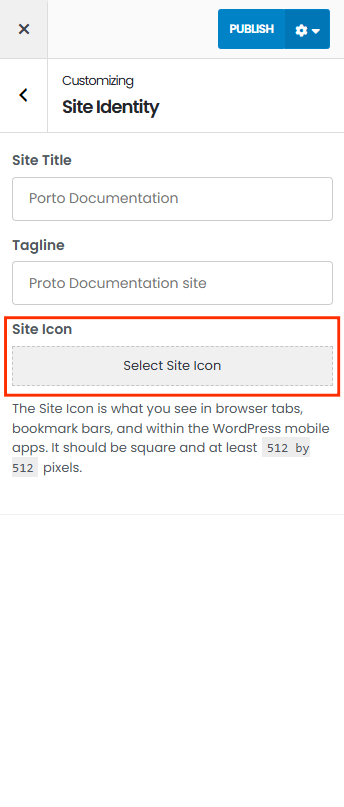
Dashboard → Appearance → Customize → Site Identity
Steps:
- Click “Site Identity.”
- Upload your Site Icon (favicon) — ideally 512×512 px.
- Click Publish.
This icon will appear in:
- Browser tabs
- WordPress admin bar
- Bookmarks (unless overridden by theme or plugin)
2. Set Favicon in Porto Theme Options
Path:
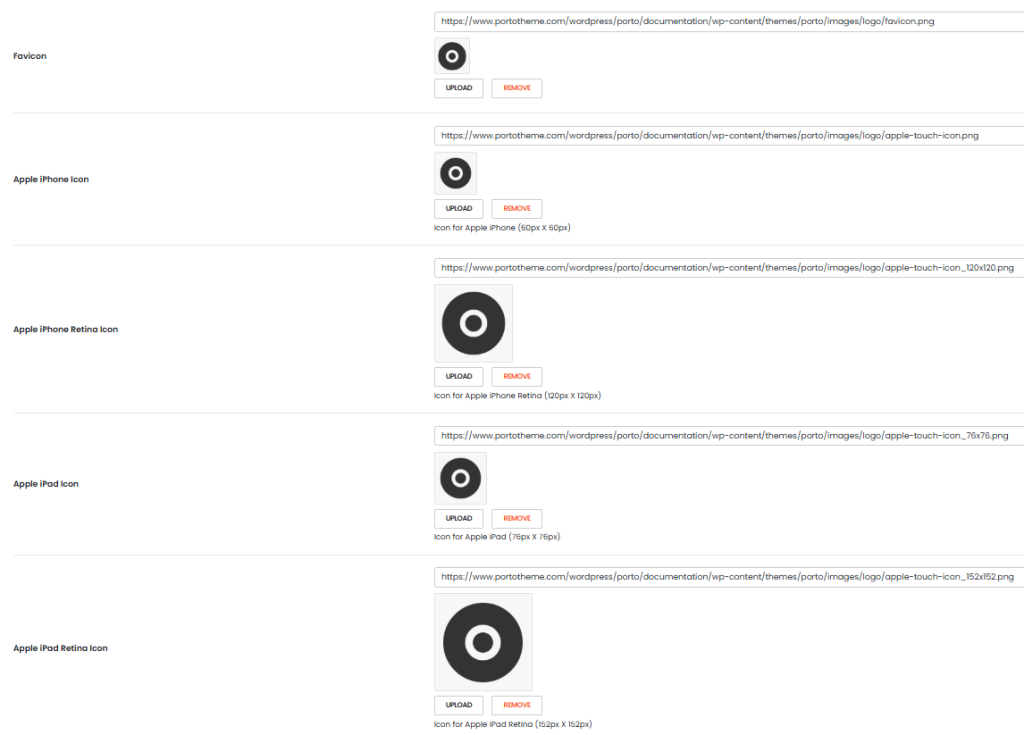
Dashboard → Porto → Theme Options → Logo
Fields available:
- Favicon:
32×32 pxrecommended - Apple iPhone Icon:
60×60 px - Apple iPhone Retina Icon:
120×120 px - Apple iPad Icon:
76×76 px - Apple iPad Retina Icon:
152×152 px
Steps:
- Upload the appropriate-sized icons into each respective field.
- Save changes.
These icons are used by:
- Older Apple devices
- Some desktop browsers (fallback)
- Manual
<link rel="icon">injections by Porto
Why Doesn’t My Favicon Update in Google?
Even if you've correctly set favicons in WordPress and the Porto theme, you may still see the wrong icon (often the default one) appear in Google search results or browser tabs. Here’s why:
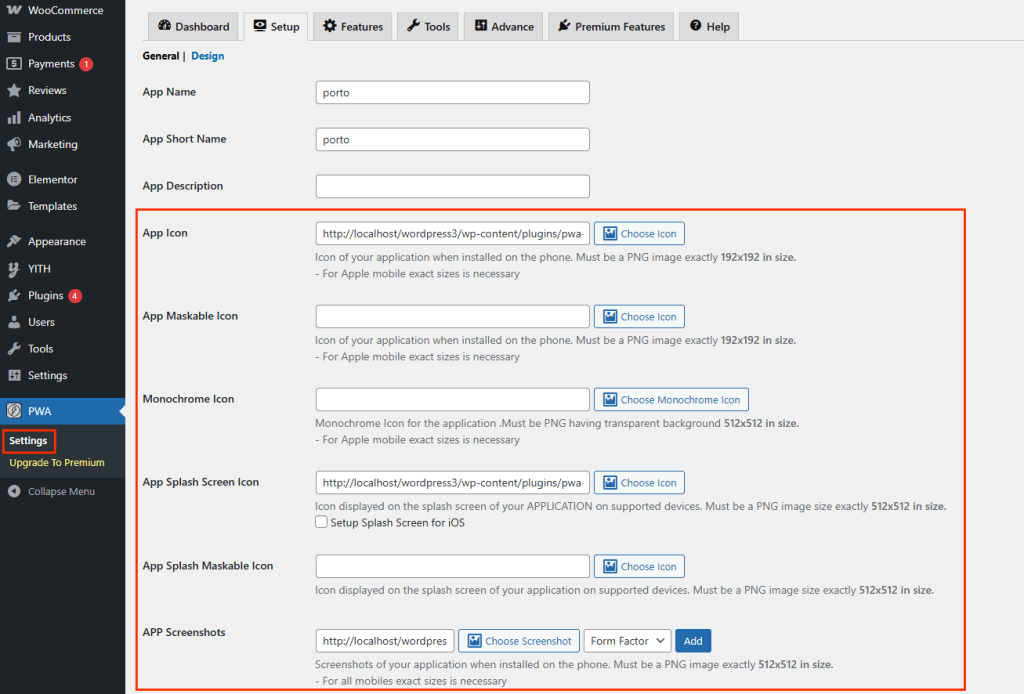
- You're using a PWA (Progressive Web App) plugin.
- This plugin generates its own favicon via the manifest.json file.
- Google and modern browsers prioritize the PWA icon over WordPress and theme favicons.
How to Fix it
- Upload the same favicon (512×512) in the PWA plugin settings
- Clear all caches (site, browser, CDN if any).
- Reindex your site using Google Search Console to force Google to re-crawl the updated favicon.