
Porto allows you to make any WPBakery Row behave as a sticky section. This feature is commonly used for sticky headers, but it can also be applied to any row within normal page content, such as banners, menus, or call-to-action sections.
Once enabled, the row remains fixed within the viewport while scrolling, based on the conditions you define.
How to Enable Sticky Row
- Edit a page using WPBakery Page Builder
- Edit the Row you want to make sticky
- Open the Porto Options tab
- Enable the Sticky Row option
After enabling it, additional configuration fields become available.
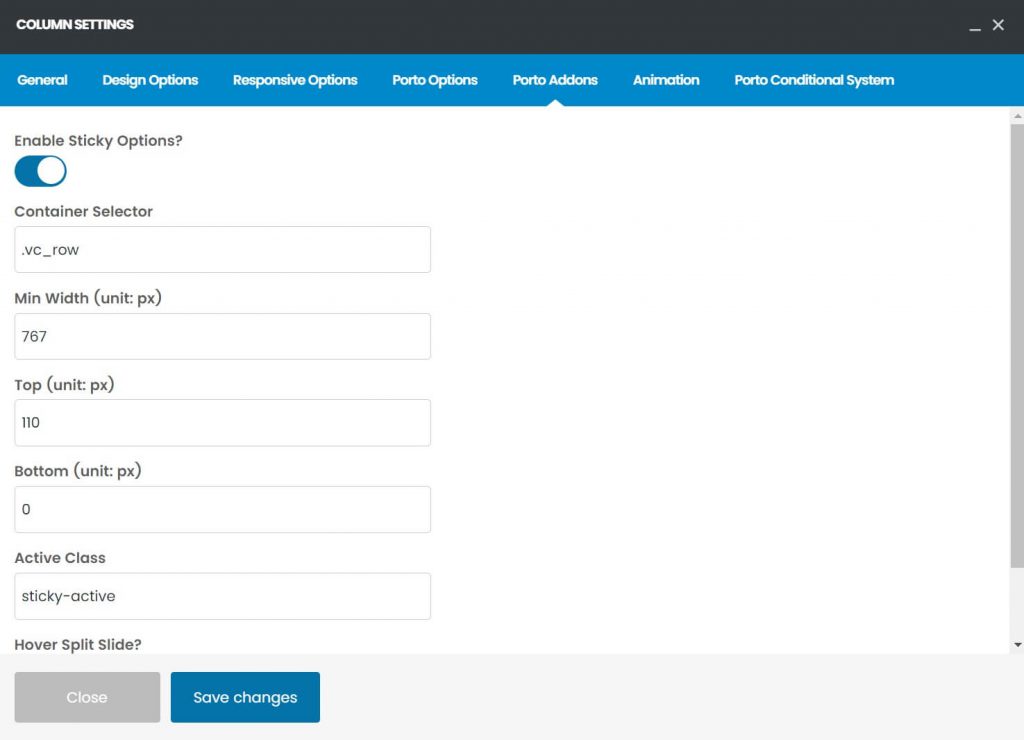
Sticky Row Options
Container Selector
Specify the ID or class of the container element that controls the sticky boundary.
- Example:
#header,.page-wrapper - The row will remain sticky only within this container
Min Width
Defines the minimum viewport width (in pixels) required for the sticky behavior to activate.
- Useful for disabling sticky rows on mobile devices
- Example:
992(sticky applies only on desktop)
Top
Sets the distance from the top of the viewport when the row becomes sticky.
- Commonly used to prevent overlap with admin bars or headers
Bottom
Defines the distance from the bottom of the viewport where the sticky behavior should stop.
- Prevents overlapping footer or other content
Active Class
Adds a custom CSS class to the row when sticky is active.
Common Use Cases
- Sticky headers and navigation bars
- Floating call-to-action sections
- Persistent promotional banners
- Secondary menus inside content
Tips
- Always define a Container Selector for predictable behavior
- Combine Min Width with responsive layouts
- Use the Active Class to style sticky and normal states differently
