
WPML (WordPress Multilingual Plugin) is the recommended solution for creating a fully multilingual website with the Porto theme. It allows you to translate pages, posts, templates, WooCommerce content, theme strings, and dynamic texts while keeping full design consistency and performance.
Porto is fully compatible with WPML and has been tested with all Porto core features, builders, and WooCommerce integrations.
1. Installing WPML
To install WPML on a Porto-powered website
- Log in to your WPML.org account
- Go to Downloads
- Download the OTGS Installer plugin. (This lightweight plugin installs WPML core and all required extensions.)
- Upload and activate the OTGS Installer plugin on your WordPress site
- Click Register WPML
- Generate a site key from your WPML account and paste it into your site
- After registration, select and install the required WPML components
Recommended WPML components for Porto
- WPML Multilingual CMS
- WPML String Translation
- WPML Translation Management
- WooCommerce Multilingual (if using WooCommerce)
2. Configuring WPML
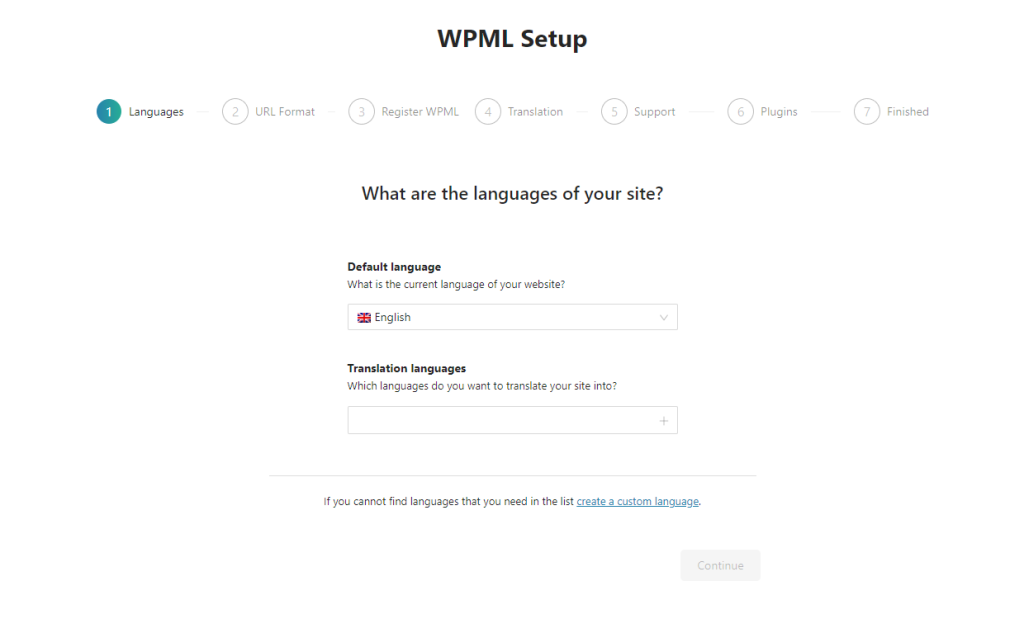
After activation, WPML automatically launches its Setup Wizard, which helps you configure your multilingual site correctly.
WPML Setup Wizard Includes
- Selecting your default language
- Choosing additional languages
- Defining how translations will be handled
- Installing required “glue” plugins (such as WooCommerce Multilingual)
This wizard ensures that Porto pages, templates, and dynamic content are prepared for translation from the start.
3. Translation Modes in WPML
WPML offers two main translation workflows.
- Translate Everything
This mode automatically translates all site content in the background as soon as content is published or updated.
Supported content
- Pages and posts
- Categories and tags
- WooCommerce products and variations
- Custom post types and taxonomies
- Porto templates and dynamic fields (when marked translatable)
You may optionally review translations manually or assign professional translators for higher quality results.
- Translate Some
This mode provides full manual control over what gets translated and who translates it. You can Translate content yourself, Assign local translators, Send content to professional translation services.
To manage translations:
- Go to WPML → Translation Management
- Select the content you want to translate
- Assign translation tasks
- Translating Content Yourself
When translating manually
- Go to Pages, Posts, or custom content lists
- Click the plus (+) icon to create a translation
- Click the pencil icon to edit an existing translation
WPML opens the Advanced Translation Editor, which provides Side-by-side translation, Automatic translation suggestions, Glossary support, Spell checking and consistency tools
4. Translating Theme & Plugin Texts (String Translation)
Not all texts come from pages or posts. Many texts originate from
- Porto theme options
- Porto builders
- Widgets
- Buttons, labels, headings
- WooCommerce messages
These texts are translated using WPML String Translation.
How to Translate Strings
- Go to WPML → String Translation
- Search for the text
- Click the plus (+) icon
- Enter the translated string and save
You may also
- Send strings to translators
- Manage translation baskets
- Track translation status
5. Scanning Porto Theme & Plugins for Strings
If a string does not appear in String Translation
- Go to WPML → Theme and Plugins Localization
- Select Porto theme or Porto Functionality plugin
- Click Scan for strings
- Return to String Translation and search again
This step is essential after Porto updates.
6. Translating Porto Builders & Templates
Porto templates (Archive, Single, Block, Post Type) are treated as translatable content by WPML.
Recommended Workflow
- Create templates in the default language
- Use WPML translation controls to create translated versions
- Translate static text inside builder elements
- Sync or translate dynamic labels where required
If a text cannot be found in String Translation
- Open the template or block directly
- Locate the field containing the text
- Translate it in the translated version of the template
7. WooCommerce Multilingual with Porto
WPML provides WooCommerce Multilingual, which enables full multilingual store functionality.
Features
- Translate products and variations
- Translate categories, attributes, and tags
- Translate cart, checkout, and emails
- Enable multi-currency support
- Compatible with Porto WooCommerce layouts
Setup Steps
- Install WooCommerce Multilingual
- Start the setup wizard
- Configure product translation and currency options
- Adjust settings anytime via
WooCommerce → WooCommerce Multilingual → Status
8. Translating Other Content Types
WPML also supports
- Custom fields
- Menus
- Widgets
- Taxonomies
- Content from third-party plugins
Porto integrates cleanly with WPML’s translation system for all of the above.
📘 Useful guides
Best Practices for Porto + WPML
- Always synchronize translations after updating Porto or plugins
- Clear site cache after translation updates
- Use consistent template structures across languages
- Avoid duplicating templates unnecessarily
- Translate dynamic texts directly inside templates if not detected as strings
