
The Porto Product Add to Cart element is one of the most essential components in the Single Product Builder. It allows you to display and fully customize the Add to Cart form, including the quantity selector, cart button, and variation controls for variable products.
This element integrates directly with WooCommerce’s cart system, ensuring full functionality while giving you complete design flexibility over every visual detail — such as colors, typography, spacing, and layout.
Whether you’re designing a minimal product page or a visually rich shopping interface, this element helps you maintain both usability and brand consistency.
How to Use the Porto Product Add to Cart Element
-
Open Single Product Template
- Navigate to Porto > Template Builder > Single Product.
- Choose Elementor or WPBakery Page Builder.
-
Insert the Product Add to Cart Element
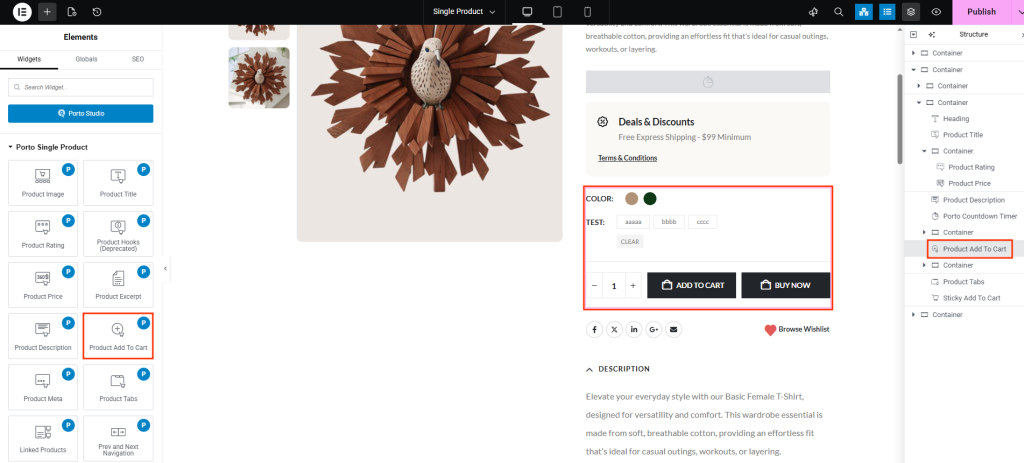
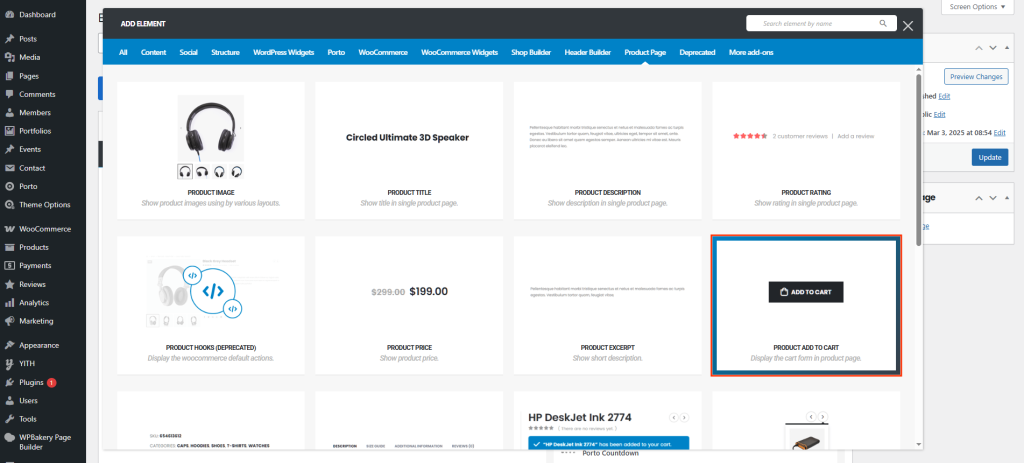
- From the Porto Single Product Elements section, drag Product Add to Cart into your product layout.
- Place it below the product price or variation fields.
-
Customize the Cart Form
- Use the Element Content Options to configure appearance and layout.
- Adjust the button width, margin, typography, and colors according to your site’s design.
-
Preview
- Save and preview your single product template on the front end.
- Ensure the quantity box, variation fields, and button are aligned properly across all devices.
Element Content Options
| Option | Description |
|---|---|
| Quantity Margin | Adjust spacing around the quantity selector to control its position relative to the Add to Cart button. |
| Width / Height | Set custom dimensions for the Add to Cart button or form container. |
| Border Width | Define the thickness of the button or input borders. |
| Border Color | Select the color of the border for the button or quantity input. |
| Color | Choose the text color for the Add to Cart button and input labels. |
| Background Color of Minus / Input / Plus | Set separate background colors for the minus, input, and plus buttons in the quantity selector. |
| Typography of Input | Adjust the font family, size, and weight for the quantity input text. |
| Variation Price Typography | Control font style and weight for variation price text displayed under product options. |
| Color (Variation Price) | Set the text color for the variation price field. |
| Margin | Control outer spacing of the entire Add to Cart form element. |
| Cart Form Color | Set text color for all form elements, including labels and placeholders. |
| Cart Form Background | Choose a background color for the cart form container. |
| Cart Button Related Options | Control button background color, text color, border, hover effects, and padding. |
| Variation Margin | Adjust spacing between variation fields (like color, size, or material selectors). |
| View Mode | Choose between different layout modes (e.g., inline, block) for the Add to Cart section. |
| Label Block | Display form labels (such as “Quantity” or “Variation”) as block elements or inline for compact designs. |
| Individual Margin Options | Fine-tune margins for each internal component — such as the quantity box, variation form, or cart button — for perfect alignment. |
Additional Tips
- Responsive Design: Adjust margins and button widths separately for desktop, tablet, and mobile views to ensure usability across devices.
- Color Harmony: Match the cart button and variation field colors with your theme’s palette for visual consistency.
- Typography Consistency: Use similar typography for the Add to Cart and price sections to create a cohesive design.
- User Experience: Ensure the quantity and variation fields are easy to access and clearly visible, especially on mobile layouts.
- Testing: After customizing, test variable products to confirm the Add to Cart functionality works correctly with all selected options.
