
The Featured Image element is one of the primary dynamic widgets in the Porto Post Type Builder. It displays the featured image of the current post or product within a custom post-type layout. This element supports multiple image display modes, hover effects, link options, product badges, and detailed styling controls. It is essential for building post cards, product grids, portfolio items, event cards, member profiles, and any custom post-type layout.
The widget pulls the featured image dynamically from the post currently being displayed in the loop. For WooCommerce products, the widget can also display product badges such as “Sale,” “Hot,” or “Out of Stock.”
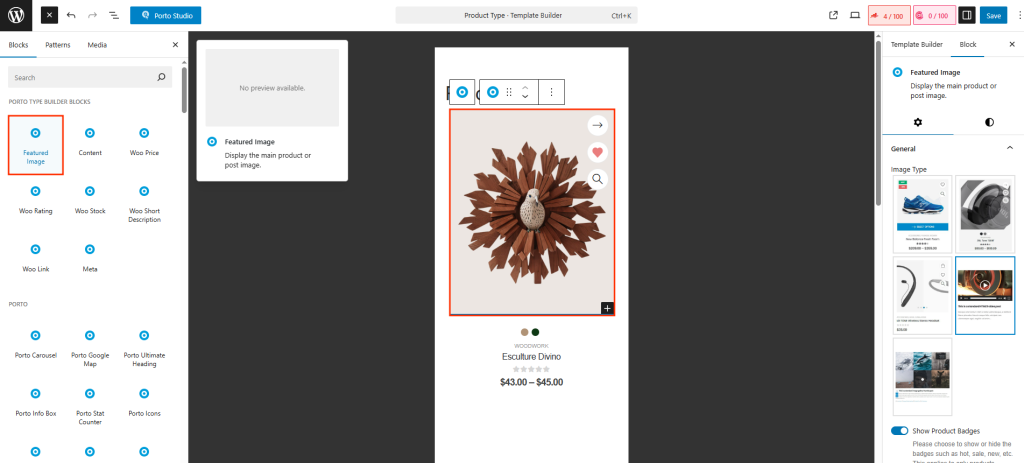
How to Use the Featured Image Element
- Open your Post Type Block in
Porto → Template Builder → Post Type - Click the “+” Add Block button and search for Featured Image.
- Insert the element into your layout.
- Adjust image settings, links, hover behavior, and styling options in the right sidebar.
- Use the Document Overview panel to drag and position the block exactly where you want it.
Element Content Options
-
Image Type
Controls how the image is displayed. Options typically include Single image, Change Image on Hover, Slider, Video Gallery. This setting helps you adapt the card style to your desired look, whether minimal, boxed, modern, or gallery style.
-
Show Product Badges
(Visible only for WooCommerce post types). Enables or disables Porto’s product badges such as Sale badge, Hot / New badge, Out of Stock badge. Badges display automatically based on product data.
-
Add Link to Image
Determines what happens when users click the image. Options include Yes (Link to Post / Product Page), No Link, Custom Link. For WooCommerce, linking directly to the product detail page is common in product grids.
-
Image Size
Allows selecting the image size to load. Choosing a smaller size improves performance, while larger sizes enhance visual clarity.
-
Image Lightbox
When enabled, clicking the image opens it in a lightbox modal. It is useful for Portfolio items, Photography galleries, Event visuals, Visual product showcases. You may enable lightbox instead of linking to the post page.
-
Reveal With Color Animation
This feature provides a hover animation where a color overlay slides, fades, or reveals over the image. Common uses include Portfolio hover transitions, Blog image animation, Product card highlight effect. Options usually include Color selection, Animation direction, Animation type (fade, slide, overlay, etc.)
-
Additional Custom CSS Fields
The widget includes extra fields for Custom CSS class, Custom CSS ID, Inline style input. This is useful when You need targeted styling, You want to animate individual image blocks, You integrate the element into advanced CSS frameworks.
Hover & Styling Options
-
Hover Content Alignment
Controls where hover elements (badges, overlays, icons) appear: Top / Center / Bottom and Left / Center / Right. Often used when combining the Featured Image with hover content such as “Read More” or "WooCommerce Buttons" such as "Add To Cart", "QuickView".
-
Background Color
Adds a background color behind the image container.
-
Padding
Sets internal spacing around the image container. You may adjust Top / Bottom / Left / Right. Padding helps match spacing styles between elements in a post-type card.
Typical Use Cases
- Blog Grid: Featured image + title + meta
- Product Grid: Featured image + price + rating + stock badge
- Portfolio: Featured image + overlay + hover animation
- Events: Featured image + date badge + location info
- Members: Featured image + name + role + social icons
The Featured Image element is almost always the starting point for any post-type card design.
