
The Meta Element in the Porto Post Type Builder allows you to display dynamic metadata for posts, products, and any registered custom post types. It supports WordPress core fields, WooCommerce product attributes, and custom taxonomies created by plugins such as Unlimited Post Types.
This element is highly customizable, offering control over the selected meta field, styling, and additional CSS classes.
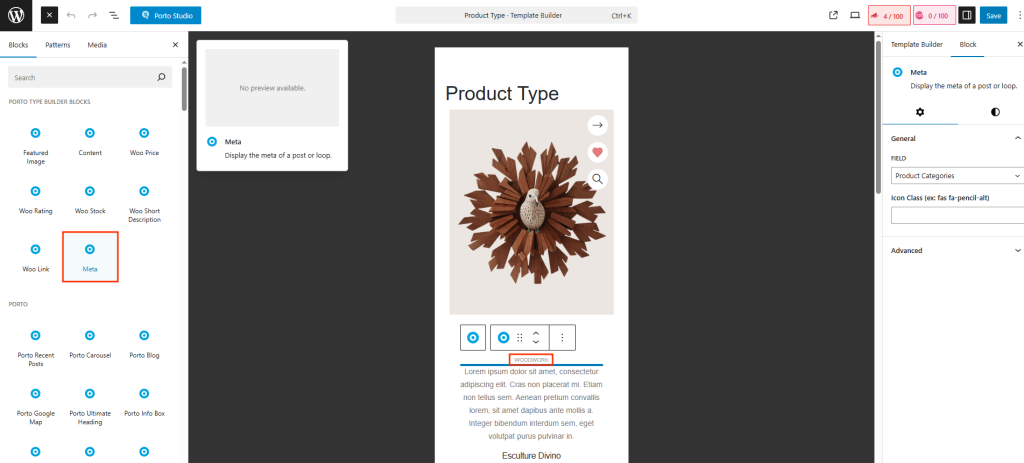
How to Use the Meta Element
The Meta Element lets you show small bits of information about your post or product—like the author, date, categories, tags, or product details. It’s easy to use and works with normal posts, WooCommerce products, and custom post types.
- Add the Meta Element
- Open your template in Porto Post Type Builder.
- Drag the Meta element into your layout (for example, under the title or above the content).
- Choose What You Want to Show
- In the Field dropdown, simply pick the type of information you want to display.
Examples: Author, Published Date, Categories, Product SKU, etc.
- In the Field dropdown, simply pick the type of information you want to display.
- Adjust the Options
Depending on what you choose, you’ll see a few different options:
- Author → shows an Icon Class field
- Published Date / Modified Date → shows Date Format and Icon Class
- Comments, Categories, Tags, SKU, Product Attributes, Custom Taxonomies, etc. → show Icon Class
Just fill in the fields if you need them. If not, you can leave them empty.
- Extra Styling (Optional)
- Use the Additional CSS Classes box to add your own styling.
- Save and Check
- Save the template.
- View a post or product that uses it.
- The metadata you selected will appear automatically.
- Works With Product Attributes & Custom Taxonomies
- WooCommerce product attributes (like Color, Size, Material) appear in the Field list.
- Custom taxonomies created by plugins like Unlimited Post Types also appear automatically.
Just select them and the Meta Element will display their values.
Element Options
- Field
The Field dropdown determines what type of metadata will be displayed. Depending on the selected field, additional configuration options may appear.
Supported field types include:
A. Core Post Meta Fields
Field Additional Options Author Icon Class Published Date Date Format, Icon Class Modified Date Date Format, Icon Class Comments Icon Class Comments Number Icon Class B. WooCommerce Fields
Field Additional Options Product SKU Icon Class Product Type Icon Class Brands Icon Class Categories Icon Class Tags Icon Class Product Categories Icon Class Product Tags Icon Class Product Shipping Classes Icon Class C. Product Attributes
If WooCommerce product attributes are registered (e.g., Color, Size, Material), they will appear in the Field dropdown list.
Each selected attribute will display the corresponding values for the current product.
Additional Option: Icon ClassD. Custom Taxonomies (Unlimited Post Types Plugin)
When using the Unlimited Post Types plugin (or other CPT tools), any custom taxonomies associated with your custom post type will be automatically available in the Field list.
Examples include Portfolio Categories, Portfolio Tags, Event Types, Location Taxonomies
- Additional CSS Classes
Use this field to add custom CSS classes for styling. This is helpful for Custom icon styling, Spacing adjustments, Applying theme utility classes, Overriding default Porto styles
- Field-Specific Options
Author
- Icon Class – Apply a custom icon class (e.g., fas fa-user).
Published Date / Modified Date
- Date Format – Supports PHP date format (e.g.,
F j, YorY-m-d). - Icon Class – For adding date-related icons (e.g., fas fa-calendar-alt).
Taxonomy or Attribute Values
- Icon Class – Displays an icon before the taxonomy or attribute label.
Output Behavior
- The Meta Element automatically pulls the value of the selected field based on the displayed post/product.
- If a field has no value (e.g., a product with no SKU), it may output nothing depending on theme settings.
- WooCommerce taxonomies and product attributes are output as lists when available.
