
The Porto Mobile Menu Icon Element provides a responsive navigation solution designed specifically for mobile and tablet devices. It allows users to easily access the main site menu through a compact, toggle-style icon—commonly known as a “hamburger menu.”
This element ensures smooth, user-friendly navigation across all screen sizes and integrates seamlessly with Porto’s header builder and WooCommerce layouts. It also supports multiple customization options, giving you complete control over icon styling and placement.
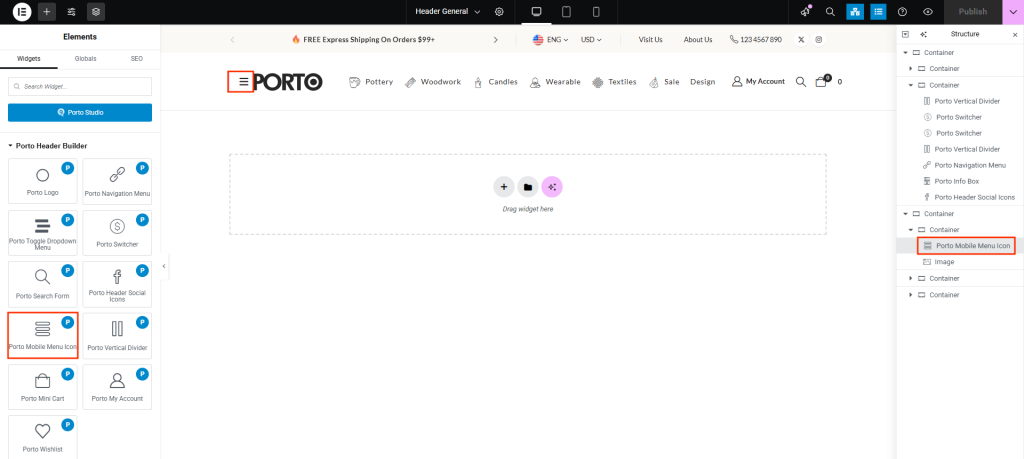
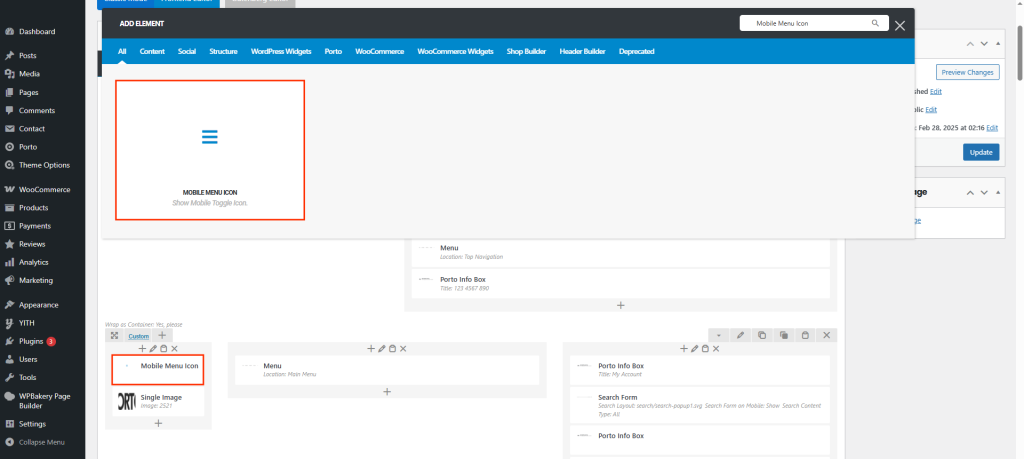
How to Use the Porto Mobile Menu Icon Element
- Create or select the column in your header layout where you want to add the mobile menu toggle. Click Add New Element.
- From the element list, select Porto Mobile Menu Icon Element.
- Configure the element’s placement and icon design. By default, the hamburger-style icon will be displayed.
- Adjust the size, color, background, and padding settings as needed.
- Save your changes and preview your header on mobile and tablet devices to ensure responsive functionality.
Element Content Options
| Option | Description |
|---|---|
| Icon | Choose the mobile toggle icon (e.g., hamburger menu or custom SVG icon). |
| Icon Size | Set the icon size for optimal visibility on small screens. |
| Background Color | Define the background color for the icon button area. |
| Icon Color | Set the main icon color. |
| Padding | Adjust the padding around the icon for better alignment or spacing. |
Related Theme Options
Located under Porto → Theme Options → Menu → Mobile Menu, these settings allow you to globally manage the behavior, layout, and design of your mobile menu.
- Mobile Menu Type
Select how the mobile menu appears:- Sidebar (Default): The menu slides in from the side of the screen.
- Side Navigation: Expands directly beneath the header area.
- Position
Controls the position of mobile offcanvas menu. - Add Language, Currency Switcher
Determines whether to put the switchers in the mobile menu. You should enable Header/Language,Currency Switcher - Add Search Box
Determines to add search box to mobile menu or not. - Tab Title for XXX
Determins the title of tab in mobile menu. - Tab Title Color
Controls the color in mobile menu tab. - Mobile Menu background Color
Controls the background color of mobile offcanvas or dropdown. - Border Color
Controls the divider color of mobile offcanvas or dropdown. - Hover Background Color
Controls the hover / active background color of mobile menu item. - Text Color
Controls the text color in mobile panel. - Link Color
Controls the link color in mobile panel.
Additional Tips
- Keep your mobile menu icon visible and easily accessible (usually top-right corner).
- Adjust the breakpoint to match your theme’s responsive layout for tablets and small laptops.
- Test different menu types (sidebar vs. full screen) to see which fits your site design better.
- Use consistent colors and padding for visual balance across all header elements.
- Combine the Porto Mobile Menu Icon Element with the Porto Header Builder for full control over responsive header layouts.
