
The Porto Modal Dialog Box element allows you to display popups or videos in an elegant modal window. This feature is ideal for showcasing announcements, promotional banners, embedded videos, or any custom HTML content within a popup layout.
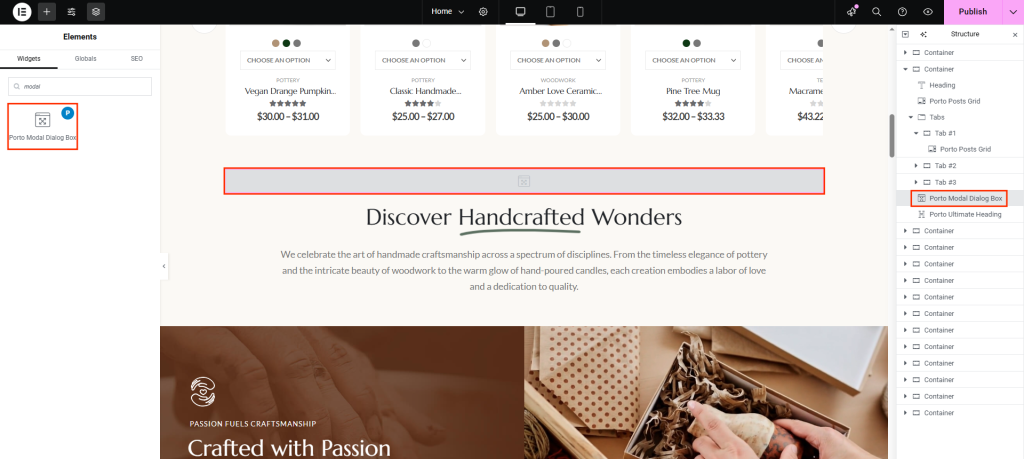
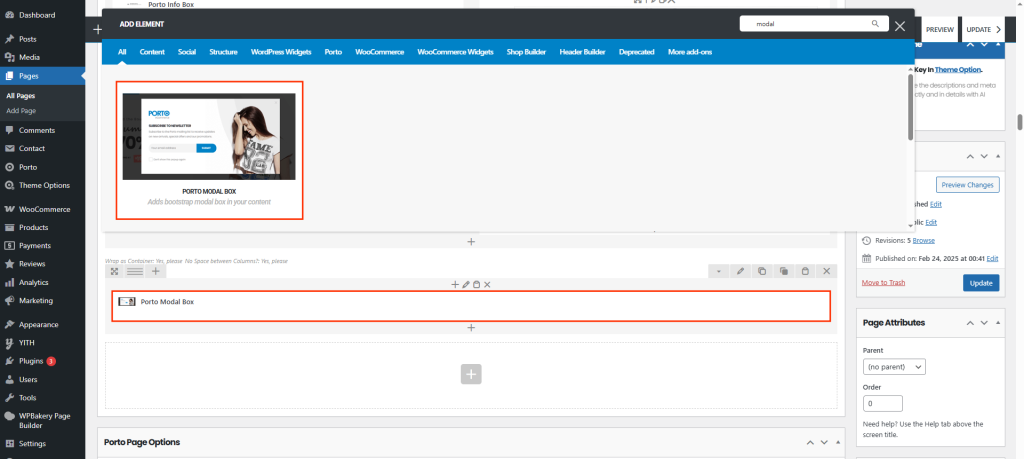
What’s in Modal Popup
Inside the Modal Dialog Box settings, you’ll find the “What’s in Modal Popup” option. This setting determines the type of content that will appear in the popup.
You can select from the following options:
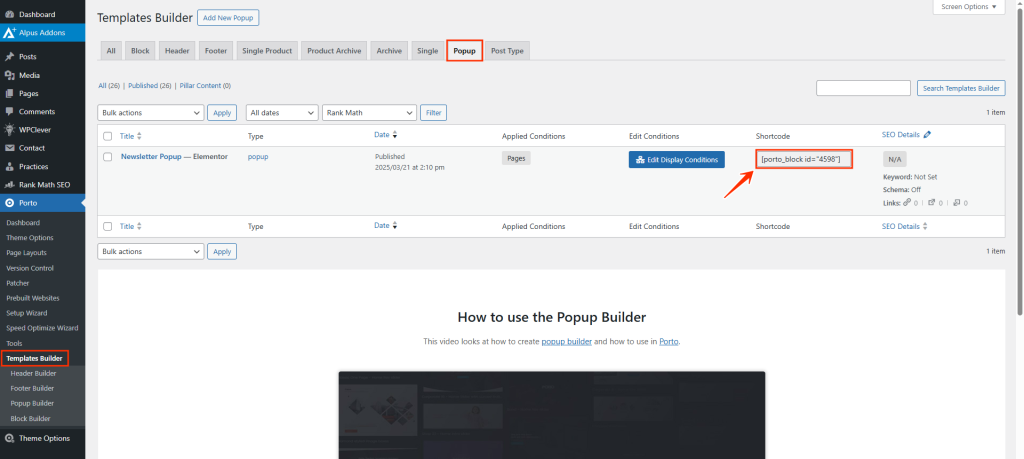
- Miscellaneous Things — Allows you to input custom HTML code in the Modal Content area. Here, you can also insert a shortcode of a popup block previously created using the Porto Popup Builder. You can find the popup’s shortcode in Porto > Theme Options > Popup.
- YouTube Video — Displays a YouTube video within the popup. Simply enter the video URL in the input field provided.
- Vimeo Video — Displays a Vimeo video in the same way by entering its URL.
Display Modal On
The “Display Modal On” option defines how and when the modal popup will appear on your site.
You can choose from the following triggers:
- On Page Load — The modal appears automatically when the page loads. You can set a timeout (in seconds) to delay its appearance.
- Image — The modal opens when a selected image is clicked. You can choose the trigger image directly from the element settings.
- Selector — The modal is triggered by any element matching a specific class or ID that you define. For example, a button or widget with that class/ID will open the modal when clicked.
Element Content Options
| Option | Description |
|---|---|
| Modal Box Style | Choose an entrance animation effect: Fade or Zoom In. |
| Overlay Background Color | Select a background color for the overlay area behind the popup. |
| Overlay Background Opacity | Adjust the opacity level of the overlay to control transparency. |
| Extra Class | Add custom CSS classes for advanced styling or animations. |
