
The Pagination (Count Per Page) element in Porto allows you to control how many products are displayed per page on your WooCommerce product archive. This element also displays pagination controls whenever pagination is disabled inside the Type Builder Archives element.
It provides detailed styling options for both the pagination bar and the count-per-page selector, giving you full control over layout, spacing, and appearance.
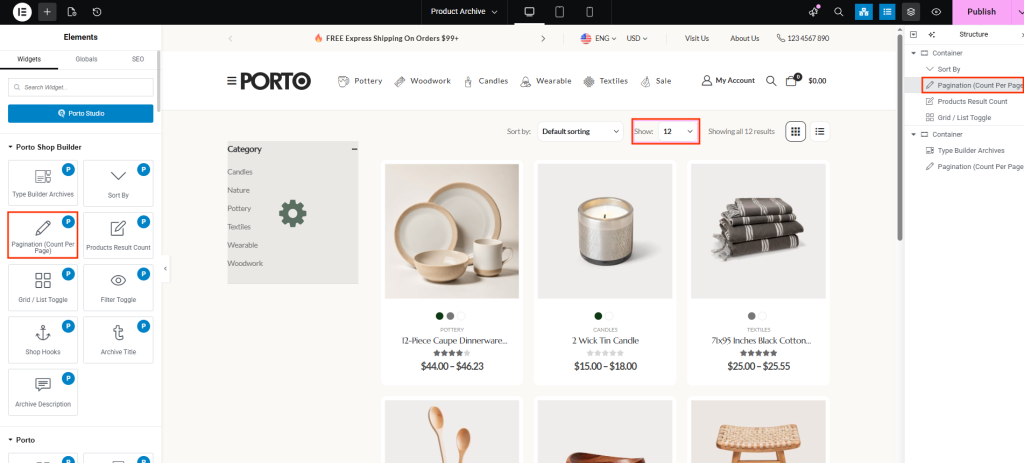
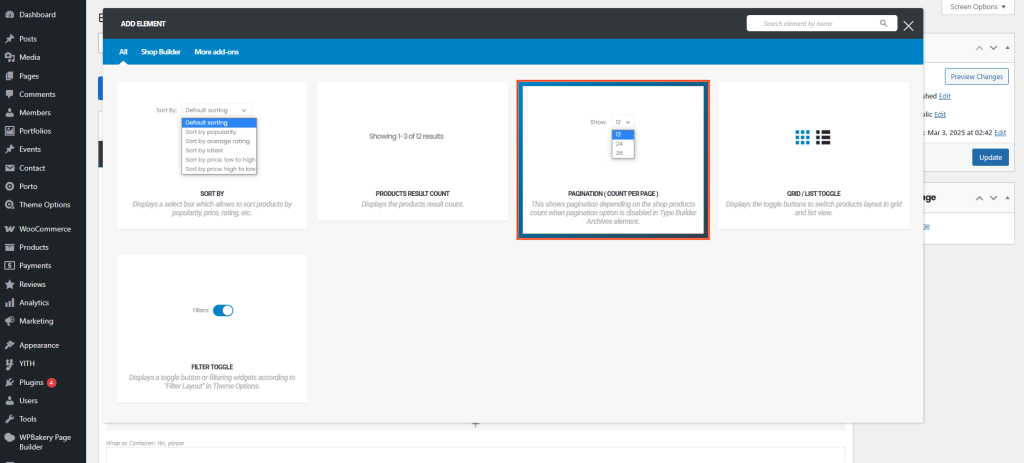
How to Use the Pagination (Count Per Page) Element
- Open your product archive layout
Go to Porto → Template Builder → Product Archive, or edit your archive template directly using WPBakery or Elementor. -
Insert the Pagination (Count Per Page) element.
- Add the Porto Tool Box element. (Required in WPBakery).
- Inside the Tool Box container, click + Add Element.
- Search for Product Result Count and insert it.
- Add it below your product grid or at any position within the archive layout.
- Adjust global default settings (recommended)
Navigate to Porto Theme Options → WooCommerce → Product Archives → Products per Page
The value you set here becomes the List of counts per page. -
Understand how it integrates with Type Builder Archives
- If Pagination is disabled in the Type Builder Archives widget, this element automatically renders the pagination.
- Its default count value is taken from Type Builder Archives → count (per page).
- Style the element using the available design controls.
Element Content Options
| Option | Description |
|---|---|
| Pagination Visibility | Enable or hide the pagination area completely. |
| Alignment | Align pagination to left, center, or right. |
| Left Space | Adjust left margin spacing for pagination. |
| Label Visibility | Show or hide labels such as “Show:”. |
| Color | Set the text and icon color for the pagination. |
| Typography | Control font family, size, weight, and style. |
| Spacing | Set space between pagination elements (links/buttons). |
| Hide Select Box | Show or hide the “counts per page” dropdown. |
| Select Box Color | Customize the select box color. |
| Typography | Control the select box font styling. |
| Padding | Adjust the padding inside the select box. |
| Select Box Height | Set the height of the count-per-page dropdown. |
Additional Tips
- The Products per Page setting in Theme Options defines the list of counts in Pagination element and is recommended for consistency across all shop pages.
- If you want to disable native WooCommerce pagination and control it manually, make sure to manage pagination via the Pagination (Count Per Page) element.
- For best results, place this element near your product grid and avoid duplicating pagination elements to prevent UI conflicts.
- When using custom archive layouts, ensure that sidebar or filter layout settings do not overlap with pagination placement.
