
The Porto Prev and Next Navigation element in the Single Product Builder allows users to seamlessly navigate between products without returning to the shop or category page.
This feature enhances user experience by keeping shoppers engaged and encouraging product discovery.
You can fully customize its appearance — including navigation arrow colors, background styling, borders, and spacing — to align perfectly with your store’s branding and design.
How to Use the Porto Prev and Next Navigation Element
-
Open Your Single Product Template
- Go to Porto > Template Builder > Single Product.
- Choose your preferred builder (Elementor or WPBakery).
-
Add the Navigation Element
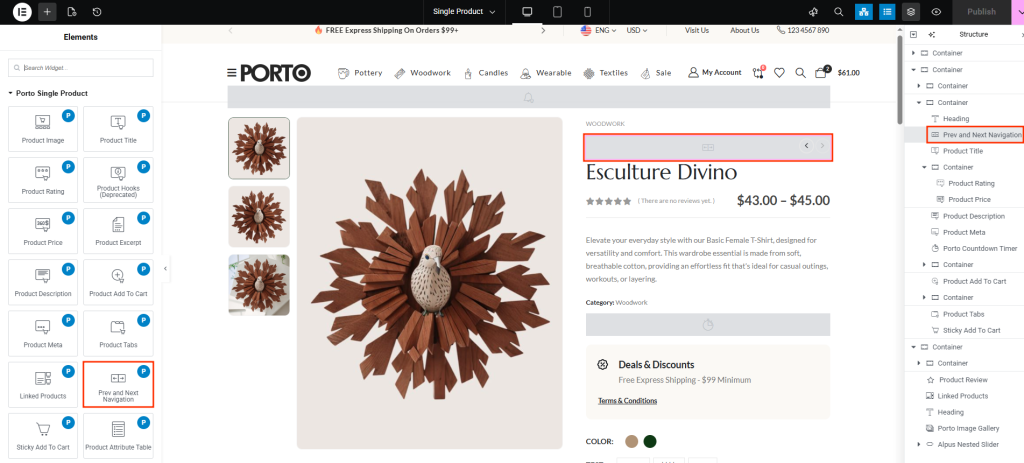
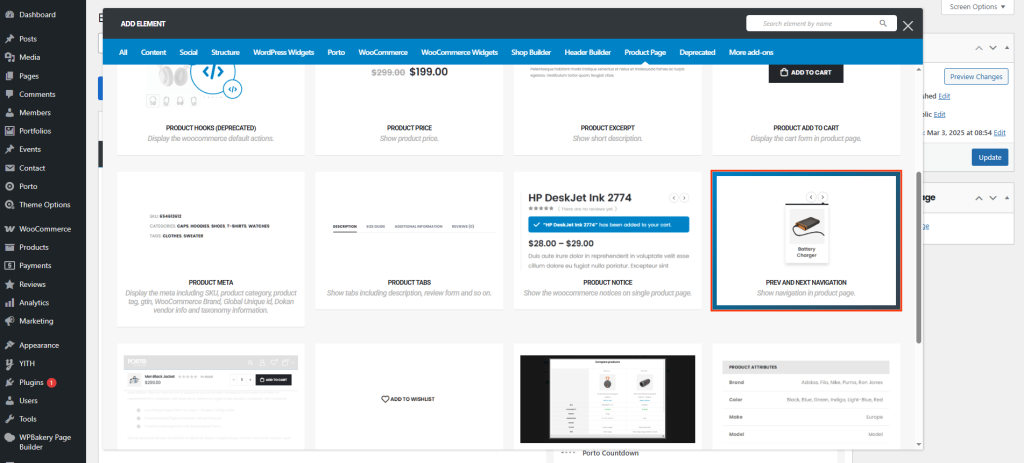
- In the Porto Single Product Elements section, locate and drag the Prev and Next Navigation element into your layout.
- Typically, it is placed at the top or bottom of the product content area.
-
Customize Appearance
- Open the Element Options panel to configure color, background, and spacing preferences.
- Adjust the design until it complements your product layout.
-
Preview the Result
- Save the template and preview it on a live product page.
- Use the navigation arrows to test movement between products.
Element Content Options
| Option | Description |
|---|---|
| Nav Color | Sets the color of the navigation arrows and text (Previous / Next). Choose a tone that contrasts well with the background for accessibility. |
| Background Color | Defines the background color for the navigation area or buttons. Ideal for creating clear visual separation. |
| Border Color | Adds or adjusts the border color around navigation buttons or the entire navigation box. Helps outline navigation elements distinctly. |
| Dropdown Padding | Controls the internal spacing of the navigation dropdown area. Increasing padding can improve visual balance and clickability. |
Additional Tips
- Placement: For the best user experience, place the navigation near the product title or below the product description.
- Consistency: Match navigation colors and borders with your overall theme palette for a cohesive look.
- Hover Effects: Combine with CSS hover transitions to make navigation interactions more engaging.
- Mobile Optimization: Always preview on mobile devices to confirm arrows and padding scale correctly.
- Performance: The element loads dynamically between products, so navigation remains smooth without extra page reload overhead.
