
The Porto Product Attribute Table element lets you display product attributes (such as size, material, origin, or flavor) in a clean, structured table format on the single product page.
It provides full control over which attributes are displayed, as well as extensive styling and layout options — including colors, typography, borders, padding, and column count — to ensure your attribute table blends seamlessly with your product design.
This element helps enhance customer understanding of product specifications and supports a more informative, professional presentation of product details.
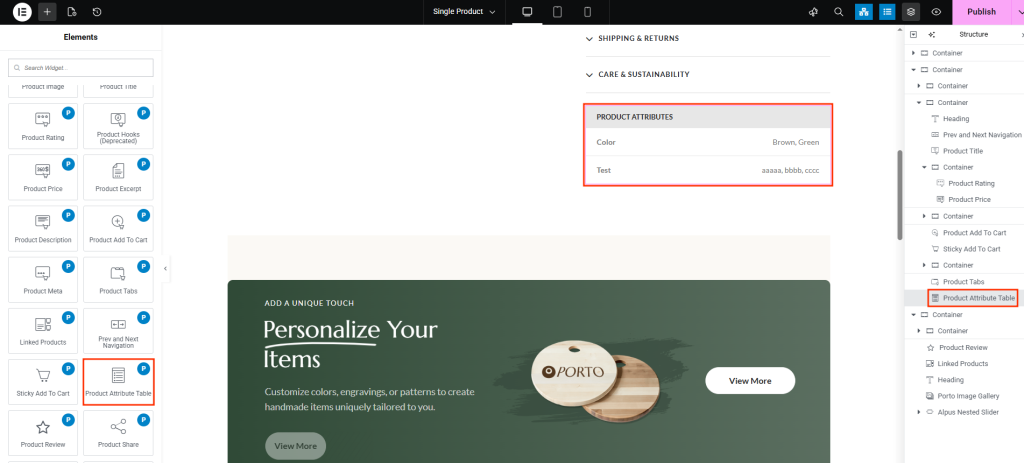
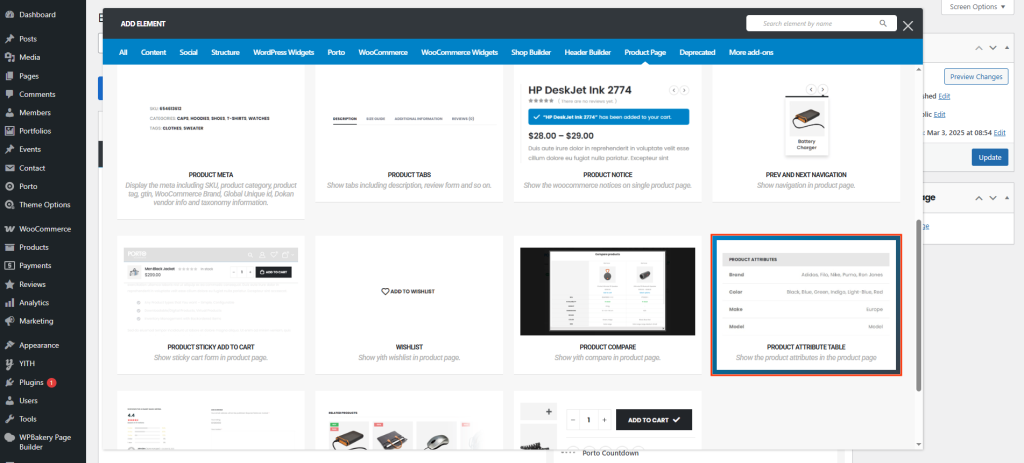
How to Use the Porto Product Attribute Table Element
- Open the Single Product Template
Go to Porto > Template Builder > Single Product and choose Elementor or WPBakery as your builder. - Add the Attribute Table Element
From the Porto Single Product Elements section, drag Product Attribute Table into your layout.
Place it beneath the product description or near other product details for best results. - Configure Attribute Display
Choose which product attributes to display — all, specific ones, or all except selected ones — using the Attributes setting. - Customize the Table Design
Adjust typography, colors, padding, and column settings in the Element Content Options panel. - Save and Preview
Publish the template and preview your product page to verify the layout and spacing across all devices.
Element Content Options
| Option | Description |
|---|---|
| Attributes (All / Include / Exclude) | Choose which attributes to display. Select All to show every product attribute, Include to display specific attributes, or Exclude to hide selected ones. |
| Tab Title Text | Define a custom title to display above the attribute table (e.g., “Product Specifications”). |
| Typography | Adjust global typography settings for the tab title and table content, including font family, size, weight, and style. |
| Color | Set the text color for the overall table content. |
| Background Color | Choose a background color for the entire attribute table. |
| Padding | Add inner spacing within the attribute table container for better readability. |
| Number of Table Columns | Define how many columns to use when displaying attributes (e.g., 1 for list style, 2 for side-by-side layout). |
| Vertical Spacing | Control the vertical space between rows of attributes. |
| Field Padding | Adjust the padding inside each attribute field (name and value cells). |
| Hide Border | Toggle the visibility of table borders. |
| Border Color | Choose the color for the table borders if borders are enabled. |
| Name Typography | Customize typography specifically for attribute names (e.g., “Material”, “Size”). |
| Name Color | Define the text color for attribute names. |
| Term Typography | Customize typography for attribute values (e.g., “Cotton”, “Large”). |
| Term Color | Define the text color for attribute values. |
Additional Tips
- For Better Readability: Use a light background with contrasting text colors.
- Consistent Design: Match typography and border styles with other elements like Product Meta or Product Tabs for visual harmony.
- Highlight Key Specs: If your products have many attributes, use the Include option to show only the most relevant ones.
- Multi-Column Layouts: When using two or more columns, increase vertical spacing slightly to maintain clear separation between rows.
- Mobile Optimization: Verify the table’s readability on smaller screens; reduce the number of columns or padding if needed.
