
The Porto Product Compare element adds a Compare button to your single product page, allowing customers to compare products using the YITH WooCommerce Compare plugin.
This element is fully integrated with the YITH Compare functionality and appears automatically when the plugin is installed and activated.
You can style the compare button extensively, including typography, icon size, padding, margins, and both normal and hover states for color, border, and background.
This allows you to match the compare button to your product page design and maintain consistent branding.
Note: To use the Porto Product Compare, you must install Yith WooCommerce Compare plugin first.
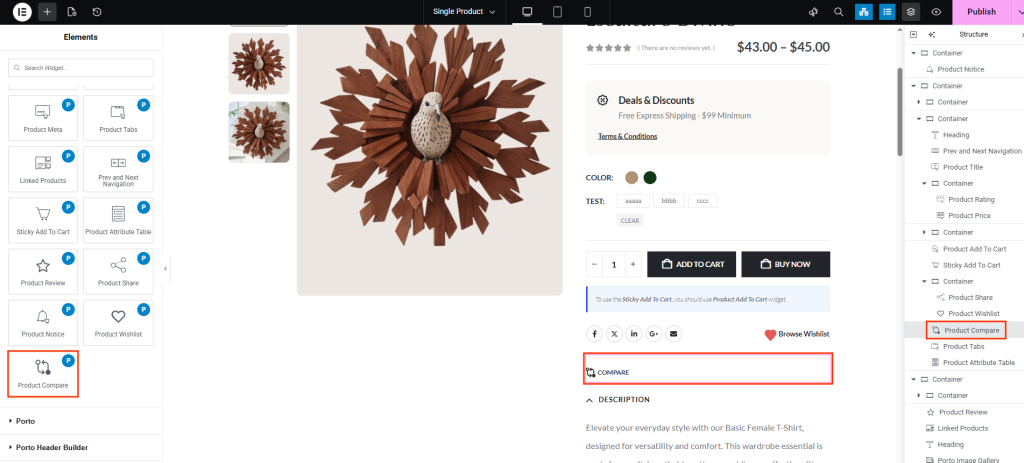
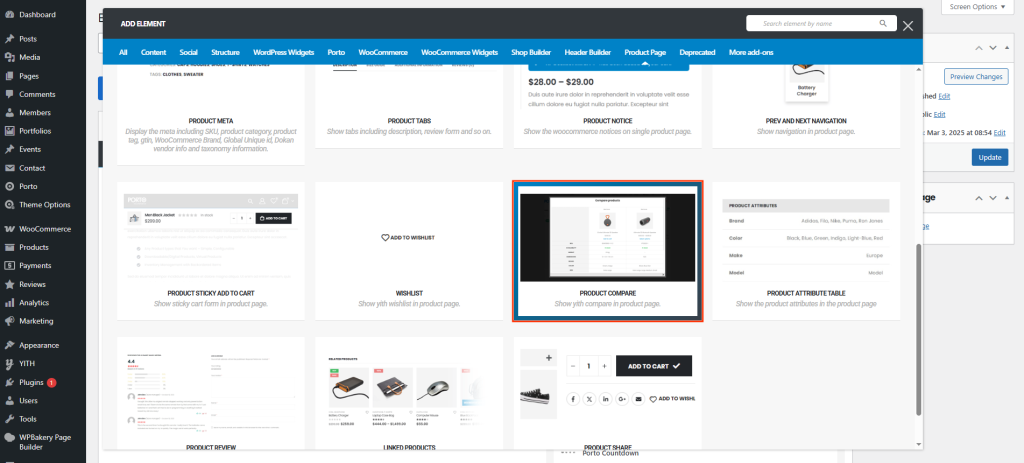
How to Use the Porto Product Compare Element
-
Install YITH WooCommerce Compare
- The element only renders when the YITH WooCommerce Compare plugin is installed and active.
- If the plugin is not active, the button will not appear on the frontend.
-
Open Single Product Template
- Navigate to Porto > Template Builder > Single Product.
- Choose either Elementor or WPBakery Page Builder.
-
Add the Product Compare Element
- From the Porto Single Product Elements panel, drag the Product Compare element onto your layout.
- Place it near the Add to Cart, Wishlist, or Product Meta for best usability.
-
Customize Style and Interaction
- Open the element’s settings panel.
- Adjust typography, icon size, spacing, and hover effects using the settings described below.
-
Save and Preview
- Save the template and preview it on a real product page.
- Confirm the button activates the YITH Compare popup or compare table correctly.
Element Content Options
| Option | Description |
|---|---|
| Typography | Controls font family, size, weight, line height, and letter spacing for the compare text. |
| Icon Size | Adjusts the size of the compare icon (usually the arrows or scale icon). |
| Padding | Sets the inner spacing around the compare button. |
| Margin | Sets the outer spacing between the compare button and other elements. |
| Normal Color | Sets the text/icon color in the default state. |
| Normal Border Color | Defines the border color surrounding the button. |
| Normal Background Color | Sets the background color of the compare button. |
| Hover Color | Defines the text/icon color when the user hovers over the button. |
| Hover Border Color | Sets the border color on hover. |
| Hover Background Color | Sets the background color on hover for interactive visual feedback. |
Additional Tips
- Ensure YITH Compare is active: Without the plugin, the button will not display on the frontend.
- Match theme branding: Adjust typography and colors to align with your store’s design language.
- Hover contrast: Use contrasting hover colors to improve user interaction and highlight the compare function.
- Placement idea: Position Compare near Wishlist and Add to Cart for consistent UX.
- Mobile considerations: Increase padding and icon size slightly for better usability on small screens.
- You can edit Add To Compare widget's text's and other settings in Dashboard > Yith > Compare > Settings page.
