
The Porto Product Image Element is one of the most essential components of the Porto Single Product Builder, designed to showcase your product’s main image and gallery in a visually appealing and flexible way.
This element allows you to select from multiple image display styles — such as Default, Extended, Grid Images, Thumbs on Image, List Image, Left Thumbs 1, and Left Thumbs 2 — enabling you to craft a product image layout that best fits your brand and product presentation.
With full compatibility for Elementor and WPBakery Page Builder, the Product Image Element dynamically pulls images from your WooCommerce product gallery, ensuring your product visuals always stay up to date automatically.
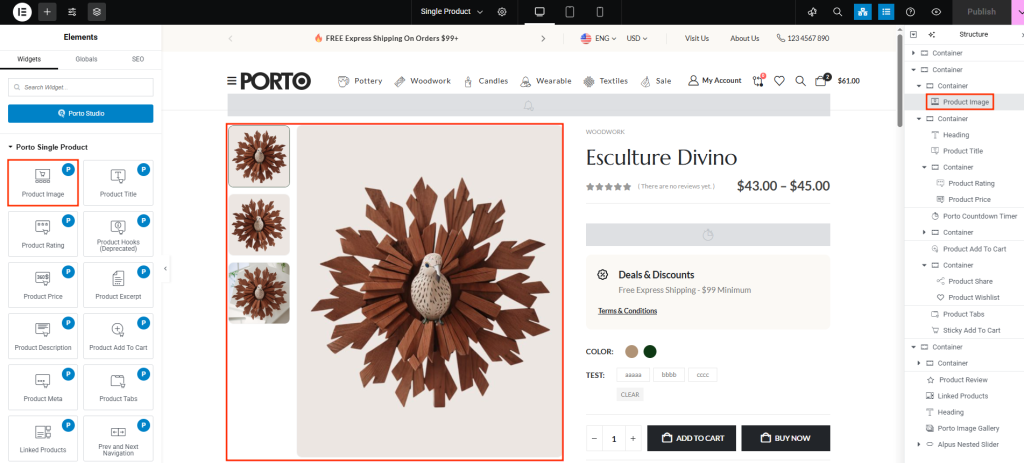
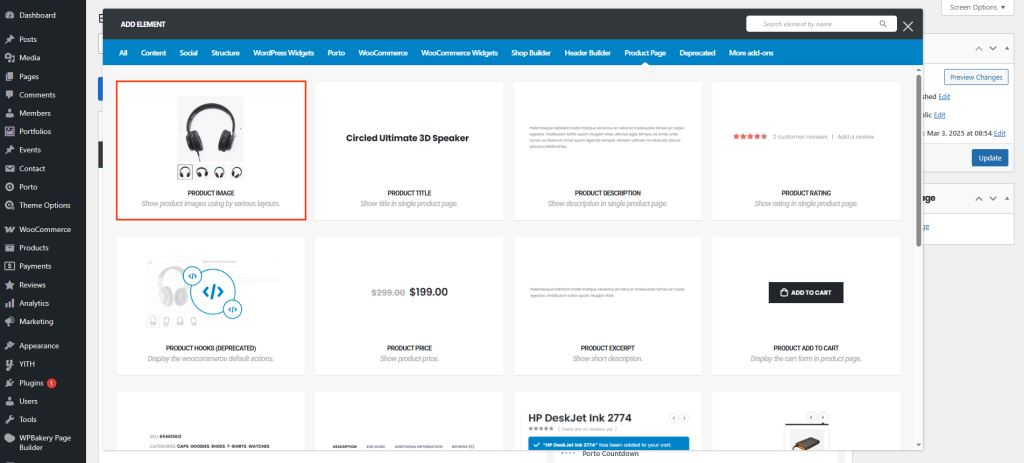
How to Use the Porto Product Image Element
-
Open the Single Product Template
- Navigate to Porto > Template Builder > Single Product.
- Choose to edit your template using Elementor or WPBakery.
-
Add the Product Image Element
- In the builder panel, locate the “Product Image” element under the Porto Single Product Elements category.
- Drag and drop it into your layout where you want the product image gallery to appear.
- Select Image Layout Style
Within the element settings, choose your preferred image display type
- Default – Standard WooCommerce image layout.
- Extended – Enlarged display for feature-focused products.
- Grid Images – Displays all gallery images in a grid format.
- Thumbs on Image – Thumbnails overlay the main image.
- List Image – Shows product images in a vertical list.
- Left Thumbs 1, 2 – Places image thumbnails on the left side for classic eCommerce layouts.
-
Customize Spacing and Alignment
- Adjust margins, padding, and alignment to fit your product layout.
- You can also modify container width or column structure depending on your builder.
-
Save and Preview
- Click Publish or Update Template.
- Visit any product page to see how the selected image layout appears in real-time.
Element Content Options
| Option | Description |
|---|---|
| Style | Choose from Default, Extended, Grid, Thumbs on Image, List Image, Left Thumbs 1, or Left Thumbs 2. |
| Border Color | Choose the border color around the main product image. |
| Thumbnail Border Color | Set the border color for gallery thumbnails. |
| Hover Border Color | Define the border color when hovering over the main image or thumbnails. |
| Position of Popup Icon | Set where the zoom/popup icon appears (bottom-left, bottom-right). |
| Popup Icon | Choose the icon used for image zoom or popup. |
| Icon Background | Set the background color behind the popup icon. |
| Icon Background Size | Adjust the size of the popup icon background. |
| Icon Color | Choose the color of the popup icon itself. |
| Icon Size | Adjust the size of the popup icon. |
| Border-Width | Set the thickness of the image border. |
| Border-Color | Set the overall border color for the image frame. |
| Space from Corner | Adjust the spacing of the popup icon from the image corner. |
Additional Tips
- Responsive Layouts: Always check product images on mobile and tablet to ensure the gallery displays correctly.
- Thumbnail Usage: Use high-quality thumbnails for grid and list image layouts to maintain visual appeal.
- Popup Icon: Customize popup icon color and background to match your theme branding.
- Consistency: Maintain consistent border and hover colors across all product images for a polished look.
