
The Porto Product Tabs element lets you display WooCommerce’s built-in product details — such as Description, Additional Information, and Reviews — in a highly customizable tabbed interface.
It offers a flexible design system that supports tab or accordion layouts, responsive behavior, and extensive styling controls for typography, colors, and spacing.
This element ensures your product information is neatly organized, easy to navigate, and perfectly aligned with your site’s design style.
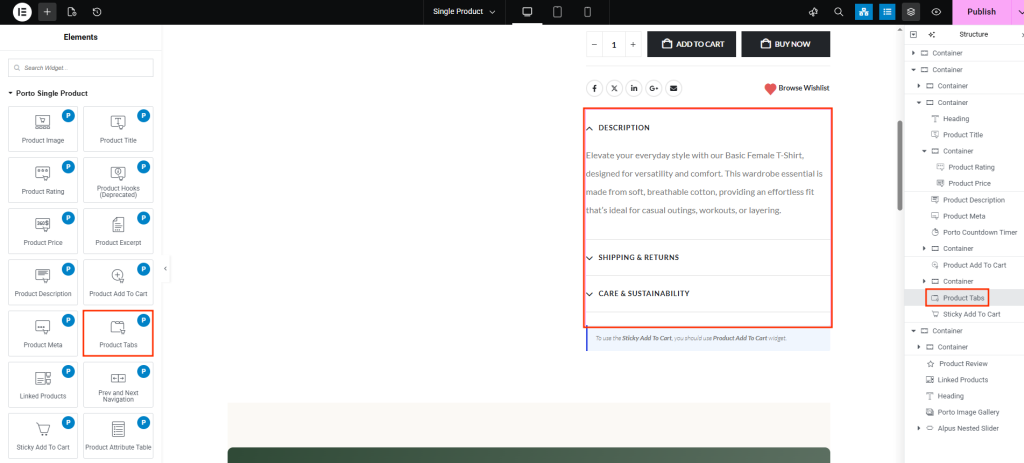
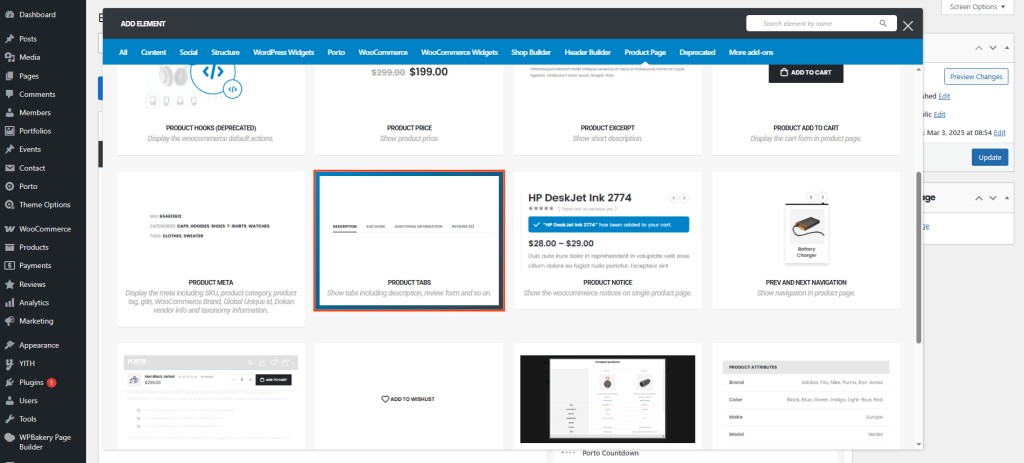
How to Use the Porto Product Tabs Element
-
Open the Single Product Template
- Go to Porto > Template Builder > Single Product and open your desired template with Elementor or WPBakery.
-
Add the Product Tabs Element
- From the Porto Single Product Elements section, drag Product Tabs into your layout.
- Place it where you want your product details and reviews to appear.
-
Configure Display Options
- Choose between tab layout or collapsible accordion mode.
- Adjust borders, background colors, text styles, and typography to match your theme.
-
Preview and Save
- Save your template and check how the product tabs behave on desktop and mobile devices.
Element Content Options
| Option | Description |
|---|---|
| Collapse Accordion on Mobile at First | Enables a collapsible accordion layout on mobile, keeping product tabs closed by default for a cleaner interface. |
| Hide Product Tabs | Option to hide tab items selectively you don't want to display. |
| Layout | Choose the tab layout style (horizontal, vertical). |
| Border Radius | Set the corner roundness of the tab title. |
| Border Width | Defines the thickness of the tab title borders. |
| Active Border Width | Specifies border width for the currently active tab title. |
| Text (Normal and Active) | Customize tab title text color for both normal and active states. |
| Background (Normal and Active) | Set the background color for both normal and active tab title states. |
| Border Color (Normal and Active) | Control the border color for tab titles in normal and active states. |
| Typography | Adjust font family, weight, size, and spacing for tab labels. |
| Padding | Add internal spacing around the tab title's area for better readability. |
| Panel’s Text | Define the color for the text content displayed inside the tab panels. |
| Panel’s Background | Set the background color for tab content panels. |
| Panel’s Typography | Customize typography settings for the text inside the tab panels. |
| Heading Text | Modify the color and font for the panel heading titles. |
| Heading Typography | Control font size, style, and spacing of panel headings. |
| Heading Padding | Add spacing around the panel heading text. |
| Border Width (Panel) | Set the thickness of the borders around the panel content area. |
| Border Color (Panel) | Choose the color of the border surrounding the content panels. |
| Radius (Panel) | Define the corner radius for the panel area. |
| Box Shadow (Panel) | Add or adjust shadow effects around the tab panel for depth and contrast. |
Additional Tips
- Maintain Design Consistency: Match tab and panel typography with your overall product page text style.
- Highlight Active Tabs: Use a slightly different active background and border color to guide user focus.
- Use Box Shadows Sparingly: A subtle shadow effect improves depth but excessive use can distract from product details.
- Mobile Experience: Test accordion behavior on real mobile devices to ensure smooth transitions and visibility.
