
The Shop Page Subcategories element in the Porto theme allows you to display product subcategories within your WooCommerce product archive pages. This element is especially useful for shops with layered category structures, enabling you to visually present subcategories in a clean grid layout.
It works with both WPBakery Page Builder and Elementor, ensuring flexibility regardless of your preferred builder.
A major advantage of this element is the ability to apply custom mini-layouts for each subcategory. Through the Post Mini Type Layout option, you can select custom layouts created in Porto → Template Builder → Post Type, giving you full design control over how subcategory items look on the archive page.
This element helps enhance navigation, improve user experience, and guide customers deeper into the product hierarchy.
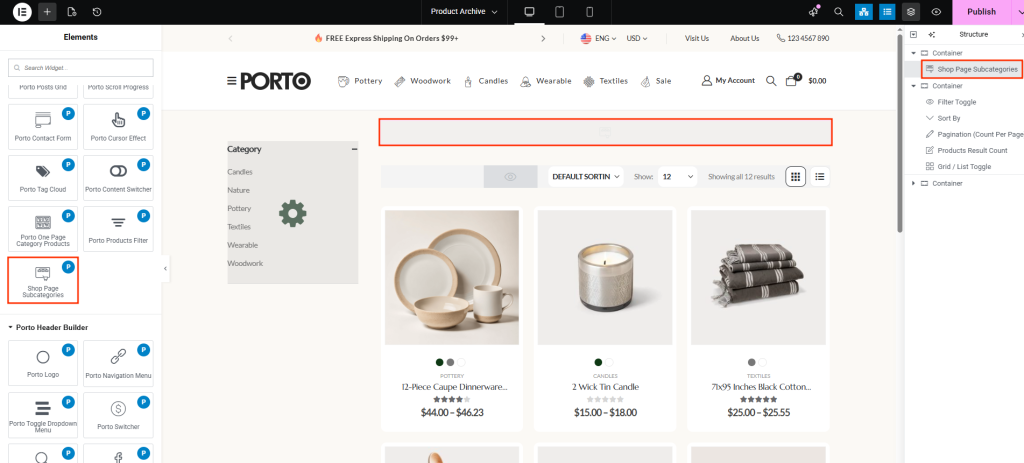

How to Use the Shop Page Subcategories Element
- Open Your Product Archive Block
Navigate to Porto → Template Builder → Product Archive and open (or create) your custom archive layout. -
Insert the Shop Page Subcategories Element
- In Elementor, search for “Shop Page Subcategories.”
- In WPBakery, find it in the Porto Elements list.
-
Configure Display Layout
- Select your desired subcategory layout using the Post Mini Type Layout option.
- Choose how many subcategories to show, how they should be ordered, and how they should respond on desktop, tablet, and mobile.
-
Apply Custom Mini Layouts (Optional but Recommended)
You can create custom appearance templates for subcategories
- Go to Porto → Template Builder → Post Type
- Create a layout specifically for subcategory items
- Select it in the Post Mini Type Layout dropdown
- Save and Preview
After saving the archive block, open your shop page and confirm that subcategories render correctly using your chosen design.
Element Content Options
| Option | Description |
|---|---|
| Post Mini Type Layout | Selects the layout template used for each subcategory. These layouts can be created in Porto → Template Builder → Post Type. If no custom layout is selected, Porto’s default category mini-layout will be used. |
| Count (per page) | Sets the number of subcategories to display. |
| Order | Choose ascending (ASC) or descending (DESC) sorting order. |
| View Mode | Select grid or other available viewing modes, depending on the active design. |
| Column Spacing | Controls spacing between each subcategory item. |
| Columns | Number of columns displayed on desktop devices. |
| Columns on Tablet | Number of columns on tablet screens. |
| Columns on Mobile | Number of columns on mobile screens. |
| Image Size | Set the image size for subcategory thumbnails (predefined or custom sizes). |
| Custom Class | Add a custom CSS class for advanced styling or theme customization. |
Additional Tips
- Use Custom Mini Layouts for Better Branding:
Create specialized layouts for product subcategories to match your site's branding and improve overall consistency. - Optimize Column Settings for Mobile:
Ensure subcategories remain readable on smaller screens by reducing columns on mobile devices. - Improve UX With Sorting:
Setting proper Order By and Order options helps customers find relevant subcategories more quickly. - Combine with Filter Settings (Optional):
Although this element shows subcategories, pairing it with Porto’s filter layout settings can elevate usability when users navigate deeper into categories.
