
The Porto Toggle Dropdown Menu widget allows you to add a compact, stylish dropdown navigation menu to your header or sidebar. It’s especially useful for mobile-friendly layouts or when you want to save space while maintaining full access to your site’s navigation links.
This widget provides advanced customization options for menu design, typography, spacing, and dropdown behavior—ensuring your navigation perfectly matches your site’s branding and user experience.
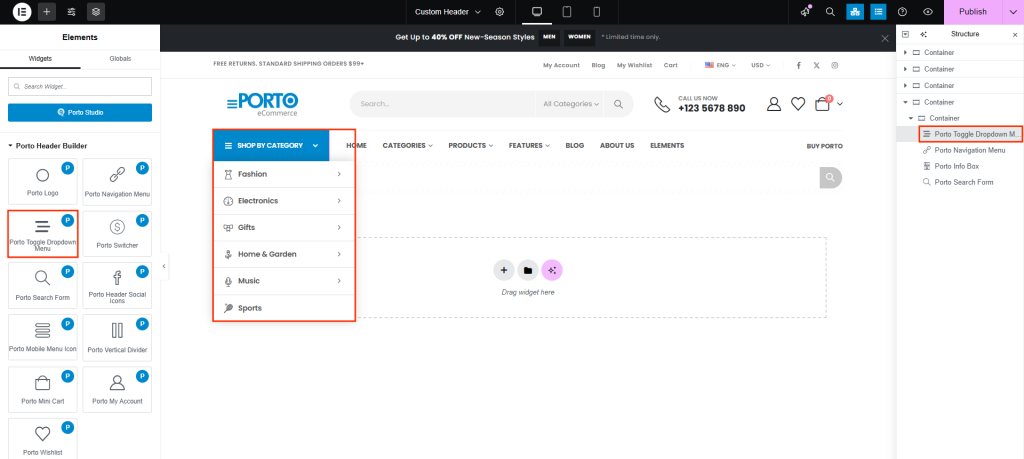
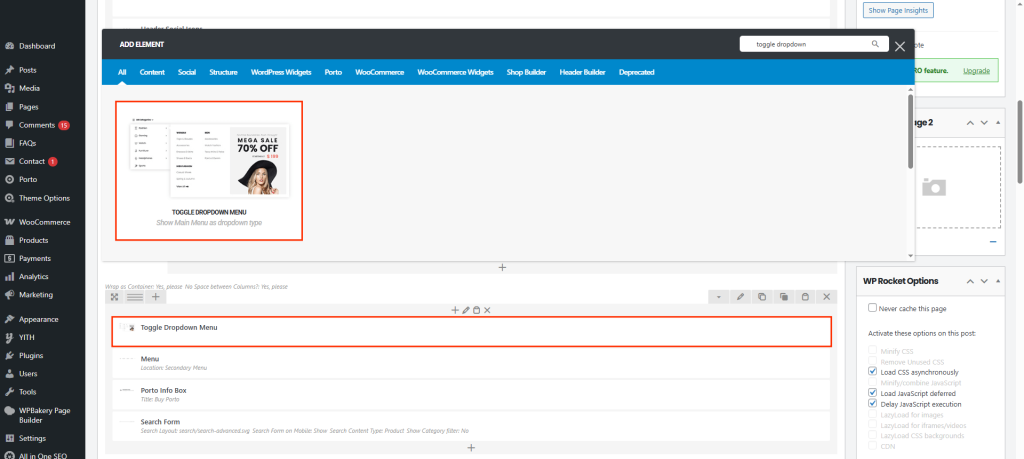
How to Use the Porto Toggle Dropdown Menu Element
- Open your header or page layout with page builders such as Elementor or WPBakery page builder.
- Click Add New Element, then select Porto Toggle Dropdown Menu from the element list. By default, it will display "Main Menu" as a dropdown menu content. You can allocate Main Menu in Appearance > Menu > Menu location page.
- Configure the toggle icon, label text, toggle narrow and dropdown alignment based on your design preferences.
- Adjust the typography, color scheme, and spacing under the Style tab.
- Save your changes and preview the result on both desktop and mobile devices.
Additional Tips
- Ideal for headers with limited space or for creating a clean, minimal design.
- Combine with the Porto Mobile Menu element for a fully responsive navigation setup.
- Test dropdown visibility and alignment across devices for best user experience.
The Porto Toggle Dropdown Menu Element provides a flexible and design-driven approach to managing navigation across your site. Whether you’re building a minimal header, a mega menu, or a sidebar layout, this element ensures complete visual control and responsive functionality — all without writing custom CSS.
