
The Porto Tool Box element is a WPBakery-only structural element used when building Product Archive templates.
It serves as a container where you place shop-control elements such as:
The Tool Box itself does not contain internal settings. Its purpose is to provide proper alignment, styling, and layout for these controls within product archive pages.
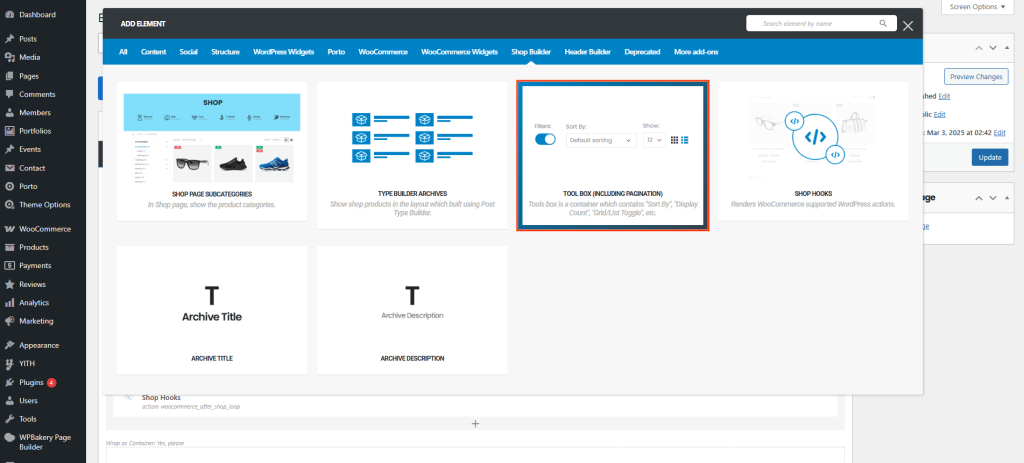
How to Use the Porto Tool Box Element
- Open or Create a Product Archive Template
- Go to Porto → Template Builder → Archives (Product Archives).
- Create or edit an archive block using WPBakery Page Builder.
- Add the Porto Tool Box Element
- In WPBakery, search for “Porto Tool Box”.
- Insert it where your shop controls should be displayed (typically above the product grid).
- Add Shop Control Elements Inside the Tool Box
Once the Tool Box is added, you must manually insert the individual tool elements inside it:
You simply drag these elements inside the Porto Tool Box container.
- Save and Assign the Template
- Save your block and apply the correct display conditions.
- Clear browser and site cache to view changes.
Additional Tips
- Tool Box is required for the shop tools to appear in a consistent layout when using WPBakery (Elementor does not use Tool Box).
- Add shop controls in the desired order — Porto will not rearrange them.
-
You can place the Tool Box:
- above the product list
- below the product list
- or in sticky rows for special designs
- Use custom CSS classes on the parent row for advanced styling.
- Do not insert multiple Tool Boxes unless you want controls duplicated.
- The Filter Toggle visibility depends on the active Filter Layout configuration in Porto → Theme Options → WooCommerce → Product Archives → Filter Layout.
