
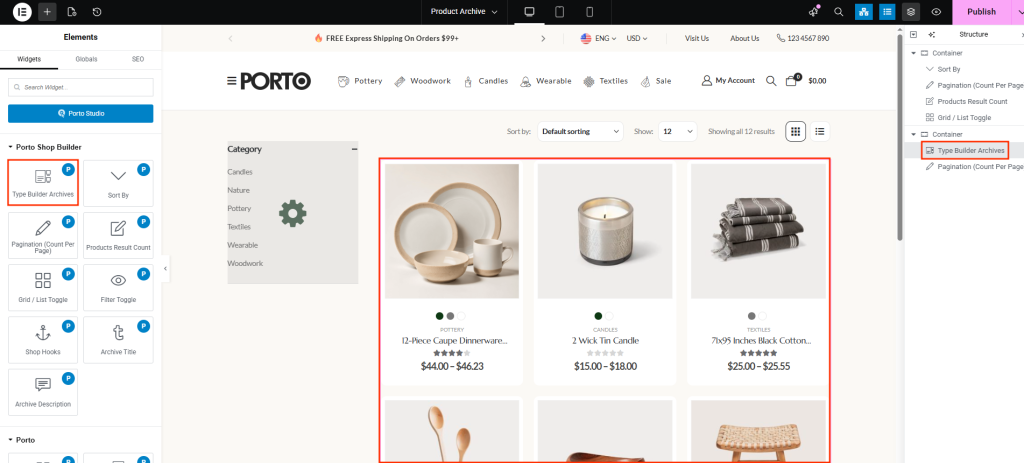
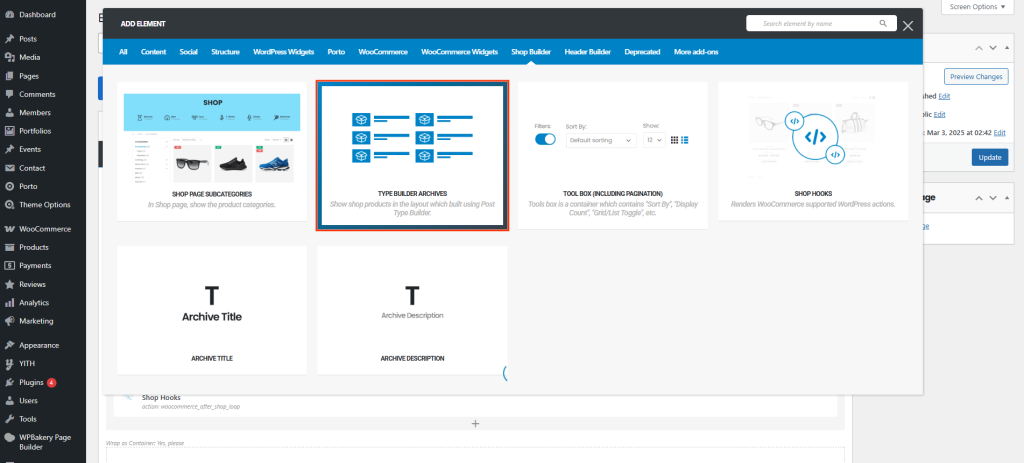
The Type Builder Archives element displays archive listings (products, portfolios, members, events, etc.) using layout blocks created with Porto → Template Builder → Post Type. To fully control grid vs. list views you should create Post Type blocks in the Template Builder and then select them in the widget’s Post Layout settings. If you don’t create custom Post Type blocks, Porto will fall back to the theme’s default post layouts.
How to Use the Porto Type Builder Archives Element
-
Create Post Type Layout Blocks (recommended)
- Go to Porto → Template Builder → Post Type.
-
Create two Post Type blocks for the post type you’re building (for example, Product Type):
- Grid layout (name it e.g. “Product — Grid”)
- List layout (name it e.g. “Product — List”)
- Design each block with the Post Type Builder (this defines how a single item appears in grid or list).
-
Create an Archive Template
- Go to Porto → Template Builder → Archives → Add New (choose the archive type you want to edit).
- Open with Elementor or WPBakery (the one installed on your site).
-
Insert the Type Builder Archives Element
- Add Type Builder Archives into your archive template layout.
- If the Porto Studio popup appears, you may import a prebuilt archive block or close it to start from scratch.
-
Select Your Post Type Blocks
- In the element settings, set Post Layout to the Grid Post Type block you created.
- Set Post Layout for Live View to the List Post Type block (or vice versa depending on which you want to show in the editor preview).
- If you did not create custom Post Type blocks, the element will use Porto’s theme default post layouts.
- Configure the Remaining Options (see table below).
- Assign Display Conditions and Publish the archive template.
- Clear cache and preview the archive on the frontend.
Element Content Options
| Option | Description |
|---|---|
| Post Layout | Select which Post Type block (created in Porto → Template Builder → Post Type) is used to render each item on the archive (typically use your Grid block here). If none is selected, theme default is used. |
| Post Layout for Live View | Select the Post Type block is used to render each item on the archive (typically use your List block here. If none is selected, theme default is used. |
| Count (Per Page) | Number of items per page before pagination. |
| Order By | Sorting parameter (date, title, menu order, random, price, popularity, rating, ID, modified). |
| Order | Ascending or Descending. |
| Column Spacing | Horizontal/vertical gutter between items. |
| Columns (Desktop) | Columns on desktop. |
| Columns on Tablet | Columns on tablet. |
| Columns on Mobile | Columns on mobile. |
| Columns on List View | Columns on List mode |
| Pagination Type | Pagination, Load More, Infinite Scroll. |
| Show Category Filter | Toggle to show category/taxonomy filters above the grid. |
| Image Size | Thumbnail size for item images (use consistent sizes to avoid layout shift). |
| Custom Class | Add CSS class for custom styling. |
| Nothing Found Message | Custom text when the query returns no items. |
Additional Tips
- Always create two Post Type blocks (Grid + List) for the best control: one for the actual frontend view and one optimized for the builder live preview.
- Post Layout controls the frontend appearance; Post Layout for Live View controls how it looks inside the editor only. Use this to keep the editor readable while keeping a different frontend layout.
- If you skip creating Post Type blocks, Porto will use built-in defaults — good for quick setups but less flexible.
- Use consistent Image Size selections and Column Spacing to avoid CLS (layout shifts) and keep grids tidy.
- Test the pagination type on large archives: infinite scroll improves UX but can increase server load.
- Use Custom Class for targeted CSS tweaks (e.g., margin fixes or hover effects) rather than editing core templates.
