
The Porto Theme provides a powerful collection of custom widgets that extend WordPress’s default widget system, enabling you to easily add dynamic and visually appealing content to your sidebars, footers, and other widgetized areas.
You can access these widgets by navigating to Appearance → Widgets
These widgets are designed to integrate seamlessly with the Porto Theme’s styling, giving your site a cohesive, professional appearance without requiring any additional coding.
1. Porto: Block
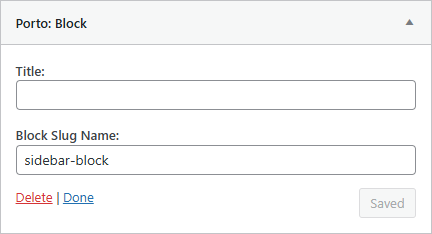
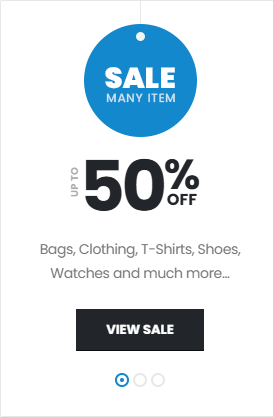
The Porto: Block widget allows you to insert any pre-built block created with the Porto Template Builder into a widget area.
This makes it easy to reuse custom designs, layouts, or content anywhere on your site — such as sidebars, footers, or custom widget sections.
Usage:
- Create a block under Porto → Templates Builder → Add New → Block.
- In Appearance → Widgets, drag and drop the Porto: Block widget into your desired widget area.
- Input the slug name of block created above.
Use Case Examples:
- Display a promotional banner in the sidebar.
- Add a newsletter signup form or product highlights to the footer(Used Deprecated Footer setup).
2. Porto: Contact Info
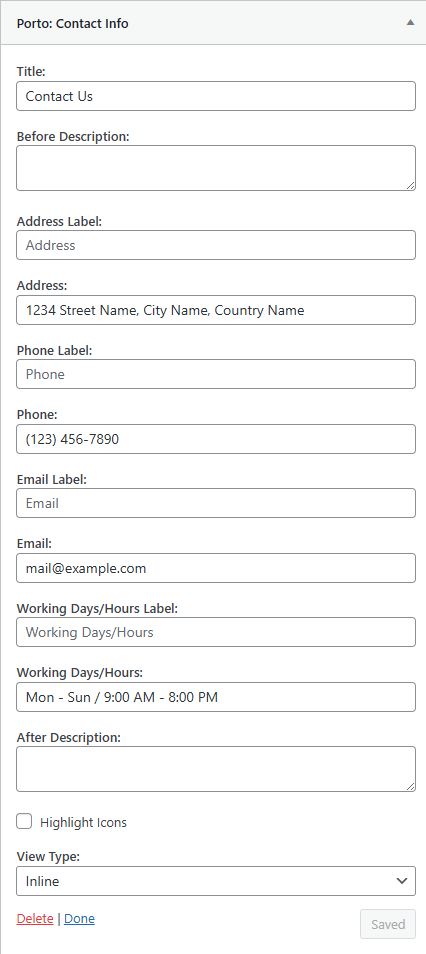
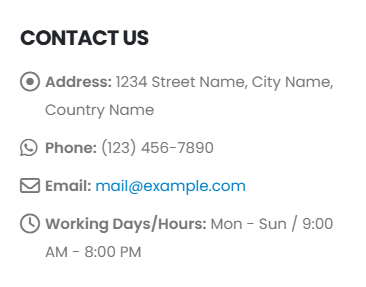
The Porto: Contact Info widget displays your company’s essential contact information in an organized and visually appealing way.
You can include details such as:
- Address
- Phone number
- Email address
- Working hours
This widget is ideal for footers, contact pages, or sidebars where you want to provide quick access to your contact details.
Customization Options:
- Add or remove specific fields (e.g., hide phone or working hours).
- Choose icon styles that match your site’s design.
- Optionally include links for interactive elements (e.g., clickable phone or email links).
3. Porto: Follow Us
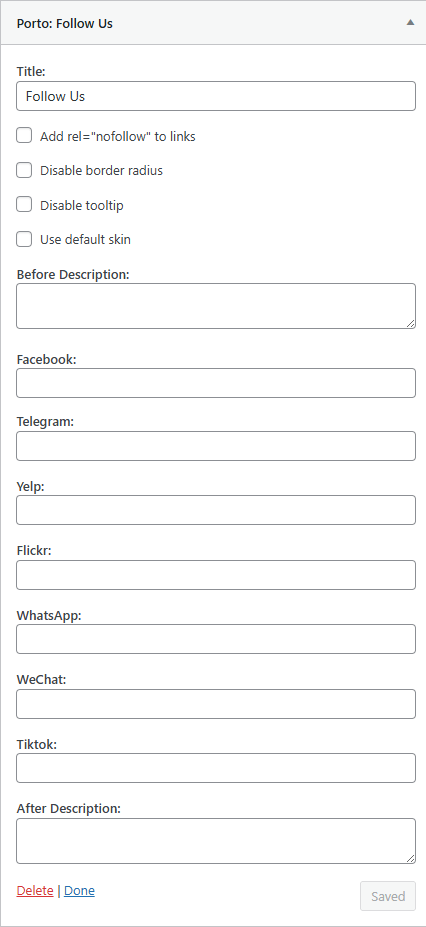
The Porto: Follow Us widget allows you to display social media icons that link to your social profiles. It supports a wide range of popular social networks and uses Porto’s clean icon set for a consistent look.
Supported Platforms (Examples):
- X (formerly Twitter)
- YouTube
- And much more...
Customization Options:
- Add rel="nofollow" to links
- Disable border radius
- Disable tooltip
- Disable Default Skin
This widget is perfect for encouraging user engagement and building your brand’s online presence.

4. Porto: Recent Portfolios
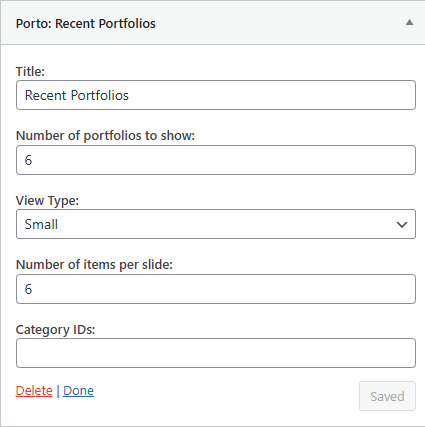
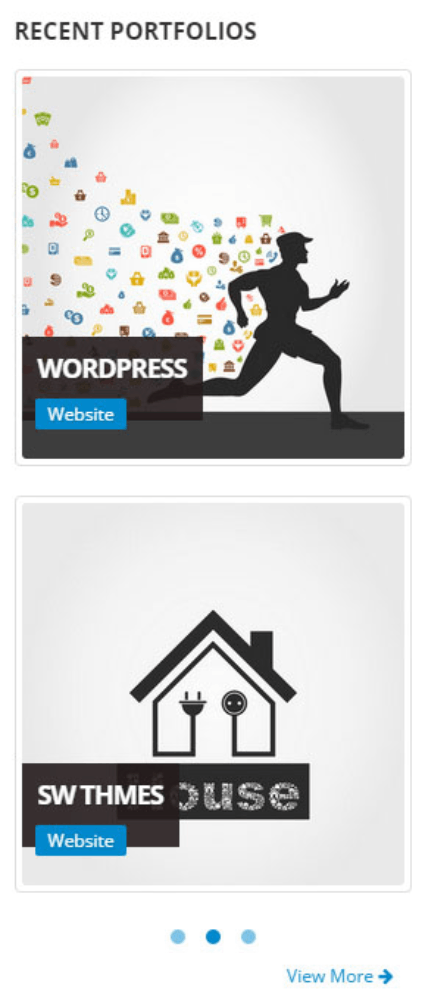
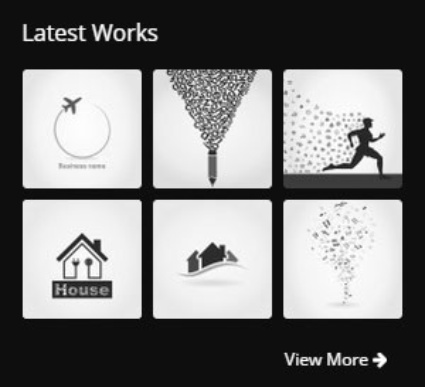
The Porto: Recent Portfolios widget showcases your most recent Portfolio items, helping to highlight your latest projects or creative work.
Features:
- Display a custom number of portfolio items.
- Choose the view type.
- Number of Items to show.
- Category IDs to select specific portfolios.
Use Case Example:
Showcase your latest design works, photography projects, or completed client case studies in the sidebar or footer.
5. Porto: Recent Posts
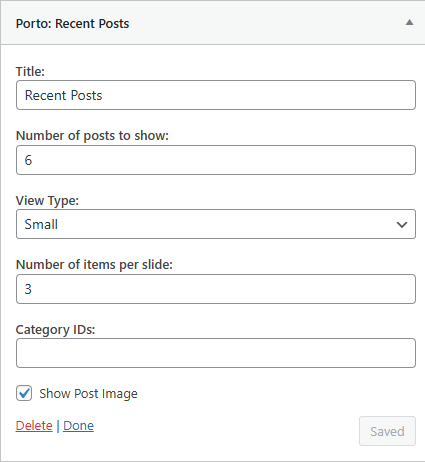
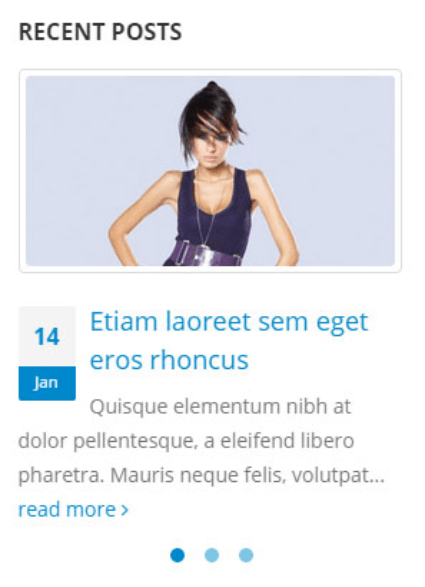
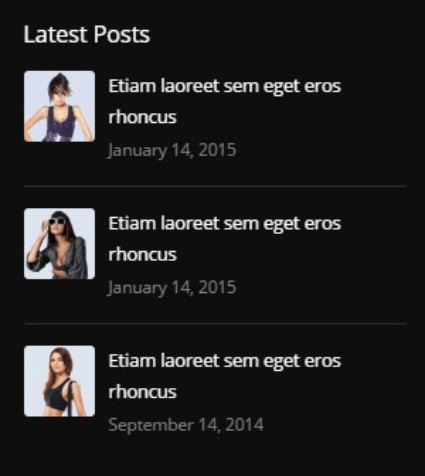
The Porto: Recent Posts widget displays your latest blog posts in a sleek, modern format.
Features:
- Widget title.
- Set how many posts to display.
- View Type between small and large.
- Number of Items per slide.
- Category IDs to select specific Posts
Use Case Example:
Add the widget to a sidebar or footer to keep your visitors updated with your most recent articles or news.
6. Porto: Twitter Tweets (with X Premium Integration)
The Porto: Twitter Tweets widget integrates your X (formerly Twitter) account directly into your site.
It allows you to display your most recent tweets, enhancing engagement and keeping your visitors informed of your social media activity.
Features:
- Show tweets from your X account or specific hashtags.
- Control how many tweets are displayed.
- Works with X Premium (Twitter API v2) for improved performance and stability.
Setup Tip:
You may need to configure your X (Twitter) API credentials to authenticate your account before tweets can be displayed.
General Widget Management Tips
- Widgets can be placed in any widgetized area, such as:
- Sidebars
- Footers
- Header widget areas
- Custom widget sections defined by your theme layout
- To remove a widget, simply drag it out of the area or click Delete in the widget settings.
- You can also reorder widgets within the same area using drag-and-drop.
- For visual convenience, we recommend you to install Classic Widgets plugin.
